Check DisplayPort over USB-C before you plug anything in
The Belkin USB-C to DisplayPort 1.4 Cable is a video cable, not a universal converter. It works with devices that support DisplayPort over USB-C, often called DP Alt Mode. If your laptop, tablet, or phone does not support that mode, the cable cannot create a video signal on its own.
So the first step is a device check, not a cable check. Confirm that your USB-C port is specified for video output or DisplayPort Alt Mode. The supplied product information does not list every compatible device, so use your device manufacturer's documentation to confirm support before relying on this cable for a presentation or a new desk setup.
What the Belkin cable confirms
-
USB-C to DisplayPort 1.4 Cable: USB-C to DisplayPort 1.4 connectivity for video transmission This is the cable's core job: carrying video from a USB-C source to a DisplayPort display input.
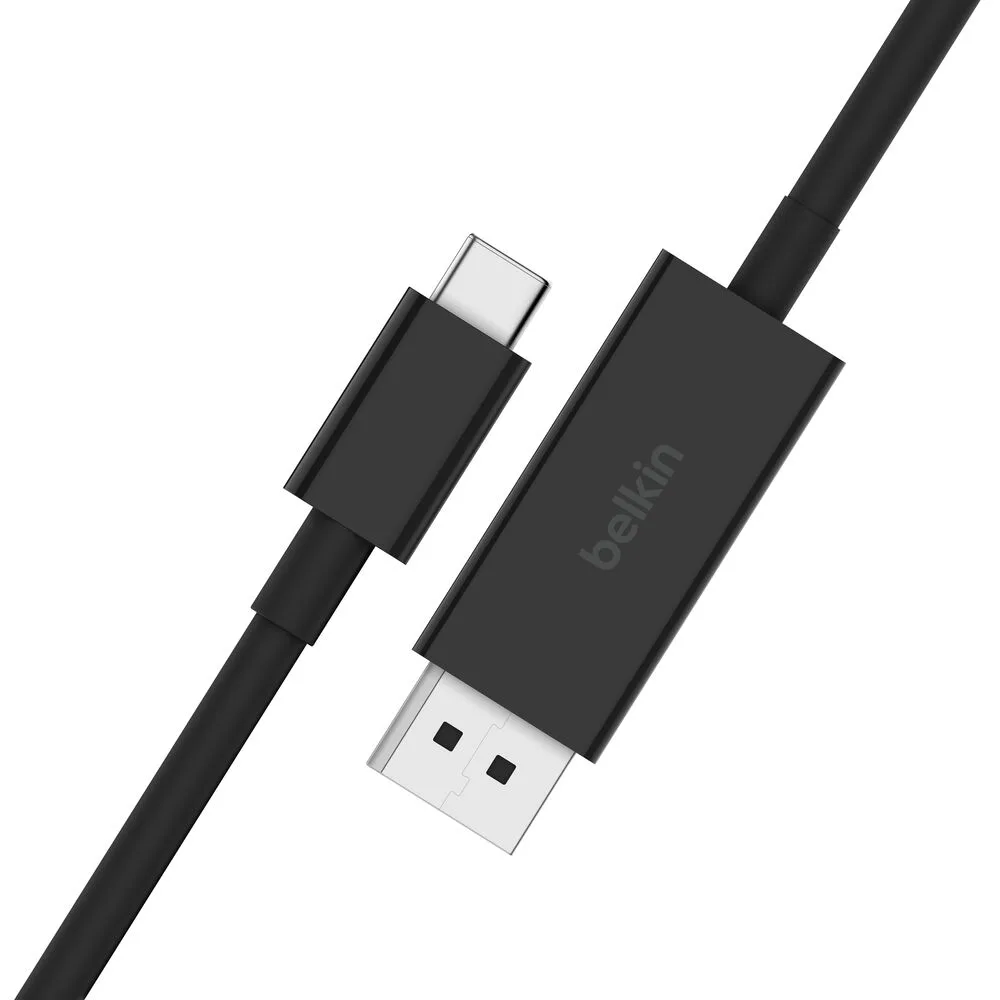
USB-C to DisplayPort 1.4 Cable
-
USB-C to DisplayPort 1.4 Cable: Compatible with devices that support DisplayPort over USB-C This is the compatibility gate. A USB-C port that only carries data or power is not enough.
-
USB-C to DisplayPort 1.4 Cable: 2-meter length for flexible setup The 2-meter length gives you room to position a laptop or tablet away from the monitor without needing an extension.
-
USB-C to DisplayPort 1.4 Cable: Ideal for connecting laptops, tablets, or phones to monitors, projectors, or TVs This describes the intended use cases, provided the source device supports DisplayPort over USB-C.
A simple connection sequence
Once you have confirmed that your device supports DisplayPort over USB-C, the physical connection is straightforward. The steps below stay within what the supplied product information supports.
- Confirm the source device supports DisplayPort over USB-C: Check your laptop, tablet, or phone specifications for DisplayPort Alt Mode or video output over USB-C. Without that support, the cable will not deliver a picture.
- Identify the DisplayPort input on your monitor: The cable is designed for a DisplayPort monitor, projector, or TV. Use the display's DisplayPort input, not an HDMI or DVI port, unless you have a separate adapter.
- Connect the USB-C end to your device: Plug the USB-C connector into the port you confirmed supports video output. If your device has multiple USB-C ports with different capabilities, use the one specified for display output.
- Connect the DisplayPort end to the monitor: Plug the DisplayPort connector into the monitor's DisplayPort input. The 2-meter cable length gives you some flexibility in where you place the device.
- Select the correct input on the monitor: Use the monitor's input selection menu to choose the DisplayPort input you used. The supplied information does not include monitor-specific menu steps, so refer to your monitor's documentation if you are unsure.
What the supplied information does not settle
The Belkin product information confirms DisplayPort 1.4 connectivity, a 2-meter length, and compatibility with devices that support DisplayPort over USB-C. It does not specify a maximum resolution, refresh rate, or which USB-C devices are tested. It also does not include setup instructions for specific operating systems or monitors.
That means you should not treat this cable as a guarantee of 4K performance on every device. The cable supports high-resolution video output according to the catalog description, but the actual resolution and refresh rate depend on your device, your monitor, and the DisplayPort version they support. If you need a specific resolution or refresh rate, check your device and monitor documentation before buying.
Compatibility checkpoints worth confirming
These checkpoints help you avoid the most common reason a USB-C to DisplayPort cable appears not to work: a source device that does not output video over USB-C.
- USB-C port supports DisplayPort Alt Mode: Look for wording such as DisplayPort over USB-C, DP Alt Mode, or video output in your device specifications. A charging-only USB-C port will not work with this cable.
- Monitor has a DisplayPort input: This cable connects to a DisplayPort monitor, projector, or TV. If your display only has HDMI, this cable is not the right fit without a separate adapter.
- You are not relying on an unconfirmed resolution: The supplied information does not state a maximum resolution or refresh rate. Confirm your device and monitor capabilities if you need a specific video mode.
- Cable length suits your desk: The 2-meter length is confirmed. Measure the distance between your device and monitor to make sure it reaches without strain.
When this cable is the right choice
The Belkin USB-C to DisplayPort 1.4 Cable fits a clear scenario: you have a laptop, tablet, or phone that supports DisplayPort over USB-C, and you want to connect it to a DisplayPort monitor, projector, or TV with a single 2-meter cable. It is a direct cable connection, so there is no dock or adapter in the chain.
If your device does not support DisplayPort over USB-C, or your monitor only has HDMI, this cable is not the right tool. In those cases, look for a solution that matches your actual ports rather than assuming this cable will bridge the gap.