Quick Answer
To make a vinyl sticker last on a laptop, start with a clean, dry surface, apply it slowly to avoid bubbles, and protect it from heat and moisture. With the right prep and care, your decal can stay vibrant for years.
Why Surface Prep Matters More Than You Think
Laptop lids collect oils, dust, and tiny debris that can prevent a sticker from fully adhering. Even a small speck can create a bump or cause the edges to lift over time. Wiping the area with a microfiber cloth and a little rubbing alcohol removes these contaminants and gives the adhesive a clean surface to bond with. This simple step is the difference between a sticker that lasts and one that peels within weeks.
Heat and Moisture: The Silent Enemies
Laptops generate heat, especially near the vents and processor. Prolonged exposure can soften the adhesive and cause the sticker to warp or slide. Similarly, moisture from spills or high humidity can seep under the edges and break down the bond. While most vinyl stickers are weather-resistant, they are not designed for constant heat or submersion. Avoid placing stickers directly over vents, and wipe up spills quickly to keep the edges sealed.
Step-by-Step: Apply and Protect Your Sticker
- Clean the Surface: Wipe the laptop lid with a microfiber cloth and rubbing alcohol to remove oils and dust. Let it dry completely before applying the sticker. A clean surface is the foundation for a long-lasting bond.
- Position Before Peeling: Hold the sticker over the desired spot without removing the backing. Use a ruler or your eye to align it. Once you peel, you can't easily move it without risking wrinkles. Take your time to get the placement right the first time.
- Apply Slowly and Smooth: Peel a corner of the backing, press the exposed part down, and slowly peel the rest while smoothing with a credit card or your finger. This pushes out air bubbles. Smoothing as you go prevents bubbles and wrinkles.
- Press Firmly, Especially Edges: After application, press firmly over the entire sticker, paying extra attention to the edges. This ensures the adhesive fully contacts the surface. Edges that aren't pressed down are the first to lift.
- Avoid Heat and Moisture: Keep the sticker away from laptop vents and clean up spills immediately. If you use a laptop sleeve, wait at least 24 hours before putting the laptop inside to let the adhesive set. Giving the adhesive time to cure makes the sticker more durable.
Stickers That Handle Everyday Laptop Use
-
Hopeless Vinyl Sticker: The Hopeless Vinyl Sticker is a 3-inch colored vinyl decal with a glass-half-empty motif, designed for laptops, notebooks, and water bottles. Its compact size and durable vinyl make it a good choice for a subtle yet long-lasting laptop decoration.

Hopeless Vinyl Sticker
-
Bon Voyage Vinyl Sticker: The Bon Voyage vinyl sticker measures 3 inches, is printed on colored vinyl for vibrant color, and is weather-resistant. Weather resistance helps the sticker stay bright through everyday use, including exposure to sunlight and minor splashes.
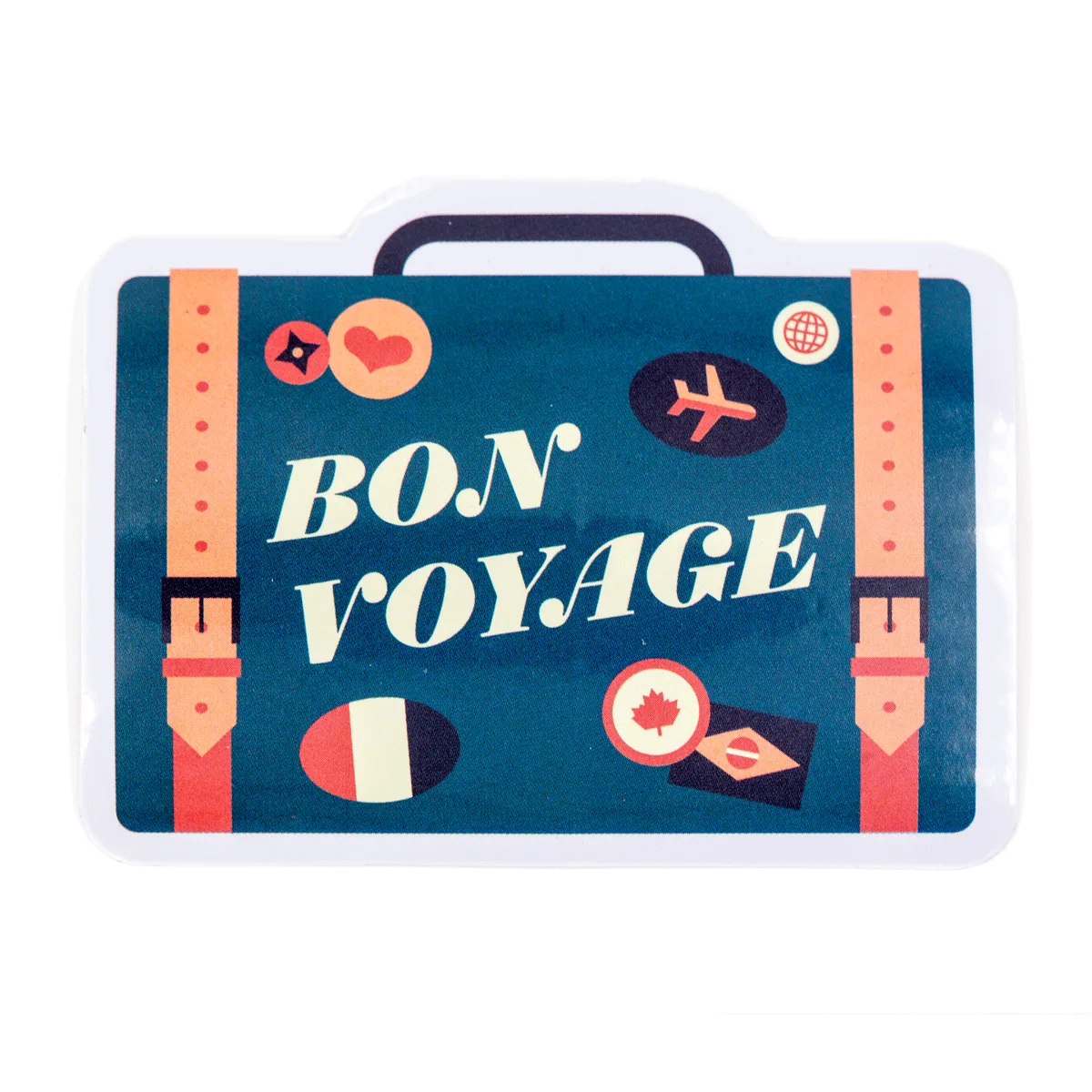
Bon Voyage Vinyl Sticker
-
Explorer Vinyl Sticker: The Explorer Vinyl Sticker is 2.5 inches, made of high-quality vinyl, and leaves minimal residue when removed. Its smaller size and low-residue adhesive make it easy to reposition or remove without leaving a sticky mess on your laptop.