Quick answer
Use the WonderSwan Color IPS LCD Kit when you want a brighter, more colorful screen without shell modification. Before you start, confirm you have a WonderSwan Color (not the original WonderSwan) and plan where the touch sensor will sit so you can reach it after reassembly.
Why the touch sensor placement matters more than the screen
The kit’s touch brightness and color sensors are the only controls you’ll use after the console is closed. If you route the sensor under a screw post or too close to the battery compartment, you’ll have to reopen the shell to adjust brightness or color modes. Decide on a reachable spot—usually near the top edge or beside the screen—before you commit to any adhesive.
Because the kit needs no shell modification, the original shell tolerances are your main constraint. Test-fit the display and sensor without removing protective films so you can see how much slack the ribbon cable has. A dry run takes five minutes and prevents a torn flex cable.
What the kit does and doesn’t change
This is a screen upgrade, not a shell replacement. The original aspect ratio and window size are preserved, so your existing lens and shell should fit as long as they are undamaged. The kit adds an on-screen display menu for brightness, color modes, and pixel effects, but it does not add new buttons or change how games play.
If your WonderSwan Color has a cracked shell or a damaged lens, address that first. The IPS kit assumes a straight shell and a clean lens opening; a warped shell can press on the display edges and cause uneven backlighting.
Install steps and checkpoints
- Confirm your model and gather tools: Check that your console is a Bandai WonderSwan Color, not the original WonderSwan. Gather a Phillips screwdriver, plastic pry tools, and a clean workspace. Common mistake: starting on a WonderSwan Original—the kit is sized for the Color, so test-fit the display before removing any screws. If the display doesn’t sit flush during a dry fit, stop and verify the model.
- Open the shell and disconnect the original screen: Remove the screws and carefully separate the front and back shells. Disconnect the original LCD ribbon cable from the mainboard. Common mistake: pulling the ribbon straight up—rock it gently side to side to avoid lifting the connector. Keep the screws organized by length; mixing them can strip the plastic posts.
- Dry-fit the IPS display and route the touch sensor: Place the IPS display into the front shell without removing the protective film. Route the touch sensor to a spot you can reach with a fingertip after the shell is closed—near the top edge or beside the screen. Common mistake: trapping the sensor under a screw post or the battery compartment. Mark the sensor location with a small piece of tape before final assembly.
- Connect the ribbon cable and test before closing: Plug the IPS ribbon into the mainboard, insert batteries, and power on. Use the touch sensor to cycle through brightness levels and color modes to confirm the OSD responds. Common mistake: closing the shell before testing—if the sensor doesn’t respond, you’ll have to reopen it. Test all 15 brightness levels and 8 color modes now, not after reassembly.
- Remove the film, secure the display, and reassemble: Power off, remove the protective film from the display, and secure it according to the kit’s included adhesive or brackets. Reassemble the shell, tightening screws in a cross pattern. Common mistake: over-tightening screws near the screen, which can pinch the display and cause bright spots. After reassembly, confirm the touch sensor still responds through the closed shell.
Product facts
-
WonderSwan Color IPS LCD Kit: No shell modification is needed for this WonderSwan Color IPS LCD kit. You can keep the original shell and avoid cutting or filing, which reduces the risk of cracking the plastic.
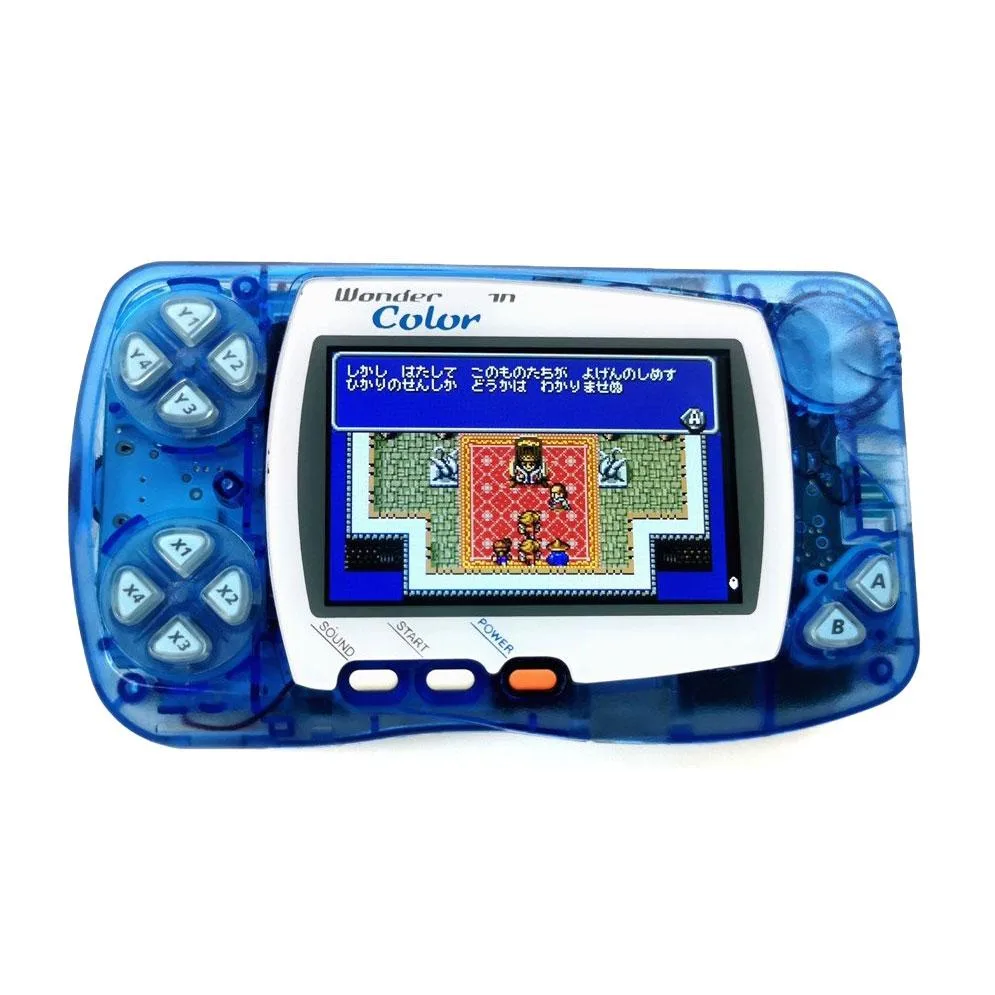
WonderSwan Color IPS LCD Kit