Quick answer
To set up the Wyze Sense Keypad, pair it with the Wyze app, mount it near your entryway, and use it to arm or disarm your Wyze Home Monitoring system with a simple code.
Why the keypad matters for home security
The Wyze Sense Keypad gives you a physical control point for your security system. Instead of reaching for your phone every time you leave or come home, you can enter a code on the keypad to arm or disarm the system. This is especially useful when your hands are full or when you want to avoid unlocking your phone in a hurry.
It requires Wyze Home Monitoring to work, so make sure you have that service active before you start. The keypad adds a layer of convenience, but it does not replace the motion sensors or entry sensors in your setup—it works alongside them.
Step-by-step setup and use
- Install the keypad: Mount the Wyze Sense Keypad near your main entry door, at a height that is easy for everyone in the household to reach. Use the included adhesive or screws, depending on your wall surface. Make sure it is within range of your Wyze Home Monitoring hub. Check that the keypad is within the hub's range before mounting to avoid connectivity issues.
- Pair the keypad in the Wyze app: Open the Wyze app, go to your Wyze Home Monitoring settings, and select 'Add Device' or 'Keypad.' Follow the on-screen instructions to put the keypad in pairing mode and connect it to your system. If pairing fails, move the keypad closer to the hub and try again.
- Set your arm/disarm code: In the app, create a 4-digit code that you'll enter on the keypad to arm or disarm the system. Choose a code that is easy to remember but not obvious, like a birthdate or simple sequence. Avoid using codes like 1234 or 0000 for better security.
- Test the keypad: After setup, test the keypad by arming and disarming the system. Enter your code and confirm that the system responds as expected. Check that the keypad provides clear feedback, such as a beep or light, when you press the buttons. If the system doesn't respond, check the hub connection and ensure the keypad is properly paired.
- Use the keypad daily: When you leave, enter your code and select the 'Arm' option. When you return, enter the code to disarm. The keypad is designed for quick, everyday use, so make it a habit to use it consistently. If you forget your code, you can always use the Wyze app to disarm, but keep the keypad as your primary method for speed.
Product facts
-
Wyze Sense Keypad: The Wyze Sense Keypad offers a convenient way to disarm your home security system remotely and is designed to work with Wyze Home Monitoring. This means you can control your security from a keypad near your door, so you don't have to rely solely on your phone.
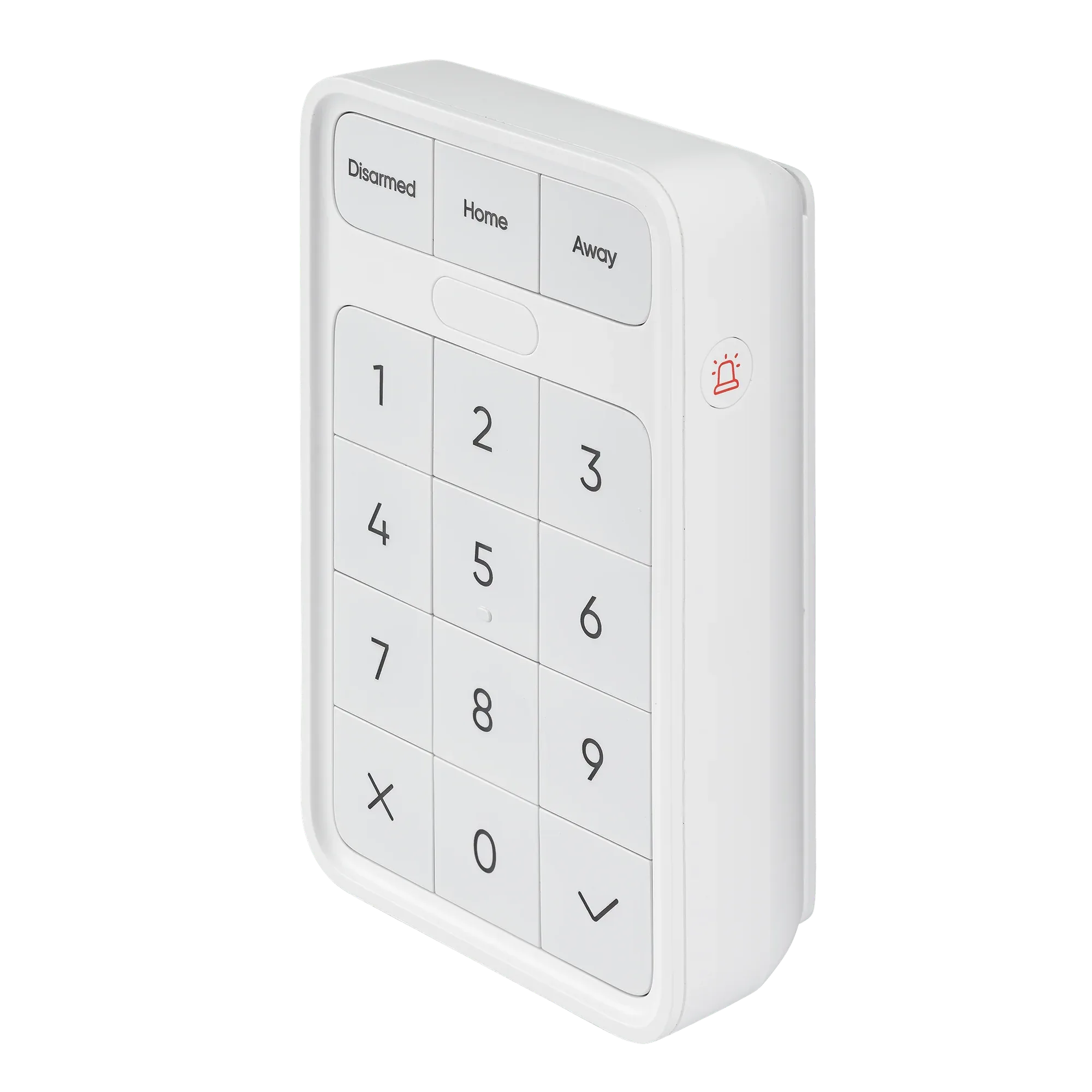
Wyze Sense Keypad