Quick answer
Install your Wyze Video Doorbell v2 by first checking your existing doorbell wiring, then mounting the device, connecting it in the Wyze app, and fine-tuning motion and alert settings for reliable security.
Why wiring matters for the Wyze Video Doorbell v2
The Wyze Video Doorbell v2 is a wired model, so it needs a compatible doorbell transformer and chime. If your home doesn't have existing wiring or you're uncomfortable working with electrical components, consider hiring a professional or exploring a battery-powered option.
Check your transformer's voltage before you start. Most standard doorbell transformers (16-24 VAC) work, but if yours is lower, the doorbell may not power on consistently. The Wyze app will alert you if there's a power issue during setup.
What to expect from 2K video and local storage
The Wyze Video Doorbell v2 records in 2K resolution, which gives you a noticeably sharper image than 1080p—helpful for reading package labels or identifying faces. It also supports local microSD storage, so you can keep footage on the device itself without a subscription.
Keep in mind that local storage requires a microSD card (sold separately) and you'll need to access the card to review footage. Cloud recording is available as a separate subscription if you prefer off-site backups.
Step-by-step setup for maximum security
- Check your wiring and power: Turn off power at the breaker, then remove your old doorbell button and test the wires with a multimeter to confirm you have 16-24 VAC. If the voltage is too low or there's no wiring, stop and consider professional installation.
- Mount the doorbell: Use the included mounting plate and screws to attach the doorbell to your wall. Make sure it's level and at a height that gives a clear view of the approach. Connect the wires to the terminals, then secure the doorbell onto the plate. Double-check that the doorbell is level before tightening—crooked mounting can affect motion detection range.
- Power on and pair with the Wyze app: Restore power, then open the Wyze app and tap 'Add Device' > 'Doorbell'. Follow the on-screen prompts to scan the QR code and connect to your Wi-Fi. Wait for the doorbell to sync and check that the LED indicates a solid connection. If pairing fails, move your router closer or use a Wi-Fi extender; weak signal is the most common issue.
- Configure motion detection and alerts: In the app, set up motion zones to cover your porch and walkway while avoiding busy streets. Adjust sensitivity to reduce false alerts, and enable real-time alerts so you get notified instantly. Turn on voice deterrence to play a warning when motion is detected. Test the motion zones by walking across the area and reviewing the recording to ensure the camera captures the right activity.
- Set up local microSD storage: Insert a microSD card into the doorbell (check the user manual for the location) and format it in the app under Device Settings > Storage. This lets you record continuously or on motion events without a subscription. Periodically check the card's remaining space and back up important clips before it fills up.
Product facts
-
Wyze Video Doorbell v2: The Wyze Video Doorbell v2 offers 2K video and local microSD storage for detailed capture. This means you get sharper video evidence and can store clips without a monthly fee, though you'll need to manage the microSD card yourself.
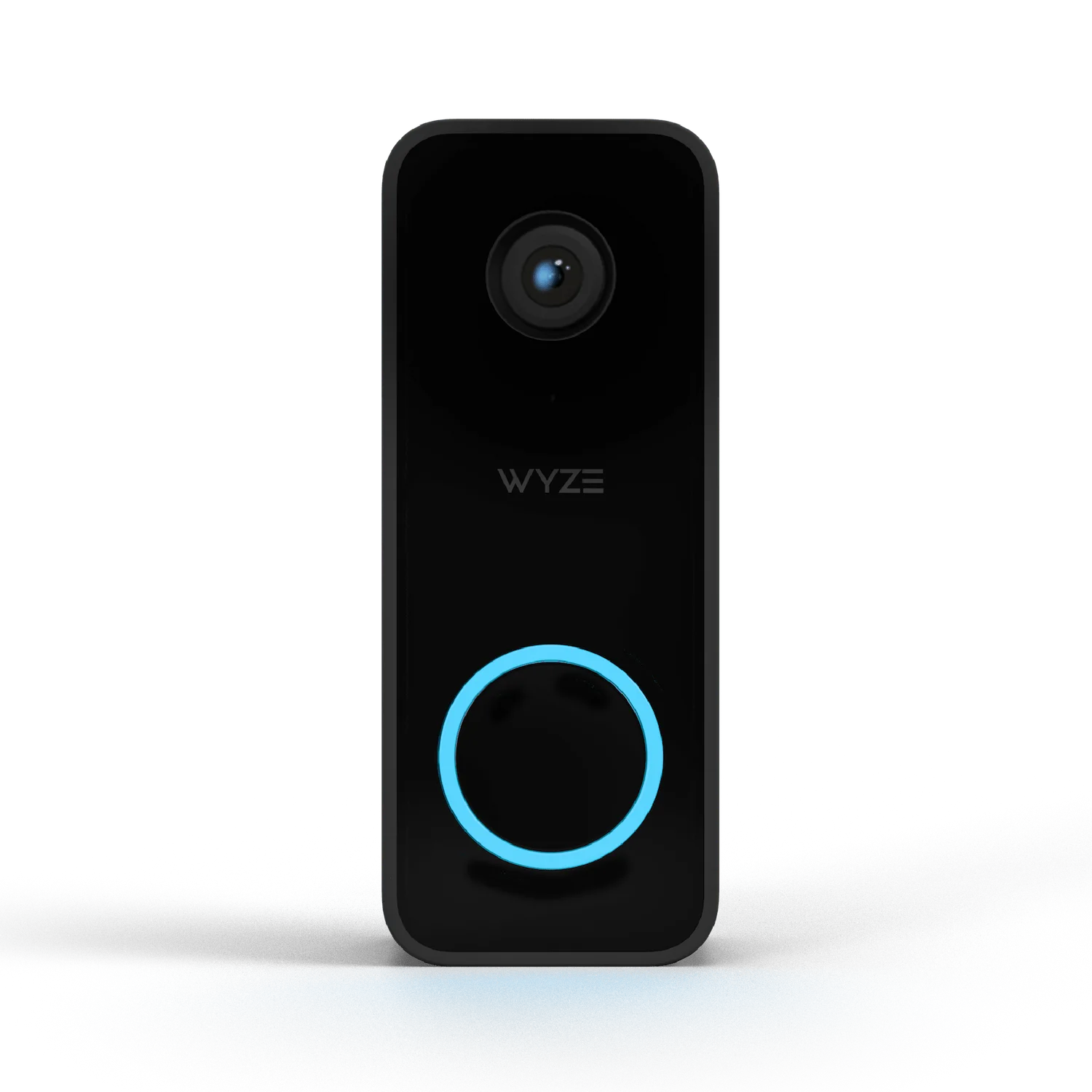
Wyze Video Doorbell v2
-
Wyze Video Doorbell v2: It includes two-way audio, real-time alerts, and motion-activated voice deterrence. These features let you speak to visitors and scare off potential intruders without opening the door, adding an extra layer of security.