What This Guide Covers
This guide walks you through the initial setup of the Yale Assure Lock 2 Touch with Ridgefield Handle bundle. The bundle pairs a touchscreen deadbolt with a Ridgefield handle, giving you a complete front door entry system. We will cover what the catalog confirms about the lock and handle, plus the key steps for programming the keypad and pairing via Bluetooth.
Because the catalog does not include full installation manuals, this guide focuses on the confirmed features and setup steps that are explicit in the product record. For detailed wiring or mechanical installation, refer to the printed instructions that come with your lock.
What the Bundle Includes
-
Yale Assure Lock 2 Touch with Bluetooth with Ridgefield Handle: The Yale Assure Lock 2 Touch with Bluetooth with Ridgefield Handle is a front door bundle that pairs a touchscreen deadbolt with a Ridgefield handle. It is available in Satin Nickel and Black Suede finishes. Knowing the finish options helps you choose the right bundle for your door. The Ridgefield handle is included as part of the bundle, so you do not need to buy a separate handle.
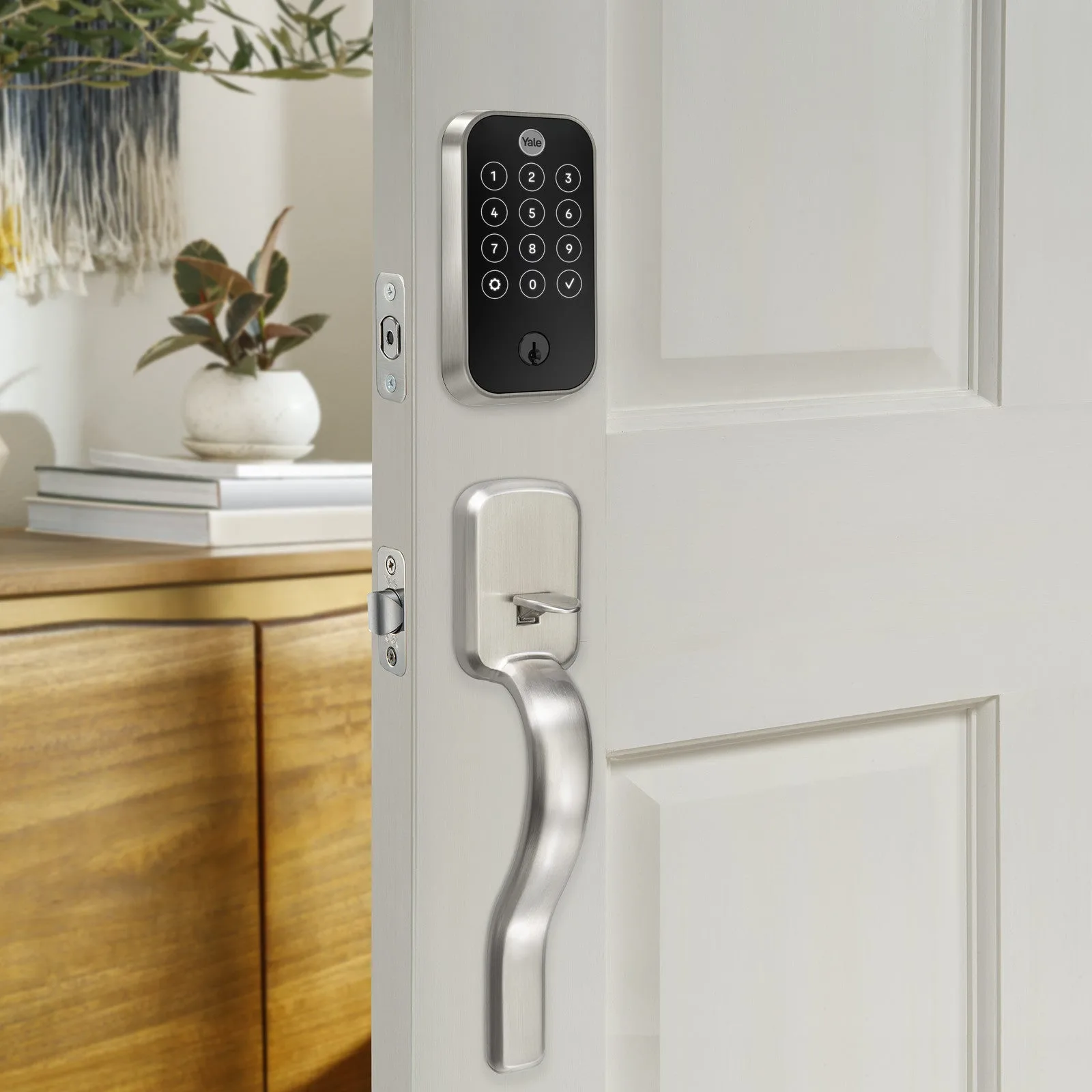
Yale Assure Lock 2 Touch with Bluetooth with Ridgefield Handle
-
Yale Assure Lock 2 Touch with Bluetooth with Ridgefield Handle: Touchscreen keypad entry with Bluetooth technology. Fingerprint technology option available. Keyed entry deadbolt function. You have multiple ways to unlock: touchscreen code, Bluetooth via the Yale Access app, or a physical key. The fingerprint option is available on select variants (Satin Nickel or Black Suede with Fingerprint technology).
Setting Up the Touchscreen Keypad and Bluetooth
The following steps are based on the catalog-confirmed features. For model-specific programming codes, always refer to the manual that ships with your lock.
- Install the lock and handle: Mount the deadbolt and Ridgefield handle according to the included instructions. The catalog confirms the bundle includes both components, but does not provide step-by-step mounting details.
- Power the lock: The lock requires batteries (not included). The catalog does not specify battery type or quantity, so check the manual for exact requirements.
- Program the touchscreen keypad: Use the keypad to set a master code and user codes. The catalog confirms touchscreen entry is a core feature, but does not list default codes or programming sequences.
- Pair via Bluetooth: Download the Yale Access app and follow the app’s pairing process. The catalog confirms Bluetooth technology is built in, but does not detail app setup steps.
- Test all entry methods: Verify that the keypad, Bluetooth app, and physical key all operate the deadbolt correctly. The catalog confirms keyed entry is available.
What the Catalog Does Not Confirm
The catalog does not include battery specifications, default master codes, Wi-Fi compatibility, or detailed installation diagrams. If you need those details, check the printed manual or visit Yale’s support site. For the fingerprint variant, the catalog confirms the option exists but does not describe enrollment steps.