Quick Answer
To add Z-Wave Plus to your Yale Assure Lock or Lever, verify your model is compatible, install the module inside the lock, then pair it with your Z-Wave hub using the included instructions.
Why Add Z-Wave Plus to Your Assure Lock?
The Yale Z-Wave Plus Smart Module lets your compatible Assure Lock or Lever talk to a Z-Wave smart home system. This means you can lock and unlock from your phone, check battery status, and set up automations with other Z-Wave devices. It's a straightforward upgrade if you already have a Z-Wave hub or are planning to build one.
Before you start, confirm your lock model is supported. The module works only with Yale Assure Lock models YRD256, YRD226, and YRD216, and Assure Lever models YRL226 and YRL216. If you have a different model, this accessory won't fit, so check your lock's model number first.
Installation and Pairing Steps
- Verify compatibility: Check the model number on your Yale lock. It must be one of the supported models: YRD256, YRD226, YRD216, YRL226, or YRL216. If not, the module won't work. Take a photo of your lock's model number for reference.
- Power down and remove the interior assembly: Remove the battery pack and the interior escutcheon from your lock. Follow the lock's manual to avoid stripping screws. Keep the screws in a safe place. Use a magnetic tray to avoid losing small screws.
- Install the Z-Wave module: Insert the Yale Z-Wave Plus Smart Module into the designated slot on the lock's interior assembly. Ensure it clicks into place and the connector aligns properly. Do not force it. If it doesn't fit, double-check that you have the correct module for your model.
- Reassemble the lock and restore power: Reattach the interior escutcheon and reinstall the batteries. Test the lock manually to confirm the module is seated correctly and the lock operates normally. If the lock doesn't respond, remove the batteries, wait 10 seconds, and reinstall them.
- Put your Z-Wave hub into pairing mode: Open your smart home app and put the hub into 'Add Device' or 'Pairing' mode. This is usually found in the hub's settings. Follow the app's prompts to discover new devices. Keep your hub close to the lock during pairing to avoid signal issues.
- Pair the module with your hub: Press and hold the pairing button on the lock (or follow the lock's manual) to put the module into learning mode. Wait for the hub to find the device. Once paired, name the lock in your app. If pairing fails, move the hub closer and try again; some hubs require you to press the button within a specific time window.
- Test the connection: Use your smart home app to lock and unlock the door. Also check the battery status and try a few automations to ensure everything works as expected. Run a 'lock all doors' routine to confirm the module responds consistently.
Product Facts
-
Yale Z-Wave Plus Smart Module for Assure Lock (YRD256/226/216 ONLY) and Assure Lever (YRL226/216 ONLY): The Yale Z-Wave Plus Smart Module is compatible with Yale Assure Lock models YRD256, YRD226, and YRD216, and Assure Lever models YRL226 and YRL216 only. Before buying, verify your lock's model number to ensure the module will fit and function correctly.
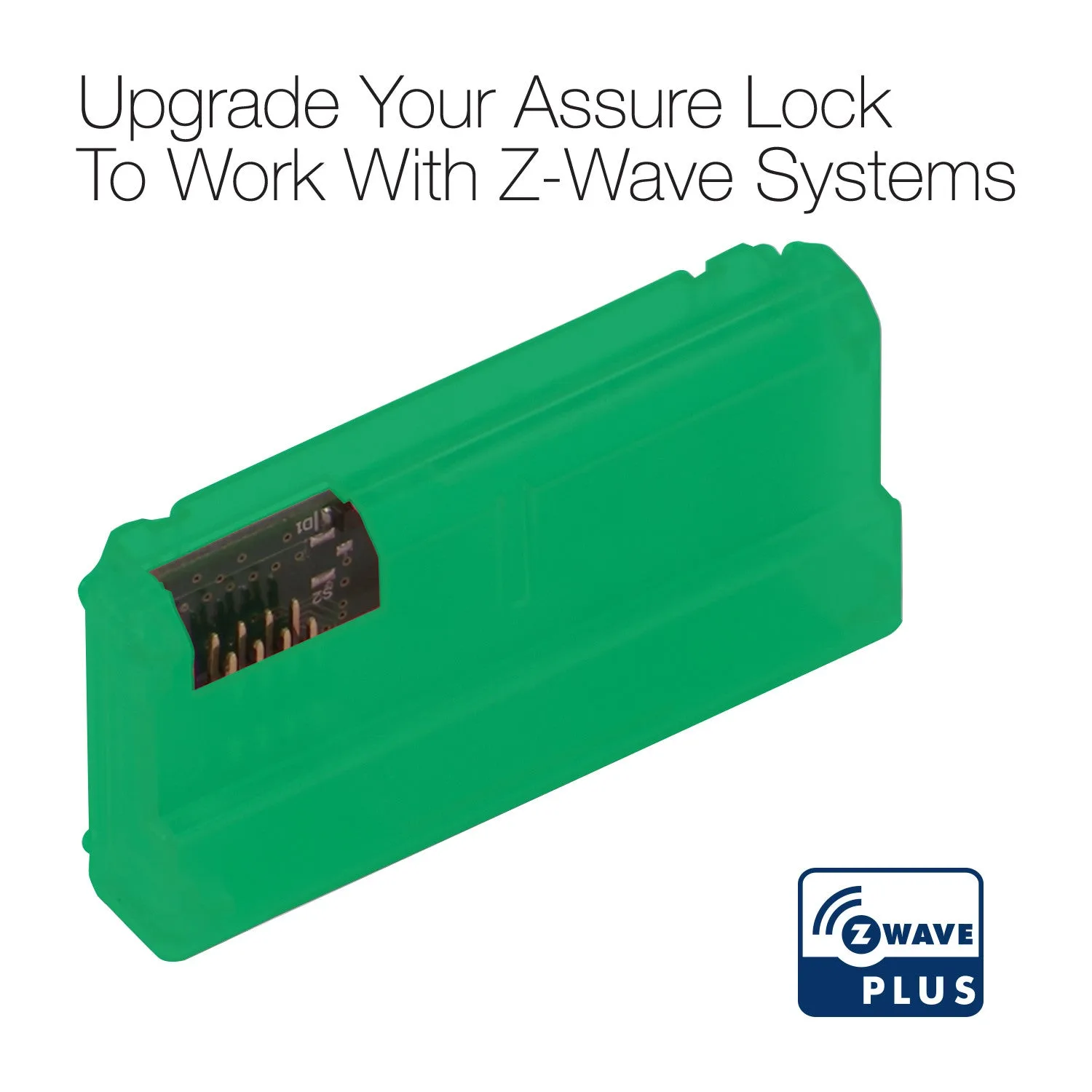
Yale Z-Wave Plus Smart Module for Assure Lock (YRD256/226/216 ONLY) and Assure Lever (YRL226/216 ONLY)