Quick answer
Buy a 7-in-1 USB-C multiport adapter with Ethernet if you regularly move between a desk, a hotel room, and a meeting room and want one cable to handle wired internet, a monitor, charging, and peripherals. If you only ever need extra USB-A ports at home, a smaller adapter is cheaper and lighter. The deciding factor is whether you will actually use Gigabit Ethernet, because that is the port that separates a travel dock from a basic splitter.
What the seven ports actually do
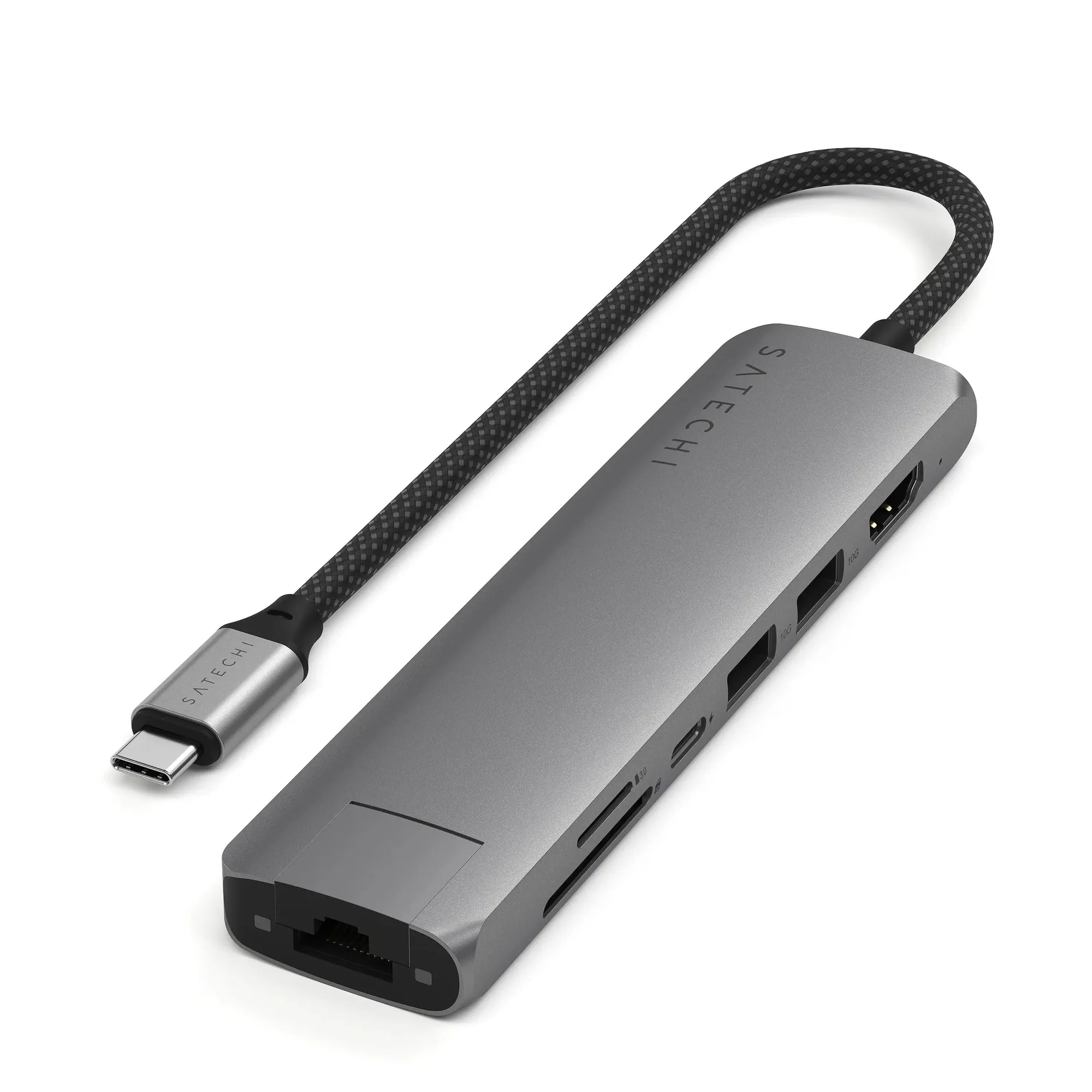
A 7-in-1 layout usually means Gigabit Ethernet, 4K HDMI at 60Hz, 100W USB-C PD charging, two USB-A 3.2 Gen 2 ports, and micro/SD card readers. That combination covers the four jobs a laptop port has to do away from home: network, display, power, and data. The Ethernet port is the one most people underestimate, because hotel and office Wi-Fi is often the slowest link in a video call.
Port count matters less than port mix. Two USB-A ports let you keep a mouse receiver and a flash drive connected at once, while the card readers mean you can offload camera footage without hunting for a separate dongle. If your work never involves SD cards, that slot is simply unused capacity rather than a reason to avoid the adapter.
- Gigabit Ethernet: stable wired internet for calls, uploads, and large file transfers
- 4K HDMI at 60Hz: one external monitor at a smooth refresh rate
- 100W USB-C PD: charges the laptop while everything else stays plugged in
- Two USB-A 3.2 Gen 2 ports: keyboard, mouse, drive, or phone cable
- Micro/SD readers: direct import from cameras and action cams
When wired Ethernet is worth the extra bulk
A USB-C hub with an Ethernet port earns its place when your connection has to be predictable. Wired internet removes the variable of congested Wi-Fi, which matters for client calls, live uploads, and any task where a dropped connection costs you time. It also helps in older buildings and hotel rooms where the wall jack is faster than the wireless network.
The trade-off is physical: an Ethernet port adds width to the adapter, and you still need a cable. If your laptop stays on a home desk with reliable Wi-Fi, you can skip Ethernet entirely and choose a slimmer hub. If you present, travel, or work from shared offices, the wired option is the safer default.
Check these three things before you buy
First, confirm your laptop's USB-C port supports DisplayPort Alt Mode, because HDMI output depends on it rather than on the adapter alone. Second, check the charging wattage your laptop needs; a 100W pass-through adapter is comfortable for most thin-and-light machines but will not keep a high-power workstation laptop topped up under heavy load. Third, decide whether you want a cable-style adapter that hangs from the port or a stand-style hub that holds the device, since that choice affects how you actually work.
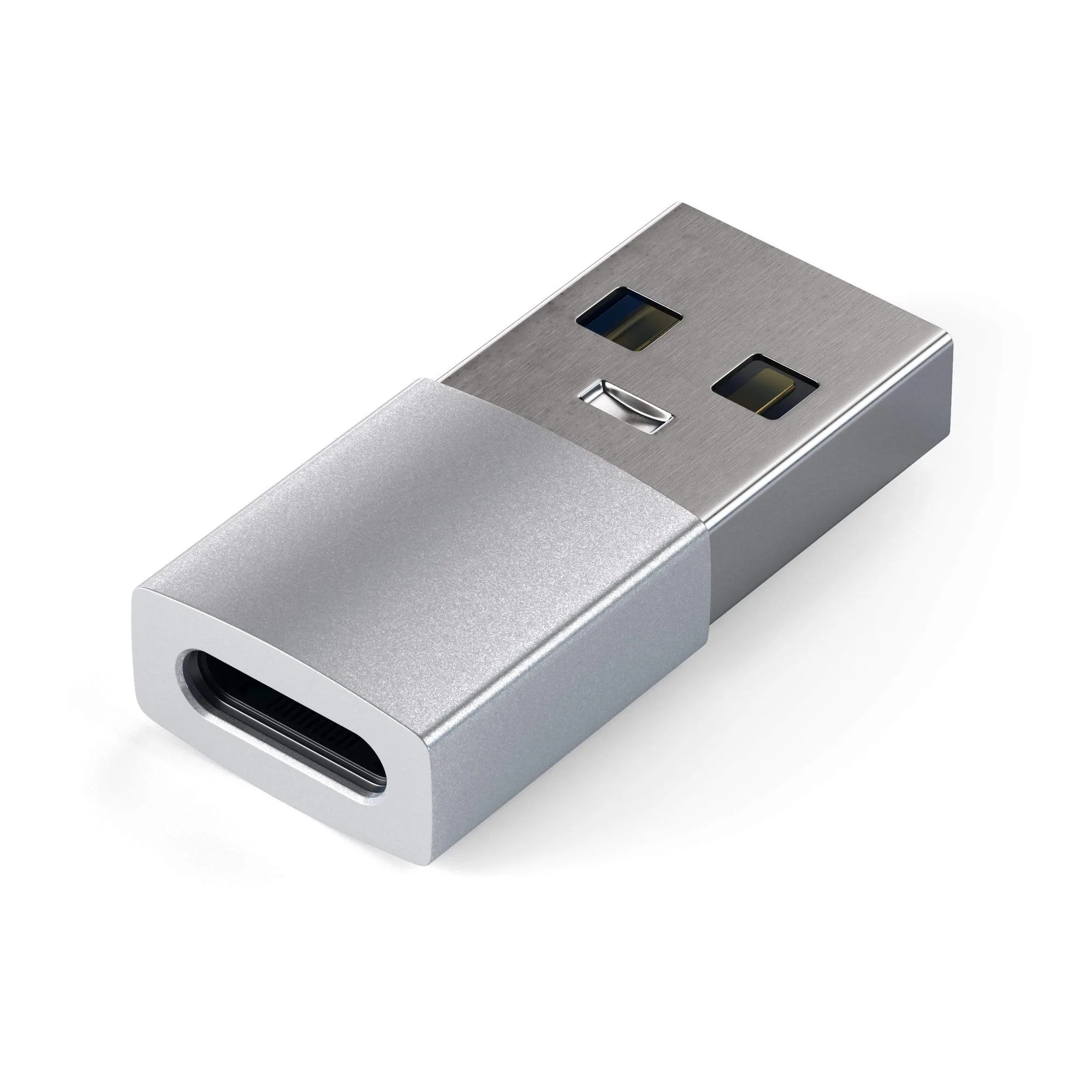
Also think about the connector on your existing gear. If you still own USB-A peripherals, an adapter that converts a legacy USB-A port into USB-C is a cheap way to keep them useful during the transition rather than replacing everything at once.
Decision rules for choosing your adapter
- You join video calls from hotels or shared offices: Prioritize a model with Gigabit Ethernet and 100W pass-through charging so the network and power are handled by one cable. Choose the 7-in-1 with Ethernet.
- You only need extra ports at a fixed desk: Skip Ethernet and card readers if your Wi-Fi is stable and your camera transfers wirelessly; a compact 5-in-1 covers display, charging, and data. Choose a smaller adapter and save bag space.
- You still own USB-A accessories: Check that the adapter includes at least one USB-A data port, or add a Type-A to Type-C adapter for older machines that lack USB-C. Match ports to the gear you already own.
- Your laptop needs more than 60W while working hard: Look for 100W pass-through rather than 60W, and keep the original charger in the loop for heavy rendering or gaming sessions. Wattage is the spec most often overlooked.
Products that match these rules
- 7-in-1 USB-C Slim Multiport Adapter with Ethernet: The Satechi 7-in-1 USB-C Slim Multiport Adapter with Ethernet combines Gigabit Ethernet, 4K HDMI at 60Hz, 100W USB-C PD charging, two USB-A 3.2 Gen 2 ports, and micro/SD card readers in a slim aluminum enclosure with a braided cable and reinforced neck. This is the adapter to choose when you want wired internet, a monitor, charging, and peripherals from a single connection, and the reinforced neck is the part that usually fails first on travel adapters.
- Type-A to Type-C Adapter: The Satechi Type-A to Type-C Adapter turns a standard USB-A port into a female USB-C port so you can connect USB-C peripherals to a legacy USB-A device. Useful if your older laptop or desktop lacks USB-C but you want to keep using newer USB-C cables and accessories instead of replacing them.
- OntheGo™ 5-in-1 Multiport Adapter: The Satechi OntheGo 5-in-1 Multiport Adapter provides 4K/60Hz HDMI, 60W USB-C pass-through charging, USB-A and USB-C data, and an integrated cable in a compact puck shape. A lighter alternative when you do not need Ethernet or card readers, and the 60W pass-through is enough for many ultraportable laptops but not for power-hungry models.
Who should buy which
Best for
- Travelers and hybrid workers who need wired internet, a monitor, charging, and peripherals from one USB-C connection
- Photographers and video editors who import from SD or microSD cards and want a single adapter on the desk
- Anyone whose laptop has only one or two USB-C ports and no built-in Ethernet
Not for
- Desk-bound users with reliable Wi-Fi who never need an Ethernet cable
- Owners of high-power laptops that require more than 100W of charging
- People who want a full docking station with multiple display outputs