Quick answer
The 70mai Dash Cam M300 2K delivers sharp 1296P video and a built-in LED indicator for easy status checks. Setting it up takes about 10 minutes: mount the camera, route the cable, plug into your car's power, and format a microSD card.
What makes the M300 2K different
The M300 records at 1296P, which is 1.5 times clearer than standard 1080P. This extra detail helps when you need to read a license plate or street sign. The built-in LED indicator changes color to show recording status, power, or errors, so you don't have to guess if the camera is working.
One trade-off: the M300 is a single-channel dash cam, so it only covers the front view. If you need rear or interior coverage, you would need a second camera or a multi-channel system.
Night and parking performance
70mai's Night Owl Vision uses a combination of 3D Noise Reduction and Wide Dynamic Range (WDR) to produce clearer images in low light, tunnels, or at night. The camera also supports 24-hour Smart Parking Surveillance when connected to a hardwire kit, though the kit is sold separately.
How to set up the 70mai M300 2K Dash Cam
- 1. Insert a microSD card: Push a Class 10 or U3 microSD card (up to 128GB) into the slot on the side of the camera until it clicks. Format the card inside the camera using the settings menu before first use. A common mistake is using an old or slow card. Always format the card in the camera, not in a computer, to avoid file errors.
- 2. Mount the camera: Clean the windshield area behind the rearview mirror. Peel the protective film off the adhesive mount and press it firmly onto the glass. Wait 24 hours for the adhesive to cure before attaching the camera body. If you mount the camera before the adhesive cures, it may fall off on a hot day. Give it a full day to bond.
- 3. Route the power cable: Plug the included USB cable into the camera. Tuck the cable along the headliner and down the A-pillar using a trim tool or your fingers. Connect the other end to your car's 12V accessory port (cigarette lighter). Avoid running the cable over the airbag deployment zone on the A-pillar. Tuck it behind the trim panel instead.
- 4. Power on and check the LED indicator: Start your car. The camera powers on automatically. The built-in LED indicator shows a solid blue light when recording normally. A flashing red light means an error (e.g., no card). Refer to the manual for other color patterns. If the LED shows red, do not ignore it. Check that the card is inserted and formatted, or try a different card.
- 5. Adjust camera angle and settings: Tilt the camera lens so the horizon is roughly in the middle of the frame. Open the 70mai app or use the camera's on-screen menu to set video resolution, loop recording length, and enable time-lapse or parking mode if needed. Make sure the camera's field of view covers both lanes ahead, not just the road directly in front of your hood.
Product highlights
-
70mai Dash Cam M300 2K HD with Built-in LED Indicator: 1296P HD: 1.5x Clearer than 1080P, producing sharper images with real-life details. You get noticeably clearer footage for reading plates and signs compared to a standard 1080P dash cam.
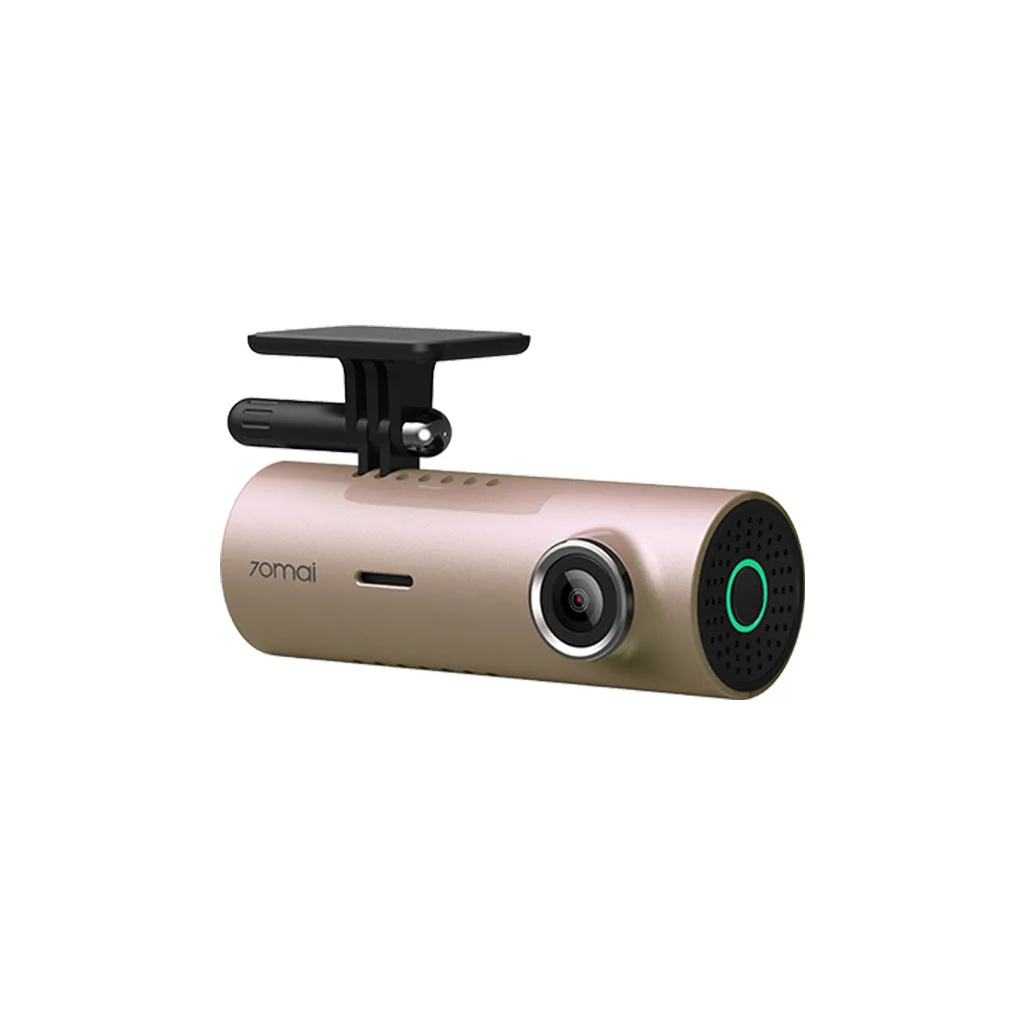
70mai Dash Cam M300 2K HD with Built-in LED Indicator
-
70mai Dash Cam M300 2K HD with Built-in LED Indicator: 70mai Night Owl Vision: producing clear images at night, in the tunnel, or under other undesirable lightings. The camera remains useful after dark, so you don't lose recording quality when driving at night or through a parking garage.
-
70mai Dash Cam M300 2K HD with Built-in LED Indicator: Time-lapse Recording: compresses every 30 minutes of video into 1 minute to save memory card space. You can store many hours of parking footage on one card without running out of space quickly.