What This Cable Does
The 8-Pin to USB-B MIDI coiled cable lets you connect an iPhone or iPad directly to MIDI instruments and audio equipment without needing extra interfaces or drivers. That means if your MIDI keyboard, digital piano, or controller has a USB-B port, you can plug it straight into your Apple device and start playing or recording. The cable supports stable MIDI data transmission to gear like keyboards, MIDI controllers, audio interfaces, and DACs.
Cable Details at a Glance
-
8-Pin to USB-B MIDI Coiled Cable for Musical Instruments 1.8m: This Lightning 8-Pin to USB-B MIDI coiled cable allows you to connect your iPhone or iPad directly to MIDI instruments and audio equipment without the need for additional interfaces or drivers. No driver installation means you can plug in and play immediately—ideal for quick studio sessions or live performances.
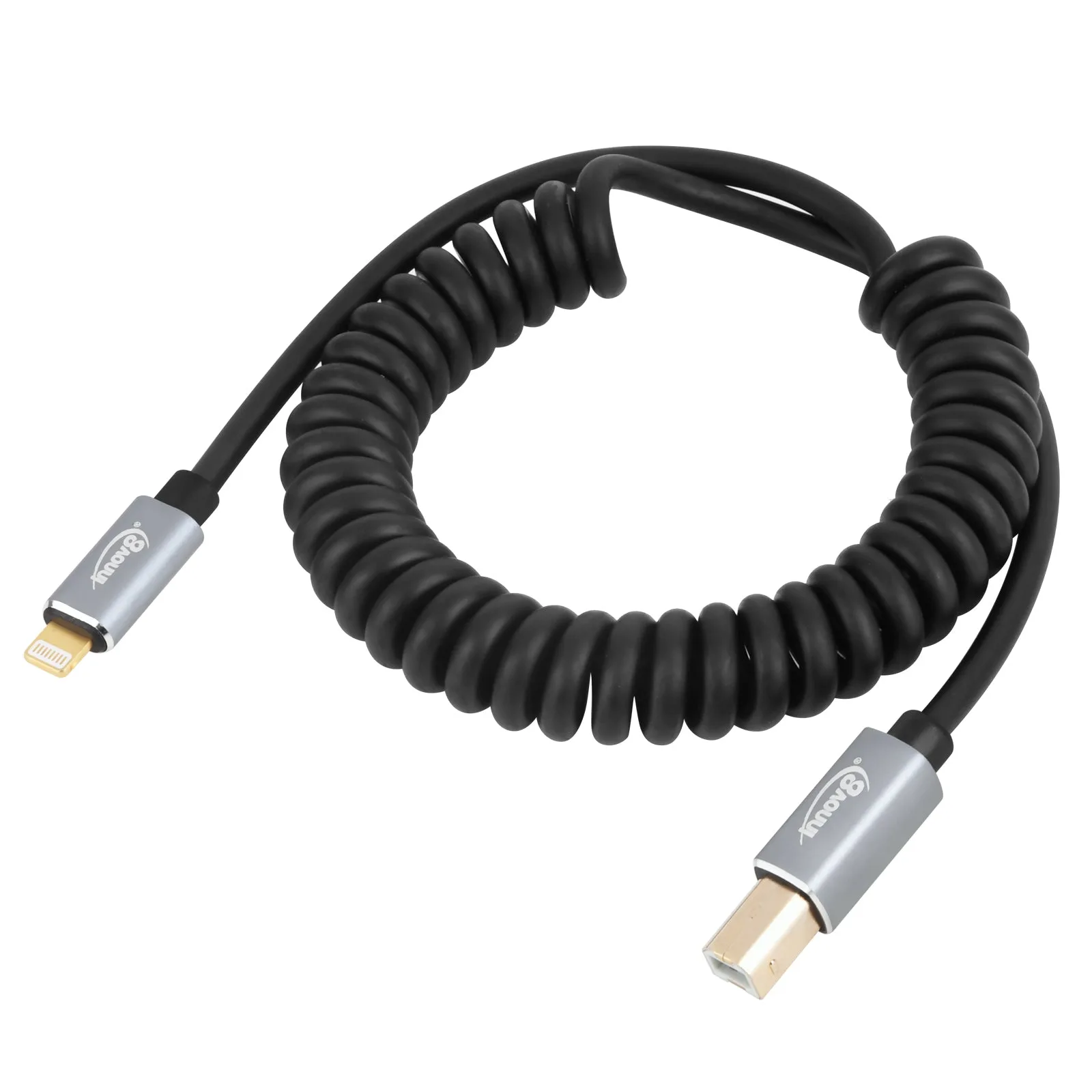
8-Pin to USB-B MIDI Coiled Cable for Musical Instruments 1.8m
-
8-Pin to USB-B MIDI Coiled Cable for Musical Instruments 1.8m: The coiled design keeps your setup neat while extending up to 1.8m when needed, making it perfect for compact workspaces and live performance environments. The cable stays tidy when not in use but gives you enough reach to move around without unplugging.
-
8-Pin to USB-B MIDI Coiled Cable for Musical Instruments 1.8m: High-quality oxygen-free copper conductors and durable connectors ensure consistent signal integrity and dependable performance for recording, practice, and live sessions. Reliable signal transmission reduces the chance of dropped notes or glitches during critical moments.
Connecting Your Keyboard to a PC
This cable connects Apple devices (iPhone/iPad) to USB-B MIDI gear. To use it with a PC, you need an Apple device as the intermediary. Here’s a straightforward setup:
- Connect the 8-Pin end to your iPhone or iPad: Plug the Lightning connector into your Apple device’s charging port.
- Connect the USB-B end to your keyboard or instrument: Insert the USB-B connector into the corresponding port on your MIDI keyboard, digital piano, or controller.
- Power on your instruments: Turn on your keyboard or MIDI device. The Apple device should recognise it automatically—no driver installation is required.
- Use a MIDI app or DAW on the Apple device: Open a compatible app (like GarageBand, Korg iPolyphonic, or any Core MIDI app) to send and receive MIDI data. The connection is ready for recording, practice, or live performance.
- If you need to use a PC, route MIDI through the Apple device: Use the Apple device as a MIDI interface: connect it to your PC via USB or Wi-Fi, then set your DAW to receive MIDI from the Apple device. This method works but adds a step.
When This Setup Works Best
This cable is a practical solution if you already work with an iPad or iPhone as your main music production hub. It eliminates the need for a separate MIDI interface and keeps your desk or stage setup clean. The coiled cable extends to 1.8m when stretched, so you can place your Apple device a comfortable distance from your keyboard without creating cable clutter.
What the Supplied Information Does Not Cover
The product information confirms compatibility with Apple devices (Lightning 8-Pin) and USB-B MIDI gear. It does not specify support for Android devices, older iPods, or direct PC connections. If you need to connect directly to a PC without an Apple device, a different cable (e.g., USB-C to USB-B) would be required. Also, the cable’s maximum data rate or latency performance is not provided, so for very low-latency applications, you may want to test it first.