Quick answer
Set up a 9-inch Android tablet in about 15 minutes by charging it fully, powering it on, connecting to Wi-Fi, signing in with a Google account, and adjusting a few storage and display settings before you start downloading apps.
Why first-run setup matters on a 1GB RAM tablet
A 9-inch Android tablet with 1GB DDR3 RAM and 8GB of built-in storage can handle everyday tasks like web browsing, email, e-books, and light games. The catch is that how you set it up affects how smooth it feels later. Android 5.1 leaves little room for background apps, so the choices you make during the first hour determine whether the tablet stays responsive or slows down after a week.
The 930TPC model runs Android 5.1 with a 1024×600 display. That resolution is fine for reading and video, but it means text-heavy pages can feel cramped. Keep this in mind when you choose apps and decide how much to install.
First-use setup steps
- Charge before first boot: Plug the tablet into the included charger and let it reach a full charge before turning it on. A fresh 9-inch android tablet often ships with a partially drained battery, so charging first avoids setup interruptions and protects the battery from deep-discharge stress. Check that the charging cable is fully inserted; a loose connection is the most common cause of slow charging.
- Connect to Wi-Fi and sign in: Power on, choose your network, and sign in with a Google account. This account is required for the Play Store, backups, and app purchases, so use one you can recover if you forget the password. Write down the Google account and password before you start; you will need them again after a factory reset.
- Update Android and apps: Open Settings > System > About and check for system updates, then open the Play Store and update all apps. On a 1GB RAM tablet, updates can take several minutes, so connect to Wi-Fi and plug in the charger first. Restart the tablet after major updates so background processes clear before you set up apps.
- Set up storage and accounts: With 8GB of internal storage, add a microSD card for photos, music, and downloaded files. Sign in to your Google account so the Play Store, Gmail, and backup work correctly. Check the microSD card is seated fully before formatting it as portable storage.
- Adjust essential display and battery settings: Set screen brightness to auto, enable sleep after 2-5 minutes, and turn off background app sync for apps you do not use daily. These settings protect battery life and reduce lag on a 1GB RAM tablet. Disable unused notifications to free background memory.
- Install apps in small batches: Install only the apps you need one at a time. On a 1GB RAM tablet, installing too many apps at once can slow the device and fill the 8GB storage quickly. Check available storage in Settings > Storage before each install. Keep at least 1GB of free storage for system updates and app cache.
- Set up accounts and security: Sign in to the Google account you will use for the Play Store, then set a PIN or pattern under Security. This protects purchases and personal data if the tablet is lost. Enable automatic backup if the option appears during setup.
What you get with this tablet
-
930TPC 9" 1024 × 600 High Resolution Quad Core Cortex A53 1.2GHz 1GB/8GB Android Tablet: The 930TPC runs Android 5.1 with a Quad Core Cortex A7 1.3GHz processor, 1GB DDR3 RAM and 8GB of storage. These specs are enough for basic browsing, email, e-books and light games, but you should keep expectations realistic for heavy multitasking.
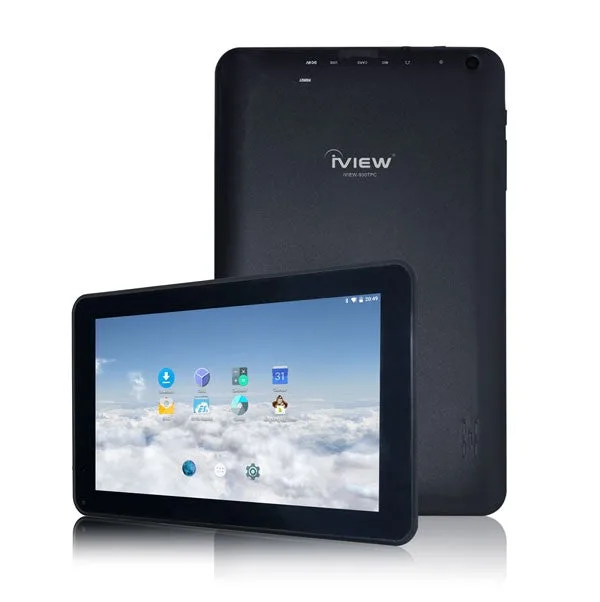
930TPC 9" 1024 × 600 High Resolution Quad Core Cortex A53 1.2GHz 1GB/8GB Android Tablet