Quick answer
Mount the CarTablet Pro Max on your dash or windshield, run the reversing camera cable to your rear license plate area, connect power and video, then enable the camera in the tablet settings.
Before you start: what the bundle includes
The CarTablet Pro Max bundle comes with the tablet unit, a compatible reversing camera, a power cable, and a video extension cord. The tablet itself supports Wireless Apple CarPlay, Android Auto, and a built-in 4K dashcam — the reversing camera adds rear visibility without replacing your factory radio.
Plan your cable route before cutting or drilling. The video cable runs from the rear camera to the tablet, so measure the distance from your license plate to the mounting location. Most vehicles need about 15–20 feet of cable; the supplied extension is typically long enough for sedans and SUVs.
Installation steps
- Mount the CarTablet Pro Max: Clean your dashboard or windshield area. Attach the suction cup mount to a smooth, flat surface near your line of sight. Press firmly and lock the lever. Place the tablet onto the mount until it clicks. Avoid textured or curved surfaces — the suction cup may lose grip over time.
- Route the reversing camera cable: Start at the rear of the vehicle. Remove one license plate light housing or drill a small hole near the plate. Feed the camera's video cable through the trunk or tailgate, along the door sill or headliner, and forward to the tablet's mounting location. Use zip ties to secure the cable away from moving parts. Keep the cable away from exhaust heat and sharp metal edges — use grommets or split loom if you pass through a metal panel.
- Connect power to the reversing camera: Tap into the reverse light wire (usually the positive wire in the tail light harness) using a T-tap or solder. Connect the camera's red power wire to this reverse-positive wire. Ground the camera's black wire to a clean metal point on the chassis. Test the reverse light with a multimeter before tapping — some vehicles use a negative-switched circuit that requires a relay.
- Connect the video cable to the tablet: Plug the RCA or A/V connector from the camera extension into the corresponding input on the CarTablet Pro Max. The input is usually labeled 'CAM IN' or 'Rear Cam' on the tablet's wiring harness. If the tablet has multiple video inputs, verify you're using the one labeled for the reversing camera — using the dashcam input will not trigger the reverse display.
- Enable the reversing camera in settings: Power on the CarTablet Pro Max. Go to Settings > Camera > Rear Camera and toggle it on. Select the correct trigger method (reverse light signal or manual switch). If your vehicle uses a reverse light signal, the tablet will automatically switch to the camera view when you shift into reverse. If the camera image does not appear, double-check the trigger wire connection and the video input selection before assuming the camera is faulty.
- Test and secure the installation: Shift into reverse with the engine running. Confirm the tablet displays a clear rear view. Adjust the camera angle if needed. Once everything works, tuck all cables neatly, reinstall trim panels, and secure the camera bracket with the provided screws or adhesive. Do a road test — vibration can loosen the mount or cable connections. Retighten as needed after the first drive.
Product in this guide
-
CarTablet Pro Max™ + Reversing Camera Bundle: This bundle includes the CarTablet Pro Max and a compatible reversing camera, giving you a complete front-and-rear visibility system. You don't need to buy a separate camera or adapter — everything is matched to work together out of the box.
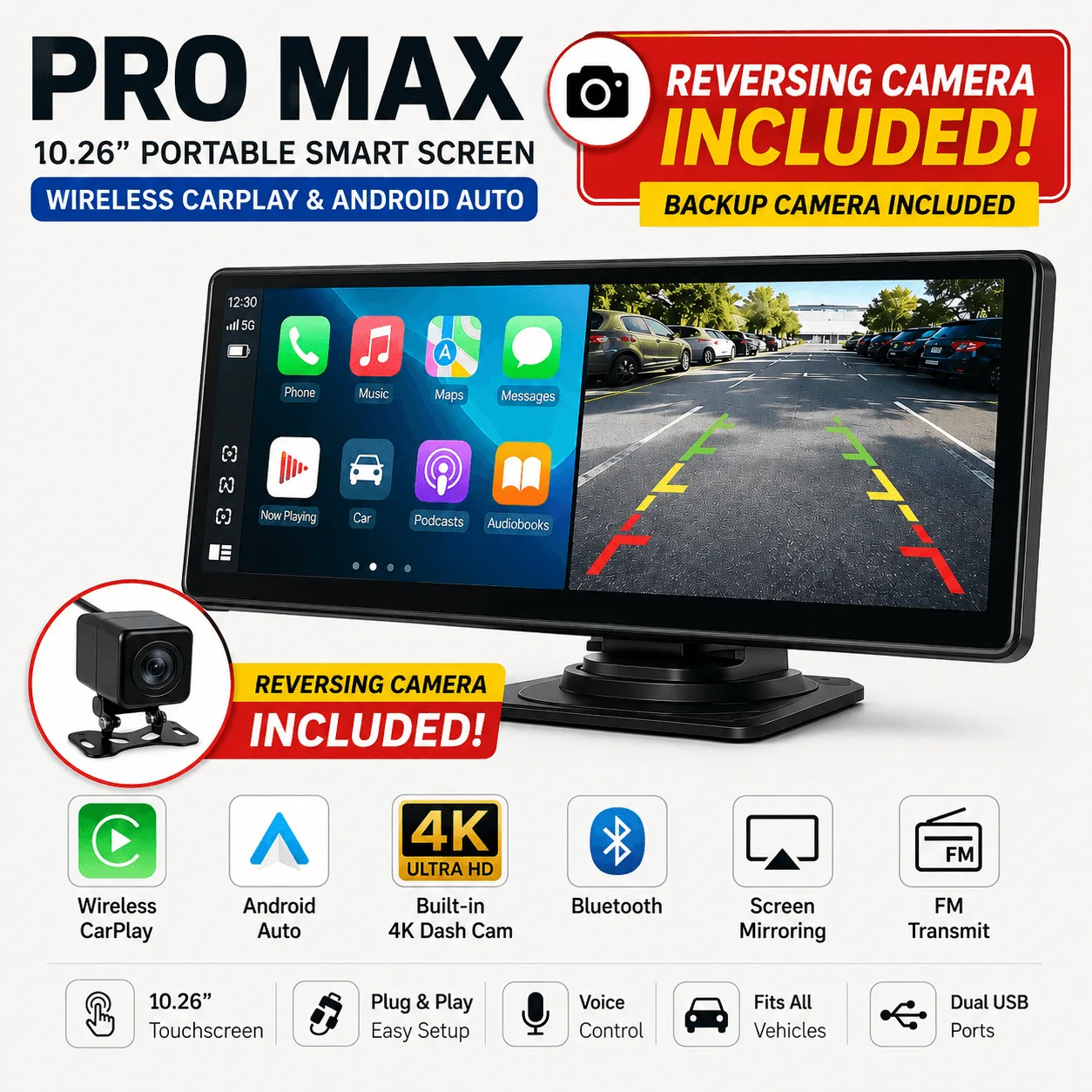
CarTablet Pro Max™ + Reversing Camera Bundle