Quick Answer
Most gaming keyboard issues—from unresponsive keys to ghosting—have simple fixes you can do at home. Start by checking connections and updating drivers, then clean the keyboard and adjust software settings. If the problem persists after these steps, it may be hardware-related, and you might need a replacement.
Gaming keyboards are workhorses, but even the best can develop issues over time. Whether you're dealing with a key that doesn't respond, sticky switches, or frustrating ghosting during intense matches, most problems have straightforward solutions. This guide walks you through five common gaming keyboard problems and how to fix them, so you can get back to gaming without missing a beat.
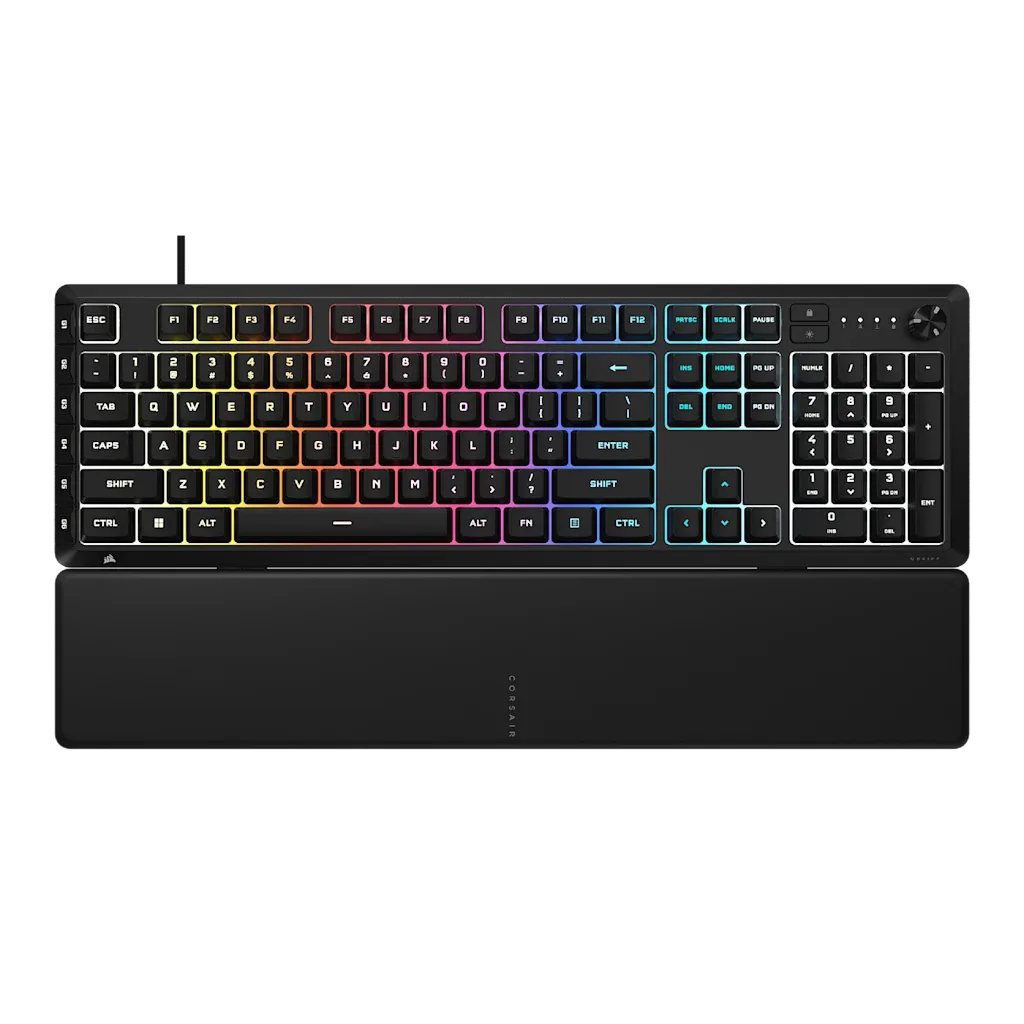
We'll cover practical troubleshooting steps, from simple software checks to deeper cleaning routines. Along the way, we'll highlight how features on the CORSAIR SKIFF 100 PLUS Gaming Keyboard—like its IP53 rating and responsive keypresses—can help you avoid some of these issues in the first place.
SKIFF 100 PLUS Gaming Keyboard
Problem 1: Keyboard Not Working or Unresponsive
If your gaming keyboard isn't responding at all, start with the basics. Check the USB connection: unplug and replug it, try a different port, and if you're using a hub, connect directly to the motherboard. For wireless keyboards, ensure the batteries are charged and the receiver is properly connected.
Next, restart your computer and check Device Manager for driver issues. Update or reinstall the keyboard driver. If you use CORSAIR iCUE software, make sure it's up to date, as a glitch can sometimes disable the keyboard. If the keyboard works in BIOS but not in Windows, the issue is likely software-related.
- Try a different USB port, preferably a USB 2.0 port on the back of your PC.
- Test the keyboard on another device to isolate the problem.
Problem 2: Sticky or Unresponsive Keys
Sticky keys are often caused by dust, crumbs, or spilled liquids. If you have a mechanical keyboard, you can remove the keycaps and clean underneath. Use compressed air to blow out debris, and for sticky residue, lightly dampen a cloth with isopropyl alcohol and wipe the switch area. Allow it to dry completely before reassembling.
For membrane keyboards, cleaning is trickier. You can use a keycap puller if available, but be gentle. If a spill is the cause, unplug the keyboard immediately, turn it upside down, and let it dry for at least 24 hours. The CORSAIR SKIFF 100 PLUS has an IP53 rating, meaning it's protected against dust and water splashes, which helps prevent some of these issues, but it's not fully waterproof.
- Use a keycap puller to remove caps safely; never pry with a screwdriver.
- Keep a can of compressed air handy for regular maintenance.
Problem 3: Ghosting and Key Rollover Issues
Ghosting happens when your keyboard doesn't register simultaneous key presses correctly, often because of matrix limitations. If you're pressing multiple keys and some don't register, it's a ghosting issue. The solution is to use a keyboard with N-key rollover (NKRO) or at least 6-key rollover. Check your keyboard's specifications and enable NKRO in the software if available.
If your keyboard already supports NKRO but you still experience ghosting, update the firmware and ensure you're using the correct USB mode. Some keyboards have different modes for gaming and typing. The SKIFF 100 PLUS is designed with responsive keypresses, which helps reduce such issues, but always verify your settings.
- Enable 'Gaming Mode' or NKRO in your keyboard's software.
- Avoid using USB hubs that might bottleneck data transfer.
Problem 4: RGB Lighting Not Working or Inconsistent
RGB issues are common and often software-related. First, check if the keyboard is properly connected and the lighting profile is active. If you use CORSAIR iCUE, ensure the software detects the keyboard and that you've selected a lighting effect. Sometimes a simple reset of the keyboard (unplug and replug) or restarting iCUE fixes the problem.
If the lighting is flickering or colors are wrong, update the keyboard's firmware and iCUE. Also, check for any loose connections. The SKIFF 100 PLUS features 10-zone RGB, which gives you customizable lighting, but if you see issues, a firmware update is your best bet.
- Try a different USB port if RGB is inconsistent.
- Reset the keyboard to factory defaults via the software.
Problem 5: Keys Registering Double or Not at All
If a key types double characters or doesn't register, it's often due to debris or a failing switch. Start by cleaning the affected key as described earlier. If cleaning doesn't help, the switch may be worn out. For mechanical keyboards, you can replace the switch if you're handy with a soldering iron, but it's often easier to consider a new keyboard.
For the SKIFF 100 PLUS, which is a membrane keyboard, switch replacement isn't practical. If you're within warranty, contact CORSAIR support. Otherwise, you might need to replace the keyboard. This is a good point to evaluate whether upgrading to a more durable model is worth it.
- Test the key in different applications to rule out software remapping.
- If under warranty, contact support before attempting any repair.
Diagnosis: When to Fix vs. Replace
- Symptom: Keyboard not working at all: Check connections, drivers, and test on another device. If it works elsewhere, the issue is your PC; if not, the keyboard may be dead. If it's dead and out of warranty, consider a replacement.
- Symptom: Sticky or unresponsive keys: Clean the keyboard thoroughly. If the problem persists after cleaning, it could be a hardware failure. For a membrane keyboard like the SKIFF 100 PLUS, repair isn't practical; replace if cleaning doesn't help.
- Symptom: Ghosting or double keystrokes: Update firmware and software, and enable NKRO. If issues continue, the keyboard's matrix may be faulty. If the keyboard is under warranty, contact support; otherwise, a new keyboard might be the best option.
How the CORSAIR SKIFF 100 PLUS Helps
- SKIFF 100 PLUS Gaming Keyboard (JP): CORSAIR SKIFF 100 PLUS Gaming Keyboard – Dynamic, dazzling, and durable. With 10-zone RGB, 6 G-keys, rotary dial, detachable wrist rest, and responsive keypresses in an IP53-rated keyboard. The IP53 rating means the SKIFF 100 PLUS resists dust and water splashes, reducing the risk of sticky keys from spills. Its responsive keypresses help minimize ghosting, and the 10-zone RGB gives you customizable lighting that's easy to troubleshoot via iCUE.
Most gaming keyboard problems have simple fixes, but knowing when to stop troubleshooting and replace the device saves time and frustration. Regular cleaning and software updates can prevent many issues, and choosing a durable keyboard like the CORSAIR SKIFF 100 PLUS adds peace of mind. If you've tried everything and the problem persists, it's probably time for an upgrade.