Quick Answer
Start by identifying the symptom: a key that travels slowly and feels gummy is usually debris or thickened lube, while a key that clicks normally but never registers is usually a dead switch or a bent hot-swap pin. Clean the stem and housing first, then reseat or replace the switch. If the replacement switch also fails in the same socket, stop swapping and inspect the socket or PCB, because the fault is no longer in the switch.
Rule Out the Cheap Causes Before You Touch the Switch
Before pulling a switch, confirm the problem is mechanical and not configuration. Connect the keyboard to another device or port, then test the same key in a browser-based key tester so you can see whether the board sends any signal at all. If nothing registers anywhere, the issue may be the cable, port, or a layer remap rather than the switch.
On a hot-swappable board, pull the keycap and check the stem and housing for crumbs, hair, or dried spill residue. A sticky keyboard key fix often ends here: a soft brush, a dry cotton swab, and a few firm presses clear debris that was dragging on the stem. Do not flood the switch with liquid cleaner, and never soak a switch or PCB.
When Cleaning Is Not Enough: Reseat or Replace the Switch
If the key still feels gummy after cleaning, the switch itself is the likely cause. On a hot-swap board you can pull the switch with a switch puller and inspect the two metal pins. A pin bent flat against the housing will not make contact, which is one of the most common causes of a key not registering. Straighten it gently with tweezers, or fit a fresh switch in the same socket.
For unresponsive key repair, swap in a known-good switch from a rarely used key such as Scroll Lock. If the replacement works, the original switch was faulty and you only need to replace it. If the replacement also fails, the socket or PCB trace is the problem, and further switch swaps will not help. That is the point to stop and contact support or a repair service rather than keep pulling switches.
Boards That Make This Easier
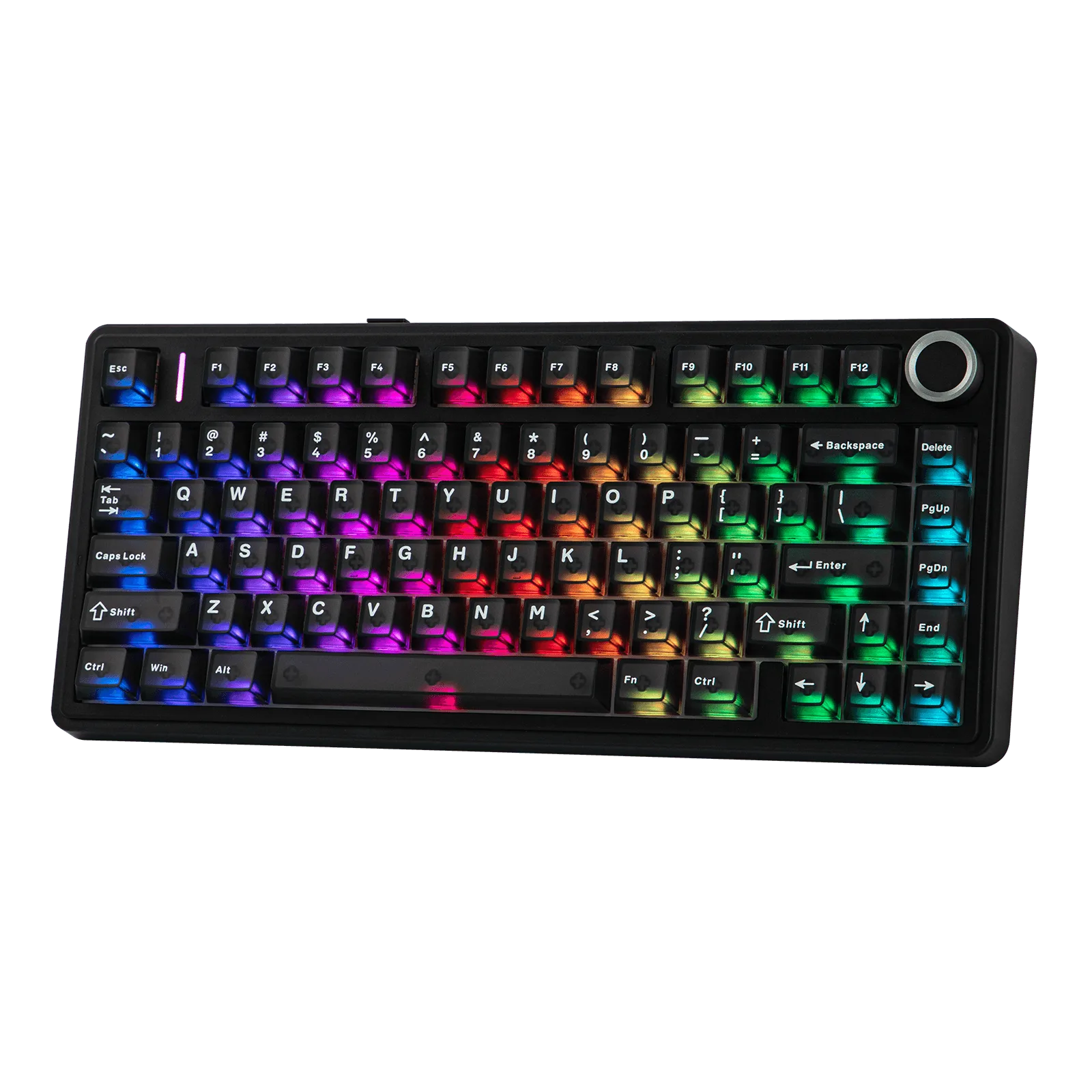
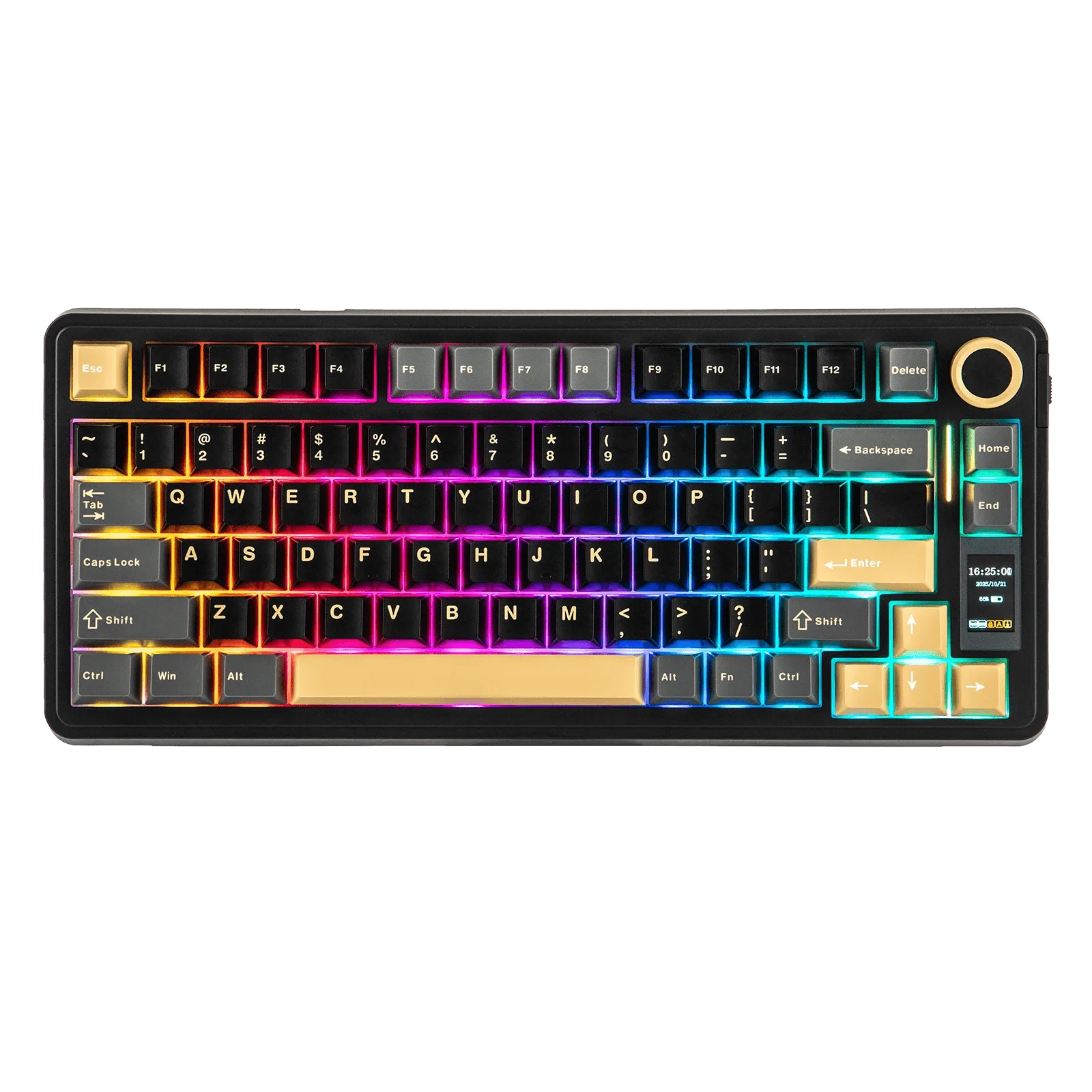
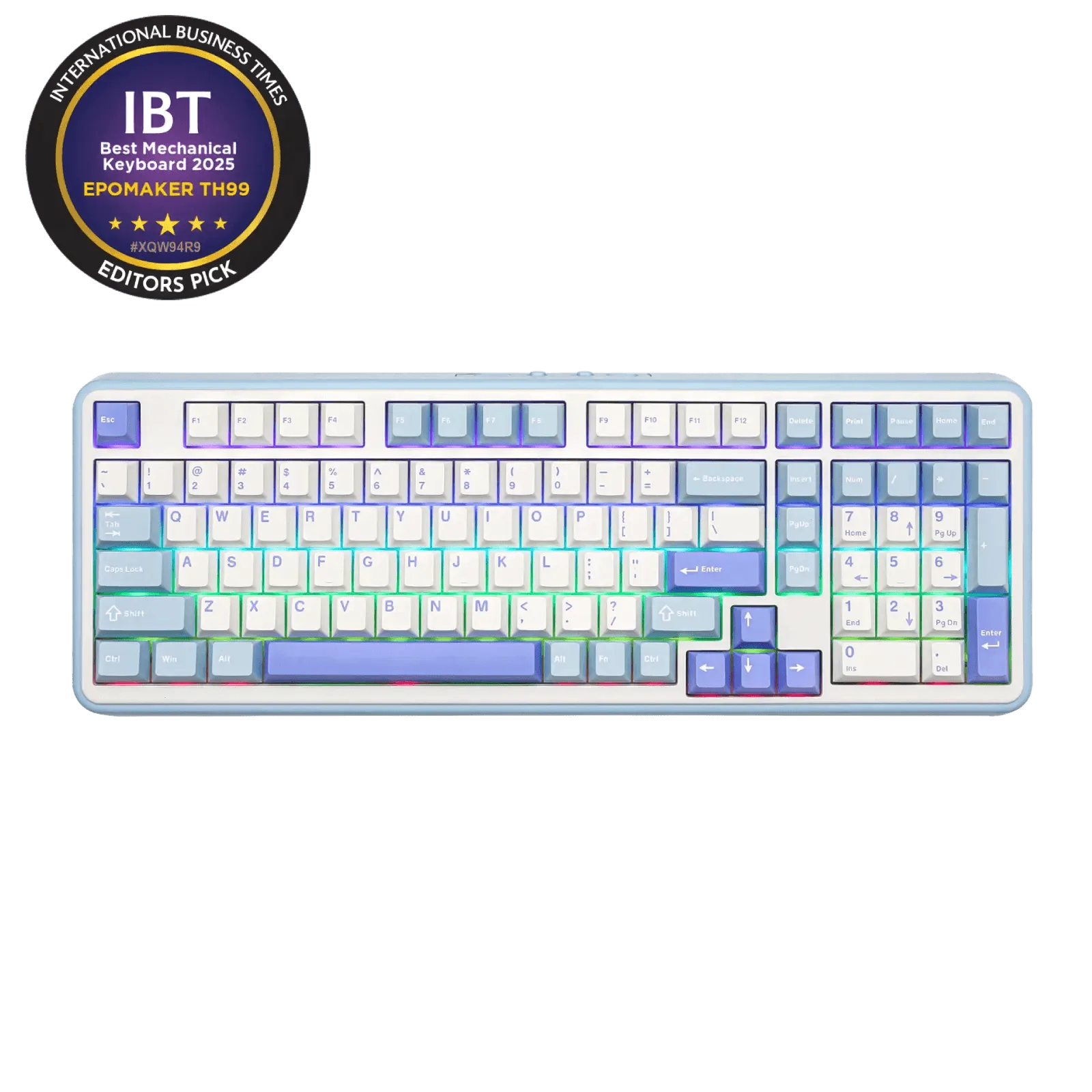
Hot-swap sockets turn a dead switch from a soldering job into a two-minute fix, so it is worth knowing whether your board supports them before you buy a replacement. The EPOMAKER x AULA F75 Ultra is a 75% hot-swap board with VIA support, which also lets you check whether a key has been remapped before you assume the hardware failed. The EPOMAKER TH99 uses a 96% layout with a heavier, silicone-damped build, so if your sticky key sits in the numpad cluster, confirm the layout and switch option you ordered before buying spares. The EPOMAKER x AULA EA75 Max adds a TFT screen and multi-function knob, which is useful for checking battery and connection status when a key seems dead but the board is actually disconnected.
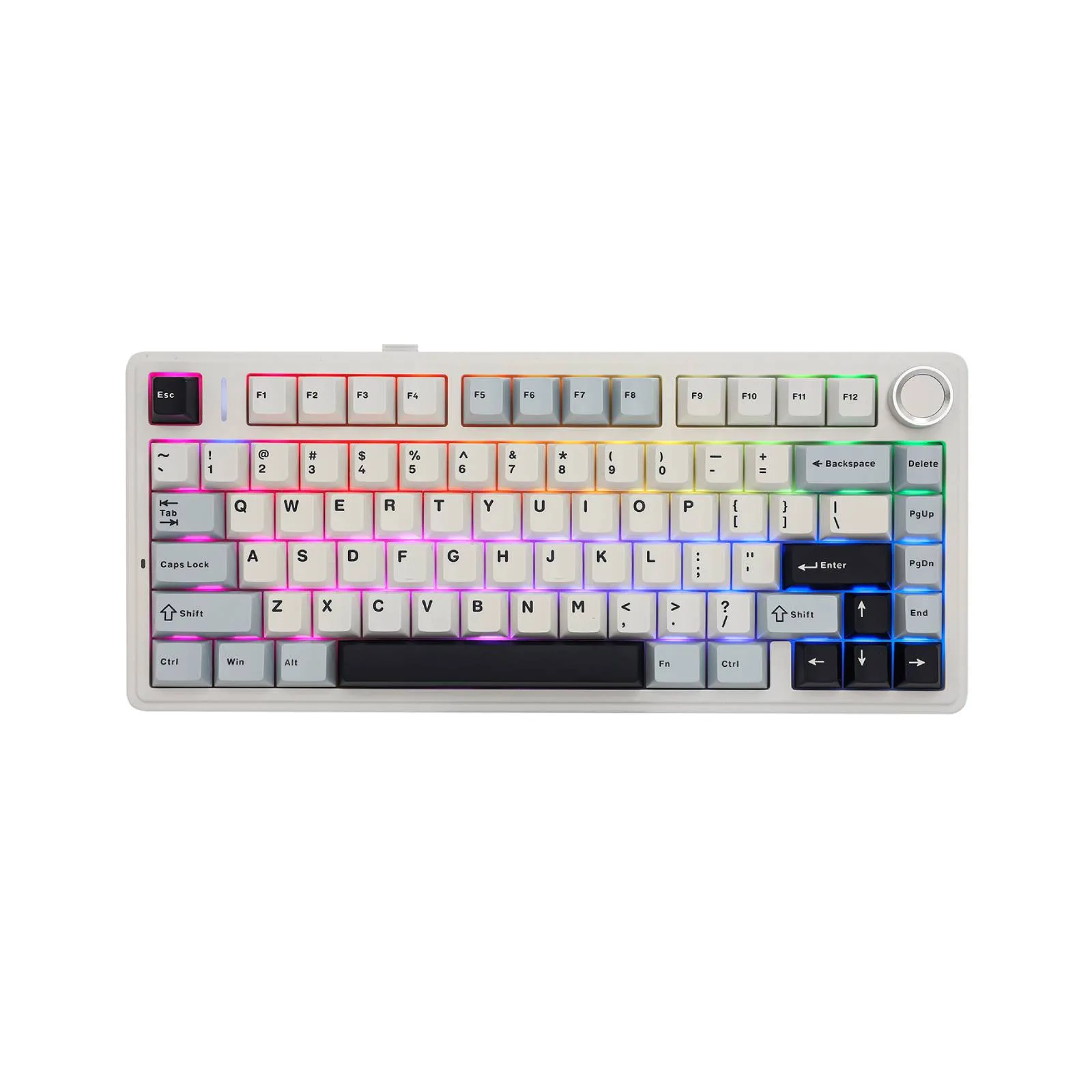
EPOMAKER x AULA F75
Symptom, Cause, and What to Do
- Key feels gummy or slow but still types: Debris, hair, or thickened factory lube is dragging on the stem and housing. Clean the stem and housing with a dry brush or swab, then retest. If it stays gummy, replace the switch.
- Key clicks normally but never registers: The switch is dead, or one of its two hot-swap pins is bent flat and not making contact. Reseat the switch, straighten a bent pin, or fit a known-good switch. If the new switch works, replace the old one.
- Replacement switch also fails in the same socket: The socket or PCB trace is damaged, so the fault is on the board rather than in the switch. Stop swapping switches and contact support or a repair service.
- Multiple keys in a row stop working: A whole row or column failing points to a PCB trace, connector, or firmware issue rather than individual switches. Check the cable and firmware first, then seek repair; do not replace every switch in the row.
Boards Referenced in This Guide
- EPOMAKER TH99: The EPOMAKER TH99 is a 96% mechanical keyboard with a heavier, silicone-damped build and selectable keyboard layout, color, and switch options. If your sticky key is in the numpad area, confirm your layout and switch choice before ordering replacement switches.
- EPOMAKER x AULA F75 Ultra: The EPOMAKER x AULA F75 Ultra is a 75% hot-swap keyboard with VIA support via a custom JSON file. Hot-swap sockets let you reseat or replace a dead switch without soldering, and VIA lets you rule out a remapped key before blaming the hardware.
- EPOMAKER x AULA EA75 Max: The EPOMAKER x AULA EA75 Max has a TFT screen and a multi-function knob for monitoring battery, time, and connectivity status. A quick glance at the screen can confirm the board is powered and connected when a key appears unresponsive.