Quick answer
Most mouse skate problems come down to three things: dirt trapped under the edges, worn or flattened PTFE, or a skate that was never the right match for your mousepad. Clean first, check for physical damage, then replace only the worn set. If the glide still feels wrong after a fresh install, the issue is usually the pad surface or the skate thickness, not the mouse itself.
Your mouse can have a flawless sensor and still feel terrible if the skates underneath are dirty, worn, or mismatched to your pad. Scratchiness, slow glide, and inconsistent stopping are not random—they are symptoms with specific causes. This guide walks through the most common mouse feet issues, what each one usually means, and the exact step to take next.
You do not need to replace your mouse or spend a lot to fix most of these problems. A clean set of skates, the right thickness, and a pad that matches your glide preference solve nearly every case. The key is diagnosing correctly before you buy, so you do not replace a perfectly good set or install a new one that repeats the same issue.
Why mouse skates fail in the first place
Mouse skates are consumable. PTFE and UHMW-PE materials are soft by design so they glide instead of scraping, which means they slowly flatten, pick up dust, and lose their rounded edge over months of use. The first sign is usually a subtle change in glide—slightly slower, slightly louder, or a faint scratch you feel more than hear.
The second common cause is installation error. Skates that are not fully seated, slightly misaligned, or applied over old adhesive residue create high spots that catch the pad. Before you blame the skate material, check that the skate is flat, centered, and pressed down evenly across its whole surface.
- Clean the pad and skate edges before deciding a skate is worn out.
- Press each skate firmly for several seconds after installing.
- Replace both skates on a mouse at the same time, not just the worn one.
Symptom: scratchy or gritty glide
A scratchy feel almost always means debris is trapped between the skate edge and the pad, or the skate edge has flattened and is no longer rounded. Wipe the pad with a damp microfiber cloth, let it dry fully, then inspect the skate edges under a light. If you see a visible lip or flat spot, cleaning will not fix it—the skate needs replacing.
If the scratchiness started right after a fresh install, the cause is usually a high spot from trapped air or old adhesive. Lift the skate carefully, clean the base with isopropyl alcohol, and reapply a new set. Do not reuse a skate that has already been pressed down; the adhesive will not seat evenly the second time.
- Clean the pad first—grit is the most common cause of scratchiness.
- Check for a flattened edge; if present, replace the skates.
- Reinstall with fresh adhesive rather than reusing a lifted skate.
Symptom: slow or sticky glide
Slow glide usually points to a mismatch between skate material and pad surface, or to skates that have worn flat and increased contact area. If your skates are old, replace them. If they are new and still slow, the pad is likely the limiting factor—some control pads are designed to add friction, and no skate will make them fast.
Thickness also matters. A thicker skate can change how the mouse sits and how much surface area contacts the pad. If you switch thickness, expect a different feel even with the same material. Choose based on the glide you want, not just the brand name.
- Replace worn skates before changing pads.
- Match skate material to your pad type: fast pads pair well with control-oriented skates.
- Give a new set a few hours of play before judging the glide.
Symptom: noise on glass or hard pads
Glass and hard pads amplify skate noise because there is no cloth to absorb vibration. If the noise is new and the skates are old, replacement is the fix. If the skates are new and still loud, the material may be too hard for your pad. Some skate lines are specifically engineered for a quieter glide on glass, which is worth considering if noise bothers you.
Do not fix noise by adding lubricant or tape. Those shortcuts attract dust and create inconsistent glide. The reliable solution is a skate designed for your pad surface or a switch to a cloth pad if noise matters more than speed.
- Glass pads make hard skates louder—this is normal, not a defect.
- Choose a quieter skate formulation if you play on glass.
- Never use oil or tape to silence skates.
Symptom: uneven glide or one corner catching
If one corner catches while the rest glides smoothly, the skate is likely misaligned or not fully pressed down. Check that the skate sits flush inside the mouse foot recess and that no adhesive is peeling up at the edge. A single high spot is enough to make the whole mouse feel inconsistent.
If realignment does not fix it, the mouse base itself may be slightly uneven, or the skate thickness is not compatible with the recess depth. In that case, switching to a different skate model or thickness is the practical next step. Do not sand or modify the mouse base unless you are prepared to replace the mouse.
- Re-seat the skate before assuming the mouse is defective.
- Check for peeling adhesive at the edges.
- If the recess is too shallow for the skate, choose a thinner option.
When to stop troubleshooting and replace
Stop cleaning and adjusting once you see physical wear: flattened edges, visible thinning, or adhesive that no longer holds. At that point, replacement is cheaper and faster than continued troubleshooting. A fresh set of skates costs less than a new mouse and restores the glide you liked in the first place.
If you have replaced the skates with a quality set, installed them correctly, and the glide still feels wrong, the problem is almost certainly the pad or your expectations for that pad. At that point, change the pad or accept the pad's intended glide rather than buying more skates.
- Replace when edges are flat, thin, or lifting.
- If a correct install does not fix it, change the pad.
- Keep one spare set on hand so you never play on worn skates.
Diagnosis table: symptom to solution
- Scratchy or gritty glide: Clean the pad and skate edges first. If a flattened lip or flat spot remains, replace the skates with a rounded-edge set. If cleaning does not fix it within one session, replace.
- Slow or sticky glide: Replace worn skates. If new skates are still slow, the pad is the limiting factor—switch to a faster pad or accept the control feel. Do not buy multiple skate sets hoping to speed up a control pad.
- Noisy on glass or hard pad: Choose a skate specifically engineered for quieter glide on glass, or move to a cloth pad if noise matters more than speed. Lubricant and tape are not fixes.
- One corner catching or uneven glide: Re-seat the skate and check for peeling adhesive. If the recess is too shallow, switch to a thinner skate. If realignment fails, the skate thickness or mouse base is the issue.
- New skates still feel wrong after a correct install: The pad is the likely cause. Change the pad rather than buying more skates. Stop here—further skate swaps will not help.
Replacement options worth knowing
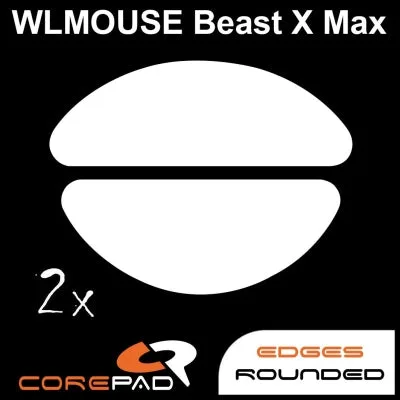
- Corepad Skatez - WLmouse Beast X MAX Wireless: Each pack contains 2 sets of skates, made from 100% pure PTFE with high-quality 3M adhesive and a 0.85mm thickness. Two sets mean you have a spare ready when the first wears out, and the 3M adhesive helps the skate sit flat to avoid high spots.
- Magic Ice - MCHOSE L7 / L7 Pro / L7 Ultra: Premium replacement skates designed to enhance comfort and precision, with rounded edges that help prevent scratching. Rounded edges directly address the scratchy-glide symptom and make this a strong choice if your current skates catch on the pad.
- Silver Fox - Zowie ZA11/ZA12/Divina/FK/AM/S: The Black PRO variant is engineered for a quieter glide, making it ideal for glass mouse pads where standard PTFE skates can be noisy. If noise on a glass pad is your main complaint, this is the targeted fix rather than a general-purpose skate.
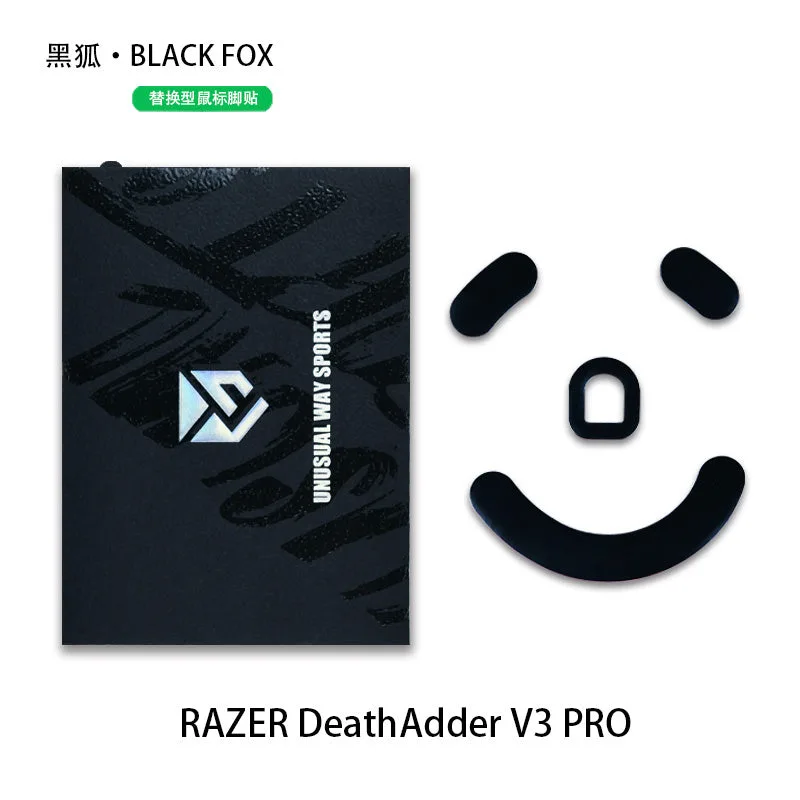
- Black Fox - Razer Deathadder V3 Pro: A versatile 3-layer design with a subtly curved surface for tracking precision, constructed from UHMW-PE for smooth, consistent glide and durability, with an anti-collapse structure. The anti-collapse structure helps the skate keep its shape longer, which is useful if your old skates flattened quickly.
Most mouse skate problems are solved by cleaning, re-seating, or replacing a worn set with one that matches your pad. Diagnose the symptom first, fix the simple causes, and only then spend money. A spare set on hand keeps you playing consistently instead of waiting for a replacement to arrive.