Quick Answer
To connect your Turtle Beach Stealth 700 Gen 3 to a PC, use the 2.4GHz transmitter for low-latency wireless audio, or pair via Bluetooth for convenience. The transmitter typically provides a more stable connection for gaming, while Bluetooth is great for calls and casual listening.
The Turtle Beach Stealth 700 Gen 3 is a versatile wireless headset designed for multiplatform gaming, including PC. Whether you're diving into competitive shooters or enjoying a casual game, getting the audio connection right is essential. This guide walks you through both Bluetooth and 2.4GHz setup options, so you can choose the method that best suits your gaming style.
We'll cover step-by-step instructions, common pitfalls, and how to switch between modes. By the end, you'll have your Stealth 700 Gen 3 up and running on your PC in minutes, with clear audio and a reliable connection.
Understanding Your Connection Options
The Stealth 700 Gen 3 offers two main ways to connect to a PC: Bluetooth and a 2.4GHz wireless transmitter. Bluetooth is built into most PCs and laptops, making it a convenient option for quick pairing without extra hardware. However, Bluetooth can introduce slight audio lag, which may be noticeable in fast-paced games.
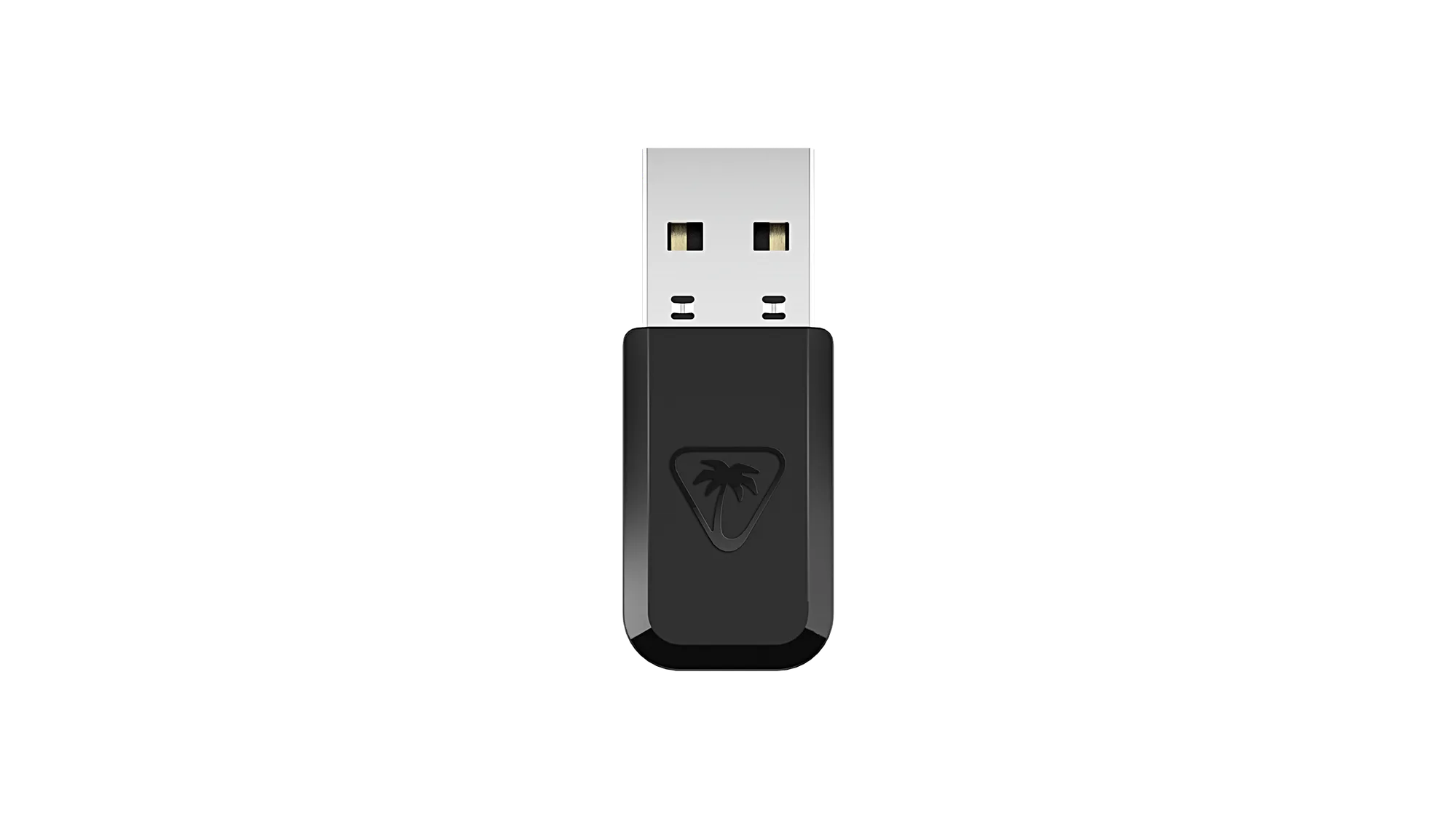
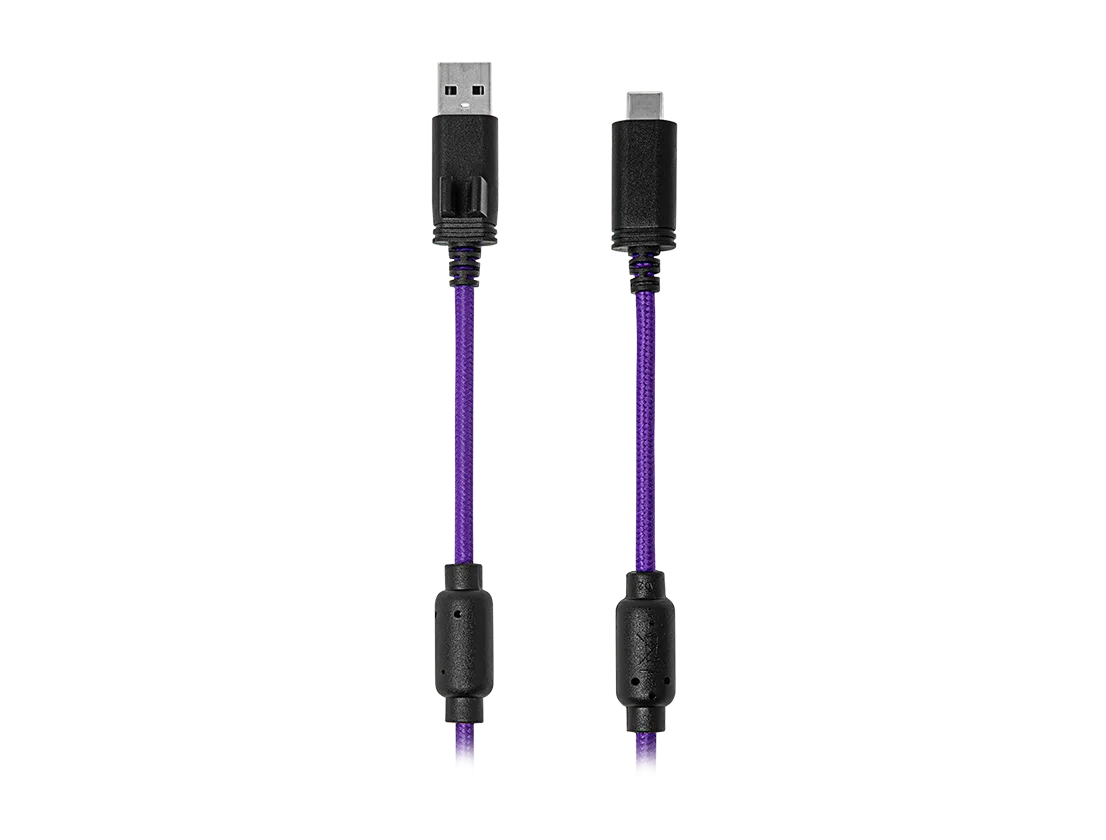
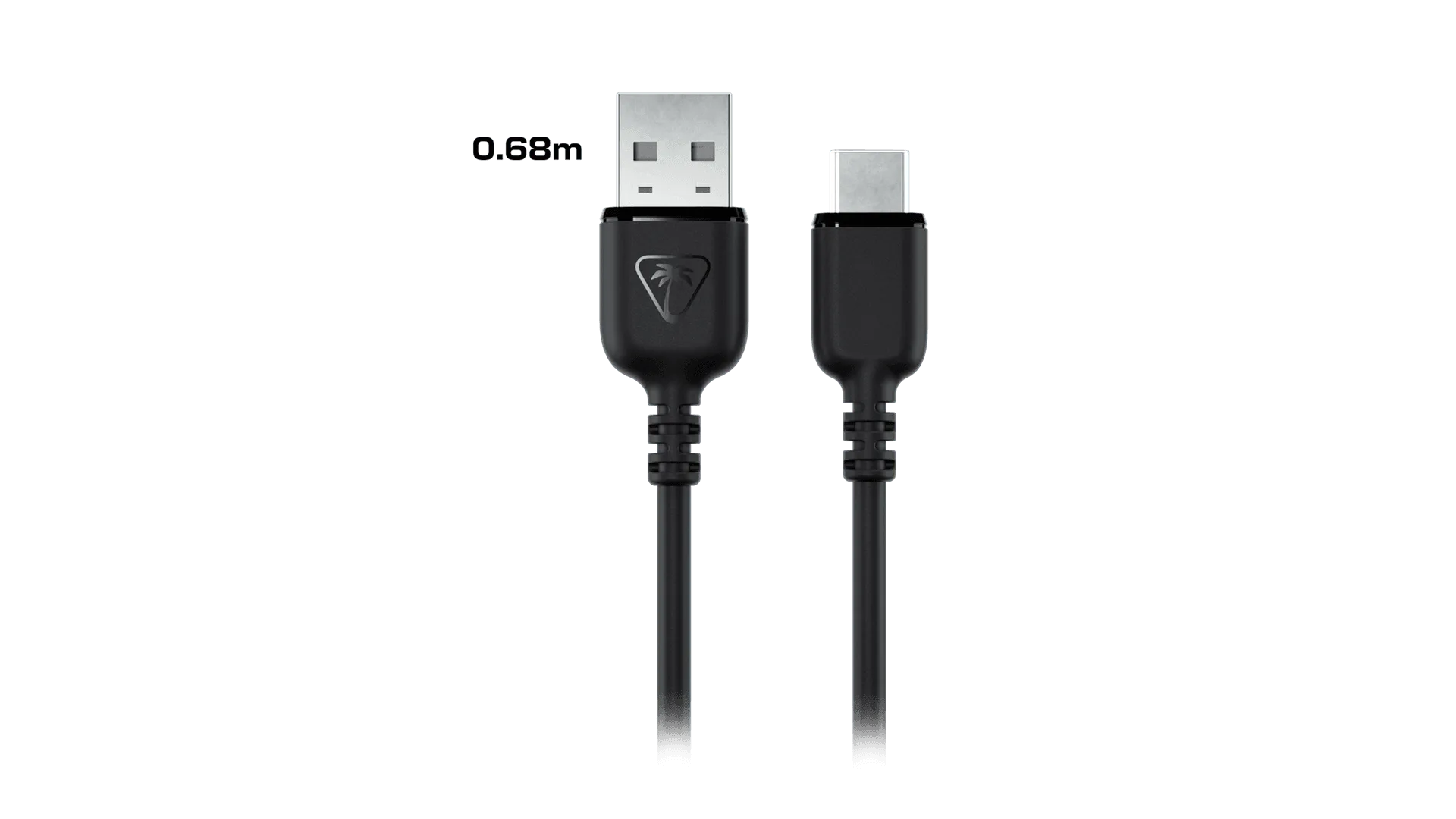
The 2.4GHz transmitter, on the other hand, provides a dedicated wireless connection with lower latency and more stable audio. This is often the preferred choice for serious gamers who need precise audio cues. The transmitter is typically included with the headset, but you can purchase a replacement if needed, such as the Stealth 600 Gen 3 / Stealth 500 USB-A to USB-C Charging Cable for charging, though that's for charging, not connectivity.
- For competitive gaming, prioritize 2.4GHz for minimal lag.
- For casual listening or voice calls, Bluetooth is fine and saves USB ports.
Preparing Your PC for Connection
Before you start, ensure your PC has Bluetooth capability if you plan to use that method. Most modern laptops have it built-in, but desktop PCs may require a Bluetooth adapter. If you're using the 2.4GHz transmitter, make sure your PC has a free USB-A port, as the transmitter typically plugs in there.
Also, check that your headset is fully charged. A low battery can cause connection drops or poor performance. The Stealth 700 Gen 3 uses a USB-C charging cable, which you can replace with the Stealth 600 Gen 3 / Stealth 500 USB-A to USB-C Charging Cable if needed.
Connecting via 2.4GHz Transmitter
Plug the 2.4GHz transmitter into a USB port on your PC. The transmitter is usually labeled or color-coded to indicate it's for the headset. Turn on your Stealth 700 Gen 3 by holding the power button until the LED lights up. The headset should automatically pair with the transmitter within a few seconds.
If the headset doesn't connect, check that the transmitter is firmly plugged in. You may also need to put the headset into pairing mode by holding the power button for a longer period or pressing a dedicated pairing button, depending on your model. Refer to your manual for exact instructions.
- Ensure the transmitter is compatible with your headset model; using the wrong one can cause issues.
Connecting via Bluetooth
To use Bluetooth, turn on your headset and put it into pairing mode. This is usually done by holding the Bluetooth button or the power button for several seconds until the LED flashes rapidly. On your PC, go to Settings > Devices > Bluetooth & other devices, and turn on Bluetooth. Click 'Add Bluetooth or other device' and select your headset from the list.
Once paired, the headset should appear as an audio output device. You may need to set it as the default device in your sound settings. Bluetooth audio can sometimes have a slight delay, so if you notice lag, switch to the 2.4GHz connection for gaming.
- If you have trouble pairing, ensure your headset is not already connected to another device via Bluetooth.
Switching Between Bluetooth and 2.4GHz
The Stealth 700 Gen 3 allows you to switch between Bluetooth and 2.4GHz modes easily. Typically, you can press a button on the headset to toggle between the two connections. This is useful if you want to take a call on your phone (via Bluetooth) while still hearing game audio from your PC (via 2.4GHz).
When switching, ensure that the corresponding source is active. For example, if you switch to 2.4GHz, make sure the transmitter is plugged in and the headset is paired. If you switch to Bluetooth, ensure your PC's Bluetooth is on and the headset is connected.
Step-by-Step Connection Checklist
- Power On and Charge: Ensure your Stealth 700 Gen 3 is fully charged. Connect it to a power source using the USB-C cable if needed. A full charge prevents unexpected disconnections during setup.
- Choose Your Connection Method: Decide between 2.4GHz for low-latency gaming or Bluetooth for convenience. Plug in the transmitter if using 2.4GHz. For competitive play, 2.4GHz is your best bet; for casual use, Bluetooth is fine.
- Pair the Headset: Turn on the headset and put it in pairing mode if necessary. For 2.4GHz, it should auto-connect; for Bluetooth, select the headset in your PC's Bluetooth settings. If connection fails, try re-pairing or restarting your PC.
- Set as Default Audio Device: Go to your PC's sound settings and select the Stealth 700 Gen 3 as the default playback and recording device. This ensures all audio routes through the headset.
- Test and Adjust: Play a test audio or game to verify the connection. Adjust the volume and mic settings as needed. If you experience lag, switch to 2.4GHz mode.
Replacement Parts and Accessories
- Stealth 600 Gen 3 / Stealth 500 USB-A to USB-C Charging Cable - Xbox and PlayStation: This USB-A to USB-C charging cable is designed as a compatible replacement or spare for the Turtle Beach Stealth 600 Gen 3 and Stealth 500 gaming headsets for Xbox and PlayStation. Although it's listed for other models, it's a handy spare for keeping your Stealth 700 Gen 3 charged, ensuring you're always ready for a gaming session.
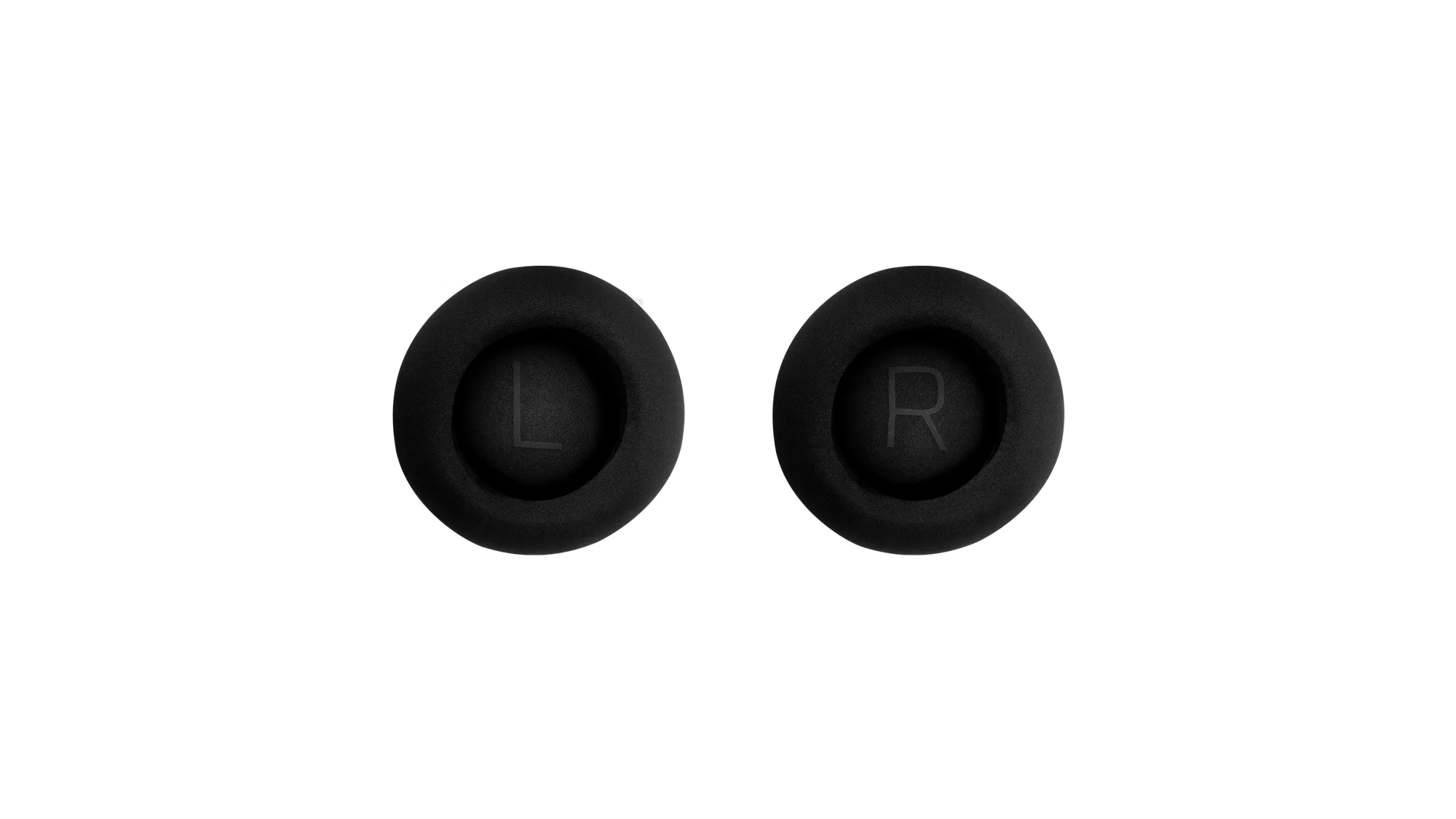
- Stealth 700 Gen 2 / Gen 2 MAX Ear Cushion - Left: This is a replacement left ear cushion for the Turtle Beach Stealth 700 Gen 2 and Gen 2 MAX gaming headsets. If you're upgrading from a Gen 2 model, this cushion can restore comfort, but note it's not compatible with Gen 3. Always check compatibility before purchasing.
Connecting your Stealth 700 Gen 3 to your PC is straightforward once you know the steps. Whether you prefer the low-latency 2.4GHz connection or the convenience of Bluetooth, this guide ensures you get the best audio experience. Remember to keep your headset charged and your firmware updated for optimal performance.