Quick answer
To record family stories on a Creative Tonie, plan your story, record it clearly with the tonies app, and upload the audio to the Tonie. Then let your child enjoy a personalized audio experience on the Toniebox.
Why record family stories on a Creative Tonie?
Family stories become more special when they're told in a familiar voice. A Creative Tonie lets you capture those moments and turn them into a personalized Tonie that your child can play anytime, anywhere on the Toniebox. It's a screen-free way to share memories, traditions, and inside jokes that your kids will want to hear again and again.
Unlike store-bought Tonies, a Creative Tonie is a blank canvas. You can upload up to 90 minutes of your own content, whether it's a story you wrote, a recording of Grandma telling a favorite tale, or a song you made up together. The only limit is your imagination.
What to consider before you start
Before you hit record, think about your audience. A story that's too long or too complex might lose a toddler's attention. Keep it simple and interactive—ask questions, use funny voices, and add sound effects. Also, consider the recording environment: a quiet room with minimal background noise will make the audio clearer and more enjoyable.
Another thing to keep in mind is the content. The Creative Tonie is designed for personal use, so you can record anything you like, but make sure it's appropriate for your child. Avoid copyrighted music or content that you don't have rights to, and stick to original stories or personal anecdotes.
Step-by-step: Record family stories on a Creative Tonie
- Plan your story: Write a short outline or script for your family story. Keep it under 10 minutes for younger kids. Include a clear beginning, middle, and end, and add fun sound effects or character voices. Check that the story is age-appropriate and not too long for your child's attention span.
- Set up your recording space: Find a quiet room with soft furnishings to reduce echo. Use a smartphone or a USB microphone for better audio quality. Test your recording level by speaking a few sentences and playing them back. Make sure there's no background noise like fans, traffic, or other people talking.
- Record your audio: Open the tonies app and use the recording feature, or use any voice memo app. Speak clearly and at a steady pace. Pause between sentences to make editing easier. If you make a mistake, just start that section over. Don't worry about perfection—a natural, warm delivery is more engaging than a stiff, flawless read.
- Edit and finalize your audio: Trim the beginning and end of your recording to remove silence or mistakes. You can also add a simple intro like 'This is a story for [child's name]' to make it personal. Save the file as an MP3 or M4A format. Check that the file is under 90 minutes and in a supported format before uploading.
- Upload to your Creative Tonie: In the tonies app, select your Creative Tonie and follow the prompts to upload your audio file. Wait for the upload to complete, then place the Tonie on the Toniebox to test it. Verify that the audio plays correctly and that the Tonie is recognized by the Toniebox.
- Decorate and personalize: Once the audio is uploaded, you can paint or decorate the Creative Tonie to match the story. Use acrylic paints or permanent markers, and let it dry completely before handling. Make sure the decorations don't cover the NFC chip on the bottom of the Tonie, so it still works properly.
Product spotlight
-
Create Your Own Creative Tonie: The Create Your Own Creative Tonie comes primed and undecorated so you can customize it to your design. It holds up to 90 minutes of your own audio content. This means you can paint or decorate the Tonie to match the story, making it a truly one-of-a-kind gift that your child will treasure.
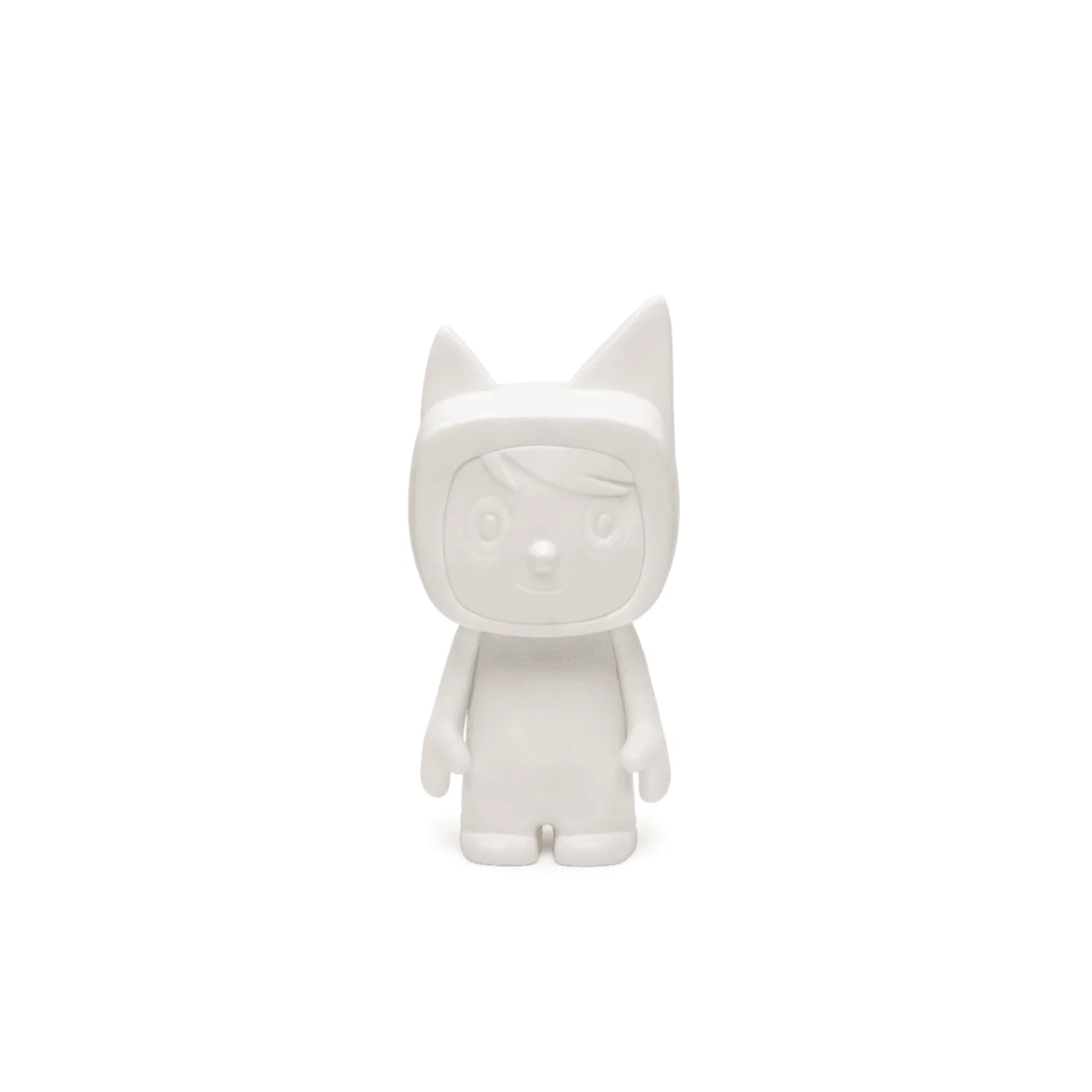
Create Your Own Creative Tonie