Start with the right USB port
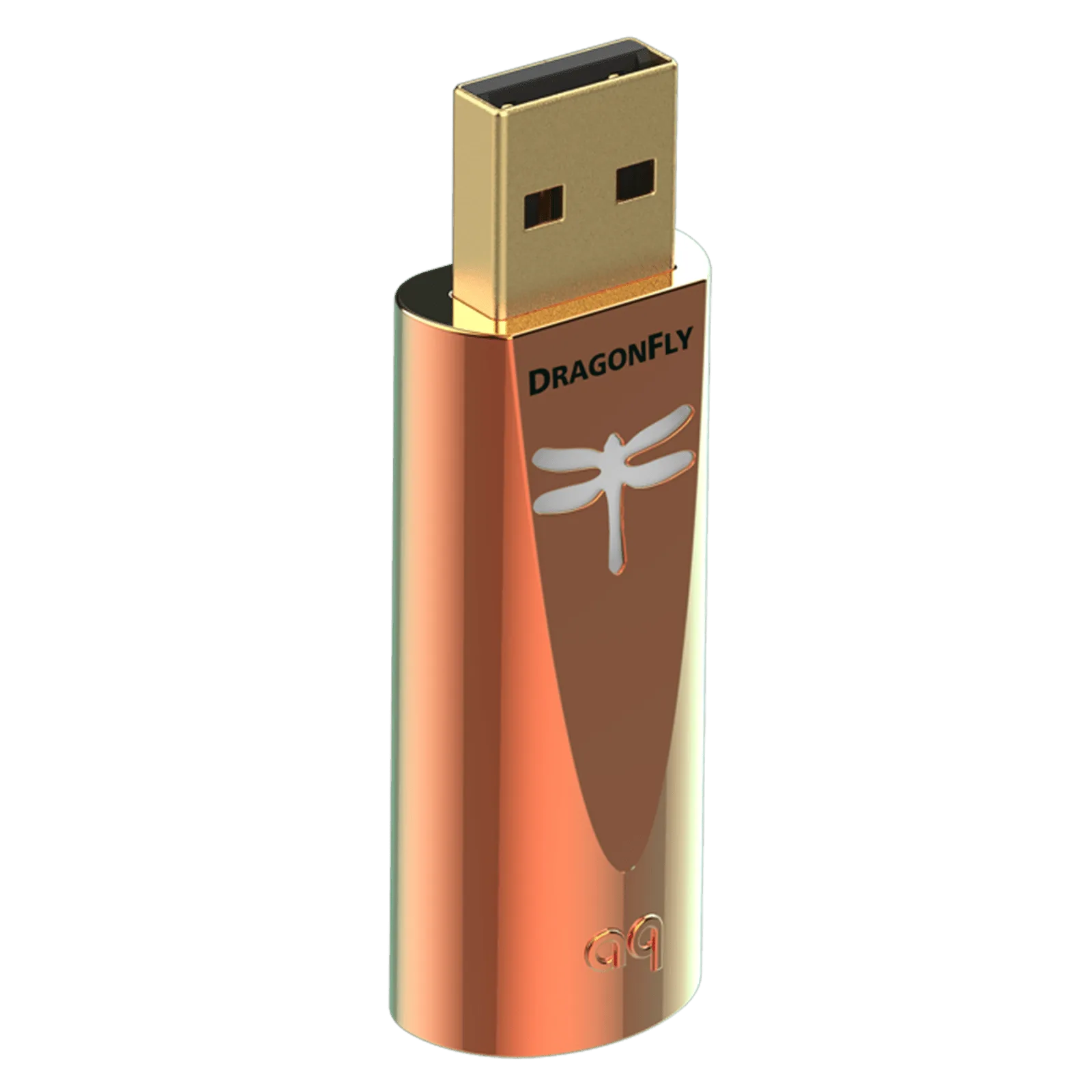
The DragonFly Copper is a USB DAC, so the first step is simply finding a USB port that works. It meets all USB Audio Class (UAC) standards and requires no additional drivers, which means it should work with any modern computer without installing extra software. On a laptop, prefer a port that stays powered even when the computer is asleep, or be prepared to reconnect after waking. On a desktop, a rear USB port is often more convenient for a permanent setup.
Because the DragonFly Copper draws 25% less current than previous models, it is less likely to strain a laptop battery or a bus-powered hub. Still, avoid unpowered hubs when possible; a direct connection to the computer is the most reliable starting point.
Connect and confirm playback
- Plug in the DragonFly Copper: Use the included DragonTail USB-A to USB-C adaptor if your computer has only USB-C ports. The adaptor is form-fitting and keeps the DAC from blocking adjacent ports.
- Select it as your output device: Open your computer’s sound settings and choose the DragonFly Copper as the playback device. No driver installation is needed on Windows or macOS.
- Watch the dragonfly emblem: The emblem changes color to show playback status and the sampling rate of the file being played: red for standby, green for 44.1kHz, blue for 48kHz, yellow for 88.2kHz, and light blue for 96kHz. If the color does not match the file’s sample rate, check your player’s output settings.
- Set volume at the source: The DragonFly Copper is controlled by your phone, tablet, or computer. Start with the computer volume at a moderate level and adjust from there.
What the DragonFly Copper is built to do
-
DragonFly Copper: Compatible with Apple and Windows PCs, iOS and Android devices. You can move the DragonFly Copper between a laptop, desktop, phone, or tablet without extra software.
DragonFly Copper
-
DragonFly Copper: Drives headphones and feeds preamps, amps, and powered speakers. It works as both a headphone amp and a line-level source for a larger desktop system.
-
DragonFly Copper: Travel-friendly dimensions: 19mm W x 12mm H x 57mm L. It is small enough to leave plugged into a laptop without adding bulk.
Getting the most from your files and headphones
The DragonFly Copper is designed to play all audio files, from MP3 to hi-res. That flexibility means you can start with your existing library and later explore higher-resolution formats if you wish. The emblem’s color feedback is a quick way to confirm that your player is sending the sample rate you expect.
Output power is listed as two times greater than previous DragonFly models, which gives you more headroom with a wider range of headphones. If you hear distortion at high volumes, reduce the source volume first; the DAC is controlled by your computer or device, not by a separate knob.
Placement and everyday use
- Keep it connected: The DragonFly Copper is small enough to stay plugged in, but avoid bending the USB connector or putting stress on the DragonTail adaptor when moving your laptop.
- Use the copper case as intended: The high-conductivity copper-plated case is designed for improved RF-noise drainage. There is no need to add extra shielding; just keep the case clean and dry.
- Try both headphone and line-out use: For a desktop setup, connect the DragonFly Copper to powered speakers or an amplifier using the appropriate cable. The DAC feeds preamps, amps, and powered speakers, so it can serve as the heart of a simple computer audio system.
What to expect and what not to assume
AudioQuest states that the DragonFly Copper reduces distortion compared to previous models and delivers two times greater output power. These are manufacturer claims, not guarantees of a specific audible improvement in every system. The supplied information does not include measured performance data or independent test results, so treat the specifications as a starting point for your own listening.
The DragonFly Copper is a DAC and headphone amp, not a complete audio solution. It will not add features like room correction or equalization; those come from your software. Its strengths are simplicity and compatibility: no drivers, broad device support, and a compact size that suits laptop and desktop use.