Start with the connection your device supports
The HiBy FD3 is a USB DAC and headphone amp that connects to computers and smartphones. That single USB link carries both the digital audio signal and power, so your first step is simply identifying the port on your source device. A laptop or desktop computer will typically use a standard USB-A or USB-C port, while a smartphone may need its own compatible cable or adapter. The FD3 does not use a separate wall power input in the supplied information, so plan to run it from the host device unless you add a supported external power source.
Before you plug in, decide which headphones or IEMs you will use and which of the three outputs they need. The FD3 provides a 3.5mm single-ended output plus 2.5mm and 4.4mm balanced outputs. Matching the cable to the correct jack is the most important setup checkpoint because a balanced cable will not fit the 3.5mm socket and a standard 3.5mm plug will not fit the balanced jacks.
A practical FD3 setup sequence
Work through these steps in order so you can confirm each connection before moving on.
- 1. Connect the FD3 to your computer or phone: Use a USB cable that matches your device’s port. The FD3 is supplied as a USB DAC+headphone amp, so the host device should recognize it as an audio output once connected.
- 2. Select the FD3 as your audio output: On a computer, open the sound settings and choose the FD3 from the list of playback devices. On a smartphone, the FD3 should appear as a USB audio device when connected with the appropriate cable or adapter.
- 3. Plug your headphones into the matching output: Use the 3.5mm jack for standard single-ended cables. Use the 2.5mm or 4.4mm jack only if your cable terminates in that balanced connector. Do not force a plug into the wrong socket.
- 4. Set a safe listening level before playing music: Start with the volume low on both the source device and your music app, then raise it gradually. The FD3 is an amplifier, so an unexpectedly high setting can be uncomfortably loud with sensitive IEMs.
- 5. Confirm playback and adjust as needed: Play a familiar track and check that sound comes through the correct output. If you hear nothing, recheck the USB connection and the selected output in your device settings before trying a different cable or port.
When external power actually helps
The supplied information describes the FD3 as a USB DAC+headphone amp with strong decoding power, but it does not list a separate DC power input or a battery. That means the FD3 is designed to draw power from the USB host. If your laptop or phone limits USB power output, or if you want to avoid draining a phone battery during long listening sessions, a powered USB hub or a USB power adapter that supports data pass-through can be a practical addition. Check that any hub or adapter you use is rated for the FD3’s USB connection and can pass audio data, not just charge.
External power is not a requirement for every listener. For short sessions with efficient IEMs, the host device’s USB port is usually sufficient. The trade-off is that high-impedance headphones or very loud listening levels may push a low-power USB port harder, and behavior can vary by device. The FD3’s specifications in the supplied record do not include output power figures, so treat any power-related expectation as something to test with your own gear rather than a guaranteed outcome.
Choosing between the three FD3 outputs
The right jack depends on your cable and how you plan to listen. The table below summarizes the practical differences based on the supplied product details.
- 3.5mm single-ended: Works with the widest range of standard headphones and IEM cables. Use this if your cable has a regular 3.5mm plug and you do not need a balanced connection.
- 2.5mm balanced: Accepts cables with a 2.5mm balanced plug. Balanced cables can offer a different wiring arrangement, but the FD3’s supplied information does not make specific performance claims for this output.
- 4.4mm balanced: Accepts cables with a 4.4mm balanced plug, a common format for many IEM upgrade cables. As with the 2.5mm output, match the plug exactly and do not use adapters that change the connector type unless they are designed for that purpose.
HiBy FD3 at a glance
-
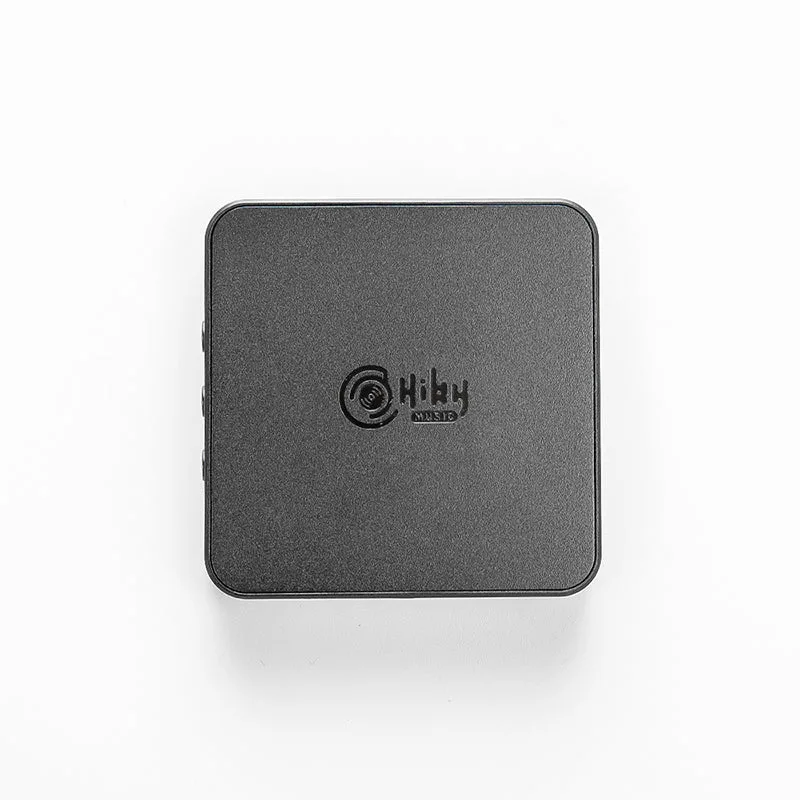
HiBy FD3: The HiBy FD3 is a USB DAC+headphone amp, which may connect to computers, smartphones etc. This confirms the FD3 can serve as a portable DAC amp for a laptop or phone, which is the foundation of any setup.
HiBy FD3
-
HiBy FD3: With strong decoding power, 3.5mm SE, 2.5mm and 4.4mm balanced headphone outputs for an all-in-one solution! The three outputs let you use standard or balanced IEM cables without adding a separate adapter, but you must match the plug to the jack.
Matching the FD3 to IEMs and laptops
For IEM users, the FD3’s main advantage is flexibility: you can start with the 3.5mm output and move to a balanced cable later if your IEMs support one. Because the supplied information does not include sensitivity or impedance ratings for the FD3, there is no single “best” IEM pairing to recommend. Instead, use your IEM’s own plug type as the deciding factor and keep volume low at first.
As a portable DAC amp for a laptop, the FD3 is straightforward: one USB connection handles both audio and power, and the headphone outputs are on the same compact device. If your laptop has limited USB ports, a small USB hub can keep the FD3 connected alongside other accessories, but choose a hub that is known to pass audio data reliably. The FD3’s catalog information does not list a required USB standard or cable type beyond the USB connection itself, so use the cable that came with your device or a reputable replacement that matches your ports.
Setup checkpoints before you judge the sound
If the FD3 is not behaving as expected, check these points in order before assuming a fault.
- The USB connection is data-capable: Some USB cables are charge-only. Try a different cable that you know transfers data, and connect directly to the computer or phone rather than through an unpowered hub.
- The correct output is selected in your software: On a computer, the FD3 should appear as a separate playback device. Make sure your music app is using that device and not the laptop’s built-in speakers.
- The headphone plug matches the jack: A 3.5mm plug belongs in the 3.5mm socket. A 2.5mm or 4.4mm balanced plug belongs in its matching socket. Never use force.
- Volume is turned up on both the source and the app: Start low, then increase gradually. If you hear nothing at a moderate level, check the previous points before raising volume further.