Quick answer
For most people, the best backup option is a local external hard drive for full-system and large photo archives, paired with a cloud service for automatic off-site copies of irreplaceable files. If you want one simple, set-and-forget solution and have fast upload speeds, cloud storage wins. If you need speed, privacy, and no monthly fees, an external HDD is the better primary backup.
Cost and capacity: where each option pulls ahead
External hard drives win on upfront cost per terabyte. A single portable drive can hold years of photos, videos, and documents for a one-time price, and you can add a second drive later for redundancy without changing your workflow. Cloud storage spreads the cost into a monthly or annual subscription that grows with your storage tier. Over several years, that subscription can exceed the price of a large external drive, but you are also paying for off-site protection, syncing across devices, and automatic uploads.
The trade-off is flexibility. External drives give you fixed capacity you own, but you must buy more hardware when you fill them. Cloud plans let you increase capacity instantly, but you rent that space indefinitely and lose access if you stop paying. For a household with one laptop and a phone, cloud storage is often cheaper in year one. For a photographer or small business archiving hundreds of gigabytes, an external HDD plus a free or low-cost cloud tier for critical files usually costs less over three to five years.
Privacy, ransomware, and physical risk
Local drives keep your data in your hands, which matters if you handle client work, medical records, or personal documents you do not want scanned or indexed. The downside is physical risk: fire, theft, flood, or a spilled coffee can destroy the only copy. Cloud storage solves that by keeping encrypted copies in data centers, but you are trusting a provider with your files and relying on their security practices and account protections. A strong password and two-factor authentication are non-negotiable for cloud backups.
Ransomware is the tiebreaker for many people. If malware encrypts your laptop, a connected external drive can be encrypted too. A cloud backup with version history lets you roll back to a clean copy. The practical compromise is a local drive that you connect only during scheduled backups, plus a cloud service that keeps 30 days of file versions. That combination covers both physical loss and ransomware without doubling your monthly bill.
Speed, access, and everyday workflow
External drives are faster for large transfers. Copying a 50GB photo library to a USB 3.0 portable drive takes minutes; uploading the same library to the cloud can take hours or days depending on your internet upload speed. If you edit video or work with RAW files, a local drive is the only practical primary backup. Cloud storage wins for access anywhere: you can pull a document from a phone, share a folder with a client, or recover a file after your laptop is stolen.
The trade-off is dependence on connectivity. Cloud backups stall on slow or metered connections, and some providers throttle large uploads. External drives work offline and do not care about your data cap. For a laptop used at home and the office, a small external SSD or HDD in your bag plus a cloud sync folder for active projects covers both speed and remote access without forcing a single winner.
How to build a hybrid backup that actually runs
Use the 3-2-1 rule as your starting point: three copies of important data, on two different types of media, with one copy off-site. A practical setup is your laptop as the working copy, an external hard drive as the local backup, and a cloud service as the off-site copy. Schedule the local backup weekly and let the cloud service run continuously in the background. Test a restore every few months by pulling one folder back from each location; a backup you have never restored is only a hope.
Label your drives and keep a simple log of what is stored where. If you use an external drive for photos, keep it disconnected except during backup so ransomware and power surges cannot reach it. For cloud, enable version history and set a retention window of at least 30 days. These small habits matter more than which brand you buy.
- Connect the external drive only during scheduled backups to reduce ransomware exposure.
- Keep at least 30 days of file versions in cloud storage for rollback after accidental deletion or encryption.
- Store the external drive in a different room or building from your laptop when possible.
- Re-check your cloud storage tier every year; photo and video libraries grow faster than most people expect.
Trade-offs at a glance
- Upfront cost vs ongoing subscription: An external HDD is a one-time purchase with fixed capacity. Cloud storage is a recurring fee that scales with your storage tier and can rise over time. Choose external HDD if you want to own the hardware; choose cloud if you prefer predictable monthly costs and no hardware to manage.
- Speed and offline access vs anywhere access: External drives transfer large files in minutes and work without internet. Cloud storage is slower for big uploads but reachable from any device with a connection. For video and RAW photo archives, start with an external drive; add cloud for files you need on the go.
- Physical control vs off-site protection: A local drive keeps data private but can be lost to fire, theft, or ransomware if left connected. Cloud storage protects against local disasters but depends on the provider's security and your account hygiene. Use both if your data is irreplaceable: a disconnected external drive plus a cloud service with version history.
Grounded product examples
- Sharp GX-BT290 Crystal Clear Series Bluetooth Speaker | Waterproof IP67 | 14 Hour Playtime | 2 Light Modes | 32W Max Power with Strong Bass | True Wireless Pairing | Hands-Free Calling | Strap |: Sharp GX-BT290 Crystal Clear Series Bluetooth Speaker with IP67 waterproof rating and 14-hour playtime. A rugged, portable speaker is useful for listening while you organize backups or work away from your desk, but it is not a storage device and should not be confused with backup hardware.
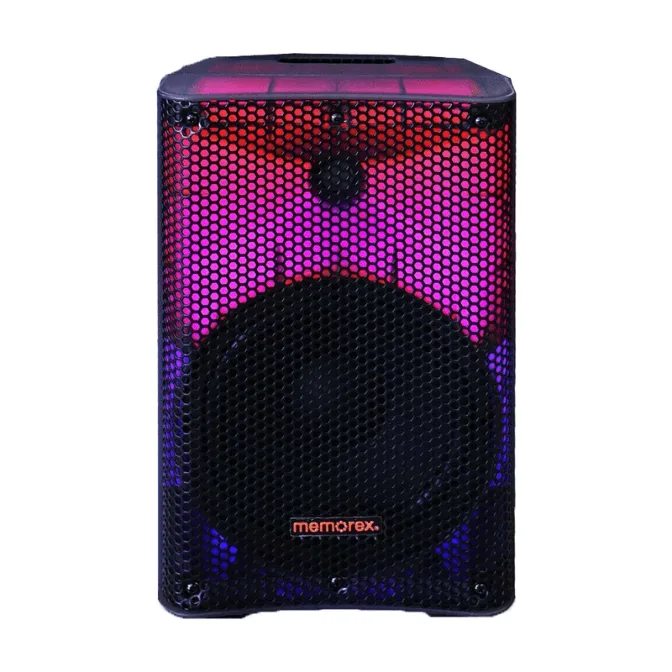
- Memorex MX-PS801 8-Inch PA Speaker with Translucent Cabinet | 500W PMPO, Bluetooth | TWS Pairing, LED Lighting | 50W RMS Bi-Amp, USB & SD Playback | Microphone Input, Portable Design: Memorex MX-PS801 8-Inch PA Speaker with 500W PMPO, Bluetooth 5.0, TWS pairing, and a rechargeable 11.1V 3000mAh battery. This is an audio product, not a backup solution; it illustrates that consumer electronics categories are easy to mix up, so check the product type before buying for a specific job.
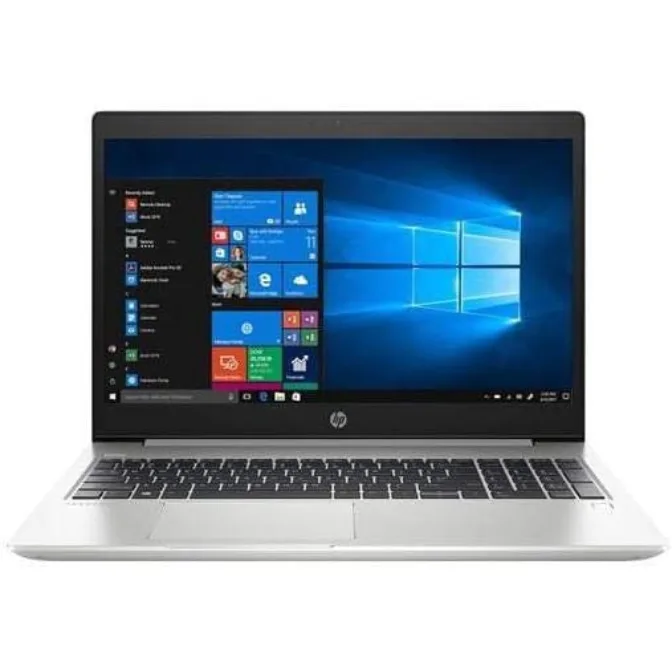
- HP Probook 450 G6 15.6 Inch Full HD 1080P Professional Laptop, Intel Core I5-8265U, 8 GB RAM, 256 GB SSD, Windows 10 Pro: HP ProBook 450 G6 with 15.6-inch Full HD anti-glare screen, Intel Core i5-8265U, 8GB RAM, 256GB SSD, and Windows 10 Pro. A 256GB SSD fills quickly with photos and video, so this laptop benefits from an external hard drive for local backups and a cloud service for off-site copies.
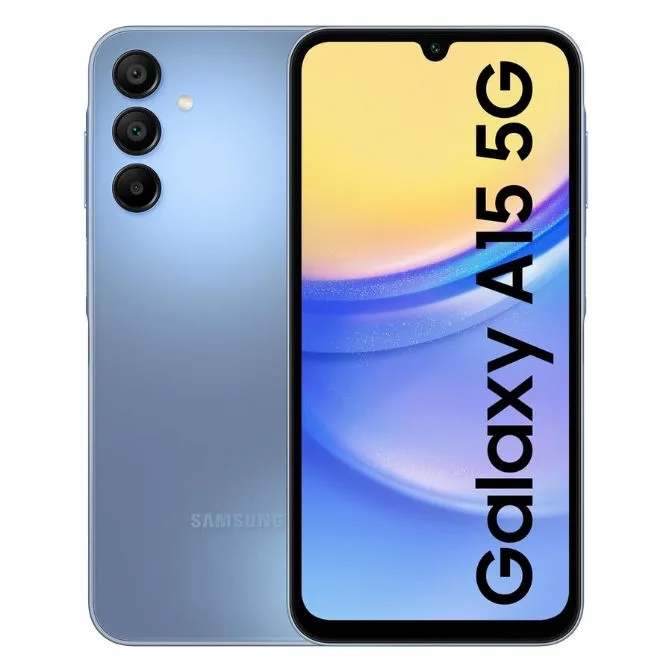
- Samsung Galaxy A15 5G (Blue, 6GB, 128GB Storage) | 50 MP Main Camera | Android 14 with One UI 6.0 | 12GB Expandable RAM | MediaTek Dimensity 6100+ | 5000 mAh Battery (factory renewed): Samsung Galaxy A15 5G with 6.5-inch Super AMOLED display, 50MP main camera, 5000mAh battery, and 128GB storage. Phone photos and videos are a common reason people start backing up; 128GB of internal storage can be offloaded to an external drive or synced to cloud storage.
Which should you choose?
Best for
- Photographers and video editors who need fast, large local backups and offline access
- Small businesses that want to avoid recurring subscription costs and keep client data in-house
- Anyone with slow or metered internet who cannot reliably upload large files
Not for
- People who want automatic, hands-off backups with no hardware to manage
- Users who need to access files from multiple devices and locations without carrying a drive
- Households with very little data who would pay more for an external drive than for a basic cloud plan