Start With the Connection
When your HyperX Cloud Earbuds II mic isn't working, the first thing to check is the physical connection. These earbuds use a 3.5mm jack, so make sure it's fully inserted into your device. A loose plug can prevent the microphone from being detected.
The Cloud Earbuds II have a low-profile 90° cable designed to avoid snags, but that angled connector can sometimes feel like it's seated when it isn't. Push it in gently until you feel a firm stop.
What You're Working With
-
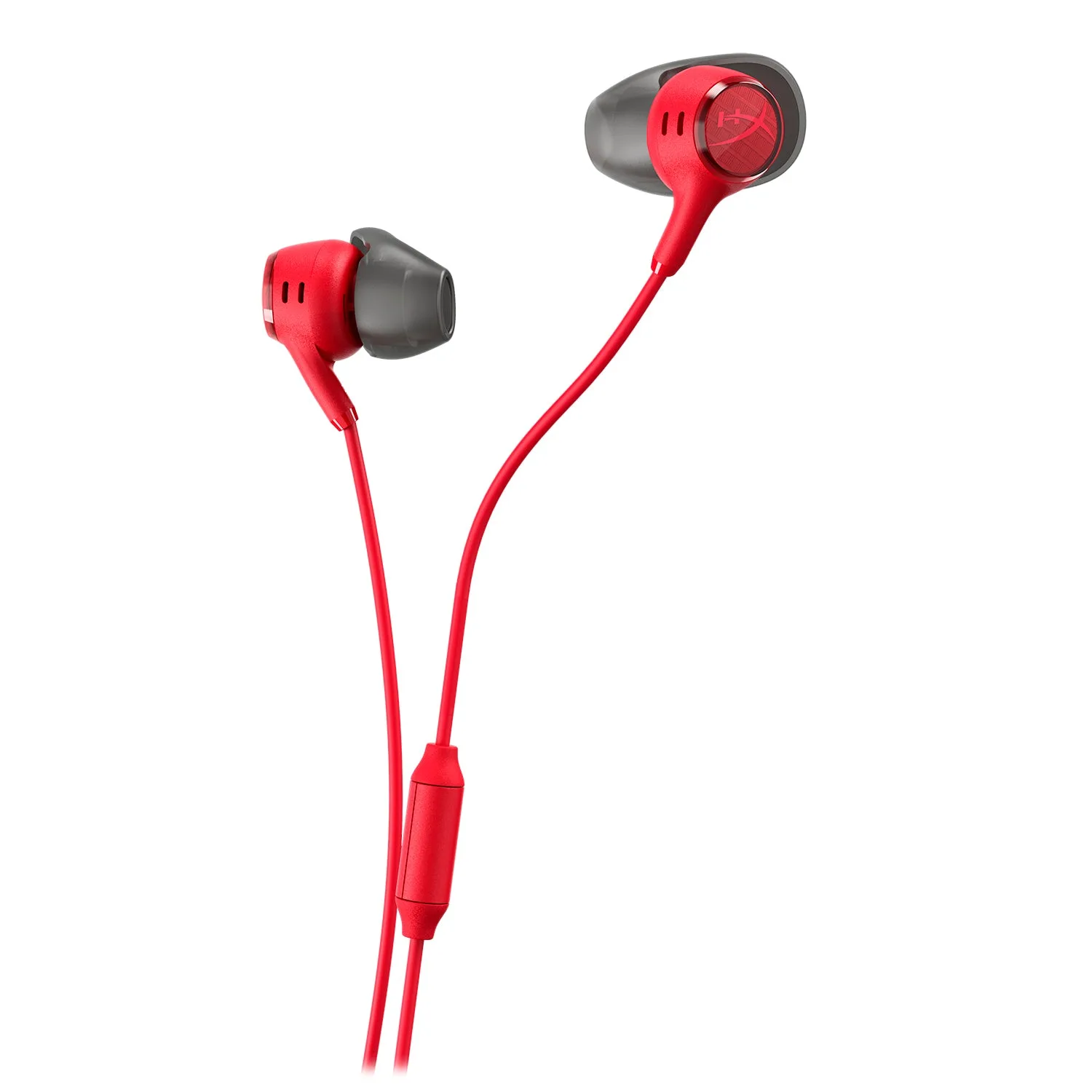
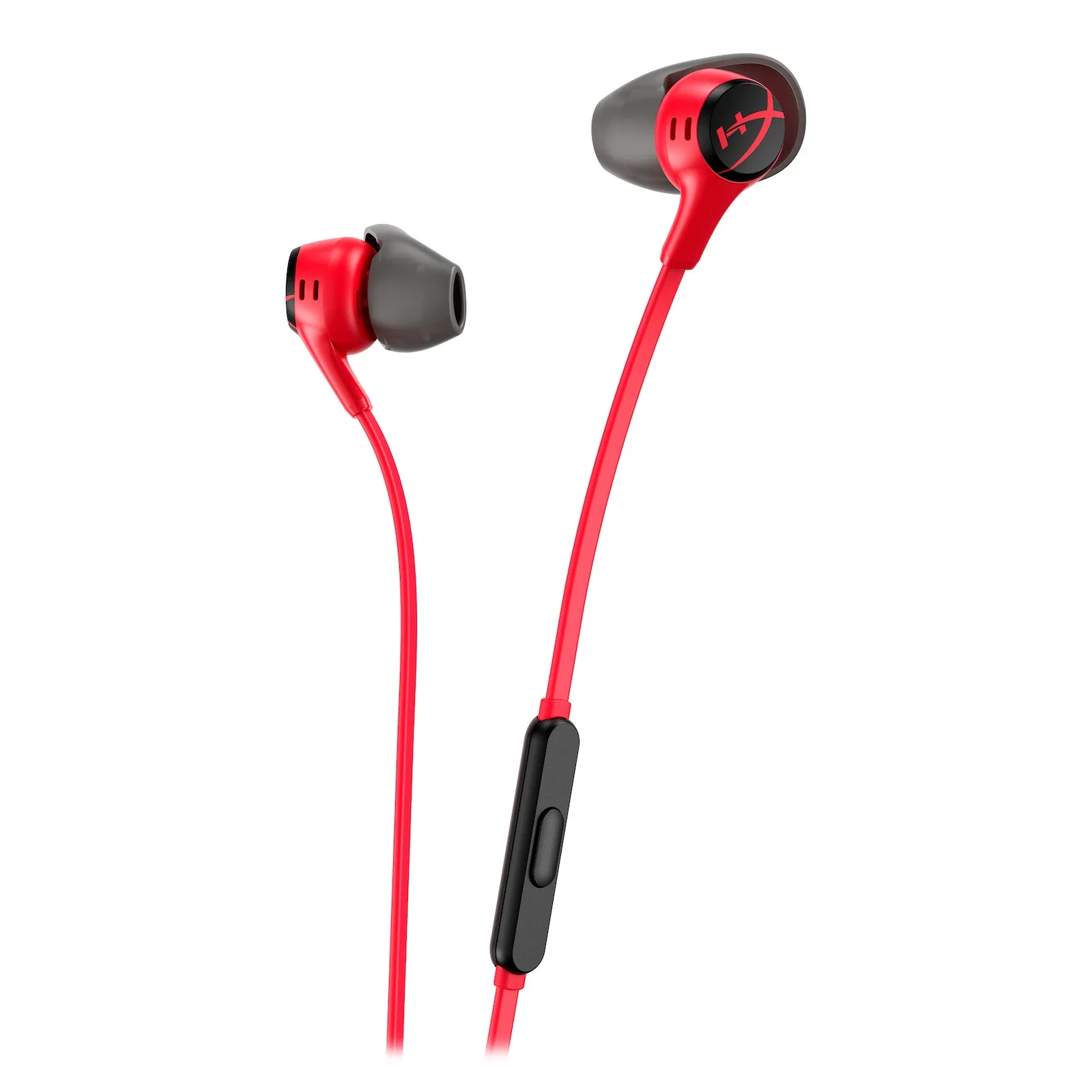
HyperX Cloud Earbuds II - Gaming Earbuds: These versatile earbuds are compatible with PC[1], Nintendo Switch, Steam Deck™, and mobile devices[2] that use a 3.5mm connection. Compatibility depends on the device having a 3.5mm port. If your device uses a single combined headphone/mic jack, the Cloud Earbuds II should work without an adapter.
HyperX Cloud Earbuds II - Gaming Earbuds
-
HyperX Cloud Earbuds II - Gaming Earbuds: For busy multitaskers, the built-in microphone allows you quickly swap from mobile gaming to answering phone calls with a touch of the multi-function[3] button. The multi-function button controls calls, not mute. If the mic seems dead, check that you haven't accidentally triggered a call mode that mutes the microphone on some devices.
Check Device Settings
After confirming the earbuds are plugged in, look at your device's audio settings. The Cloud Earbuds II are compatible with PC, Nintendo Switch, Steam Deck, and mobile devices via 3.5mm, but each platform handles microphone input differently.
- On PC: Right-click the speaker icon in the system tray, select 'Open Sound settings', and check that the HyperX Cloud Earbuds II are set as the default input device. Some PCs require a splitter for separate mic and audio channels – the Cloud Earbuds II are designed for a combined port.
- On Nintendo Switch or Steam Deck: Go to System Settings > Audio and verify the input device is set to 'Headset Microphone'. If the console doesn't detect the mic, try unplugging and reinserting the earbuds while a game or app is open.
- On Mobile Devices: Most phones auto-detect the mic when you plug in. If not, check that the earbuds are fully inserted and that your phone's headphone jack is clean. Dust or lint can block the connection.
Ear Tip Fit and Mic Position
The Cloud Earbuds II come with 4 sets of redesigned ear tips to help you get the right fit. A poor seal can affect audio quality, but it doesn't directly cause mic failure. However, if the earbud isn't seated correctly in your ear, the microphone (located on the inline remote) might be pulled away from your mouth, making your voice sound distant or muffled.
Try each ear tip size to find the one that stays secure without shifting. The inline mic housing should rest near your collarbone, not tucked under a jacket or twisted behind your neck.
When the Mic Still Doesn't Work
If you've checked the connection, device settings, and ear tip fit, and the mic remains unresponsive, test the earbuds on another device with a 3.5mm jack. This helps you tell if the issue is with the earbuds themselves or the original device's port. The Cloud Earbuds II are compatible with PC, Nintendo Switch, Steam Deck, and mobile devices, so you likely have a backup device to try.
If the mic works on another device, the problem is with your primary device's audio jack or software settings. If it doesn't work on any device, the inline microphone may need service. The supplied information does not cover internal repair steps, so contact HyperX support for warranty options.