Quick answer
Start by checking the camera's link LED and the Ethernet path between camera and board, because most 'camera not detected' errors on a GigE framegrabber board trace to cabling, IP configuration, or power rather than the board itself. Only replace the framegrabber after those checks fail and you have confirmed the camera works on another port.
Why GigE faults look like board failures
A GigE framegrabber board handles camera communication over Ethernet, so a lost link can come from the camera, the cable, the switch, the host network settings, or the board. The symptom is usually identical: the software reports no camera or a dropped stream. Treat the board as the last suspect, not the first, and work outward from the camera.
When the camera is fine but the system is not
If the camera links on a bench laptop but not on the interferometer PC, the problem is in the host path: a changed IP address, a disabled network adapter, or a firewall rule blocking the GigE stream. Replacing the framegrabber board will not fix a host configuration change, so confirm the host side before ordering parts.
What the catalog does and does not tell you
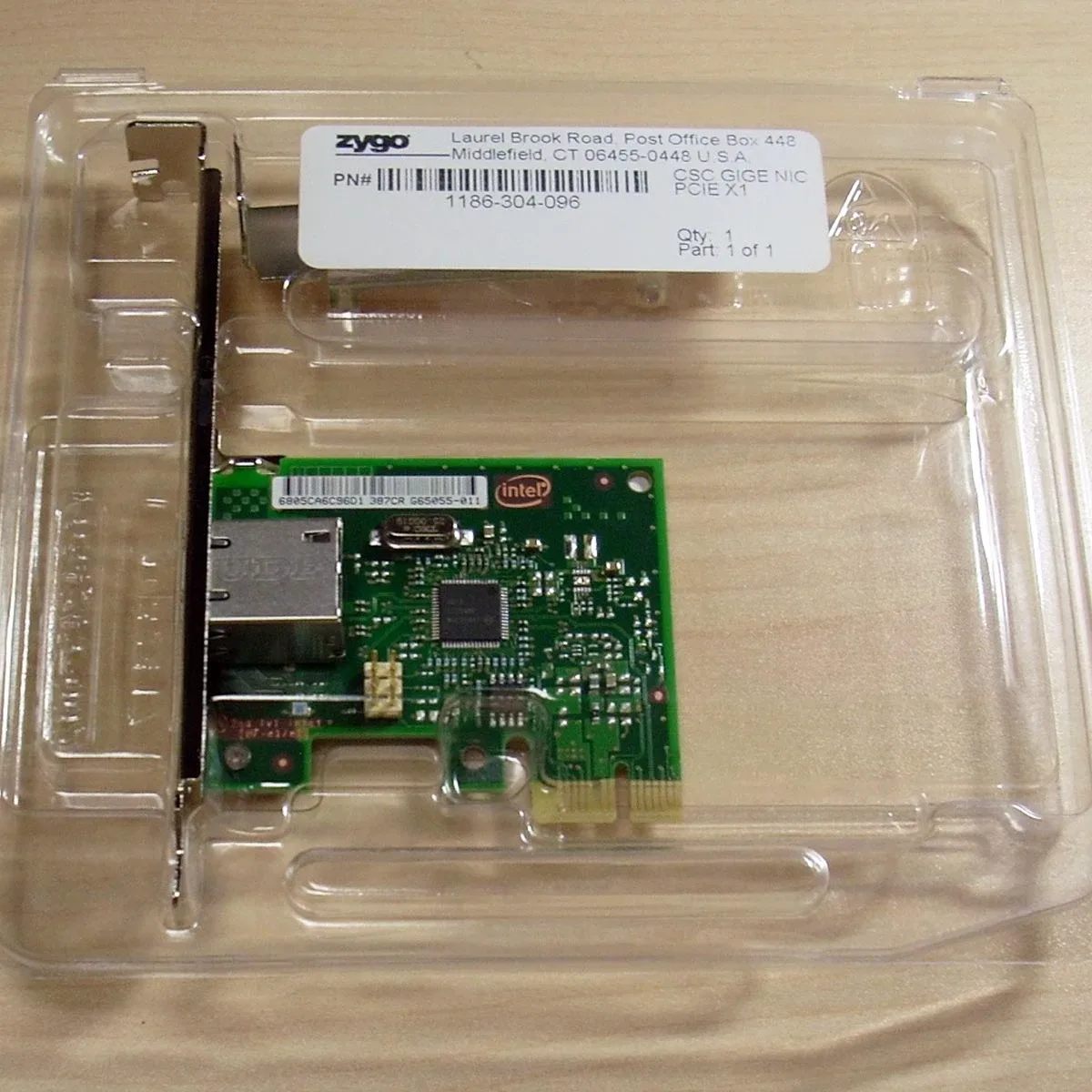
The Zygo GigE framegrabber board (SKU 1186-304-096) is listed with its connectivity type, use, and brand, but the catalog does not publish port count, supported frame rates, or firmware revision. If your diagnosis points to a board fault, confirm those details with Zygo support before ordering, so the replacement matches your camera and software.
Symptom-to-fix diagnosis
- Symptom: no camera detected at all: Check camera power and the link LED on the camera's Ethernet port. If the LED is dark, swap the cable and try a known-good port on the host or switch. If the LED stays dark with a new cable, the camera or its power supply is the likely cause, not the framegrabber. A dark link LED points away from the board.
- Symptom: camera detected, then stream drops: Confirm the host network adapter is set to the same subnet as the camera and that jumbo frames match the camera's setting. Check for a firewall or antivirus rule blocking the GigE stream. If drops persist only on this host, treat it as a host configuration issue. Intermittent drops usually mean a network setting mismatch.
- Symptom: camera works on another host but not this one: Move the camera and cable to a second PC with a known-good GigE port. If the camera streams there, the fault is in the interferometer host or its framegrabber board. Re-seat the board, check that it appears in the device manager, and update or reinstall its driver before replacing it. A camera that streams elsewhere clears the camera as the cause.
- Symptom: board not listed in device manager: Power down, re-seat the board in its slot, and restart. If it still does not appear, try the board in another compatible slot. A board that is absent from the device manager after re-seating is a strong candidate for replacement. Absence from device manager after re-seating is the clearest board-fault signal.
- Stop point: when to replace: Replace the framegrabber only when the camera streams on another host, the cable is known good, the host network settings are verified, and the board still fails to appear or pass traffic. Confirm port count and firmware with Zygo support before ordering SKU 1186-304-096. Order only after the camera and host path are cleared.
Relevant Zygo part
-
Framegrabber board, GigE: Zygo spare part with GigE connectivity, used for camera communication, SKU 1186-304-096. This is the interface to check only after camera, cable, and host network tests have passed.
Framegrabber board, GigE