Quick answer
Set up your Godox XPro II trigger by inserting fresh batteries, selecting the correct camera protocol (Sony or Canon), and pairing it with your flash on the same 2.4 GHz channel and group.
Why the XPro II is different from older triggers
The Godox XPro II adds Bluetooth support for app control, which means you can adjust flash settings from your phone. The original XPro lacked this feature. However, Bluetooth setup is optional and separate from the basic radio pairing; you can use the trigger without ever opening the app.
Sony vs Canon versions: what changes
The XPro II-S is built for Sony’s Multi Interface Shoe, while the XPro II-C fits Canon’s hotshoe. Both offer identical radio features: TTL, HSS to 1/8000s, and 32 channels. The only difference is the physical mount and on-camera menu compatibility. If you switch camera systems, you need the corresponding model.
Step-by-step setup guide
- Insert batteries and power on: Install two fresh AA batteries into the XPro II. Press and hold the power button for two seconds to turn it on. The LCD should light up showing the current channel and group. If the screen flickers or shows low battery, replace them immediately – weak batteries cause intermittent misfires.
- Select the correct camera protocol: Press the MENU button, scroll to 'System' and choose either 'S' for Sony (XPro II-S) or 'C' for Canon (XPro II-C). Confirm by pressing SET. This step is critical – the wrong setting will not fire the flash. The trigger remembers the last system selected; double-check after a firmware update or battery change.
- Set the radio channel and group: Use the CH button to pick a channel (1-32). Use the GR button to assign a group (A-E). Ensure your flash is set to the same channel and group. Test by pressing the test button – the flash should fire. Avoid channel 1 in crowded venues; pick a higher channel to reduce interference from other photographers.
- Enable TTL or manual mode: Press the MODE button to cycle between TTL (auto exposure) and M (manual power). In TTL, the camera controls flash output. In M, you set power from 1/128 to full. Use TTL for fast-paced events; switch to M for consistent studio lighting. TTL can overexpose if the subject is very bright or dark; switch to M and fine-tune power for critical shots.
- Pair with the Godox app (optional): Download the Godox Flash app from your app store. Enable Bluetooth on the trigger by pressing MENU > Bluetooth > ON. Open the app and tap 'Search' – the trigger should appear. From there, you can adjust flash power, group, and channel remotely. Bluetooth range is about 10 meters; stay close during initial pairing. If the app doesn't find the trigger, restart both devices.
Product facts
-
Godox XPro II-S TTL Wireless Flash Trigger for Sony Cameras: Godox XPro II-S supports TTL auto-exposure and HSS up to 1/8000s shutter speed, plus Bluetooth app integration. You can fire off-camera flash at fast shutter speeds without losing exposure control, and adjust settings remotely from your phone during shoots.
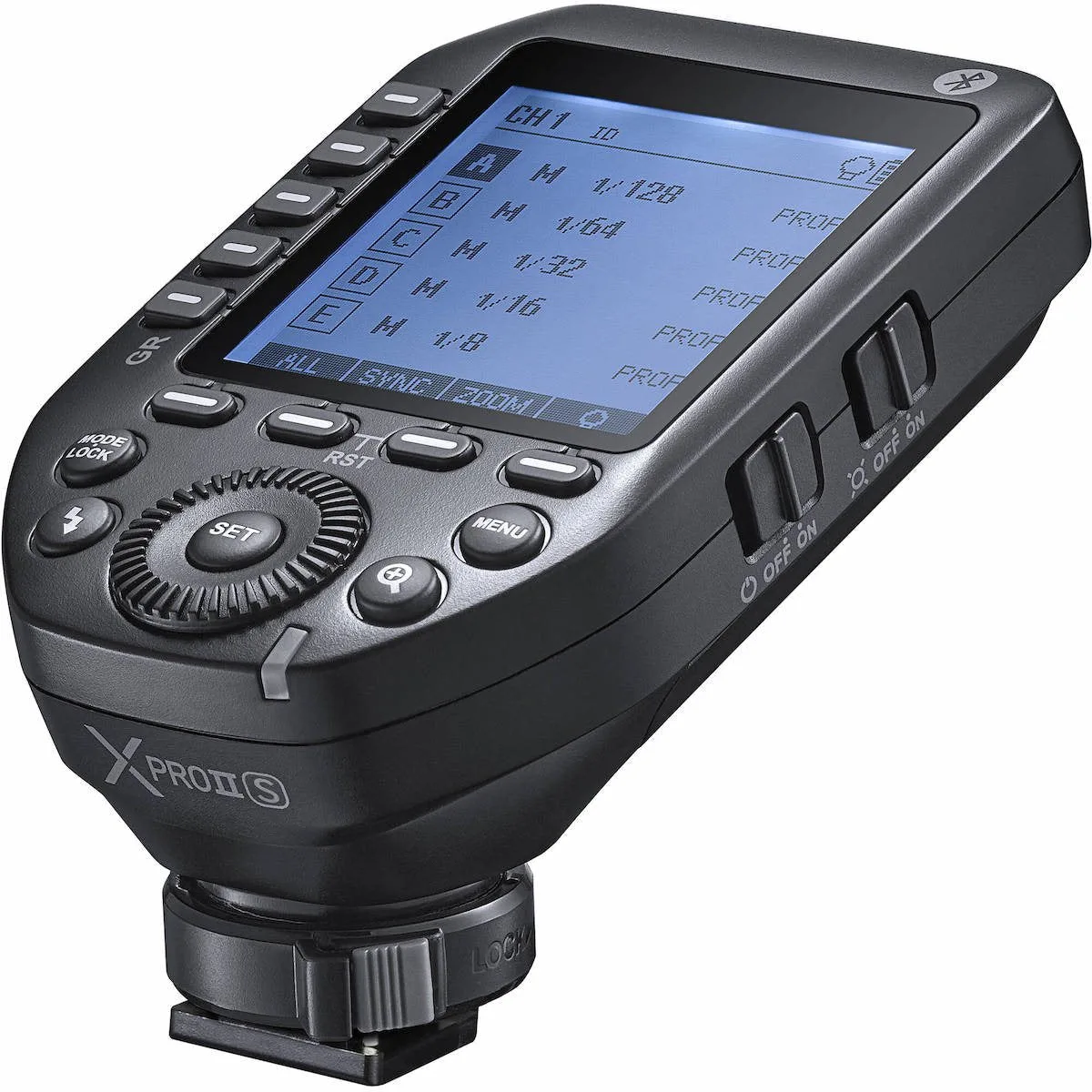
Godox XPro II-S TTL Wireless Flash Trigger for Sony Cameras
-
Godox XPro II-C TTL Wireless Flash Trigger for Canon Cameras: Godox XPro II-C provides the same TTL, HSS, and Bluetooth features for Canon cameras, with the same 2.4GHz radio system. Canon users get identical wireless performance and app control, making it a direct match for Canon’s flash system.
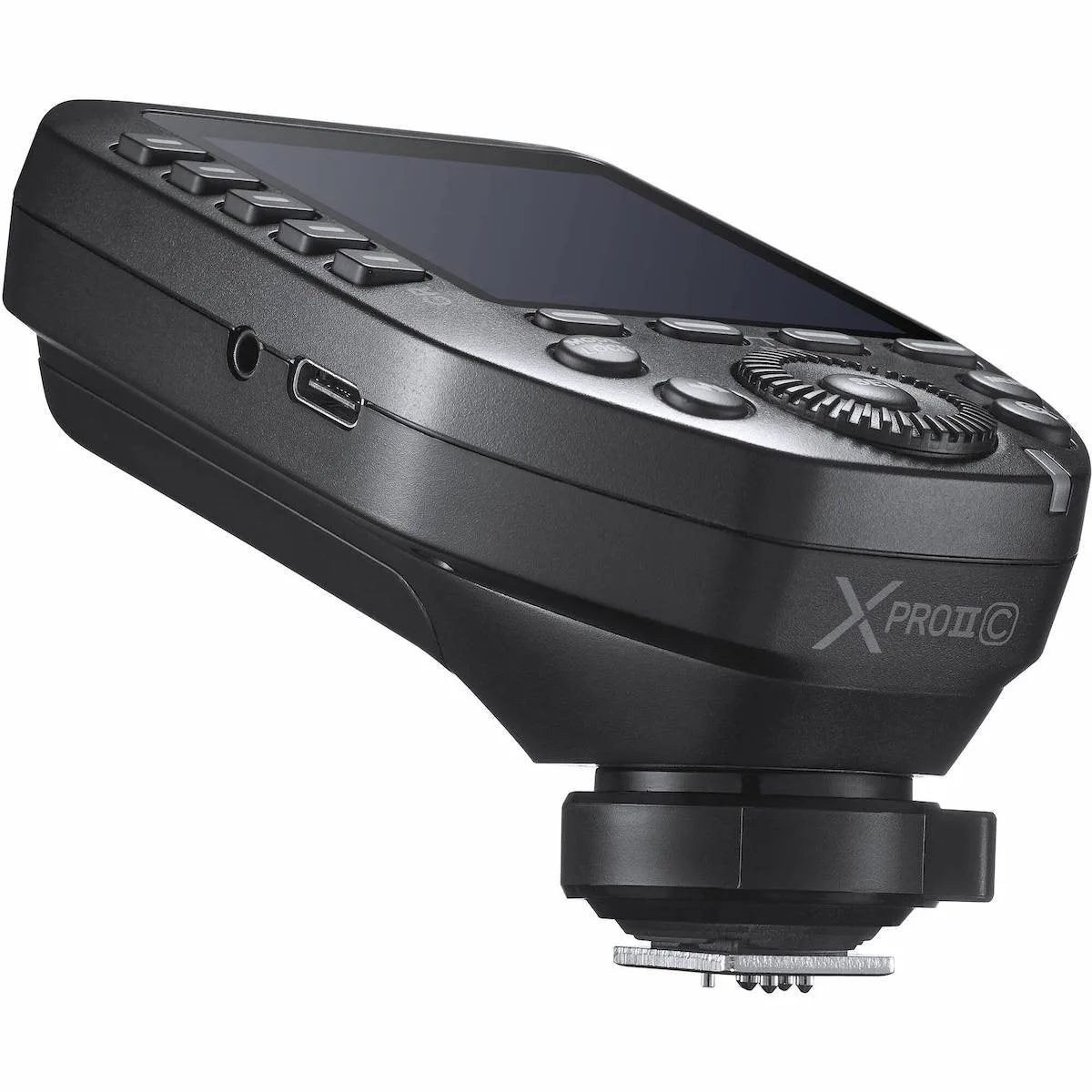
Godox XPro II-C TTL Wireless Flash Trigger for Canon Cameras