Quick answer
To apply a GeekShare silicone controller skin, start by cleaning your Xbox controller, then stretch the skin over the face, back, and grips in that order, pressing out any air bubbles as you go.
Why silicone skins need careful installation
Silicone controller skins are designed to fit snugly without adhesive, so proper alignment is key to avoiding wrinkles or loose edges. The flexible material stretches slightly, which helps it conform to the controller's curves, but rushing the process can lead to bubbles or misaligned cutouts for buttons and joysticks.
Both the GeekShare Star Wings Silicone Controller Skin and the G.S.TAC Hard Core Controller Skin use the same installation method. The main difference is the design: Star Wings has a soft pastel star-and-wing theme, while G.S.TAC features a dark tactical look with rugged geometric details.
Step-by-step installation guide
- Clean your controller: Wipe your Xbox controller with a soft, lint-free cloth to remove dust, oils, and debris. Pay extra attention to the grips and around the joystick bases. Skipping this step can cause the skin to not stick properly or trap dirt underneath.
- Stretch the skin over the face: Hold the silicone skin by the edges and align the cutouts for the Xbox button, D-pad, and joysticks. Gently stretch the skin over the front of the controller, starting from the center and working outward. If the skin feels tight, do not force it—check alignment first to avoid tearing the silicone.
- Wrap the back and grips: Flip the controller over and pull the skin around the back, smoothing it over the grip areas. The textured grooves on the grip should align with the controller's natural contours for a secure hold. Make sure the skin is fully seated in the grip grooves; a loose fit here can reduce the non-slip benefit.
- Press out air bubbles: Starting from the center, use your fingers to push any trapped air toward the edges. Work slowly to avoid creating new bubbles. For stubborn bubbles, lift the skin slightly and reapply that section. Small bubbles near the edges often disappear after a few hours of use as the silicone settles.
- Check button and trigger access: Press each button, joystick, trigger, and bumper to ensure the skin does not block or hinder movement. If any cutout feels misaligned, gently reposition the skin before the final press. A properly installed skin should not affect gameplay; if a button feels stiff, the skin may be stretched too tightly over that area.
Product facts
-
GeekShare Star Wings Silicone Controller Skin: Soft Silicone Material – Made from flexible silicone to help protect your controller from scratches, dust, and everyday wear. The flexibility allows the skin to stretch slightly during installation, making it easier to align over the controller's contours without tearing.
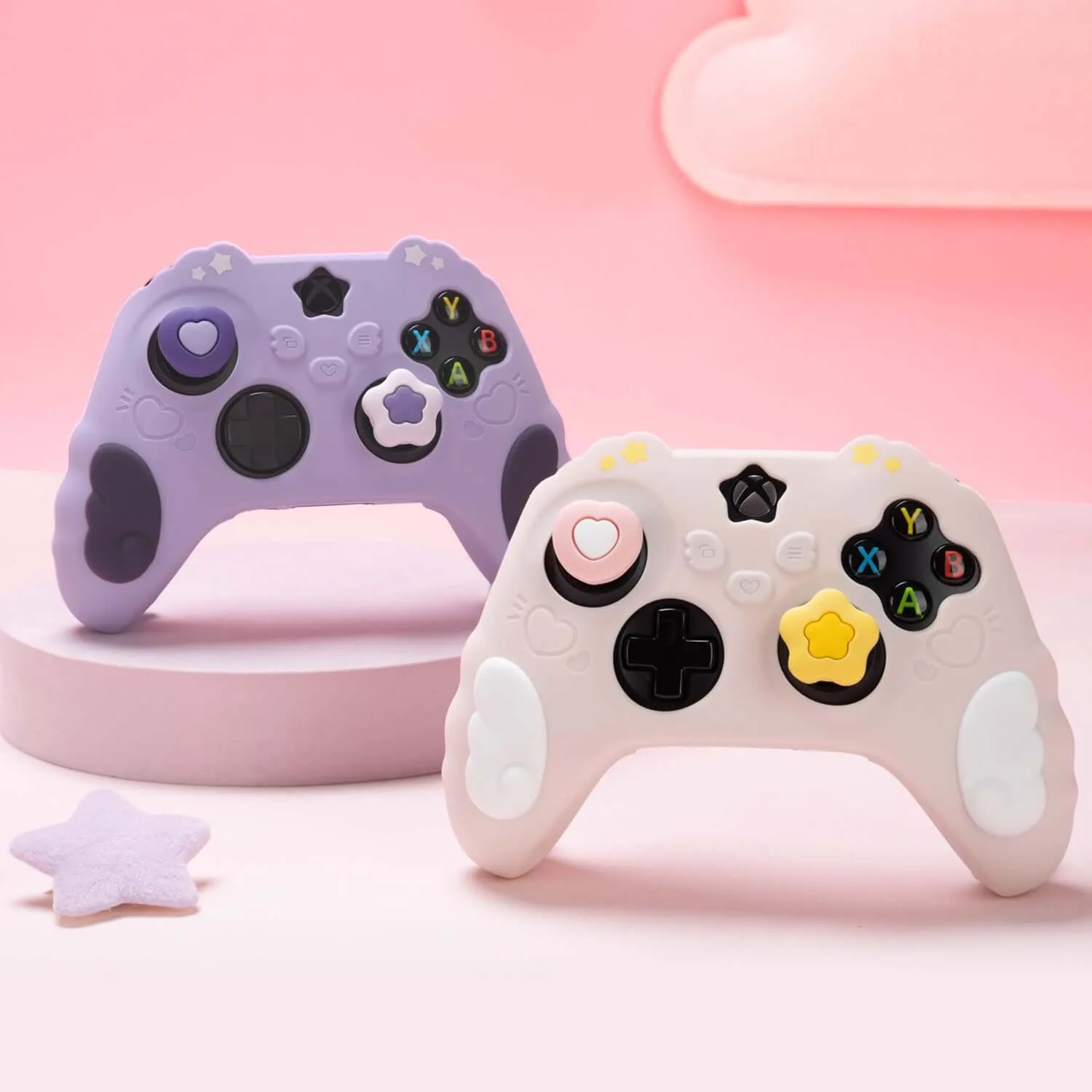
GeekShare Star Wings Silicone Controller Skin
-
GeekShare G.S.TAC Hard Core Controller Skin: Full-Cover Design – Wraps around the controller to add a distinctive look while helping reduce everyday scratches and wear. Because it covers the entire controller, you need to ensure the skin is fully seated around the edges to prevent it from peeling back during use.
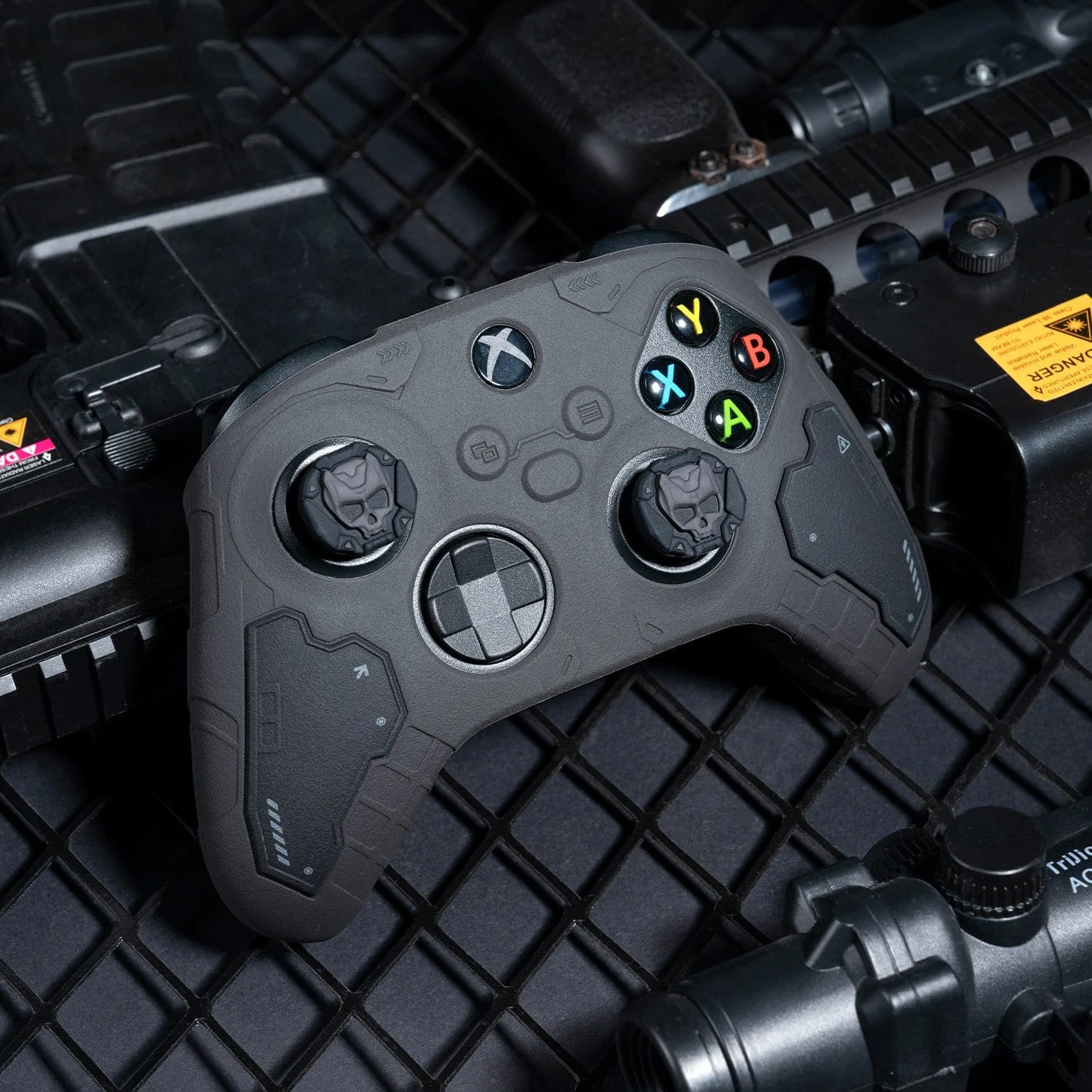
GeekShare G.S.TAC Hard Core Controller Skin