Quick answer
Place the FindAll tracker inside the luggage tag's dedicated slot, then sync it with the Apple Find My app on your phone.
Why a dedicated slot matters
A luggage tag with a built-in tracker slot holds the device securely and prevents it from shifting during travel. The Vegan-Leather FindAll™ Luggage Tag is designed with this compartment, so the tracker stays flat and doesn't add bulk.
Step-by-step guide
- Open the tag's compartment: Slide the Vegan-Leather FindAll™ Luggage Tag open to access the built-in slot. The compartment is designed to hold the tracker snugly. Check that the compartment is clean and free of debris before inserting the tracker.
- Insert the tracker: Place the FindAll tracker (or compatible Apple Find My device) into the slot with the logo facing up. Ensure it clicks or sits flush. If the tracker doesn't fit, verify you have the correct model; the slot is sized for standard Find My devices.
- Sync with the app: Open the Apple Find My app on your iPhone or iPad. The tag should appear as a new device. Follow the on-screen prompts to complete pairing. If the tag doesn't appear, check that Bluetooth is on and bring your phone within 30 feet of the tag.
- Test the connection: Move a few steps away and use the app to ring the tag. Confirm you hear the sound or see the location update. If the tag doesn't respond, repeat the sync steps or restart your phone.
- Attach the tag to your luggage: Loop the tag's strap around the handle of your suitcase or bag. Tighten securely so it doesn't slip off during transit. Avoid attaching the tag to a zipper pull; it may detach more easily.
Product facts
-
Vegan-Leather FindAll™ Luggage Tag: Built-in Apple Find My technology helps locate misplaced belongings in seconds. This means you don't need a separate Bluetooth tracker; the tag itself is the tracker, simplifying setup and reducing the risk of losing the tracker.
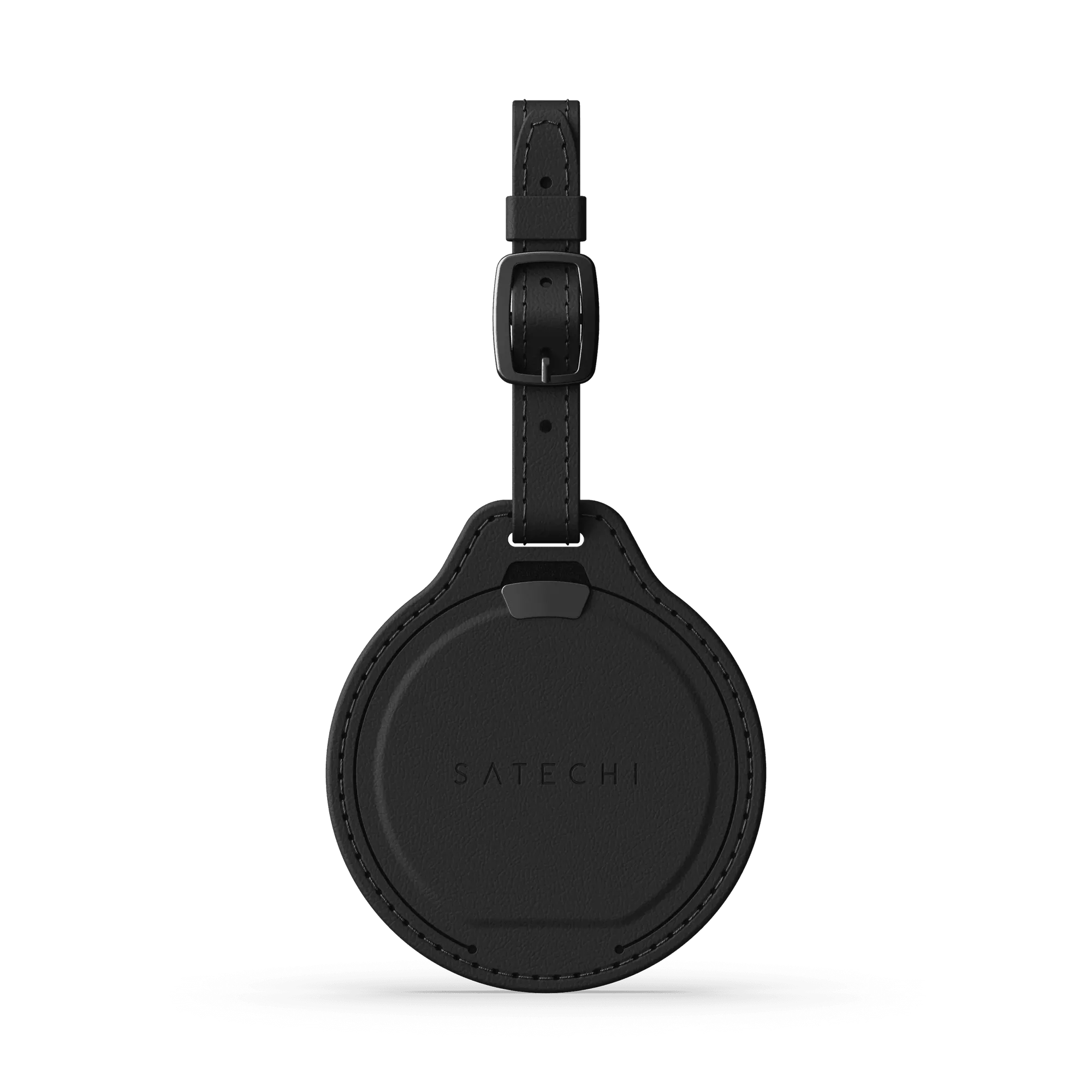
Vegan-Leather FindAll™ Luggage Tag