Quick Answer
To clean your Nintendo Switch OLED screen safely, power off the console, use a soft microfiber cloth slightly dampened with distilled water, and wipe gently in circular motions. Avoid paper towels, abrasive cleaners, and excessive pressure to prevent damaging the delicate OLED panel.
Why OLED Screens Need Special Care
The Nintendo Switch OLED features a 7-inch OLED display that delivers vibrant colors and deep blacks. Unlike LCD screens, OLED panels have a thin organic layer that can be sensitive to pressure and harsh chemicals. Using the wrong cleaning method can permanently damage the screen, leading to discoloration or dead pixels.
Fortunately, proper care is straightforward. By following a few simple habits, you can keep your Switch OLED screen looking pristine for years. This guide covers the essential steps and common pitfalls to avoid.
Gathering the Right Cleaning Supplies
Before you start, gather the right tools. You'll need a soft, lint-free microfiber cloth (like those used for eyeglasses), distilled water (or a screen cleaner specifically designed for OLED displays), and optionally a soft brush for removing dust from edges and crevices.
Avoid using paper towels, tissues, or rough fabrics as they can scratch the screen. Also, never use household cleaners, alcohol, or ammonia-based products, as they can strip the oleophobic coating and damage the OLED layer.
When to Clean and How Often
Clean your Switch OLED screen when you notice smudges or dust buildup, typically every few weeks depending on usage. Frequent cleaning isn't necessary and can increase the risk of wear. If you use a screen protector, cleaning becomes even easier and less frequent.
A good habit is to wipe the screen gently with a dry microfiber cloth after each gaming session to remove fingerprints and dust. This prevents buildup and reduces the need for deeper cleaning.
Step-by-Step Cleaning Routine
- Power Off and Unplug: Turn off your Switch OLED completely and disconnect any cables or accessories. This prevents accidental input and makes smudges easier to see. Checkpoint: Ensure the screen is completely dark before cleaning.
- Remove Loose Dust: Use a soft, dry brush or a dry microfiber cloth to gently sweep away any loose dust or particles from the screen surface. This prevents scratching during the wet cleaning step. Mistake to avoid: Never rub dry dust with pressure; always lift it off.
- Dampen the Cloth: Lightly dampen a corner of the microfiber cloth with distilled water or an OLED-safe screen cleaner. The cloth should be just barely damp, not wet. Mistake to avoid: Never spray liquid directly onto the screen.
- Wipe Gently in Circles: Using the damp corner, wipe the screen in gentle circular motions, applying minimal pressure. Start from the center and move outward to avoid spreading oils. Checkpoint: If smudges remain, repeat with a fresh damp area.
- Dry and Polish: Use a dry part of the microfiber cloth to gently buff the screen until it's dry and streak-free. This also removes any remaining moisture. Final step: Your screen should look clean and clear.
- Apply a Screen Protector: For ongoing protection, consider applying a tempered glass screen protector designed for the Switch OLED. This adds a layer that resists scratches and makes future cleaning even simpler. Pro tip: A screen protector is a worthwhile investment for long-term care.
Recommended Product for Screen Care
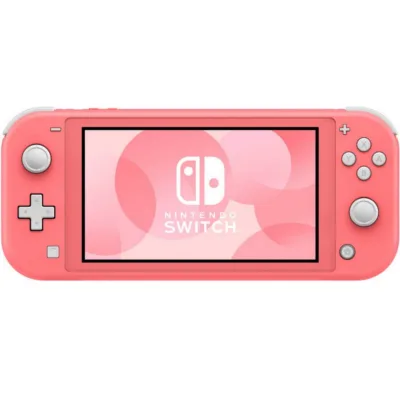
- Nintendo Switch Lite – Coral – Refurbished A: The Nintendo Switch Lite in Coral offers a compact, handheld-only gaming experience with integrated controllers, a 5.5-inch LCD touch screen, and a lightweight design perfect for gaming on the go. If you're considering a Switch Lite, the same cleaning principles apply, but the smaller screen and integrated design make it even easier to care for. A microfiber cloth and gentle technique are all you need to keep it spotless.