Quick answer
Turn off and unplug the screen, then use a dry microfiber cloth to lift dust. If needed, apply a screen-specific cleaner like AudioQuest CleanScreen to the cloth, never directly on the screen. Wipe gently in one direction, and avoid paper towels, glass cleaners, or excess moisture to prevent scratches and coating damage.
Why ordinary glass cleaners are risky
Many glass and window cleaners contain ammonia, alcohol, or abrasives that can permanently damage the polymer surface of computer and video screens. The same chemicals can harm the coated lenses of cameras and eyeglasses. Even a single use can leave a hazy, etched finish that no amount of wiping will fix. That is why screen manufacturers specify pH-neutral, solvent-based cleaners designed for delicate coatings.
Tools that actually work (and what to skip)
You need two things: a clean microfiber cloth and a screen-safe cleaner. Microfiber traps dust and oils without scratching. For cleaner, look for products that state they are safe for LCD, plasma, and coated screens. Avoid paper towels (wood fibers scratch), bathroom sprays, and any cleaner that lists ammonia or alcohol as a primary ingredient. If you are unsure, test on a small corner first.
How to handle stubborn marks without rubbing hard
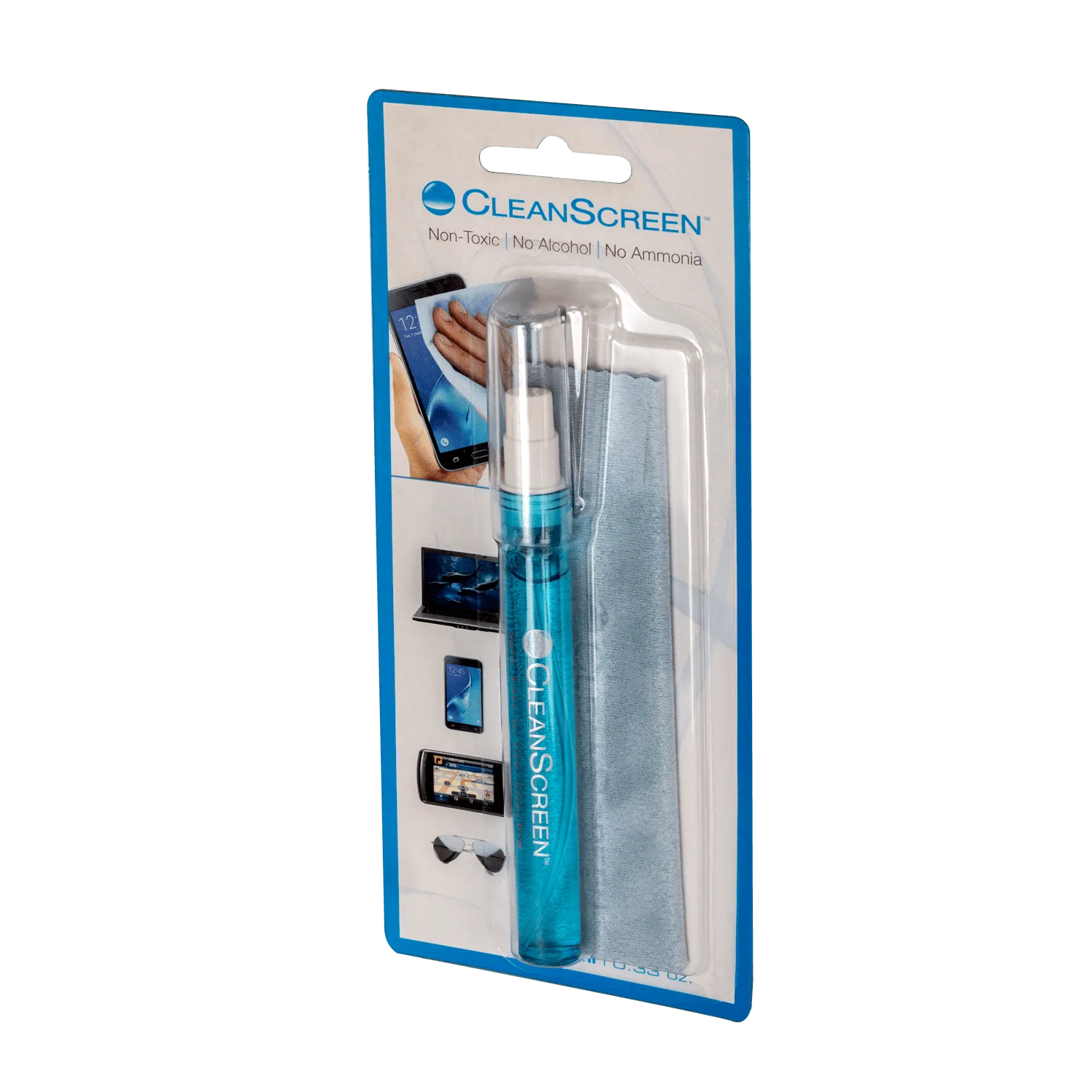
Fingerprints and sticky dust often need a little dwell time, not force. Apply a small amount of cleaner to your microfiber cloth, press it against the mark for a few seconds, then wipe once in a straight line. Do not scrub in circles; that spreads oils and can trap grit. If a mark remains, use a fresh part of the cloth and repeat. For really tough spots, a spray pen like the AudioQuest CleanScreen Spray Pen gives you precise control and avoids overspray onto bezels or vents.
Step-by-step safe screen cleaning
- 1. Power down and unplug: Turn off the TV or laptop and unplug it. A dark screen shows dust and streaks clearly, and no power means no accidental touches or static discharge. Checkpoint: screen is cool and completely off.
- 2. Dust with a dry microfiber cloth: Gently wipe the entire screen with a clean, dry microfiber cloth to remove loose dust and grit. Do not press hard; you are just lifting particles. Common mistake: skipping this step and grinding dust into the screen when you use liquid.
- 3. Apply cleaner to the cloth, not the screen: If marks remain, spray a small amount of screen-safe cleaner onto a microfiber cloth. Never spray directly on the screen, where liquid can run into bezels or vents. Checkpoint: cloth is damp, not dripping.
- 4. Wipe in one direction, then buff: Wipe gently from top to bottom in straight lines. Flip to a dry part of the cloth and buff lightly to remove any streaks. Common mistake: scrubbing in circles, which spreads oils and can trap grit.
- 5. Let it dry completely before powering on: Wait a minute for any moisture to evaporate, then plug the device back in and turn it on. This prevents short circuits and lets you check for missed spots. Checkpoint: no visible streaks or wet spots.
Screen cleaning products that match these steps
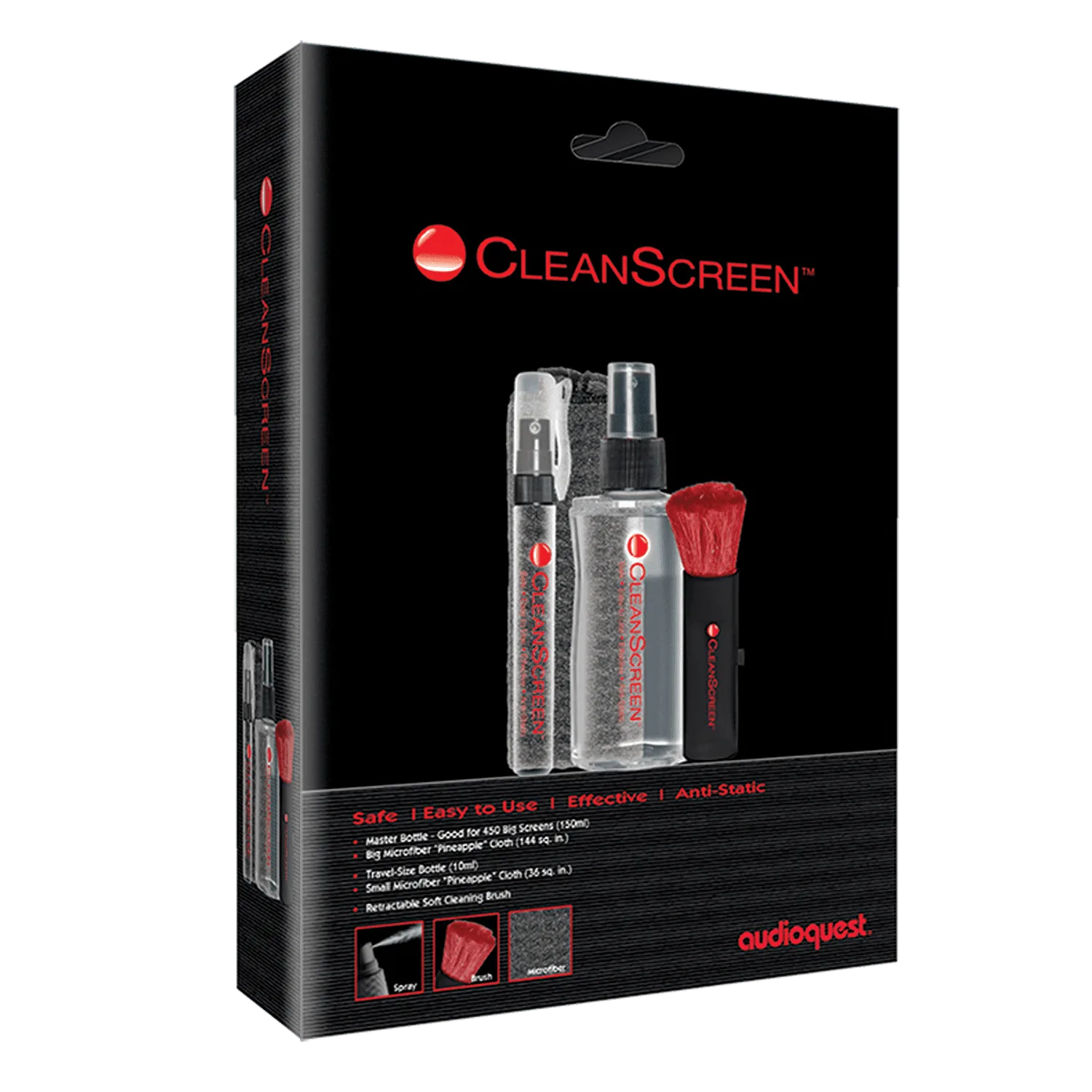
- CleanScreen Kit: CleanScreen uses the correct solvents for eliminating sticky dust, haze, and fingerprints while killing static and polishing the viewing surface. It removes marks without the ammonia or alcohol that can permanently damage screen coatings.
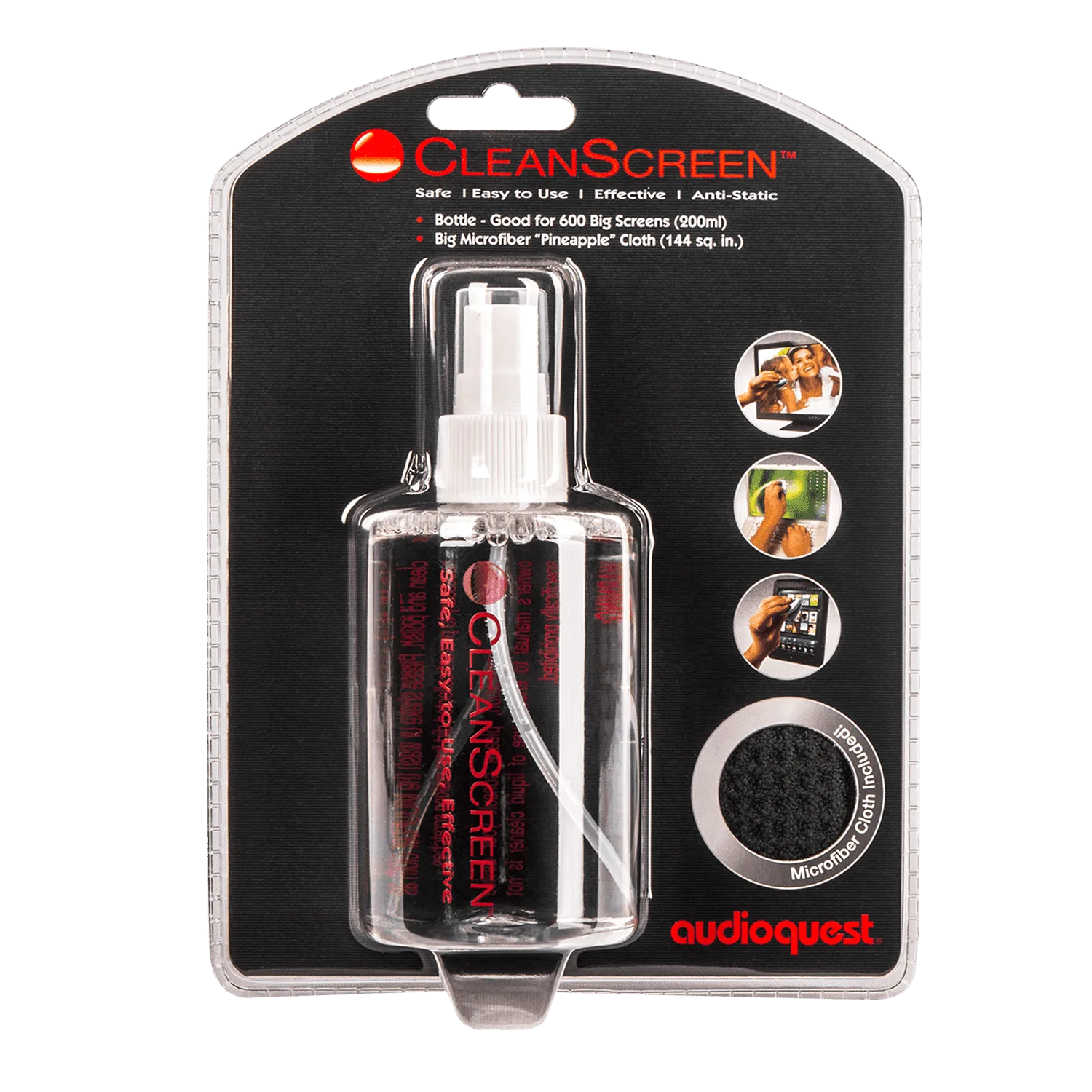
- CleanScreen Pack: The CleanScreen Pack includes one 6-oz. screen cleaner and a microfiber towel, and the fast-drying waffle-weave cloth is designed for cleaning and polishing LCD and plasma screens. You get a complete kit that avoids guesswork and reduces the risk of using the wrong cloth or cleaner.
- AudioQuest CleanScreen Spray Pen Single with 6ml Spray Pen + Microfiber Cleaning Cloth: The AudioQuest CleanScreen Spray Pen Single contains a 6ml spray pen and a microfiber cleaning cloth, and is safe for TV screens, monitors, glasses, and more. The pen format lets you apply cleaner precisely to the cloth, which is the recommended method to prevent drips and streaks.