Quick Answer
Start by cleaning the disc with a soft microfiber cloth from the center outward, then check for scratches or smudges. If the problem persists, update your player's firmware, adjust the video output settings, and try a different HDMI port or cable. For persistent freezes, consider a Blu-ray player with better error correction or a digital copy.
Blu-ray discs are more sensitive to smudges, scratches, and player compatibility issues than DVDs. If your copy of Pom Poko or The Cat Returns is skipping or freezing, you don't need to replace the disc right away. Most playback errors can be fixed with a few simple steps that address the most common causes.
Whether you're dealing with a brand-new disc that won't play or an older title that's started to stutter, this guide walks you through a practical troubleshooting process. We'll cover cleaning, player settings, firmware updates, and when it's time to consider a replacement.
Step 1: Clean the Disc Properly
Many playback issues come from dirt, fingerprints, or greasy smudges on the disc surface. Hold the disc by its edges and use a soft, lint-free microfiber cloth. Wipe gently from the center hub outward in straight lines, not in circles, to avoid pushing debris into tiny scratches.
If the disc still skips after a dry wipe, use a small amount of isopropyl alcohol (70% or higher) on the cloth. Never use paper towels, tissues, or household cleaners, as they can scratch the protective coating. Let the disc dry completely before inserting it.
A common mistake is wiping in a circular motion, which can create micro-scratches that follow the data track. Always wipe radially. Check the disc under a bright light for visible scratches or a cloudy film that might indicate residue.
- Check the disc for visible scratches or smudges before each playback.
Step 2: Update Your Player's Firmware
Blu-ray players rely on firmware to decode new discs and handle copy protection updates. If your player is older or hasn't been updated in a while, it may fail to read certain discs like Pom Poko or The Cat Returns, even if they're brand new.
Most players can check for updates through their network settings. Connect your player to the internet, go to the settings menu, and look for 'Software Update' or 'Firmware Update'. Follow the on-screen instructions and allow the player to restart after the update.
If you're using a gaming console like a PlayStation or Xbox, make sure the system software is current. A common mistake is skipping updates because they take time, but outdated firmware is a frequent cause of freezing or 'No Disc' errors.
- Update firmware even if the player worked fine with other discs.
Step 3: Adjust Video Output and HDMI Settings
Sometimes the disc is fine, but the player's video output settings cause the screen to freeze or go black. If your player is set to output a resolution or color format your TV doesn't support, you may see a frozen frame or a black screen during playback.
Try changing the player's resolution to a lower setting, like 1080p instead of 4K, or switch the color space from RGB to YCbCr. You can also try plugging the player into a different HDMI port on your TV, as some ports may have different capabilities.
A common mistake is assuming the player is broken when it's actually an HDMI handshake issue. Turn off both the player and TV, unplug the HDMI cable, wait a minute, then reconnect and power on. This often resolves intermittent freezes.
- Test with a different HDMI cable to rule out a faulty cable.
Step 4: Check for Disc Damage and Consider Replacement
If cleaning and player adjustments don't help, the disc itself may be damaged. Look for deep scratches, cracks, or warping. A scratched disc can often be repaired with a disc repair kit, but if the damage is severe, replacement is the most reliable option.
Some older discs, especially those pressed in the early Blu-ray era, may have manufacturing defects that cause skipping. If your copy of The Cat Returns consistently freezes at the same spot, it could be a pressing issue rather than a player problem.
When replacing, look for a new copy from a reputable retailer. GKIDS Store carries many Studio Ghibli titles, and newer pressings often have improved encoding. For example, Howl's Moving Castle [Blu-ray + DVD] is a popular title that benefits from a clean, well-pressed disc.
- Test the disc in another player to isolate the problem.
Step-by-Step Troubleshooting Checklist
- Clean the disc: Wipe from center outward with a microfiber cloth. Use isopropyl alcohol if needed. Check for scratches. Most skip issues are resolved by cleaning.
- Update firmware: Connect your player to the internet and install the latest software update. Restart the player. Outdated firmware is a common cause of freezing.
- Adjust HDMI settings: Change resolution or color space, try a different HDMI port, and test with another cable. HDMI handshake issues can mimic disc errors.
- Test on another player: Play the disc on a different Blu-ray player or console to see if the problem follows the disc. If it plays elsewhere, your original player may need servicing.
- Replace if necessary: If the disc is scratched or defective, consider a replacement copy from a trusted retailer. A new disc is the surest fix for persistent errors.
Related Blu-ray Releases
- Howl's Moving Castle [Blu-ray + DVD]: From the legendary Studio Ghibli, creators of Spirited Away, and acclaimed director Hayao Miyazaki, comes the Academy Award-nominated fantasy adventure for the whole family. A well-made Blu-ray release can prevent many playback errors, but even a great disc can suffer from smudges. Cleaning and proper handling are key.
- The Case of Hana and Alice [Blu-ray]: When Alice transfers to a new middle school, she hears an urban legend about a student who disappeared the previous year and is suspected to have been killed by his fellow students. If you're troubleshooting a disc that freezes, knowing the content helps you identify if the issue is a specific scene or the disc itself.
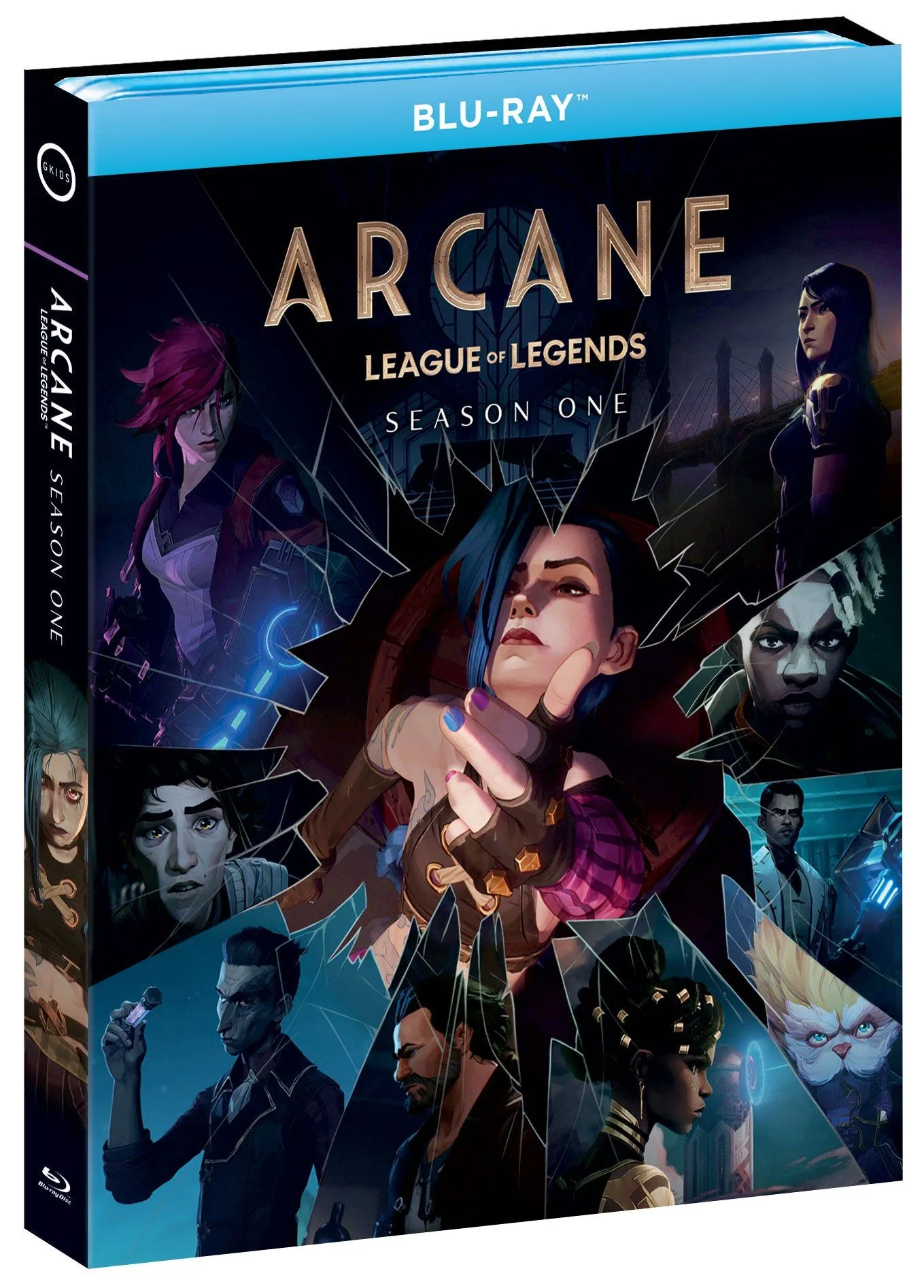
- Arcane League of Legends Season 1 [Blu-ray]: You’ll get all nine episodes on Blu-ray for the first time ever, all-new Bonus Features, and original cover art featuring Piltover and Zaun’s iconic cast of characters. Bonus features can also cause playback issues if the disc is dirty, so clean the entire disc surface, not just the main feature area.
Blu-ray playback errors are frustrating, but most have simple fixes. Start with cleaning, then move through firmware and HDMI settings before considering a replacement. With these steps, you can get back to enjoying your favorite anime films like Pom Poko and The Cat Returns without interruptions.
![The Case of Hana and Alice [Blu-ray]](https://xilands.com/api/media/sync/86/8677dfc3a54af8a01a7413b5a2852824edfd80820588b65c436d88bd55a978b1.webp)