Quick answer
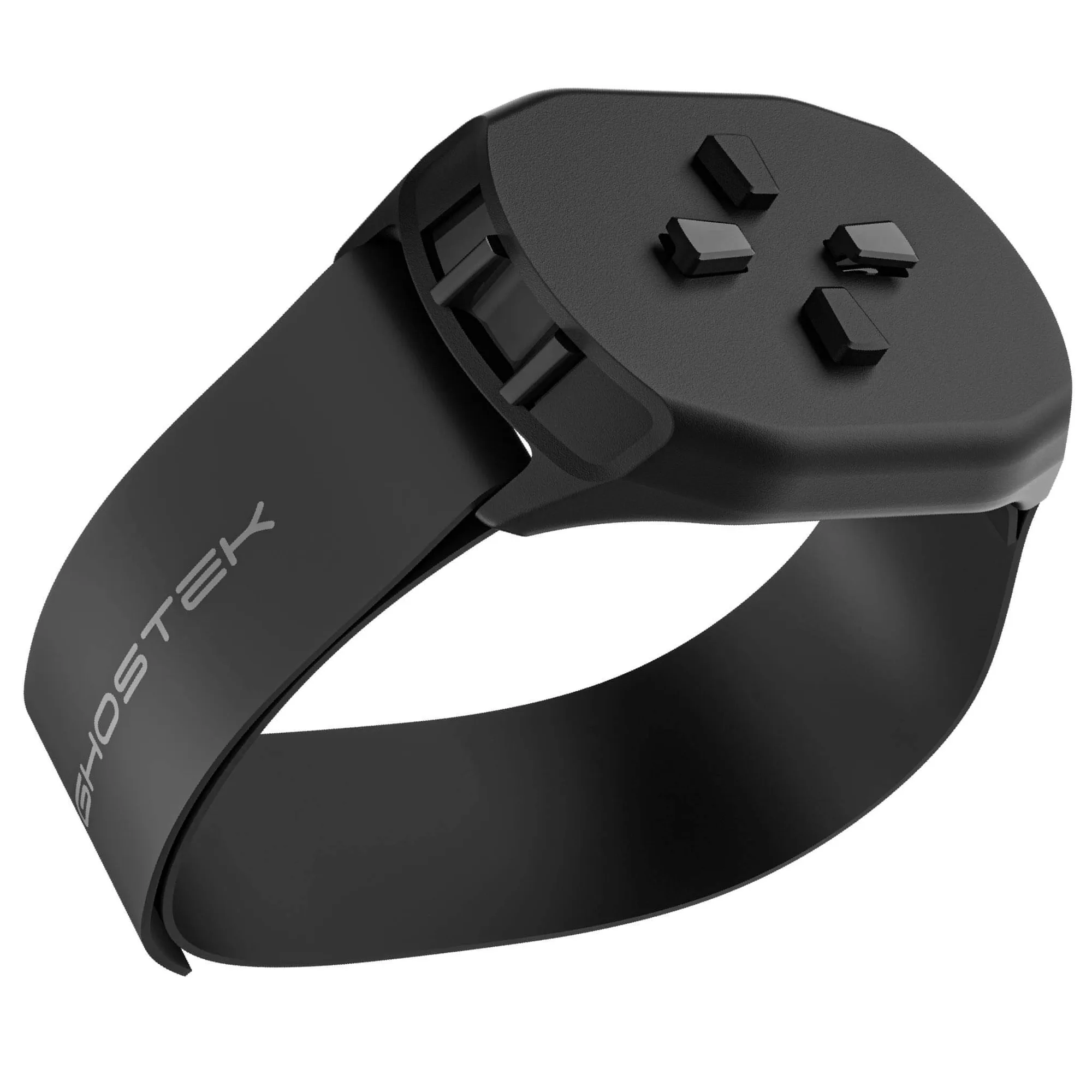
To install a universal holster with a swivel belt clip, first adjust the clip opening to fit your belt width, then slide it onto your belt with the holster facing your preferred carry side. Position the holster at your hip or small of the back, and test the swivel rotation to ensure easy access and comfort.
A universal holster with a swivel belt clip is a simple way to carry your phone securely without a pocket or bag. The swivel lets you rotate the holster for easy access, but only if you install it correctly. This guide walks you through the steps to attach it to your belt, position it for comfort, and adjust the fit for your phone.
Whether you're using a holster for work, outdoor activities, or everyday convenience, getting the belt clip and positioning right makes a big difference. A poorly attached holster can slip, feel uncomfortable, or make your phone hard to reach. Follow these steps to avoid those issues.
Before You Start: Know Your Belt and Holster
Check the width of your belt and the opening of the swivel belt clip. Most universal holsters have a clip that opens wide enough for a standard belt, but thick tactical belts or leather belts may be too wide. If the clip doesn't open enough, the holster won't stay secure.
Also, look at the clip's release mechanism. Some clips have a button or lever to open the clip, while others are spring-loaded. Knowing how your clip opens prevents frustration when you try to attach it. If your clip has a locking tab, make sure it clicks into place after installation.
- Measure your belt width with a ruler if you're unsure. Most clips fit belts up to 2 inches wide.
- Test the clip opening on a spare belt before you attach it to the one you're wearing.
Positioning Your Holster for Comfort and Access
Decide which side you want to carry your phone. Most people prefer the holster on their dominant hand side for easy drawing, but some like it on the opposite side to keep the phone out of the way. Try both positions if you're not sure.
The most common placement is at the hip, just behind the belt loop. This keeps the phone close to your body and reduces bouncing when you walk. If you sit for long periods, you may want to shift the holster to the small of your back to avoid pressure on your hip bone.
The swivel feature lets you rotate the holster so the phone's screen faces inward or outward. Inward-facing is more secure and protects the screen from bumps, while outward-facing makes it easier to grab quickly. Test the rotation after installation to ensure it moves smoothly without catching on your clothing.
- If the holster digs into your side, move it forward a few inches or try a different belt loop.
- For driving, position the holster so it doesn't interfere with the seatbelt.
Adjusting the Fit for Your Phone
Universal holsters often have an adjustable strap or tension system to hold different phone sizes. Before you attach the holster to your belt, place your phone inside and adjust the fit. The phone should sit snugly without being forced, and it shouldn't rattle when you move.
If your holster has a Velcro strap, secure it firmly but not too tight—overtightening can make it hard to remove the phone. If the holster uses a spring-loaded grip, test that the phone stays in place even when you shake the holster gently.
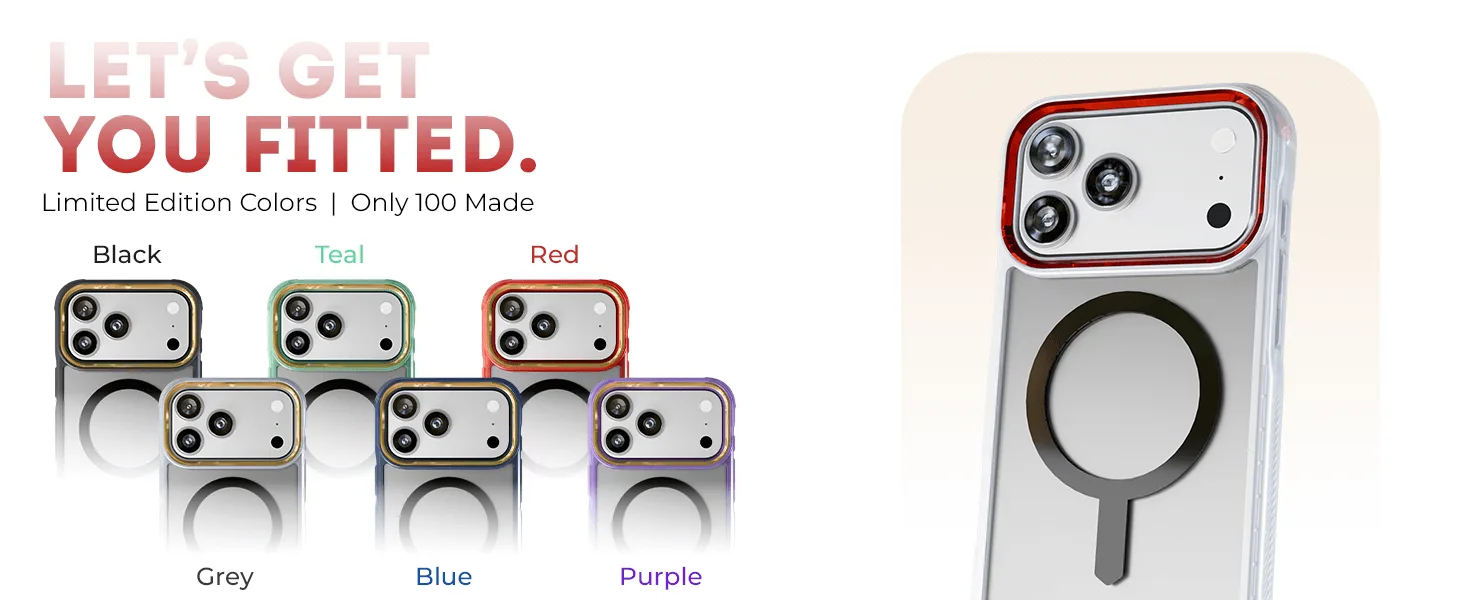
Remember that a phone case adds thickness. If you use a rugged case, like the GHOSTEK ATOMIC Aluminum MagSafe Case for iPhone 17 Pro Max, your phone may be wider than a naked phone. Check that the holster's opening accommodates your case, or you may need to adjust the tension.
- Keep the phone's buttons accessible. Some holsters cover the side buttons, making it hard to adjust volume or power.
- If your phone has a camera bump, ensure the holster doesn't press on the lens.
Step-by-Step Installation
- Adjust the clip opening: Open the swivel belt clip fully and check that it fits your belt width. If the clip has a locking tab, make sure it's in the open position. Checkpoint: The clip should slide onto your belt without forcing.
- Attach the clip to your belt: Slide the clip onto your belt at your chosen position, typically just behind a belt loop. Press down until the clip snaps or clicks into place. Checkpoint: Tug gently on the holster to confirm it's secure.
- Position the holster: Rotate the holster to your preferred angle using the swivel. For most people, the phone should sit vertically with the screen facing your body. Checkpoint: The holster should not dig into your hip or catch on clothing.
- Insert your phone and adjust tension: Place your phone inside the holster and adjust any straps or tension to hold it snugly. Test that it doesn't slide out when you bend or move. Checkpoint: Your phone should be easy to remove but not loose.
- Test the swivel rotation: Rotate the holster a full 360 degrees to ensure the swivel works smoothly and doesn't bind. If it sticks, check for debris or misalignment. Checkpoint: The swivel should allow one-handed access without excessive force.
Products That Work Well with a Holster
- iPhone 17 Pro / Max Aluminum MagSafe Cases — ATOMIC: Aluminum construction for a sturdy, premium feel and MagSafe-ready to support accessories. A sturdy case like the ATOMIC adds minimal bulk, so it fits better in a universal holster and protects your phone if it drops while you're carrying it.
- iPhone 17 / Air Series Protective Clear MagSafe Cases — COVERTiPhone 17 Pro Max / Black: Clear transparent design highlights the original look of your iPhone 17 Pro Max. Compatible with MagSafe for easy attachment of chargers and accessories. A slim clear case keeps your phone's profile close to the original, making it easier to slide into a holster without extra friction.
Installing a universal holster with a swivel belt clip takes only a few minutes, but getting the fit and positioning right ensures comfort and easy access. Adjust the clip to your belt, position it at your hip or back, and test the swivel. With these steps, you'll have a reliable way to carry your phone wherever you go.