Quick answer
To pair wireless earbuds with your phone, put the earbuds in pairing mode, enable Bluetooth on your phone, and select the earbuds from the available devices list.
Why pairing sometimes fails and how to avoid it
Most pairing issues come from the earbuds not being in pairing mode or the phone scanning for already connected devices. Make sure your earbuds are charged and not already linked to another phone. If you have used them before, you may need to clear the old Bluetooth connection first.
For true wireless earbuds like Juice Pods, each earbud may need to be taken out of the case together to enter pairing mode. Check the manual if you are unsure.
Steps to pair wireless earbuds with your phone
- Put your earbuds in pairing mode: Take both earbuds out of the charging case. For most models, they will automatically enter pairing mode. If not, press and hold the button on each earbud until the LED flashes blue or red. If the LED does not flash, the earbuds may be out of battery or already connected to another device.
- Enable Bluetooth on your phone: Open your phone's Settings, tap Bluetooth, and toggle it on. Your phone will start scanning for nearby devices. Make sure your phone is not connected to another Bluetooth audio device, as some phones limit one audio connection at a time.
- Select your earbuds from the list: Look for your earbud model name (e.g., "Juice Pods 2024") in the list of available devices. Tap it to connect. You may hear a confirmation tone or see a "Connected" status. If your earbuds do not appear, try turning Bluetooth off and on again, or restart your phone.
Product facts
-
Juice Pods Wireless Earphones 2024: Juice Pods Wireless Earphones 2024 feature magnetic backings to keep the pods compact and together when not in use. This magnetic feature helps prevent losing one earbud and makes it easier to store them between uses.
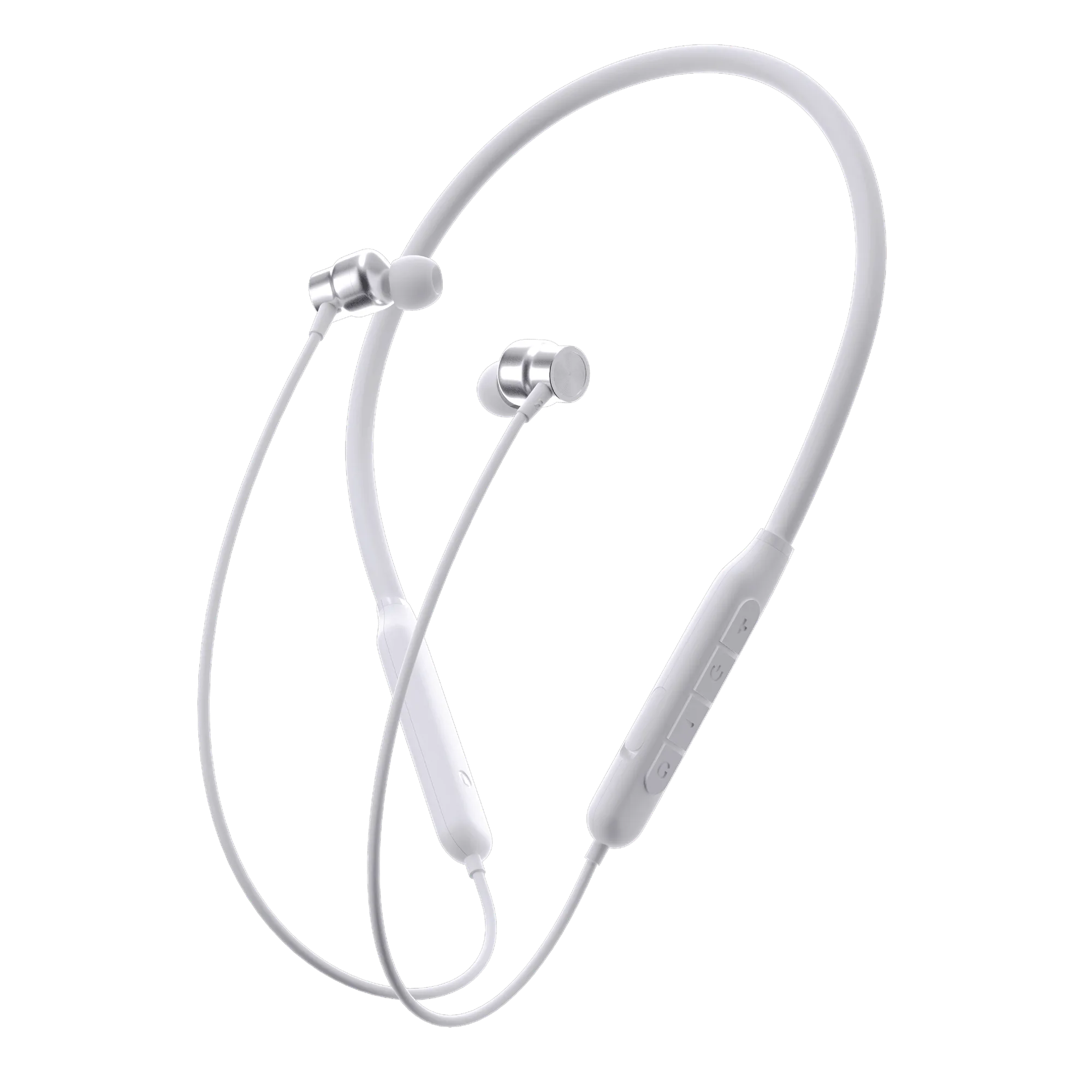
Juice Pods Wireless Earphones 2024