What This Flexi Tripod Does
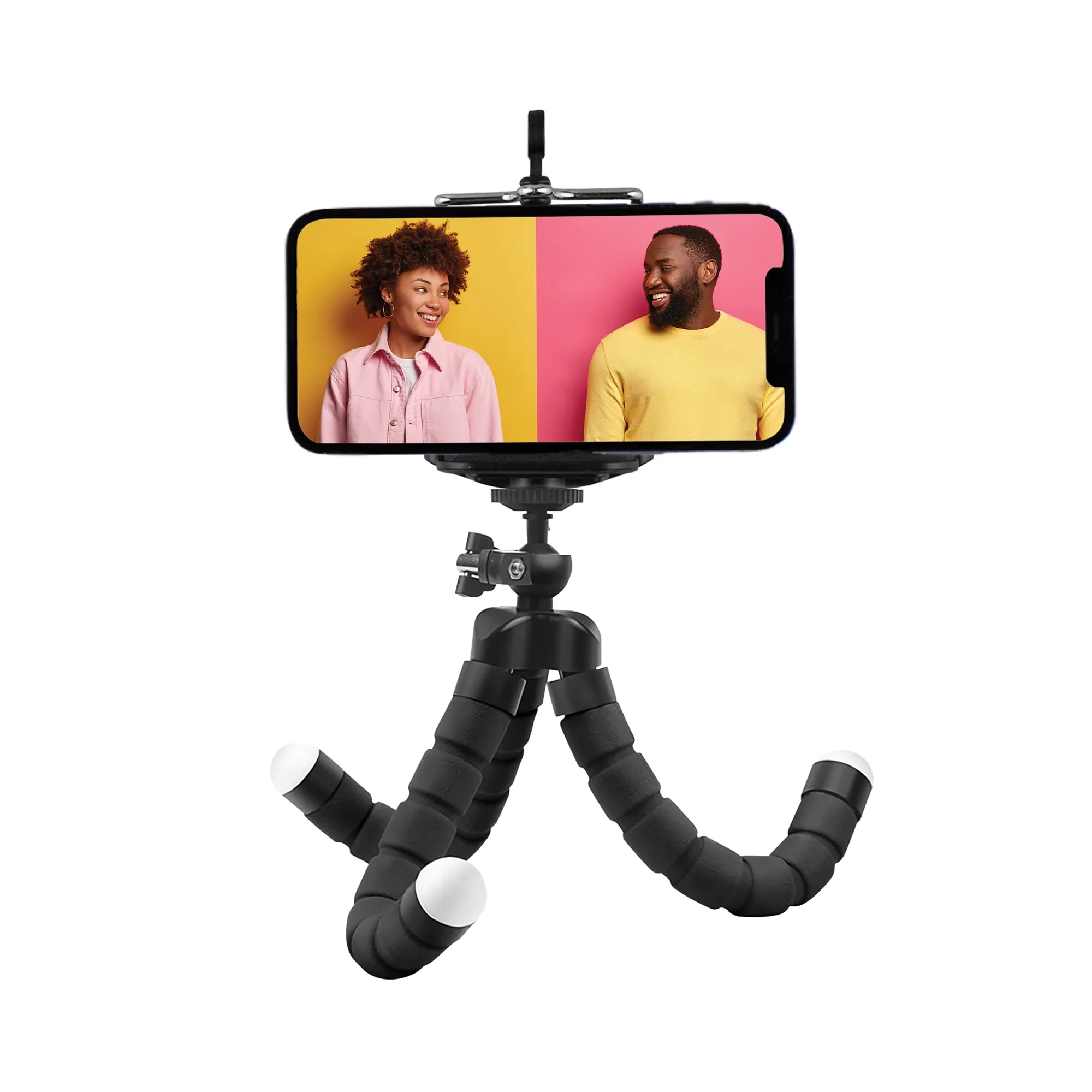
The Juice Social 'For Reels' Flexi-Tripod is a compact stand with three bendable aluminium legs that you can wrap, hook, or fasten to almost any surface. It comes with a wireless remote that works with smartphones up to 10 metres away, so you can trigger photos or video without touching the device.
This guide covers how to attach your phone or tablet, bend the legs for stable placement, and pair the remote for hands-free shooting. It focuses on the steps confirmed by the product's supplied information.
Key Specs That Affect Setup
-
Juice Social 'For Reels' Flexi Tri-Pod with Wireless Remote: Adjustable Device Holder, fits up to 5.5" (13.9cm) in Width – up to an iPad Mini. You need to know the width limit before attaching a device. Most smartphones fit easily, but a tablet must be smaller than 13.9 cm wide.
Juice Social 'For Reels' Flexi Tri-Pod with Wireless Remote
-
Juice Social 'For Reels' Flexi Tri-Pod with Wireless Remote: Wireless Remote (10m Range) The remote works up to 10 metres away, so you can stand back for group shots or time-lapses. It is smartphone-compatible, but the supplied info does not specify Bluetooth version or pairing steps for every phone model.
-
Juice Social 'For Reels' Flexi Tri-Pod with Wireless Remote: 3 Bendable Aluminium Legs with Foam Covering The legs can be shaped around railings, branches, or desk edges. The foam covering helps grip surfaces and protects the legs from scratching furniture.
How to Attach Your Device and Set Up the Flexi Tripod
Follow these steps in order to get a stable setup. The holder can be rotated 360°, so you can switch between portrait and landscape without moving the legs.
- Open the device holder: Slide the adjustable clamp open until it is wider than your phone or tablet. Place the device inside, then gently close the holder until it grips the edges. Do not force a device wider than 13.9 cm.
- Position the tripod legs: Bend each aluminium leg to the shape you need. For a flat surface, spread the legs out evenly. To attach to a pole or shelf edge, wrap the legs around the object and press the foam covering against it.
- Adjust the angle: Use the 360° rotation joint to tilt the holder to the desired angle. The bendable legs also let you tilt the whole tripod by adjusting leg height.
- Check stability: Give the device a gentle tap to see if the tripod holds firm. If it wobbles, re-bend the legs for a tighter grip or move to a more stable surface.
How to Use the Wireless Remote
The wireless remote is included in the box and is designed for smartphone use. The supplied information does not confirm whether it connects via Bluetooth or another protocol, so pairing steps may vary by phone model.
- Insert battery (if required): Check if the remote has a battery compartment. The supplied facts do not list battery type, so consult the remote's own label or packaging.
- Enable pairing on your phone: Open your phone's Bluetooth settings and scan for new devices. If the remote has a pairing button, press it. The remote should appear as an available device.
- Test the connection: Stand within 10 metres of the tripod and press the remote button. Your phone's camera app should trigger a photo or start recording.
- Troubleshoot if it does not connect: Move the remote closer to the phone and try again. If it still fails, check that your phone's Bluetooth is on and that no other remote app is interfering.
What the Supplied Information Does Not Confirm
The product facts do not specify the remote's wireless protocol (Bluetooth or RF), battery type, or whether it works with iOS and Android out of the box. They also do not mention a dedicated app, so pairing may rely on your phone's standard Bluetooth menu. If you encounter compatibility issues, check the remote's manual or contact the retailer for additional guidance.
For best results, use the tripod on a clean, dry surface and avoid over-bending the aluminium legs to prevent weakening the metal.