Quick answer
Unbox your Toniebox 2, charge it fully, connect to Wi-Fi via the Tonie app, then pair a Tonie character to start. Parental controls and sleep features can be set in the app.
What comes in the Box
The Bluey Toniebox 2 Cloud Pink Starter Set includes the Toniebox 2 device, a charging station, a Bluey Tonie character, and a quick-start guide. The box itself is the audio player — no screens, no ads, designed for kids ages 1-12+.
Common Setup Mistakes to Avoid
Skipping the full charge before first use can lead to unexpected battery drain during initial play. Also, using a phone hotspot for Wi-Fi may cause connection drops — a standard home router works best. Finally, forgetting to enable Bluetooth headphones connectivity in the app means kids can't roam freely later.
Step-by-Step Setup
- Charge the Toniebox 2: Place the Toniebox on the included charging station. The LED ring will pulse while charging. A full charge takes about 2-3 hours — do this before first use to avoid interruptions. Check that the LED turns solid when fully charged; a partial charge may cause early battery warnings.
- Download the Tonie App: Install the Tonie app on your smartphone (iOS or Android). Create a parent account and log in. The app is your control center for Wi-Fi setup, parental controls, and managing Tonie characters. Keep your phone nearby during setup — you'll need it for the next steps.
- Connect to Wi-Fi: In the app, follow the prompts to connect your Toniebox 2 to your home Wi-Fi network. Make sure you're using a 2.4 GHz band (most routers support this). The box will download a software update if needed. If the connection fails, restart your router and the Toniebox, then try again. Avoid using VPNs or guest networks.
- Place a Tonie Character on the Box: Once connected, place the included Bluey Tonie on top of the Toniebox. The box will automatically recognize it and start playing the audio content. No buttons or menus needed. If nothing plays, ensure the Tonie character is centered and touching the top surface; the box uses NFC to detect it.
- Adjust Parental Controls and Sleep Features: In the app, go to settings to set volume limits, enable sleep timers, and turn on Bluetooth headphones connectivity. You can also restrict playback to specific times of day. Sleep features help build bedtime routines — set a timer that gradually lowers volume over 15 minutes.
What You’re Setting Up
-
Bluey Toniebox 2 Cloud Pink Starter Set: Toniebox 2 is the kid-powered audio player with no screens or ads, for ages 1-12+. This means you don't need to worry about content filters or screen time — the device is designed to be safe and simple for toddlers and older kids alike.
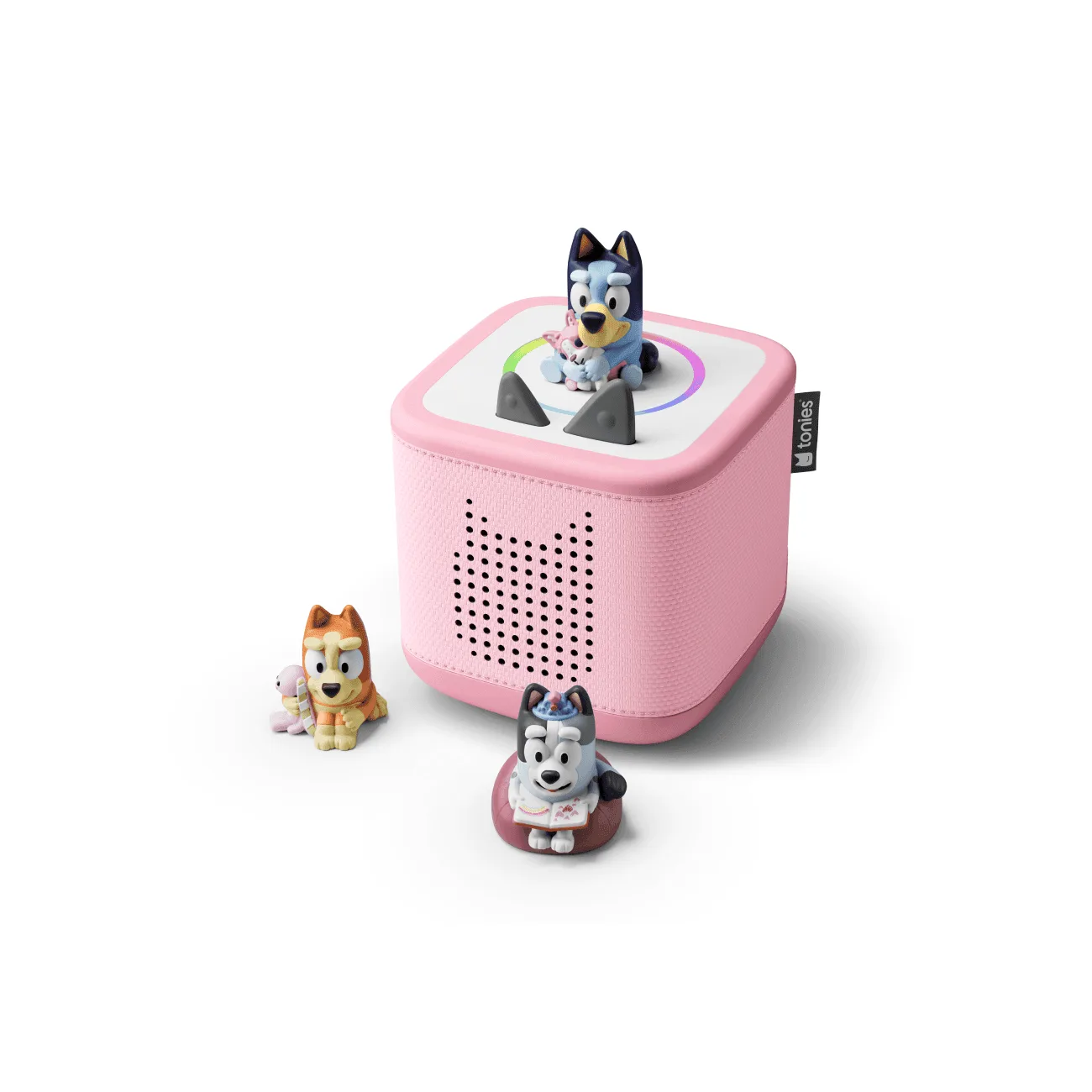
Bluey Toniebox 2 Cloud Pink Starter Set