Quick answer
Connect the Lightning connector to your iPad, unfold the integrated stand, adjust the viewing angle, and start typing. No Bluetooth pairing or batteries required.
Why choose a wired keyboard with a stand?
A wired keyboard with a Lightning connector eliminates Bluetooth pairing delays and battery anxiety. The integrated stand holds your iPad at a comfortable viewing angle, making it a one-piece typing station. This setup is ideal for desk work, note-taking, or writing emails where you want a stable, always-ready connection.
What to check before you start
Make sure your iPad has a Lightning port (not USB-C). Models like iPad 7th through 9th generation, iPad mini 5th generation, and iPad Air 3rd generation use Lightning. If your iPad uses USB-C, this keyboard will not connect. Also ensure the keyboard's Lightning connector is clean and free of debris for a reliable connection.
Step-by-step setup guide
- 1. Connect the Lightning connector: Insert the Lightning connector into your iPad's charging port. Ensure it is fully seated. Your iPad will instantly recognize the keyboard—no settings or pairing required. If nothing happens, check that the connector is clean and your iPad has a Lightning port.
- 2. Unfold and adjust the stand: Flip out the integrated stand on the keyboard until it clicks into place. Place your iPad into the groove or against the support lip. Adjust the angle so the screen is at eye level and comfortable for typing. A too-shallow angle causes glare; a too-steep angle may make the iPad unstable. Find the sweet spot.
- 3. Position the keyboard for typing: Place the keyboard flat on your desk or table. Sit with your elbows at a 90-degree angle and wrists straight. The wired connection means you can't move the keyboard far from the iPad, so keep them close together. Avoid hunching—the stand positions the iPad higher than a laptop screen, so adjust your chair height if needed.
- 4. Start typing and test keys: Open any app that accepts text input (Notes, Pages, or email). Type a few sentences to confirm all keys register. The keyboard draws power from the iPad, so there is no battery to charge. If some keys don't respond, disconnect and reconnect the Lightning connector. A partial connection is the most common issue.
Product facts
-
Wired Tablet Keyboard w/ Stand for iPad (Lightning Connector): Wired connection via Lightning connector for reliable performance. No Bluetooth pairing or charging needed—just plug in and type immediately.
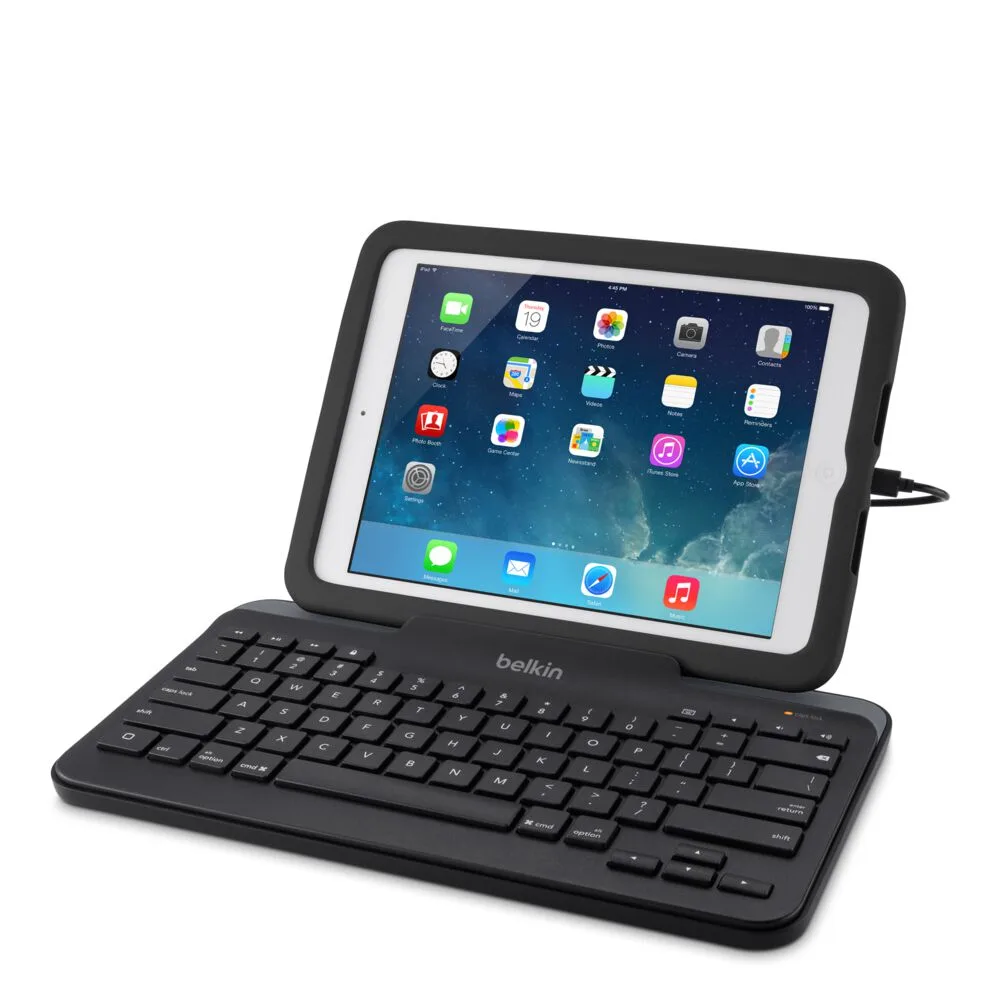
Wired Tablet Keyboard w/ Stand for iPad (Lightning Connector)
-
Wired Tablet Keyboard w/ Stand for iPad (Lightning Connector): Integrated stand to hold your iPad at a comfortable viewing angle. Eliminates the need for a separate stand, saving desk space and keeping your iPad secure.