Quick Answer
Use the Anker 565 USB-C Hub (11-in-1, Dual 2K, 100W) to connect two 2K monitors through a single USB-C port on your laptop. This hub supports dual 2K displays at 60 Hz and provides 100W pass-through charging to keep your laptop powered.
Why Choose a USB-C Hub for Dual 2K Monitors?
Most modern laptops have limited ports, often only one or two USB-C or Thunderbolt connections. A USB-C hub like the Anker 565 expands that single port into multiple video outputs, USB-A ports, Ethernet, and more. For dual 2K monitors, you need a hub that specifically supports dual video output—many hubs only mirror displays. The Anker 565 is designed for dual extended displays, making it a reliable choice for a multi-monitor workspace.
One trade-off: Dual 2K requires enough bandwidth from your laptop’s USB-C port. Older laptops with USB 3.0 may not support dual 2K at full resolution. Check that your laptop supports DisplayPort Alt Mode or Thunderbolt 3/4.
What You Need for the Setup
To set up dual 2K monitors, gather the following: your laptop (with a USB-C port supporting DisplayPort Alt Mode or Thunderbolt), two 2K monitors (each with HDMI or DisplayPort input), two compatible cables (HDMI or DisplayPort), and the Anker 565 USB-C Hub. The hub includes two HDMI ports; but note that it supports dual 2K at 60 Hz, not 4K. If you later upgrade to 4K monitors, this hub will not support dual 4K. For now, it’s perfect for 2K productivity.
Step-by-Step Setup Guide
- 1. Connect the Hub to Your Laptop: Plug the USB-C cable of the Anker 565 into your laptop’s USB-C port. Make sure the port supports DisplayPort Alt Mode or Thunderbolt for video output. If your laptop supports USB-C charging, the hub will also pass through power. Common mistake: Plugging into a USB-C port that only charges or syncs data but does not support video. Check your laptop specs.
- 2. Connect Power to the Hub: Attach your laptop’s power adapter (up to 100W) to the USB-C PD IN port on the hub. This enables pass-through charging so your laptop stays powered during setup. Without this, the hub may not output full power or video stability. If your laptop is not charging, verify the power adapter output is at least 65W and connected securely.
- 3. Connect the First 2K Monitor: Use an HDMI cable to connect your first 2K monitor to HDMI 1 on the hub. The Anker 565 supports up to 2K at 60 Hz on each port. Ensure the monitor is turned on and set to the correct HDMI input. Checkpoint: If the display shows no signal, try a different HDMI cable or port. Some older cables may not support 2K resolution.
- 4. Connect the Second 2K Monitor: Use another HDMI cable to connect the second 2K monitor to HDMI 2 on the hub. Both monitors should now show your desktop. If you see a mirror instead of extended displays, move to the next step to adjust settings. Common mistake: Using a USB-C to HDMI adapter instead of the hub’s HDMI ports—the hub’s ports are tested for dual 2K performance.
- 5. Configure Display Settings in Your OS: On Windows, right-click the desktop and select Display settings. On macOS, go to System Preferences > Displays. Choose Extend these displays (not Mirror). Then arrange the monitors by dragging them in the settings to match your physical layout. Set each monitor to its native 2K resolution (typically 2560×1440). If one monitor only shows 1080p, check that the cable supports 2K and that the monitor input is set to HDMI 2.0 or higher if available.
- 6. Test and Adjust: Move a window between screens to confirm both monitors work. If there’s flickering or artifacts, reduce the refresh rate to 30 Hz in display settings—this can stabilize the connection with older laptops. For the smoothest experience, keep both monitors at 60 Hz. Final check: Ensure the hub’s firmware is up to date (visit Anker support for updates) to avoid compatibility issues.
Product Facts
-
Anker 565 USB C Hub (11-in-1, Dual 2K, 100W): The Anker 565 USB C Hub features an 11-in-1 design with dual 2K display support and 100W pass-through charging. You can connect two 2K monitors for an extended desktop while keeping your laptop charged via the same USB-C port.
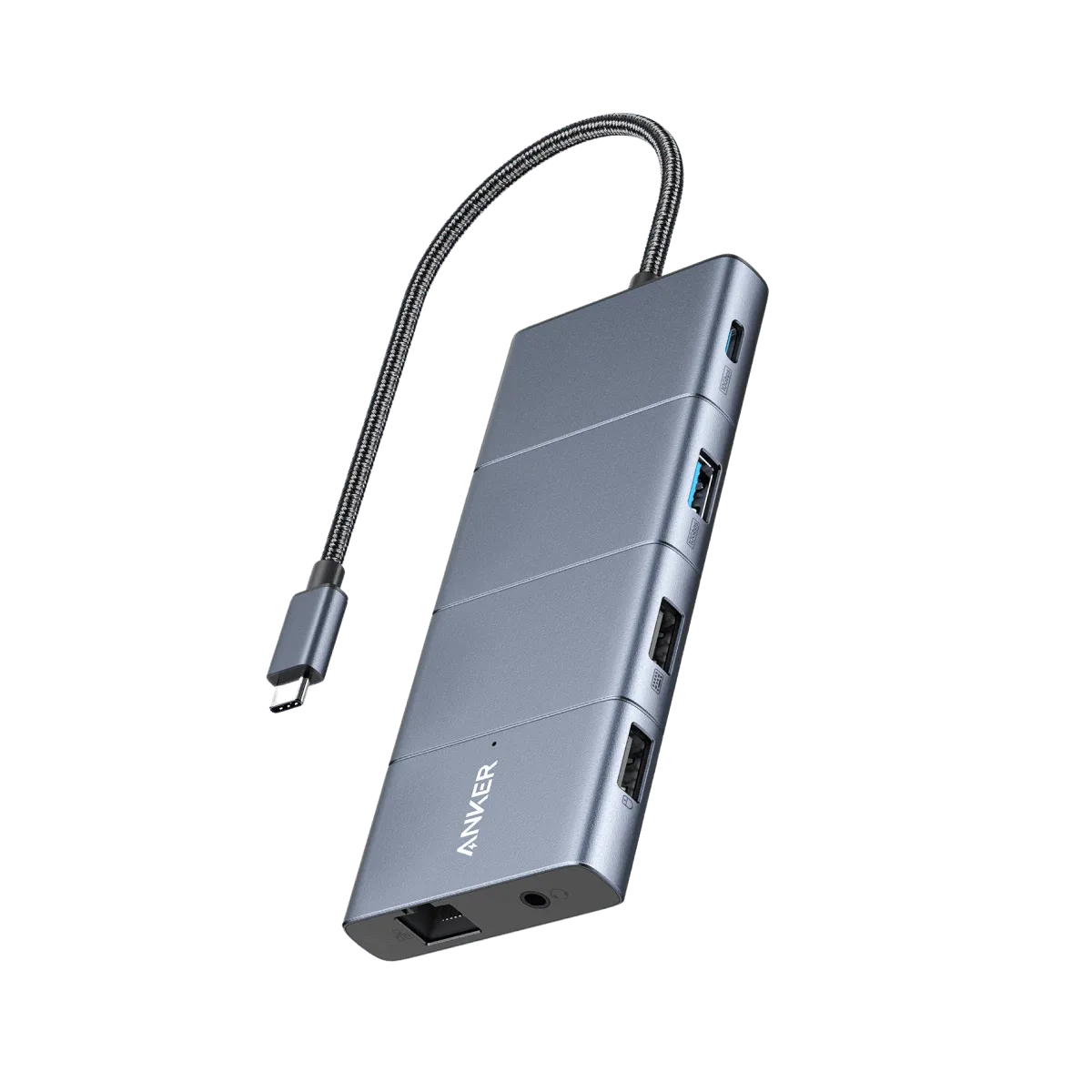
Anker 565 USB C Hub (11-in-1, Dual 2K, 100W)