Quick answer
Setting up the Liquid Death x Spotify Eternal Playlist Urn involves linking a Spotify account, curating a memorial playlist, and placing the urn in a suitable location for continuous streaming.
Why choose a digital urn for memorials
The Eternal Playlist Urn transforms a traditional memorial into an interactive experience. Instead of a silent keepsake, it streams music chosen by or for the departed, creating a living tribute that friends and family can enjoy during visits.
This approach works well for music lovers or anyone who wants their personality to shine through after they're gone. The urn's design also fits modern decor, so it doesn't feel out of place in a living room or home office.
What you need before starting
You'll need a Spotify Premium account (free tier may not support continuous playback), the urn itself, and a stable Wi-Fi connection near the urn's placement spot. The urn requires power, so plan for an outlet nearby.
The urn comes in multiple color options, so choose one that matches the recipient's style or the room where it will sit. Keep in mind that the setup process is digital—no special tools are required.
Step-by-step setup guide
- Unbox and power on the urn: Remove the urn from its packaging and connect the included power cable. Press the power button (usually on the base or back) until the indicator light turns on. Wait for the startup chime or light pattern to confirm it's ready. Common mistake: Forgetting to plug in the urn—it doesn't run on batteries. Check that the power cord is fully inserted.
- Connect to Wi-Fi: Use the Liquid Death companion app (download from the App Store or Google Play) to find the urn in your network. Follow the in-app prompts to select your Wi-Fi network and enter the password. The urn will confirm with a solid light. Checkpoint: If the urn doesn't appear, ensure your phone is on the same 2.4 GHz band—some smart devices don't support 5 GHz networks.
- Link your Spotify account: In the app, select 'Link Spotify' and log in with the Spotify account you want to use. Authorize the urn to access your playlists. This step is essential for the urn to stream music. Common mistake: Using a free Spotify account—premium is required for continuous, ad-free playback. Upgrade before linking.
- Create or select a memorial playlist: In the app, choose an existing playlist or create a new one titled for the person being remembered. Add songs that were meaningful to them—favorites, concert staples, or songs that capture their spirit. The playlist will loop indefinitely. Checkpoint: Keep the playlist under 500 tracks to avoid loading issues. Test it on your phone first to ensure the mood is right.
- Place the urn and start streaming: Position the urn in a safe, stable spot away from direct sunlight or moisture. Use the app to start playback. The urn will begin streaming the playlist on repeat. Adjust volume via the app or urn controls. Common mistake: Placing the urn too close to a wall or in a corner can muffle sound. Leave at least 6 inches of clearance around the speaker grille.
Product details
-
Liquid Death x Spotify Eternal Playlist Urn: Introducing the world’s first ever music-streaming urn from Liquid Death x Spotify. Finally death is a lot less boring. With the Eternal Playlist Urn, now the dead can listen to their favorite jams for all of eternity. This means the urn isn't just a container—it's an active device that plays music, making it a unique conversation piece and a personalized memorial.
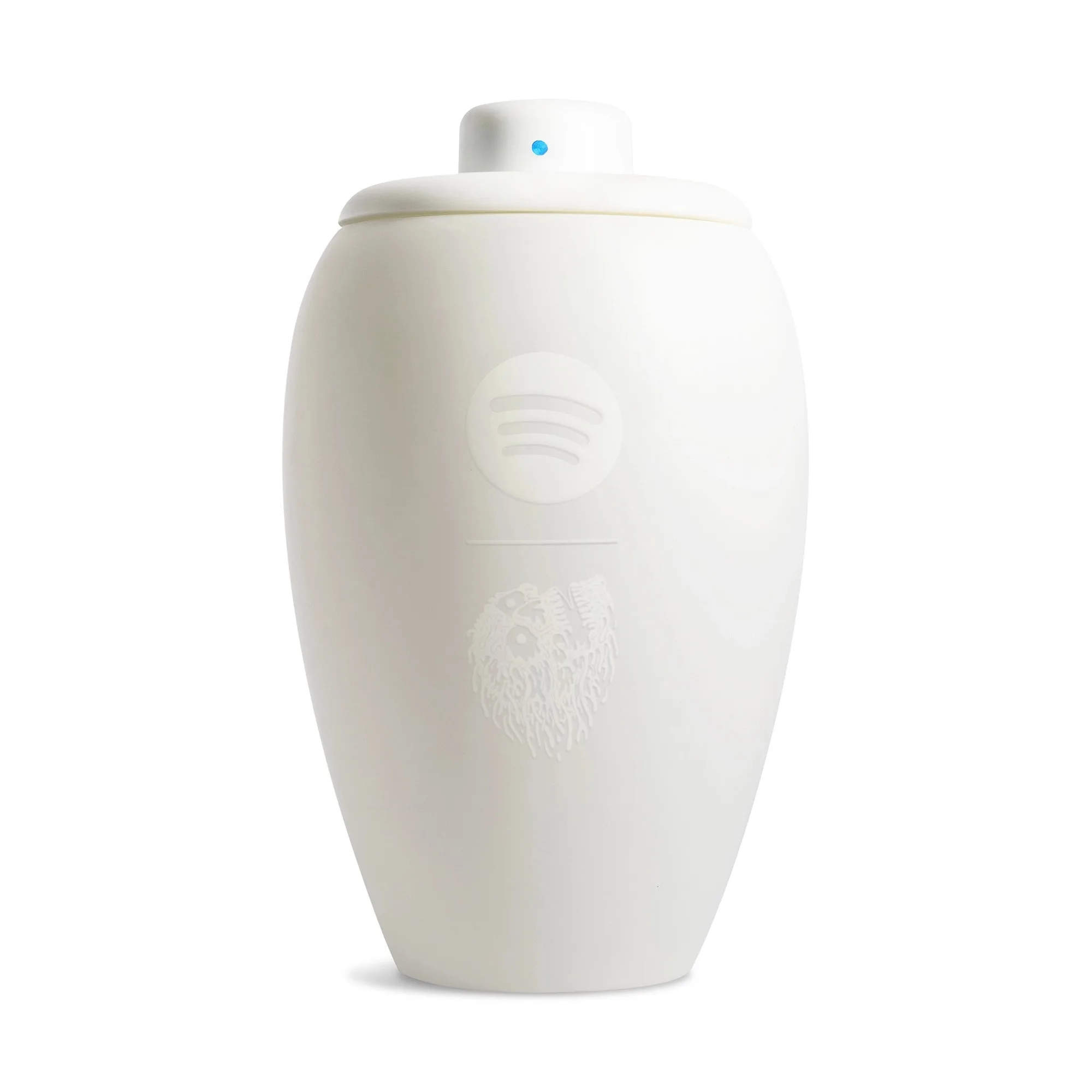
Liquid Death x Spotify Eternal Playlist Urn