Quick Answer
To set up person and vehicle detection on Lorex PoE AI cameras, log into the Lorex app or NVR interface, navigate to the camera's smart motion detection settings, enable Person and Vehicle detection, and adjust sensitivity and activity zones. Always update firmware first to ensure AI features work correctly.
Lorex PoE AI cameras come with built-in smart motion detection that can tell the difference between a person, a vehicle, and general motion. This feature is a game-changer for reducing false alerts—no more notifications every time a squirrel runs across the yard or a car passes by on the street. But to get the most out of it, you need to set it up properly.
In this guide, we'll walk through the exact steps to configure person and vehicle detection on your Lorex PoE AI cameras. We'll cover accessing the settings, enabling the right detection types, and fine-tuning sensitivity and zones to minimize nuisance alerts while keeping your property protected.
Before You Begin: Update Firmware and Check Compatibility
Before diving into settings, make sure your Lorex PoE AI camera and NVR are running the latest firmware. Firmware updates often improve AI detection accuracy and add new features. Check the Lorex app or the NVR's system menu for available updates and install them if needed.
Also, confirm that your camera model supports person and vehicle detection. Most Lorex PoE AI cameras, like the Lorex Classic 4K+ PoE AI Turret Camera, have this feature built in. If you're unsure, check the camera's product page or the Lorex support site for your specific model.
- Always update firmware before configuring AI features to avoid bugs or missing options.
Accessing Smart Motion Detection Settings
Open the Lorex app on your smartphone or the NVR's interface on a connected monitor. Navigate to the camera settings menu, then look for 'Motion Detection' or 'Smart Motion Detection.' On some models, this is labeled 'AI Detection' or 'Smart Alerts.'
Once you're in the motion settings, you'll see options for enabling different detection types. On Lorex PoE AI cameras, you'll typically find toggles for Person, Vehicle, and sometimes Pet or Other Motion. Enable the types you want to receive alerts for.
- If you don't see Person/Vehicle toggles, your camera may not support AI detection or firmware needs updating.
Enabling Person and Vehicle Detection
Turn on Person detection and Vehicle detection. This tells the camera to only trigger alerts when it recognizes a human or a vehicle. General motion detection is usually still available as a separate option, but for most users, disabling it while keeping Person and Vehicle enabled will cut down on false alerts significantly.
Consider your environment. If you live on a busy street, vehicle detection might trigger often. You can adjust sensitivity or set up activity zones to ignore the road. Conversely, if you want to know about any motion in a certain area, you might keep general motion enabled for that zone.
- Start with both Person and Vehicle enabled, then adjust based on the alerts you receive over the next few days.
Adjusting Sensitivity and Activity Zones
Sensitivity controls how easily the camera triggers an alert. Higher sensitivity may catch more motion but also increases false positives. Lower sensitivity reduces alerts but might miss subtle activity. Start with a medium setting and adjust based on your experience.
Activity zones let you define specific areas of the camera's view where detection is active. For example, you can draw a zone around your front door and exclude the sidewalk. This is especially useful for reducing false alerts from passing cars or pedestrians on public walkways.
- Use activity zones to exclude high-traffic public areas from triggering alerts.
Testing and Fine-Tuning
After configuring the settings, test the camera. Walk through the detection zone and have someone drive a vehicle past. Check that alerts are triggered correctly and that you receive notifications on your phone.
If you get false alerts, adjust sensitivity down or refine your activity zones. If you miss real events, increase sensitivity or expand zones. It may take a few rounds of tweaking to find the sweet spot for your property.
- Test during different times of day and weather conditions to ensure reliable detection.
Step-by-Step Setup Checklist
- Update firmware: Ensure your camera and NVR have the latest firmware to access all AI features and fix bugs. Checkpoint: Confirm firmware version is current before proceeding.
- Enable Person & Vehicle detection: In the camera's motion settings, turn on Person and Vehicle detection to filter out irrelevant motion. Checkpoint: Verify the toggles are on and general motion is off for fewer false alerts.
- Set activity zones: Draw zones to include only areas where you want alerts, excluding sidewalks or roads. Checkpoint: Test that alerts only come from within your zones.
- Adjust sensitivity: Set sensitivity to a medium level and adjust based on real-world testing. Checkpoint: Walk and drive through the area to confirm detection and adjust as needed.
- Test and monitor: After setup, monitor alerts over a few days and tweak settings to reduce false positives. Verdict: Fine-tuning is normal; your settings will improve with time.
Lorex PoE AI Cameras with Person & Vehicle Detection
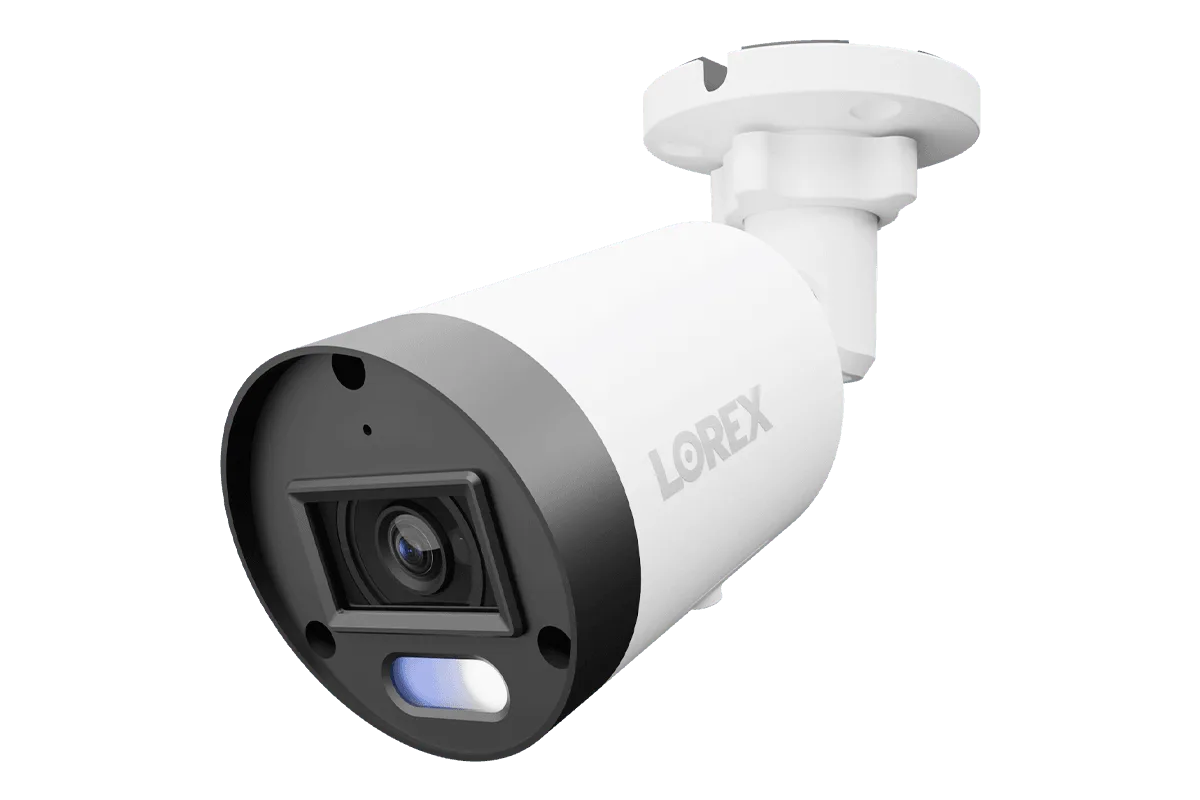
- Lorex Classic 4K+ PoE AI Turret Camera with Person & Vehicle Detection: Delivers 12MP (4K+) resolution with 50% more pixels than 4K, enhanced Color Night Vision, Smart Security Lighting, Person and Vehicle Smart Motion Detection, Two-Way Talk, and IP67-rated weatherproof design. This camera is ideal for outdoor setups where you need high detail and reliable person/vehicle detection, even in low light. The IP67 rating ensures durability in harsh weather.
- Lorex 4K Smart Security Lighting Deterrence Dome AI PoE IP Wired Camera - Black (Single) - Amazon: Combines 4K video with smart security lighting and AI-powered detection in a single PoE unit, suitable for outdoor or indoor placement. The built-in smart lighting acts as a deterrent and improves visibility for detection at night. This camera is a good choice if you want active deterrence alongside AI alerts.
Setting up person and vehicle detection on your Lorex PoE AI cameras is straightforward and can significantly reduce false alerts. By updating firmware, enabling smart detection, and fine-tuning sensitivity and zones, you'll get reliable alerts that matter. Test your setup and adjust as needed to match your property's unique layout.