Quick Answer
To use a USB-C hub with your iPad Pro while it's in a magnetic case, ensure the case's cutout aligns with the USB-C port, then plug the hub directly or use a short extension cable for better clearance.
Why Magnetic Cases and USB-C Hubs Can Clash
Magnetic cases for the iPad Pro are designed to attach and detach quickly, but they can sometimes interfere with accessory connections. The main issue is clearance: the case's edges or magnetic strips may block the USB-C port or prevent a hub from seating fully.
Another common problem is the hub's connector being too short or thick to fit through the case's cutout. This can cause a loose connection or even damage the port if you force it.
Understanding these potential conflicts helps you choose the right hub and case combination, and it guides you through a smooth setup process.
Trade-Off: Direct Connection vs. Extension Cable
Plugging a USB-C hub directly into your iPad Pro minimizes cable clutter and keeps the setup compact. However, it can put stress on the port, especially if the hub is heavy or if the case adds thickness.
Using a short USB-C extension cable gives you more flexibility and reduces strain on the port. The downside is an extra cable to manage, but it can prevent connection issues caused by case interference.
For most users, starting with a direct connection is fine, but if you notice the hub wobbles or disconnects, switch to an extension cable.
Step-by-Step Setup: Connect Your USB-C Hub to iPad Pro with Magnetic Case
- Check the case cutout alignment: Inspect your magnetic case to confirm that the USB-C port cutout is clear and aligns with the iPad Pro's port. Common mistake: assuming all cases have the same cutout size, which can lead to a poor connection. If the cutout is too small, consider removing the case temporarily or using a case with a wider opening.
- Clean the port and connector: Wipe the iPad Pro's USB-C port and the hub's connector with a dry, lint-free cloth to remove dust or debris. Common mistake: plugging in without cleaning, which can cause intermittent disconnections. A clean connection ensures stable data and power transfer.
- Plug the hub directly into the iPad Pro: Align the hub's connector with the port and push gently until it seats fully. Common mistake: forcing the hub if it doesn't slide in easily, which can damage the port. If the hub doesn't fit snugly due to case thickness, use a short USB-C extension cable instead.
- Secure the hub position: Position the hub so it doesn't hang loosely or pull on the port. You can lay it flat or use a stand if needed. Common mistake: leaving the hub dangling, which stresses the connection. A stable position prevents accidental disconnects during use.
- Test all ports and connections: Connect a USB drive, SD card, or other peripherals to the hub and verify they are recognized by the iPad Pro. Common mistake: assuming the hub works without testing each port. If a port doesn't work, try a different peripheral or restart the iPad Pro.
Product Facts
-
Vegan-Leather Magnetic Case For iPad Pro: The Vegan-Leather Magnetic Case for iPad Pro features a built-in pencil holder and smart connectors that integrate with the iPad Pro. The smart connectors ensure the case doesn't block essential ports, but you still need to verify that the USB-C port cutout aligns with your hub's connector.
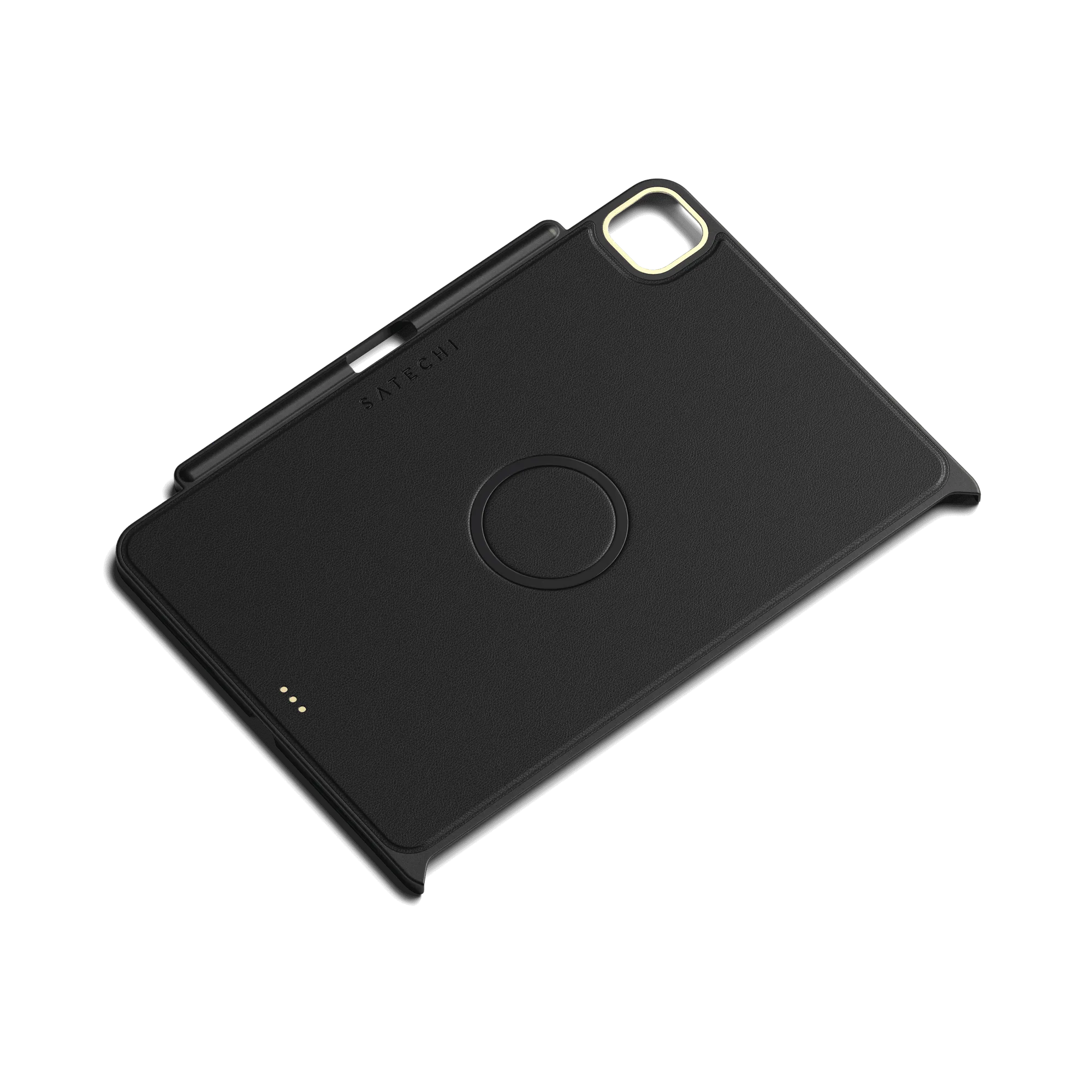
Vegan-Leather Magnetic Case For iPad Pro
-
Type-C USB 3.0 3-in-1 Combo Hub: The Type-C USB 3.0 3-in-1 Combo Hub converts a Type-C port to three USB 3.0 ports, an SD card slot, and a Micro SD card slot. This hub adds legacy USB and SD card support to your iPad Pro, but its compact design may require a case with a wide enough cutout for a secure fit.
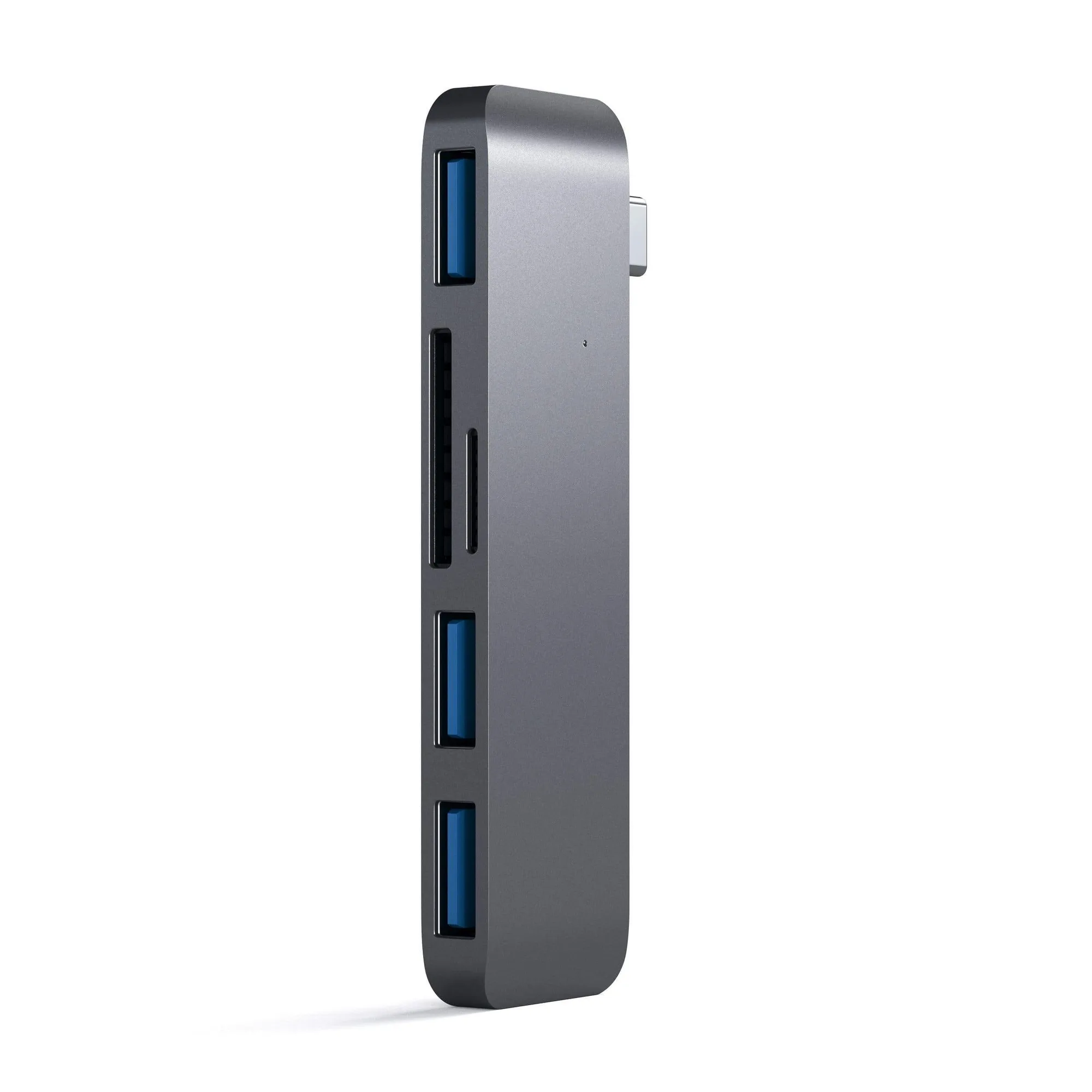
Type-C USB 3.0 3-in-1 Combo Hub