Quick Answer
To set up a wireless keyboard and mouse combo, first insert batteries or charge the devices, then turn them on and use Bluetooth or a USB receiver to pair them with your computer. For a productivity-focused setup, configure each device in your system settings, assign shortcuts, and ensure they are placed ergonomically. If you encounter issues, check battery levels, re-pair the devices, and update drivers.
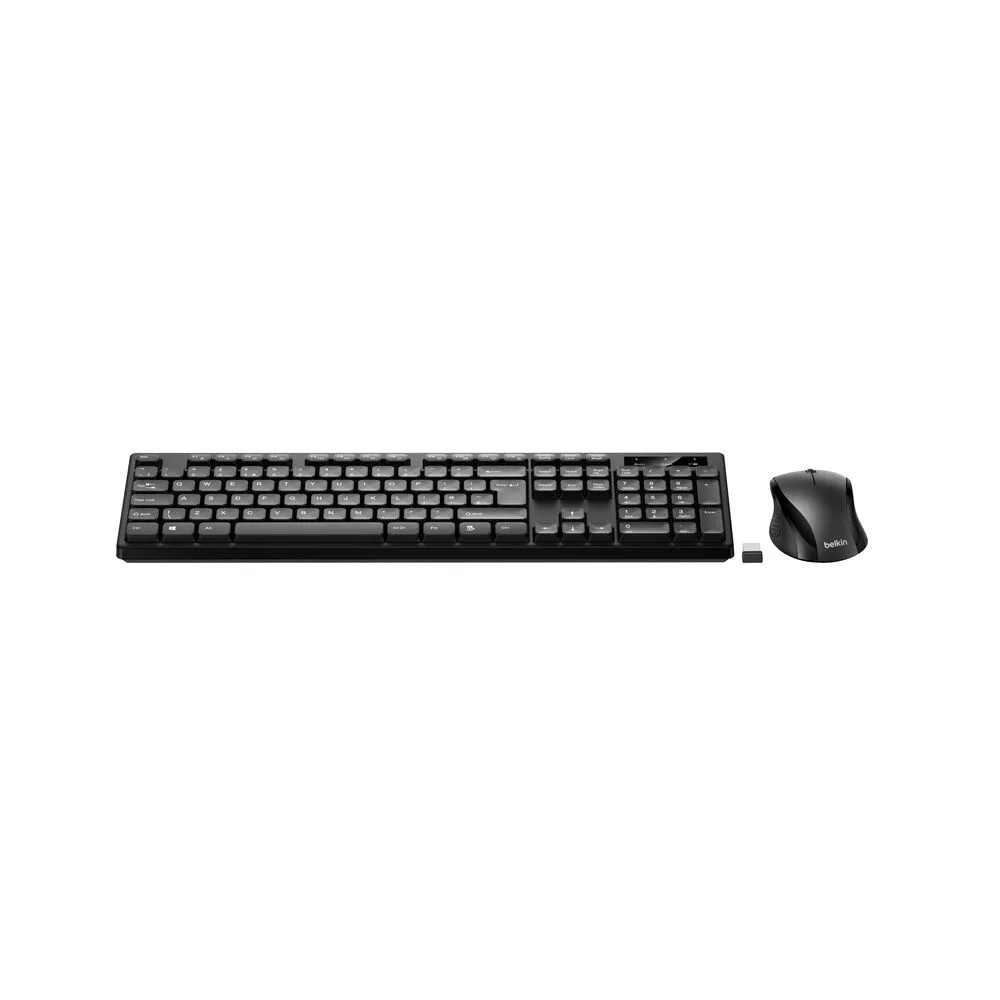
wireless keyboard and mouse combo
A wireless keyboard and mouse combo can significantly boost your productivity by reducing cable clutter and giving you the freedom to arrange your workspace ergonomically. Whether you're working from home or in an office, a reliable wireless setup is essential. In this guide, we'll walk you through the entire process—from unboxing to pairing—and share tips to avoid common pitfalls.
We'll also recommend some Belkin accessories that can enhance your wireless experience, such as the USB-C 4-in-1 Multiport Adapter for connecting multiple devices and the 2-Outlet Charging Station with USB Ports and USB-C Cable 70W to keep your peripherals powered.
Preparing Your Devices
Before you start pairing, ensure your keyboard and mouse have sufficient power. Most wireless peripherals use either AA/AAA batteries or built-in rechargeable batteries. If they use batteries, insert them correctly, paying attention to polarity. For rechargeable models, charge them fully using the provided cable or dock. A low battery can cause intermittent connectivity issues, so start with a full charge.
Next, locate the power switch on each device. Turn them on and check for any indicator lights that confirm they are powered. Some devices have a pairing button that needs to be pressed to enter pairing mode. Familiarize yourself with the layout of your devices by reading the user manual or looking for symbols printed on the underside.
- Check battery levels before starting to avoid connection drops.
- Ensure the devices are within the recommended range (usually 10 meters) from your computer.
Connecting via Bluetooth or USB Receiver
There are two primary ways to connect a wireless keyboard and mouse: Bluetooth or a USB receiver (often a small dongle). If your devices use a USB receiver, plug it into an available USB port on your computer. For computers with limited ports, consider using a multiport adapter like the USB-C 4-in-1 Multiport Adapter to expand connectivity. The adapter adds USB-A and USB-C ports, so you can connect the receiver and other peripherals simultaneously.
If you're using Bluetooth, go to your computer's Bluetooth settings and enable Bluetooth. Put your keyboard and mouse in pairing mode (usually by holding the pairing button for a few seconds). They should appear in the list of available devices. Click to pair each one. Once paired, they will automatically reconnect when in range and powered on.
- For Bluetooth, ensure your computer's Bluetooth is on and discoverable.
- If using a USB receiver, avoid plugging it into a USB hub that may not provide enough power.
Configuring Settings for Productivity
Once connected, customize your devices to suit your workflow. On Windows, go to Settings > Devices > Bluetooth & other devices to manage paired devices. On macOS, use System Preferences > Bluetooth. Adjust the pointer speed, scroll direction, and button assignments to match your preferences. Many wireless keyboards have function keys that can be programmed for shortcuts like volume control, media playback, or launching apps.
For advanced productivity, consider using software provided by the manufacturer (if available) to remap keys or create profiles for different applications. For example, you might set a key to switch between virtual desktops or open your email client. Take advantage of these features to streamline repetitive tasks.
- Enable 'tap to click' or adjust tracking speed for a smoother experience.
- Assign frequently used shortcuts to dedicated keys if your keyboard supports it.
Troubleshooting Common Issues
Even with careful setup, you may encounter issues. If your keyboard or mouse is not responding, first check the power and battery. Replace or recharge batteries if needed. If using a USB receiver, try plugging it into a different port. Sometimes, interference from other wireless devices can cause problems; move closer to the receiver or computer.
If Bluetooth connection drops, remove the device from your Bluetooth list and re-pair it. Also, ensure your operating system and drivers are up to date. For persistent issues, consult the manufacturer's support page or user manual.
- Keep the USB receiver away from metal objects that can cause interference.
- Restart your computer if the devices are not recognized after pairing.
Step-by-Step Setup Process
- Step 1: Power Up: Insert batteries or charge your keyboard and mouse. Ensure they are fully powered before proceeding. Checkpoint: Confirm the indicator lights are on and the devices are ready.
- Step 2: Connect via Receiver or Bluetooth: Plug in the USB receiver or enable Bluetooth pairing on your computer and put your devices in pairing mode. Checkpoint: Verify that both devices appear in your system's list of connected devices.
- Step 3: Configure Settings: Adjust pointer speed, button assignments, and keyboard shortcuts in your operating system's settings to match your preferences. Checkpoint: Test the devices by typing and moving the cursor to ensure everything responds correctly.
- Step 4: Optimize Ergonomics: Position your keyboard and mouse at a comfortable distance and angle to reduce strain during long work sessions. Checkpoint: Ensure your wrists are straight and your shoulders are relaxed.
- Step 5: Troubleshoot if Needed: If you experience connectivity issues, check battery levels, re-pair the devices, and update drivers. Checkpoint: If problems persist, consult the manufacturer's support resources.
Belkin Products to Enhance Your Wireless Setup
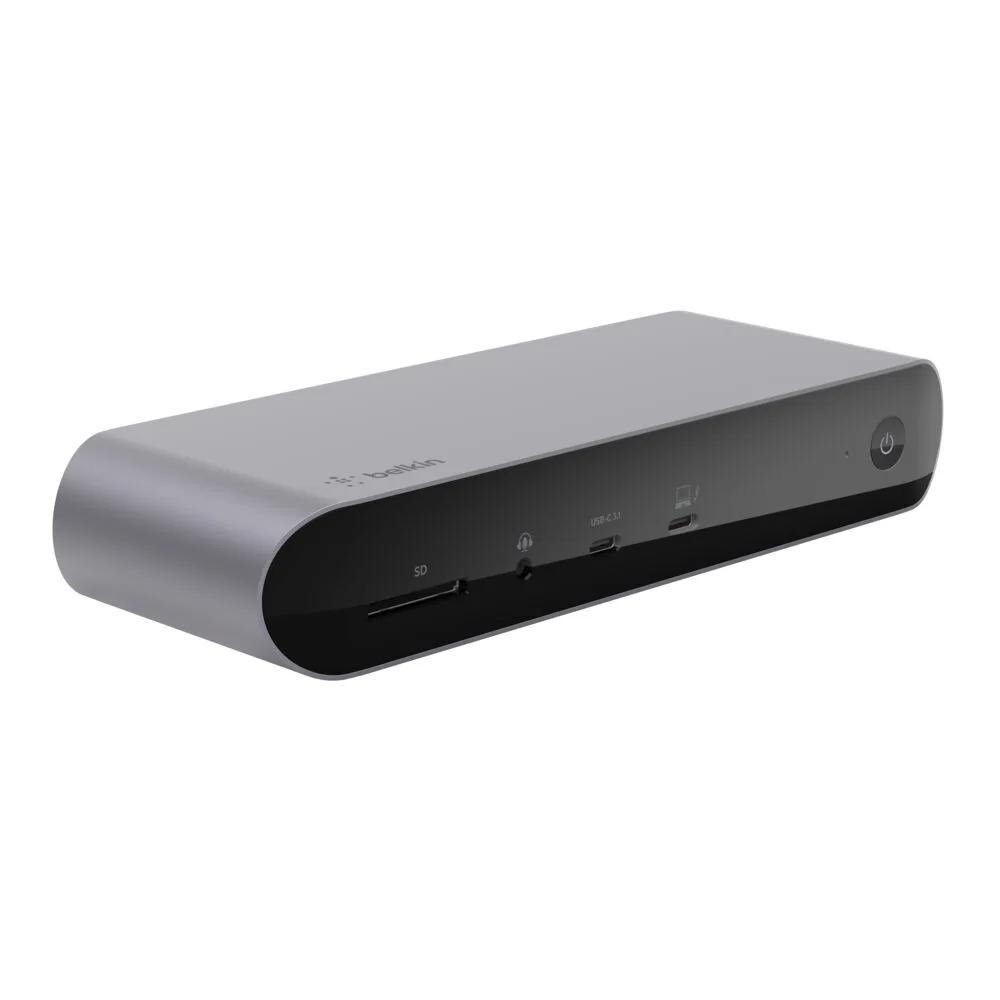
- USB-C 4-in-1 Multiport Adapter: Expand your device's connectivity with the Belkin USB-C 4-in-1 Multiport Adapter. This compact adapter is designed to provide versatile port options for your USB-C enabled devices, making it a practical addition to your workspace or travel kit. If your laptop has limited USB-A ports, this adapter lets you connect your wireless receiver, a mouse, and other peripherals simultaneously, ensuring a stable connection.
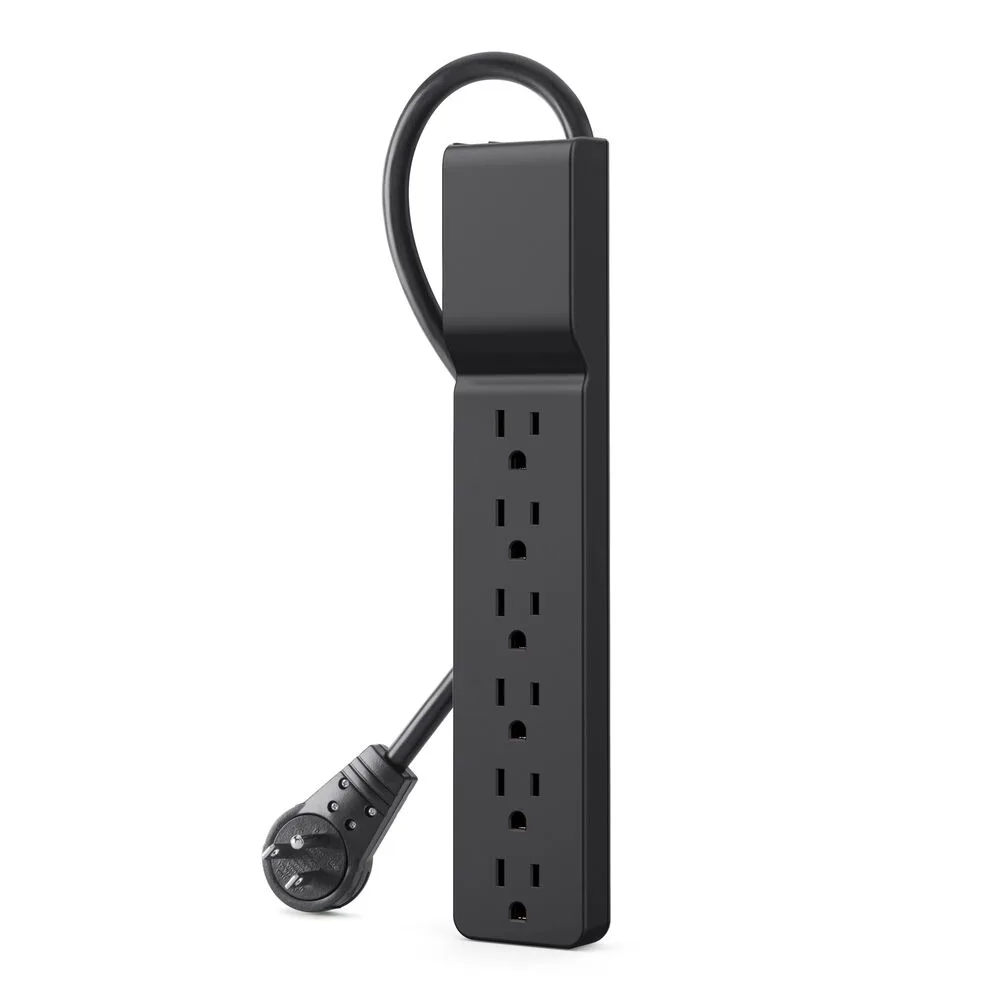
- 2-Outlet Charging Station with USB Ports and USB-C Cable 70W: Stay powered while on the go with the Belkin 2-Outlet Charging Station with USB Ports and USB-C Cable 70W. This compact charging station features two AC outlets, one USB-C port, and two USB-A ports, all in a single travel-friendly design. Keep your wireless keyboard and mouse charged and ready with dedicated USB ports, while also powering your laptop and other devices from one compact station.
Setting up a wireless keyboard and mouse combo is straightforward and can greatly enhance your productivity. By following these steps, you'll have a reliable, clutter-free setup. To keep your devices powered and connected, consider adding the USB-C 4-in-1 Multiport Adapter to your workspace—it's a versatile addition that simplifies connectivity.