Quick Answer
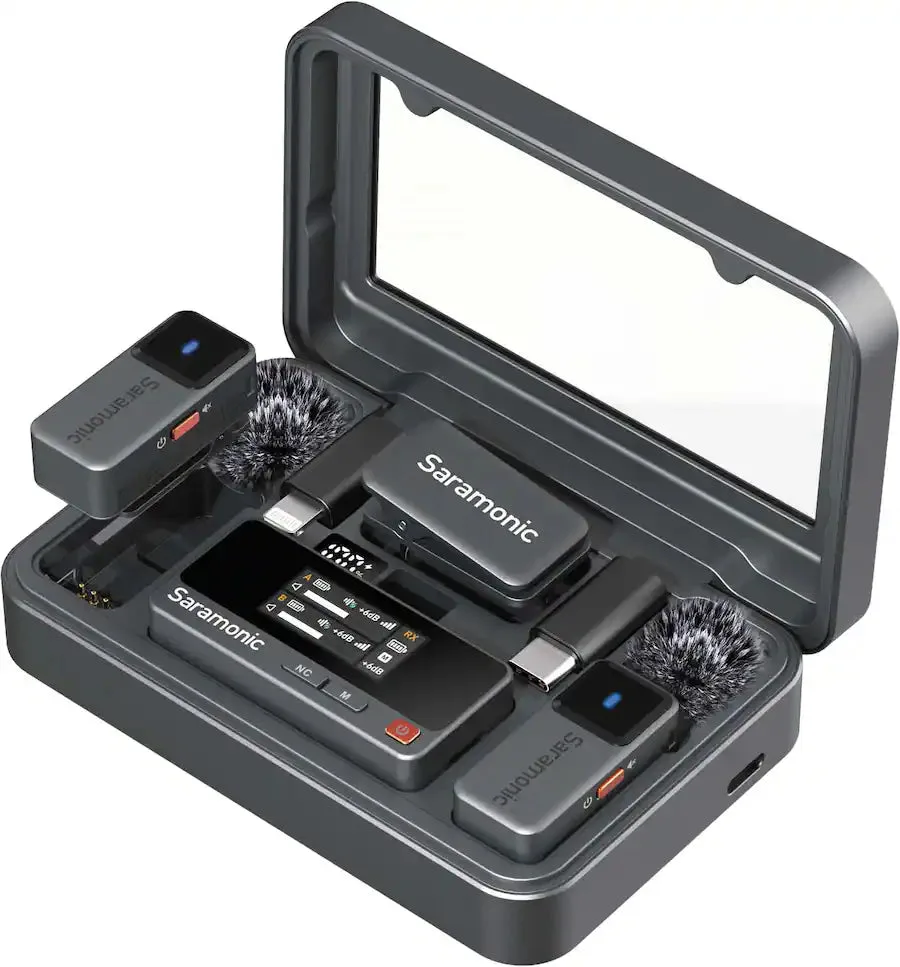
To set up a wireless lavalier mic for vlogging, connect the receiver to your device, power on both units, and clip the transmitter to your subject. The Saramonic Air 2-Person system simplifies this with automatic pairing and dual transmitter support.
Choosing Between Camera, Phone, or Computer Connection
Wireless lavalier systems like the Saramonic Air support multiple devices, but the connection method differs. For cameras, use a 3.5mm TRS cable into the mic input. For smartphones, you may need a TRRS cable or an adapter, depending on your phone's jack. Computers typically work via USB-C or a 3.5mm combo jack. Check your device's input type before starting to avoid compatibility issues.
Understanding 2.4 GHz vs. Other Frequencies
The Saramonic Air operates on the 2.4 GHz band, which offers reliable, interference-free transmission in most indoor and outdoor settings. Unlike UHF systems, 2.4 GHz mics do not require frequency scanning or licensing, making them simpler for vloggers. However, physical obstacles like walls or crowds can reduce range, so keep the transmitter and receiver within clear line of sight for best results.
Step-by-Step Setup Guide
- Connect the Receiver to Your Device: Plug the receiver into your camera's mic input using the included 3.5mm TRS cable. For a smartphone, use the TRRS cable or a Lightning/USB-C adapter if needed. For a computer, connect via the USB-C port or 3.5mm combo jack. Using the wrong cable type can result in no audio or distorted sound—always match the cable to your device's port.
- Power On and Pair the Transmitters: Turn on the receiver and each transmitter by pressing the power button. The Saramonic Air automatically pairs within seconds. If pairing fails, turn both units off and on again, or refer to the manual for manual pairing steps. Automatic pairing usually works, but interference from other 2.4 GHz devices can delay it. Restarting both units often resolves the issue.
- Clip the Transmitter and Adjust Audio Levels: Clip the transmitter to your collar or lapel, about 6-8 inches from your mouth. On your camera or recording app, set the input volume to around 50-70% and do a short test recording. Listen for distortion or background noise and adjust the level accordingly. Placing the mic too far from your mouth or setting levels too high can cause muffled audio or clipping. Always test before your main recording.
Product Facts
-
Saramonic Air 2-Person Mini Wireless Lavalier Microphone System for Mobile Devices, Cameras & Computers (2.4 GHz): The Saramonic Air is an ultra-compact, 2-person clip-on wireless mic system designed for cameras, smartphones, tablets, and computers. Its small size and multi-device compatibility make it a versatile choice for vloggers who switch between recording setups.
Saramonic Air 2-Person Mini Wireless Lavalier Microphone System for Mobile Devices, Cameras & Computers (2.4 GHz)