Quick Answer
To tether a Nikon Z9, connect a USB-C cable from the camera to your computer, set the USB connection mode in the camera menu, and use tethering software like Capture One or Nikon's NX Tether. For a secure studio setup, add a cable support to protect the port.
Why Cable Quality Matters for Tethering
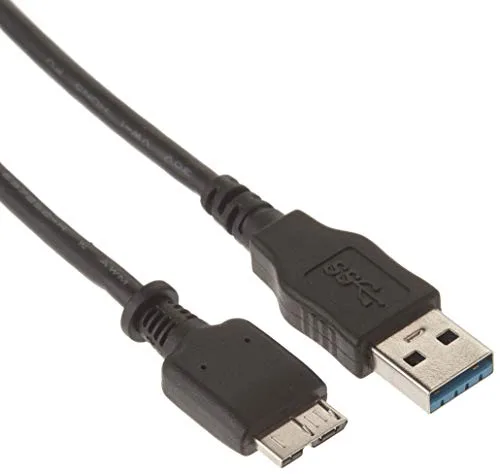
Tethering transfers large image files in real time, so a poor-quality cable can cause dropped connections or slow transfers. A cable built to USB 3.0 specifications helps filter signal noise and reduce transmission errors, which is especially important when shooting tethered in a studio environment.
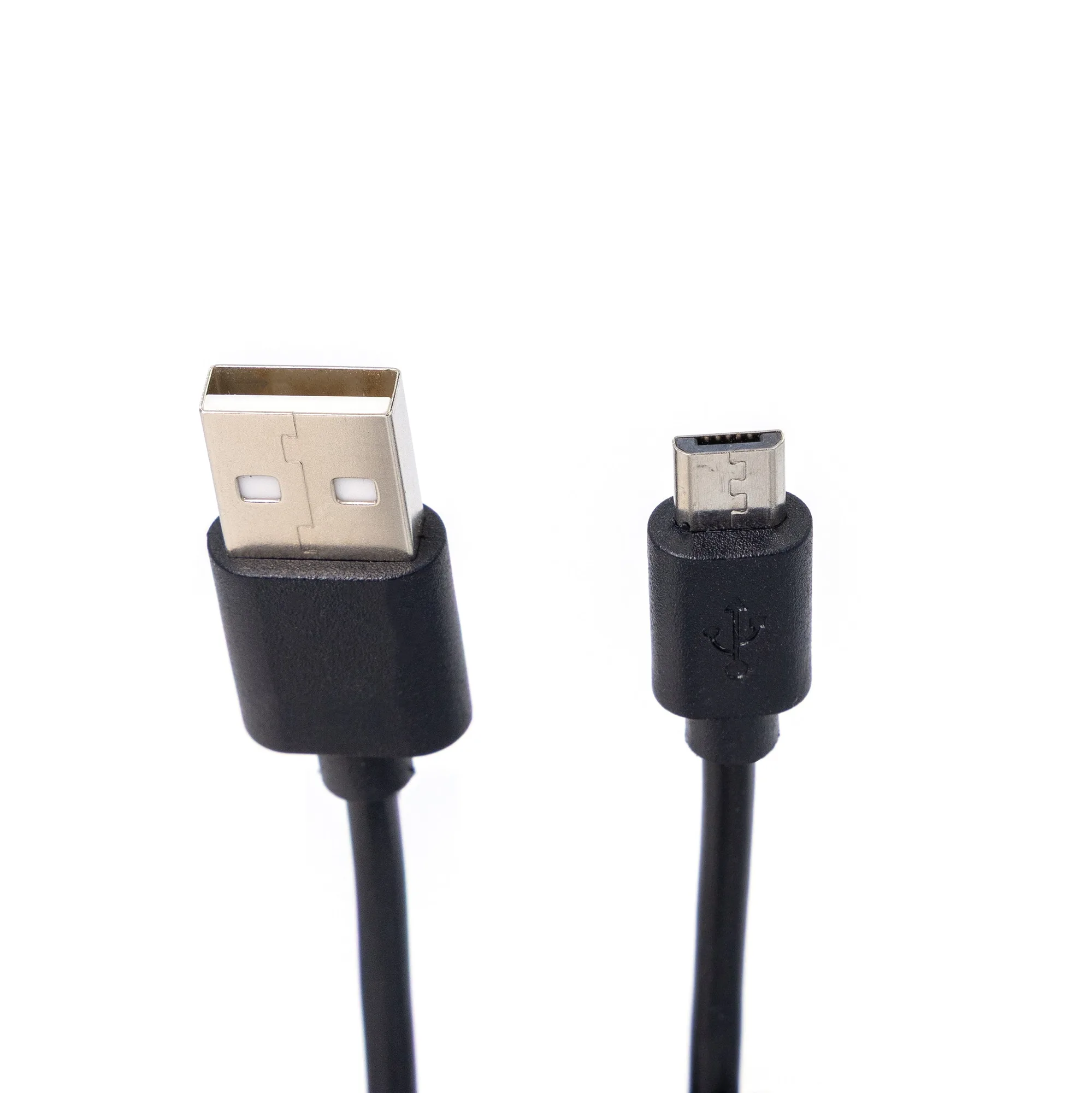
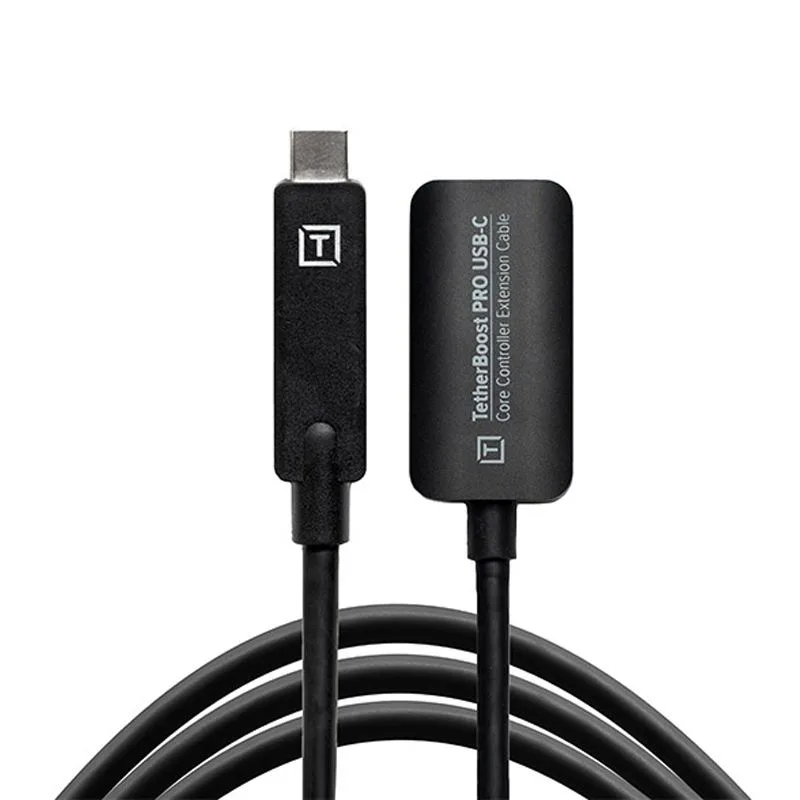
The Nikon Z9 features a USB-C port, so you need a cable that matches both the camera and your computer's port. If your computer has USB-C, a USB-C to USB-C cable is ideal; if it only has USB-A, choose a USB-C to USB-A cable. The TetherPro USB-C to Micro-B cable is designed for cameras with USB-C ports, but check your computer's ports before ordering.
Securing the Connection for Studio Work
When you're moving around or adjusting the camera, the USB cable can pull on the port and cause damage. A cable support like the TetherGuard Thread Mount Support relieves stress on the connection and keeps the cable locked in place. It attaches to any 1/4"-20 threaded device, which the Z9 has, and uses a magnetic quick-release for easy disconnects.
This is a simple addition that can save you from costly repairs and unexpected downtime during a shoot.
Step-by-Step Tethering Setup
- Choose the Right Cable: Select a USB-C cable that matches both your camera and computer. For a Nikon Z9, a USB-C to USB-C cable is best if your computer has USB-C; otherwise, use a USB-C to USB-A cable. Ensure the cable supports USB 3.0 for fast transfers. Check your computer's ports before ordering to avoid needing an adapter.
- Connect the Cable: Plug the cable into the Nikon Z9's USB-C port and the computer. Use the right-angle connector on the camera side to keep the cable close to the body and reduce strain. Make sure the cable is fully inserted; a loose connection can cause intermittent drops.
- Set the Camera's USB Mode: On the Z9, go to the Setup menu, select 'USB' and choose the appropriate connection mode. For tethering, select 'PC Connection' or 'MTP' depending on your software's requirements. If the camera isn't recognized, try switching between 'PC Connection' and 'MTP' modes.
- Install and Open Tethering Software: Use software like Capture One, Adobe Lightroom, or Nikon's NX Tether. Install the software, then connect the camera. The software should detect the camera automatically. Update your software to the latest version to ensure compatibility with the Z9.
- Secure the Cable with a Support (Optional): Attach a TetherGuard Thread Mount Support to the camera's 1/4"-20 tripod mount, then clip the cable into the support. This prevents the cable from pulling out or damaging the port. Use the magnetic quick-release to disconnect quickly without unthreading the support.
- Test the Connection: Take a test shot and confirm the image appears in your software. Check the transfer speed and ensure the connection is stable. If you experience drops, try a different cable or port. Run a few test shots to verify the setup before the actual shoot.
Product Facts
-
Tether Tools TetherPro USB-C to Micro-B Right Angle 15' (4.6m) Cable Orange: The TetherPro USB-C to USB 3.0 Micro-B Right Angle cable is designed to filter signal noise and reduce transmission errors, and is available in high-visibility orange. This cable helps maintain a stable connection during long tethered shoots, and the right-angle connector reduces strain on the camera's USB-C port.
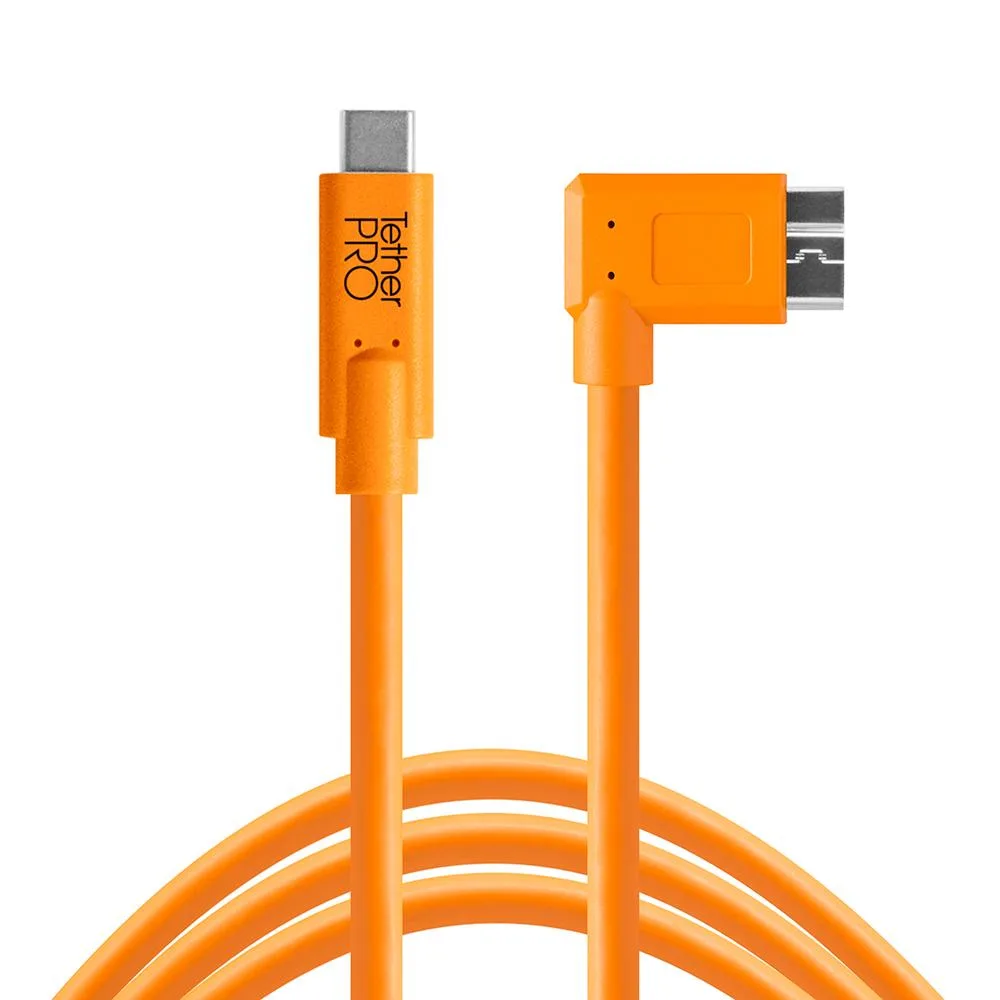
Tether Tools TetherPro USB-C to Micro-B Right Angle 15' (4.6m) Cable Orange
-
TetherGuard Thread Mount Support: The TetherGuard Thread Mount Support protects ports and cables with secure locking and magnetic quick-release, and attaches to any 1/4"-20 female threaded device. It keeps the cable connection secure and prevents accidental disconnects or port damage when you're moving the camera around.
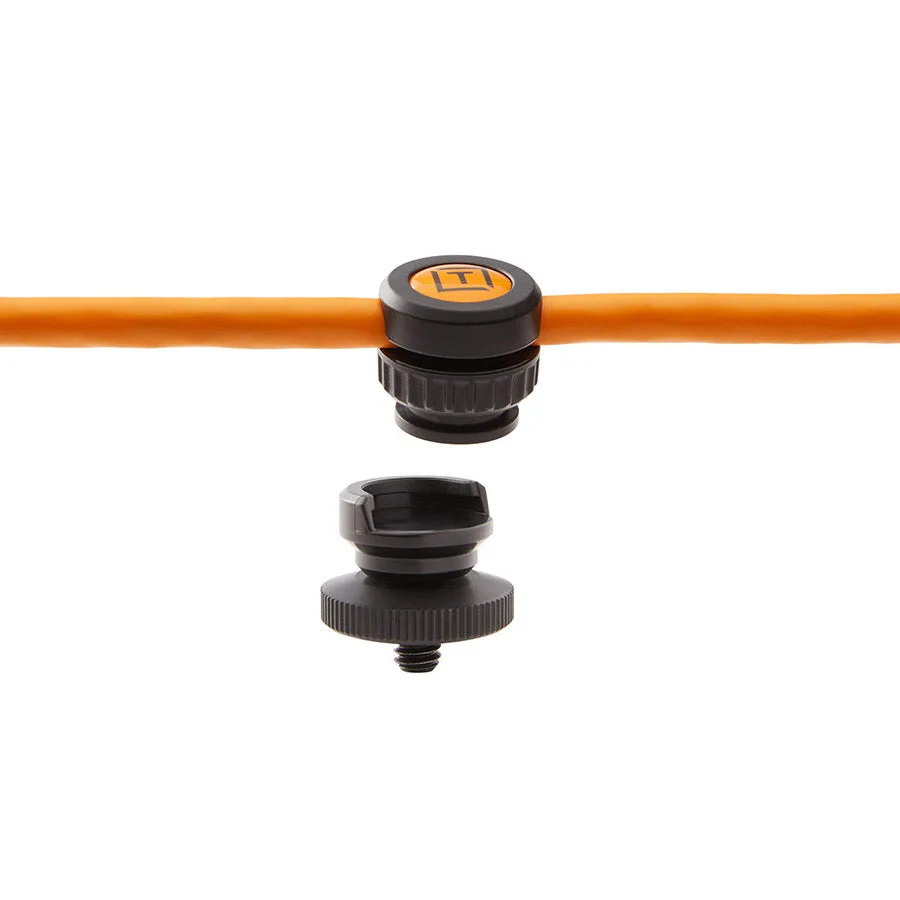
TetherGuard Thread Mount Support