Quick Answer
To tether your camera reliably, use the TetherBoost Pro USB-C Controller Extension to extend and stabilize your connection, and lock the cable into your camera's port with the TetherBlock to prevent accidental disconnection and port damage.
Why Use Both TetherBoost Pro and TetherBlock?
Tethering a camera in a studio often involves long cable runs and frequent movement. A standard USB-C extension can introduce signal degradation or power drops over distance. The TetherBoost Pro includes an integrated power regulator that maintains a clean data signal even when you extend up to 31 feet (9.4 m) when paired with a compatible TetherPro cable. This means fewer dropped connections during a shoot.
The TetherBlock physically locks the cable connector into your camera’s port. Camera USB ports are delicate and expensive to repair. A sudden tug or trip over the cable can damage the port or pull the cable loose at a critical moment. The TetherBlock prevents that by clamping the connector securely.
What You Need to Know About Compatibility
The TetherBoost Pro is a USB-C Male to USB-C Female extension. It supports USB 3.1 Gen 2 (10 Gbit/s) and is backwards compatible with USB 2.0 and USB 3.0 Gen 1 devices. It can also charge your computer or camera up to 60W, so you can power your laptop through the same cable. Note that the TetherBoost Pro itself does not include a cable — you will need a separate USB-C cable (such as a TetherPro cable) to connect from the extension to your camera.
The TetherBlock works with most standard USB cable connectors, but if you use an Arca-style ball head, Tether Tools recommends the TetherBlock Arca variant for a better fit. The standard TetherBlock is a universal clamp that grips the cable housing.
Step-by-Step Tethering Setup
- Connect the TetherBoost Pro to your computer: Plug the USB-C male end of the TetherBoost Pro into your computer's USB-C port. Ensure the connection is fully seated. The extension has a non-reflective black finish that blends into studio gear. Use a port that supports USB 3.1 Gen 2 for best performance. If your computer has multiple USB-C ports, choose one that is not shared with other high-bandwidth devices.
- Attach your USB-C cable to the TetherBoost Pro: Connect the female end of the TetherBoost Pro to your USB-C cable (e.g., a TetherPro cable). This is the cable that will run to your camera. Make sure the connection is snug. Avoid using a cable longer than 15 feet (4.6 m) before the TetherBoost Pro — the extension is designed to work with a TetherPro cable of that length for the full 31-foot reach.
- Install the TetherBlock on your camera: Slide the TetherBlock over the USB-C connector of the cable that goes into your camera. Position it so the clamp will sit flush against the camera body when plugged in. Tighten the thumbscrew just enough to hold it in place — do not overtighten. If your camera has a recessed port, you may need to adjust the TetherBlock position so the connector fully inserts. Test the fit before tightening.
- Plug the cable into your camera and lock the TetherBlock: Insert the USB-C connector into your camera's port. Slide the TetherBlock forward until it contacts the camera body, then tighten the thumbscrew firmly. The cable is now locked in place. Double-check that the cable is fully inserted before locking. A partially inserted connector can still be locked but may cause intermittent connection issues.
- Configure your tethering software: Open your preferred tethering software (e.g., Capture One, Lightroom, or manufacturer utility). The camera should be recognized automatically. If not, check that the cable is securely connected at both ends and that the camera is set to PC Remote or Tether mode. If the camera is not detected, try a different USB-C port on your computer or a different cable to isolate the issue. The TetherBoost Pro's power regulator helps, but software settings also matter.
- Test the connection and cable relief: Take a test shot and verify the image transfers. Gently tug the cable near the camera to confirm the TetherBlock holds it securely. Walk around your shooting area to ensure the cable length is adequate and does not create a tripping hazard. If the connection drops when you move, the cable may be too tight or too loose. Adjust the TetherBlock position or reroute the cable to avoid tension at the connector.
Products Used in This Guide
-
Tetherboost Pro USB-C Core Controller Extension - Black: USB 3.1 Gen 2 10Gbit/s extension with integrated power regulator; maintains stable connection up to 31 feet (9.4 m) when paired with a TetherPro cable; charges USB-C devices up to 60W. This extension lets you work farther from your computer without signal loss or power drop, and it can keep your laptop charged during long tethered sessions.
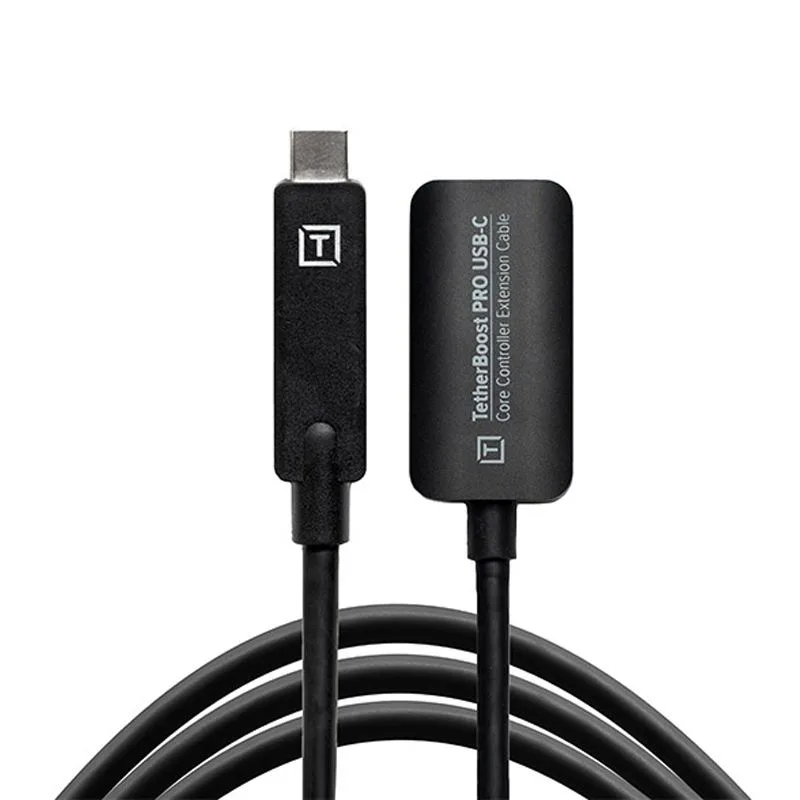
Tetherboost Pro USB-C Core Controller Extension - Black
-
Tether Tools TetherBlock: Locks the tethered cable into the camera port to prevent accidental disconnection and protect the sensitive data port from damage. A single accidental pull can ruin a camera port — the TetherBlock gives you peace of mind and saves costly repairs, especially in busy studio environments.
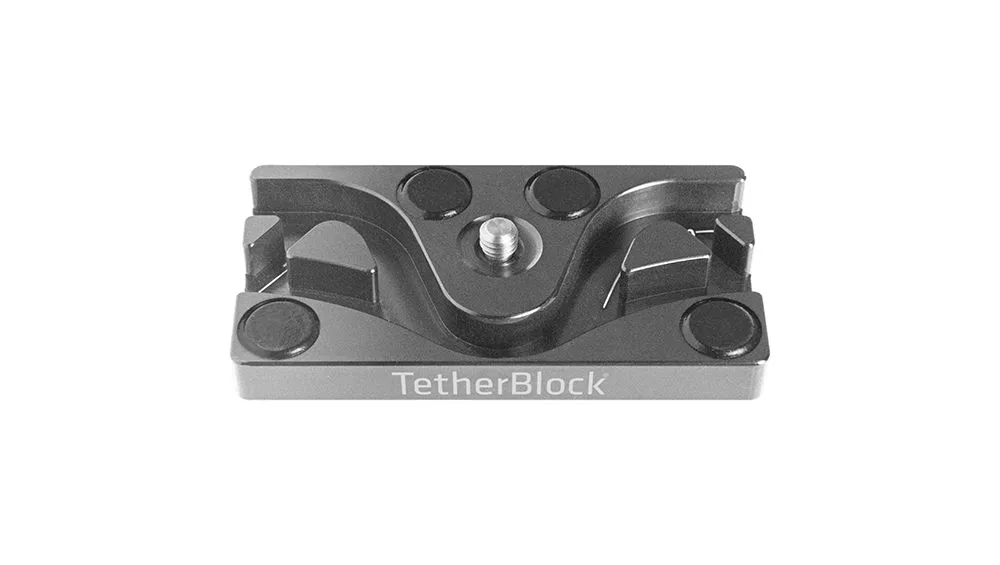
Tether Tools TetherBlock