Quick answer
Use the 70mai Dual USB Car Charger to power your dash cam by plugging it into a 12V or 24V socket, connecting the dash cam's USB cable to one port, and routing the cable neatly to the camera. This setup keeps your dash cam running continuously while leaving the second port free for charging other devices.
Why use a dedicated car charger for your dash cam?
A dedicated car charger like the 70mai Dual USB Car Charger ensures your dash cam gets stable power without draining your phone's battery or relying on a single USB port. Dash cams draw power continuously while driving, so a reliable 12V/24V connection is essential.
The 70mai Dual USB Car Charger is built with a durable metal case and supports both 12V and 24V vehicle systems, making it suitable for cars, trucks, and SUVs. This versatility means you can use it across different vehicles without worrying about compatibility.
Understanding the two USB ports
The charger has two USB ports, allowing you to power your dash cam and charge another device simultaneously. This is handy if you need to keep your phone charged during long drives or if you have a rear camera that also needs power.
One port can be dedicated to the dash cam, while the other remains available for a phone or tablet. Just remember: the dash cam should always have priority for the port that provides the most consistent power.
Step-by-step setup guide
- Locate a suitable 12V or 24V socket: Find the cigarette lighter socket or auxiliary power outlet in your vehicle. Ensure it's accessible and not blocked by other accessories. Plug the 70mai Dual USB Car Charger firmly into the socket until it clicks or sits flush. Check that the charger is fully seated; a loose connection can cause intermittent power loss.
- Connect your dash cam's USB cable: Use the USB cable that came with your dash cam (or a compatible one) and plug it into one of the charger's USB ports. Make sure the connection is snug. If your dash cam has a specific power input, verify the cable matches. Avoid using a cable that is damaged or too long, as it can cause voltage drop and unstable recording.
- Route the cable to your dash cam: Tuck the cable along the windshield edge, headliner, or A-pillar using clips or adhesive mounts. Keep the cable away from moving parts and airbags. Leave enough slack near the dash cam to avoid tension on the connector. Test the cable routing by opening and closing doors and adjusting seats to ensure nothing pinches the cable.
- Power on and verify the dash cam: Start your vehicle and check that the dash cam powers on and begins recording. If it doesn't, try the other USB port or check the cable connection. The charger's metal case should not feel excessively hot during operation. Confirm the dash cam's LED indicator or screen shows it's recording; don't assume it's working without visual confirmation.
- Use the second port for other devices: Plug your phone or tablet into the second USB port if needed. The charger supports QC 3.0 fast charging, so you can charge devices quickly. However, prioritize the dash cam port; if you experience power issues, unplug the secondary device temporarily. If the dash cam resets or shuts off, the secondary device may be drawing too much current. Disconnect it and test again.
Product facts
-
70mai Dual USB Car Charger: The 70mai Dual USB Car Charger features a durable metal case and supports 12V and 24V vehicle systems. This makes it a reliable and long-lasting power source for your dash cam in most cars, trucks, and SUVs.
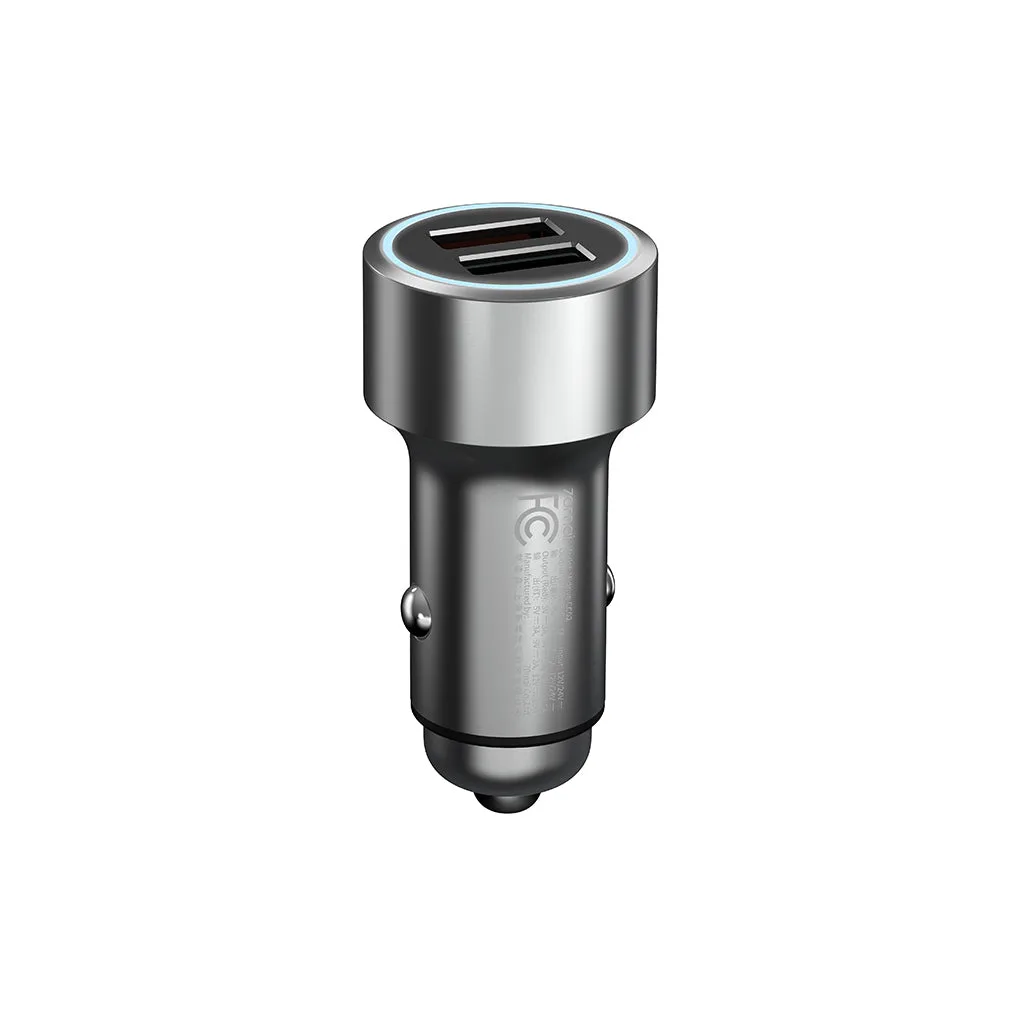
70mai Dual USB Car Charger
-
70mai Dual USB Car Charger: It has dual USB ports and supports QC 3.0 fast charging with output options of 5V/3A, 9V/2A, and more. You can charge your phone or tablet quickly while your dash cam stays powered, without needing extra adapters.