Quick answer
To use the KioskPro Tablet for Pilates class management, start by mounting it in a high-traffic area, then install your scheduling app, configure customer check-in, and train staff on daily maintenance. This commercial-grade device is built for reliability, making it a solid choice for studios that want to streamline class sign-ups and reduce front-desk congestion.
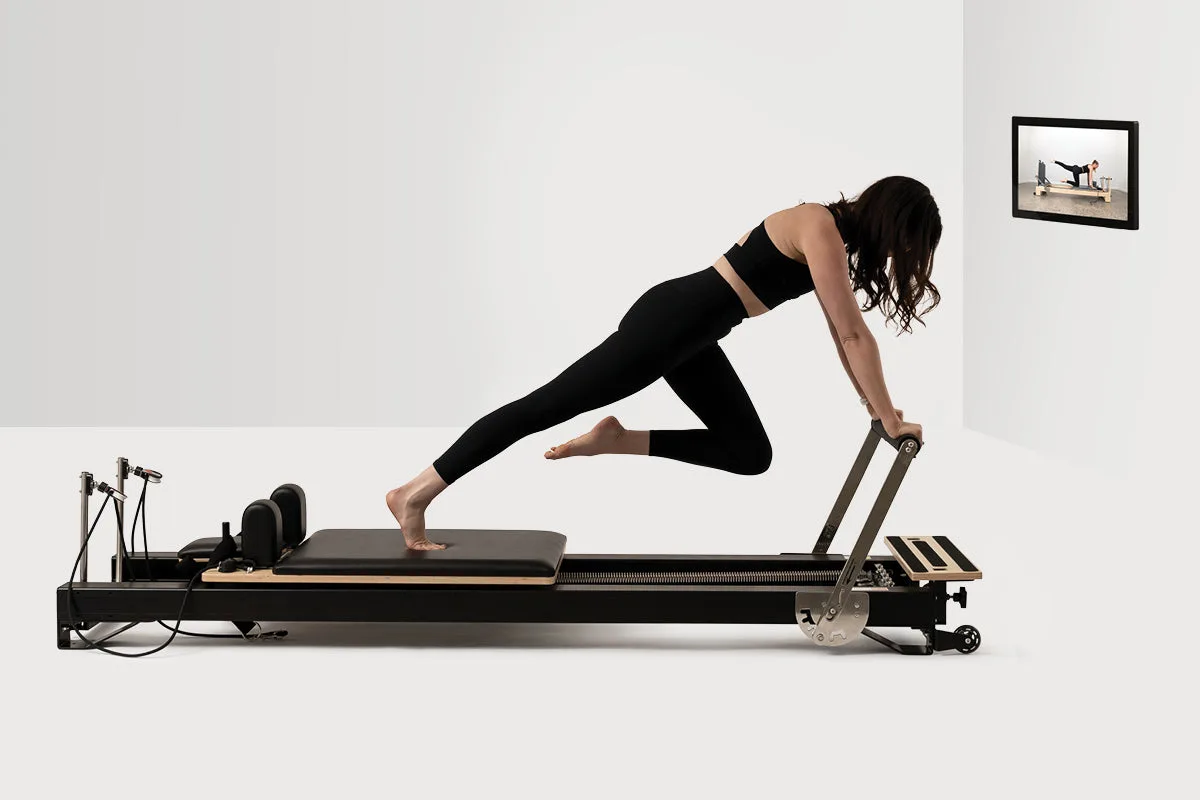
KioskPro Tablet
Running a Pilates studio means juggling schedules, client bookings, and walk-ins—all while keeping the energy calm and welcoming. A dedicated studio tablet can simplify that by putting class management where your clients actually are: at the front desk or by the reformer stations. The KioskPro Tablet from Your Reformer USA is designed for exactly this kind of customer-facing work, with a durable build and a large display that makes it easy for clients to check in or book a class on their own.
In this guide, you'll learn a practical, step-by-step process for setting up and using the KioskPro Tablet for Pilates class management. You'll also see how it fits into a broader studio setup, whether you're running a home studio or a commercial space.
Why a dedicated studio tablet helps Pilates class management
A general-purpose tablet can work, but it often struggles with the wear and tear of constant customer use. The KioskPro Tablet is built with commercial-grade construction, which means it's designed to handle the daily taps, swipes, and occasional drops that come with a busy studio. Its large display gives clients a clear, responsive interface, reducing the chance of mis-taps and frustration at check-in.
Beyond the hardware, a dedicated tablet keeps your class management software front and center. You don't have to worry about someone accidentally closing the app or navigating to a personal browser. This consistency makes it easier for both staff and clients to rely on the system, which is the first step toward smoother class scheduling.
- Place the tablet at eye level to minimize accidental touches and improve visibility.
- Use a secure mount to keep the tablet stable during peak hours.
Step 1: Mount and position the tablet for maximum visibility
Where you place the KioskPro Tablet matters as much as how you configure it. Choose a spot near the entrance or front desk, away from direct sunlight and high-traffic walkways where it could be bumped. The goal is to make it easy for clients to see and use without creating a bottleneck.
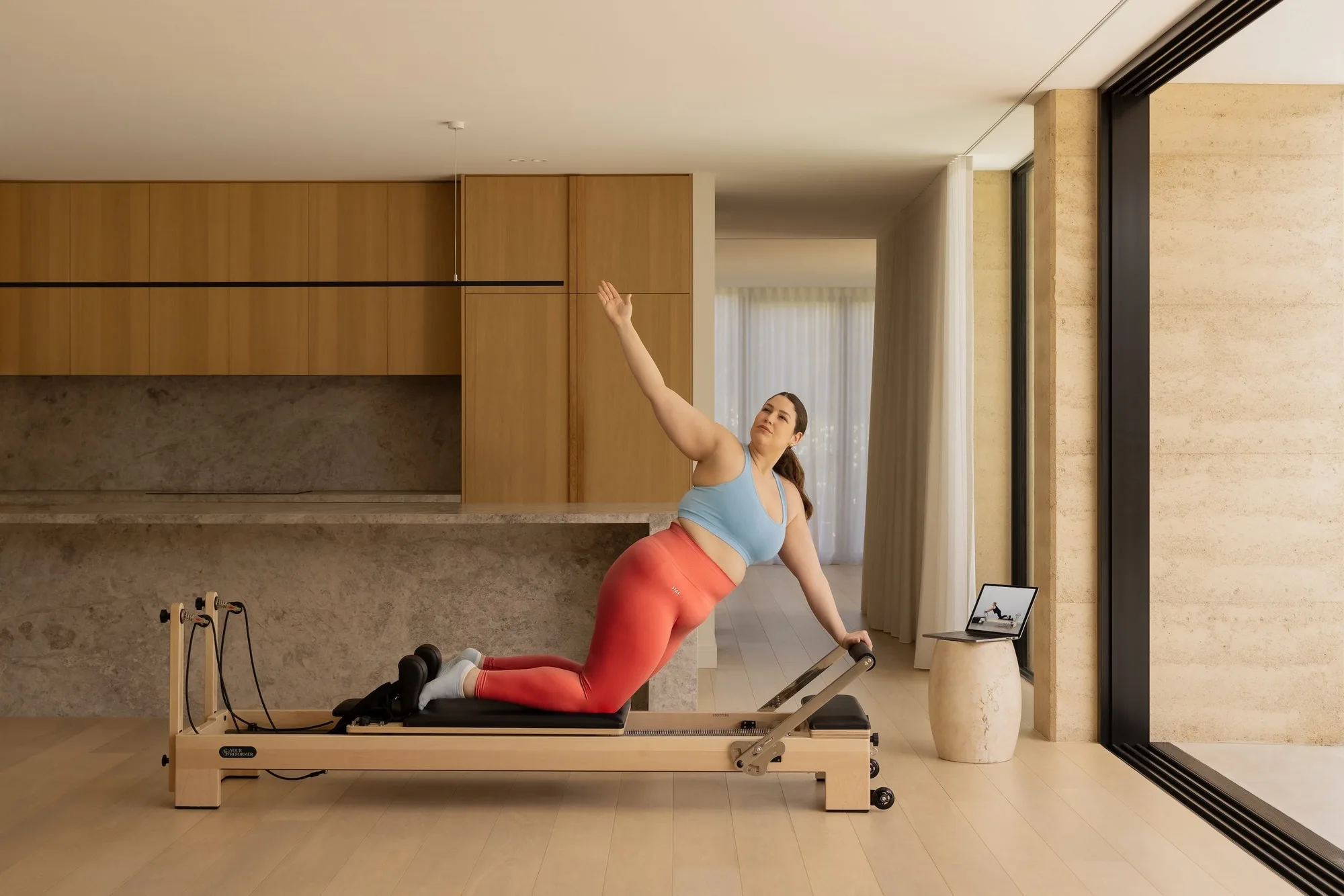
If you have multiple reformer stations, consider a secondary mount near the studio floor for quick class check-ins. This reduces the need for clients to line up at the front desk, which can be a real time-saver during back-to-back classes.
the studio
- Test the viewing angle from a seated and standing position to ensure the screen is readable.
- Use a locking mount to prevent theft or accidental removal.
Step 2: Install and configure your class scheduling app
Once the tablet is mounted, install your preferred class management software. Most modern scheduling platforms offer a tablet-optimized mode, but you'll want to enable kiosk mode if available. This locks the device to a single app, preventing clients from accessing other features or settings.
After installation, log in with a staff account that has the right permissions for check-ins and bookings. Set up your class schedule, instructor names, and any capacity limits. If your software supports digital class scheduling, enable it so clients can book future classes directly from the tablet.
- Enable kiosk mode to keep the tablet on your scheduling app.
- Test the app with a few dummy bookings to confirm the flow works.
Step 3: Set up client check-in and self-service booking
A key benefit of a kiosk tablet is enabling self-service check-in. Configure the app to allow clients to find their name or scan a QR code to confirm their arrival. This reduces front-desk workload and speeds up the start of each class.
For digital class scheduling, make sure the tablet is connected to your Wi-Fi and that the app syncs in real time. This ensures that when a client books a class on their phone, the tablet updates immediately, preventing overbooking and confusion.
- Set a screen timeout that's long enough for clients to complete check-in but short enough to save battery.
- Provide a short on-screen instruction for first-time users.
Step 4: Train staff and establish daily maintenance routines
Even the most reliable tablet needs a little care. Train your staff on how to reboot the device, clear the app cache, and handle common issues like a frozen screen. Establish a simple daily routine: wipe the screen, check the battery, and verify that the scheduling app is still logged in.
A quick morning check can prevent most issues. If you notice the tablet running slowly, close unused apps or restart the device. The KioskPro Tablet's commercial-grade build is designed to handle heavy use, but regular maintenance keeps it running smoothly for years.
- Create a simple checklist for opening and closing shifts.
- Keep a backup tablet or a paper sign-in sheet as a fallback.
Step-by-step setup checklist
- Mount the tablet: Secure the KioskPro Tablet in a high-visibility, low-traffic spot near the entrance or front desk. Use a locking mount for safety. Check: The screen is readable from a standing position and not in direct sunlight.
- Install and lock down your scheduling app: Install your class management software and enable kiosk mode to keep the device on a single app. Log in with a staff account. Check: The app opens automatically after a reboot.
- Configure check-in and booking settings: Enable self-service check-in and digital class scheduling in the app. Test with a few dummy bookings to confirm sync. Check: A test booking appears on the tablet within seconds.
- Train staff and set a maintenance routine: Show staff how to reboot, clear cache, and handle frozen screens. Create a daily checklist for cleaning and battery checks. Check: Staff can demonstrate a basic reboot and know who to contact for issues.
KioskPro Tablet features and why they matter
- KioskPro Tablet: Commercial-grade construction for durability. In a busy studio, the tablet will face constant handling. This build helps it withstand daily use without frequent replacements.
- KioskPro Tablet: Large display for easy interaction. A bigger screen makes it easier for clients to tap the right class or confirm their booking, reducing errors and frustration.
The KioskPro Tablet is a practical addition to any Pilates studio that wants to simplify class management. Its durable build and large display make it easy for clients to check in and book on their own, giving your front desk more time to focus on teaching and member care. Start with the steps above, and you'll have a smoother, more professional studio experience in no time.