Quick Answer
To teach Pilates using the KioskPro Tablet, start by mounting the tablet at eye level near your reformer, then use its large, responsive display to guide students through exercises. Organize your class flow into clear segments—warm-up, main exercises, and cool-down—and use the tablet's commercial-grade durability to handle daily studio use. Finally, test audio and screen visibility before each session to avoid disruptions.
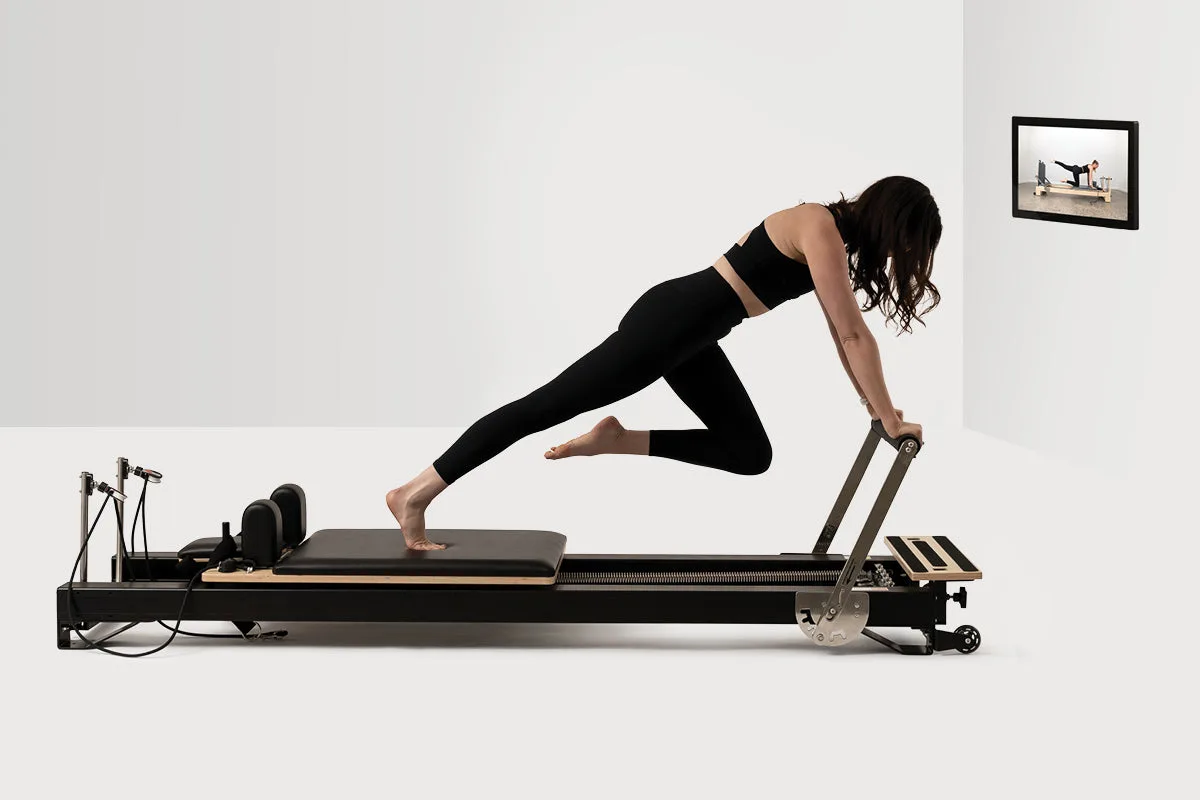
KioskPro Tablet
Teaching Pilates with a tablet can make your classes more efficient and engaging. The KioskPro Tablet by Your Reformer USA is a commercial-grade device designed for business settings, offering a large, responsive interface that works well in a studio environment. Whether you're leading a small group or a full class, this guide walks you through the practical steps to integrate the tablet into your teaching routine.
You'll learn how to set up the tablet, structure your class flow, and troubleshoot common issues. The goal is to help you focus on your students while the technology handles the logistics. Let's get started.
Step 1: Set Up the KioskPro Tablet for Your Studio
Begin by positioning the KioskPro Tablet at eye level, either on a sturdy stand or mounted on a wall near your reformer area. This ensures that both you and your students can see the screen without straining. The tablet's large display is designed for easy interaction, making it simple to navigate through your class playlist or notes mid-session.
Make sure the tablet is fully charged or plugged into a power source before each class. Since it's built for commercial use, it can handle extended operation, but a backup power bank is a smart addition. Also, choose the color option that matches your studio's aesthetic—Black or Ivory—to keep the space looking professional.
Common mistake: Placing the tablet too low or at an angle where glare affects visibility. Checkpoint: Test the screen from various spots in the room to ensure everyone can see it clearly.
- Mount at eye level for optimal visibility
- Keep a charger or power bank nearby
- Test screen glare during different times of day
Step 2: Structure Your Class Flow Digitally
Use the tablet to organize your class into clear segments: warm-up, main exercises, and cool-down. Create a digital outline that you can reference during the session. The responsive interface allows you to swipe between sections quickly, so you can keep the momentum going without fumbling.
For each exercise, include cues and modifications on your digital notes. This is especially helpful when teaching mixed-level classes, as you can quickly adjust the intensity for beginners or advanced students. The tablet's large display means you can read your cues from a distance, so you're not constantly leaning in.
Common mistake: Overloading your digital outline with too much text, which can slow you down. Checkpoint: Keep each exercise cue to 2-3 bullet points for quick reference.
- Segment your class into warm-up, main, and cool-down
- Include modification cues for different levels
- Keep text minimal for quick scanning
Step 3: Engage Students with Interactive Tools
The KioskPro Tablet's responsive touchscreen opens up interactive teaching possibilities. Use timers or interval apps to pace your class, or pull up a video demonstration for a complex move. The clear display ensures everyone can follow along, even from the back of the room.
You can also use the tablet to display a class agenda at the start, so students know what to expect. This builds anticipation and helps them mentally prepare. For larger classes, consider using a screen-mirroring feature to project the tablet's screen onto a TV or projector, making it even more visible.
Common mistake: Relying too heavily on the tablet and losing personal connection with students. Checkpoint: Use the tablet as a tool, but keep your focus on the room and their form.
- Use timers or interval apps for pacing
- Display a class agenda to set expectations
- Consider screen mirroring for larger groups
Step 4: Troubleshoot Common Issues During Class
Even with a commercial-grade device, issues can arise. If the screen freezes or the battery runs low, have a backup plan. Keep a printed copy of your class outline as a fallback. The KioskPro Tablet's durable construction minimizes these risks, but it's always wise to be prepared.
For audio issues, if you're using the tablet's speakers for music or cues, test the volume before class starts. The large display helps, but sound is crucial for a seamless experience. If you're using external speakers, ensure they're paired correctly in advance.
Common mistake: Forgetting to test equipment until the last minute. Checkpoint: Do a 5-minute tech check before every class, including screen, battery, and audio.
- Keep a printed backup of your class plan
- Test audio and screen before each session
- Have a power bank or charger accessible
Step 5: Maintain and Protect Your Tablet for Longevity
The KioskPro Tablet is built for commercial use, but regular maintenance extends its life. Clean the screen with a soft, dry cloth to remove fingerprints and dust, which can affect touch sensitivity. Avoid harsh chemicals that could damage the display.
Store the tablet in a protective case when not in use, especially if you move between studios. The tablet's durable construction handles daily wear, but a little care goes a long way. Also, keep the software updated to ensure optimal performance and security.
Common mistake: Neglecting screen cleanliness, which can reduce responsiveness. Checkpoint: Wipe the screen after each class and do a weekly deep clean.
- Clean the screen regularly with a soft cloth
- Use a protective case for transport
- Update software to maintain performance
Quick Checklist for Your First Digital Class
- Set up the tablet: Mount at eye level, charge fully, and test visibility from all angles. Ensure everyone can see the screen without glare.
- Prepare your digital outline: Create a segmented class flow with minimal text and modification cues. Keep it simple for quick reference mid-session.
- Do a tech check: Test audio, battery, and screen responsiveness 5 minutes before class. Prevent disruptions and build confidence.
- Engage and adapt: Use interactive tools like timers, but stay focused on your students. Balance tech with personal connection.
- Maintain the device: Clean the screen after each use and store it safely. Extend the tablet's lifespan for consistent performance.
Why the KioskPro Tablet Fits Your Teaching Needs
- KioskPro Tablet: Commercial-grade construction for durability in business settings. You can rely on it for daily studio use without worrying about frequent breakdowns.
- KioskPro Tablet: Large display for easy interaction. Students can see cues and visuals clearly, even from a distance, improving engagement.
- KioskPro Tablet: Choose from Black or Ivory color options. You can match the tablet to your studio's aesthetic for a cohesive, professional look.
Teaching Pilates with the KioskPro Tablet can streamline your classes and enhance student engagement. By following these steps, you'll create a smooth, professional experience that lets you focus on what matters most—your students' progress. Start with a simple setup, test your tech, and watch your classes run more efficiently.