Quick answer
Setting up your Skullcandy Icon 180 wired headphones is straightforward: plug the 3.5mm jack into your device, adjust the headband for a comfortable fit, and use the inline remote to control playback and calls. No pairing, charging, or app is required.
What makes the Icon 180 different from wireless headphones
The Icon 180 is a wired headphone, which means there is no Bluetooth pairing, no battery to charge, and no wireless range to worry about. This makes it a reliable choice for situations where you just want to plug in and listen immediately—like during a long study session, at a desk, or on a plane with the seatback entertainment system.
Because it lacks wireless features, you won't find active noise cancellation or a companion app. The trade-off is simplicity: the Icon 180 works with any device that has a standard 3.5mm headphone jack, and it never needs to be charged or updated.
Understanding the inline remote and controls
The Icon 180 includes a single-button inline remote on the cable. This button handles play/pause, call answer/end, and track skipping depending on how many times you press it. A single press plays or pauses audio or answers a call. Two quick presses skip to the next track, and three presses go to the previous track. Holding the button down rejects an incoming call or activates your device's voice assistant.
There is no volume control on the cable itself, so you must adjust volume from your connected device. This is a common point of confusion for first-time users who expect inline volume buttons.
How to set up and use your Icon 180 wired headphones
- Connect the 3.5mm plug to your device: Insert the gold-plated 3.5mm jack firmly into the headphone port of your phone, tablet, computer, or gaming controller. Push until you feel it click or seat fully. A loose connection can cause one side to go silent or produce crackling audio. If you hear audio from only one ear, check that the plug is fully inserted.
- Adjust the headband for a comfortable fit: Hold both earcups and extend or retract the headband arms until the headband rests gently on your head without pressing too hard. The earcups should cover your ears completely. An overly tight fit can cause discomfort over time, while a loose fit may let the headphones slip. Make small adjustments on both sides equally to keep the headband centered.
- Test the inline remote functions: Press the single button on the cable once to play or pause your audio. Double-press to skip to the next track, and triple-press to go back to the previous track. If you receive a call, press once to answer and press again to hang up. Hold the button for about 2 seconds to activate your device's voice assistant or reject an incoming call. Not all devices support track skipping via the remote; if it doesn't work, check your device's headset compatibility settings.
- Store the headphones safely when not in use: Coil the cable loosely around the headband or use a small pouch to prevent tangles and kinks. Avoid wrapping the cable tightly around the headphones, as this can damage the wire near the plug over time. Store in a dry place away from extreme heat or cold. A simple cable tie or velcro strap helps keep the cord organized and extends its lifespan.
Product details
-
Icon® 180 Wired: The Icon 180 features an adjustable fit for all ages and a reliable wired connection. This means the headband can be resized to fit children and adults comfortably, and the wired design ensures zero latency or dropouts during use.
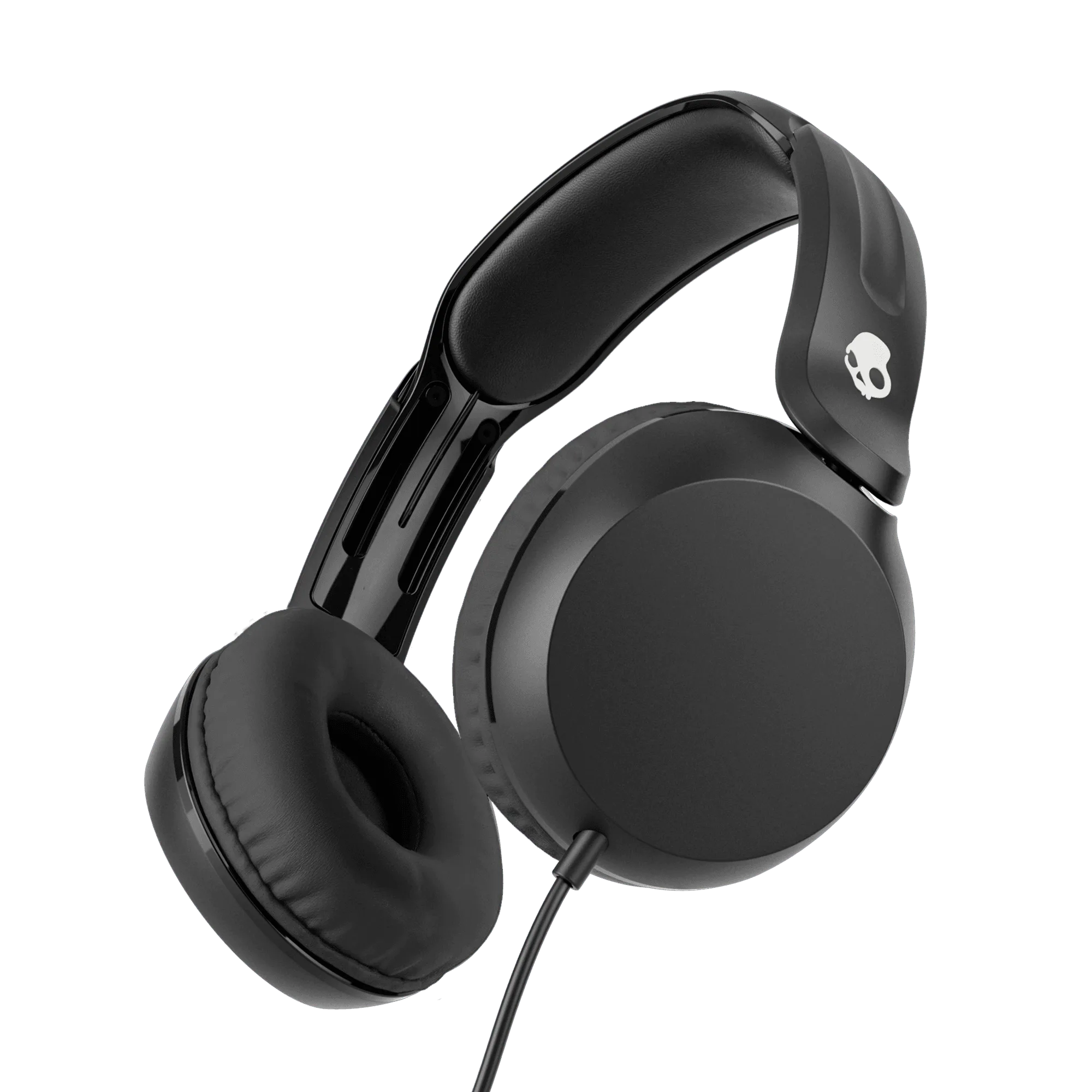
Icon® 180 Wired