Quick Answer
Place the speaker at ear level, connect your mic via the dedicated input, and use the 5-band EQ and voice modulation on the Android tablet to get a clear, balanced karaoke mix.
Why placement and room matter
The Karaokebox 4120 is a quad 12-inch event speaker, meaning it can push a lot of air. In a typical living room, corner placement can boom the bass and muddy vocals. Keep it away from walls and corners to avoid excessive low-end buildup.
Position the speaker at ear level when you're standing to sing. If it sits on the floor, the sound fires at your knees and you'll miss the clarity of the highs. A sturdy table or speaker stand solves this without extra cost.
The Android tablet is your control center
The built-in 18.5-inch touchscreen runs Android 12, so you can load karaoke apps, streaming services, or even YouTube lyric videos directly on the speaker. This removes the need for a separate laptop or tablet, but it also means you should set up your playlists before guests arrive.
Because the tablet is part of the speaker, keep the system's volume at a moderate level when switching apps. A sudden app notification or autoplay video can blast at full volume if you're not careful.
Step-by-Step Setup Guide
- Position the speaker: Place the Karaokebox 4120 at ear level on a sturdy surface, away from walls and corners. This prevents bass buildup and ensures the highs reach your ears clearly. If the bass sounds boomy, move the speaker further from the wall before adjusting EQ.
- Connect the microphone: Plug your wired or wireless mic into the dedicated mic input on the speaker. If using a wireless system, pair the receiver first. Make sure the mic's volume is set low before you start singing to avoid feedback. Always start with mic volume low and increase gradually to avoid sudden feedback squeal.
- Set up your song source: Use the built-in 18.5-inch Android tablet to open a karaoke app or streaming service. Load your playlist before guests arrive to avoid awkward pauses and autoplay surprises. Test one song fully before the party to confirm audio and mic levels.
- Adjust volume and EQ: Set the music volume to a comfortable level, then bring the mic volume up until it sits just above the music. Use the 5-band EQ to cut muddy mids or add presence to vocals. Avoid boosting the bass too much, as it can mask the lyrics. If vocals sound thin, boost the mid frequencies slightly instead of raising the mic volume.
- Use voice modulation for fun: Experiment with the Voice Modulation feature to change the pitch of your voice. This is great for comedy songs or when you want to sound like a different character. Turn off voice modulation when you want a natural, clear vocal sound for serious singing.
Product Facts
-
Karaokebox 4120: The Karaokebox 4120 includes an 18.5-inch touchscreen Android tablet running Android 12. You can run karaoke apps and manage songs directly on the speaker, so you don't need an external device for your home setup.
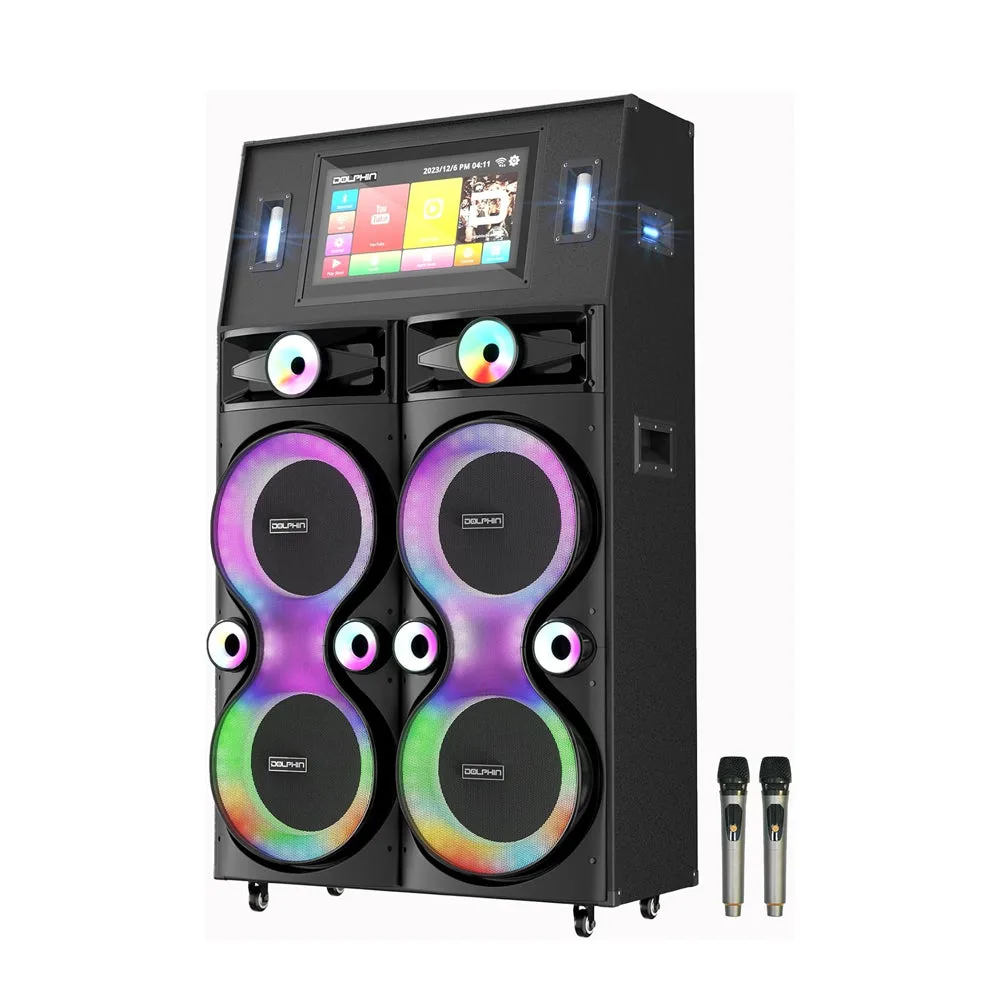
Karaokebox 4120
-
Karaokebox 4120: It features Voice Modulation and a dedicated 5-band EQ for precision control. These give you the tools to shape both vocals and music, helping you avoid the muddy or harsh sound that plagues many home karaoke setups.