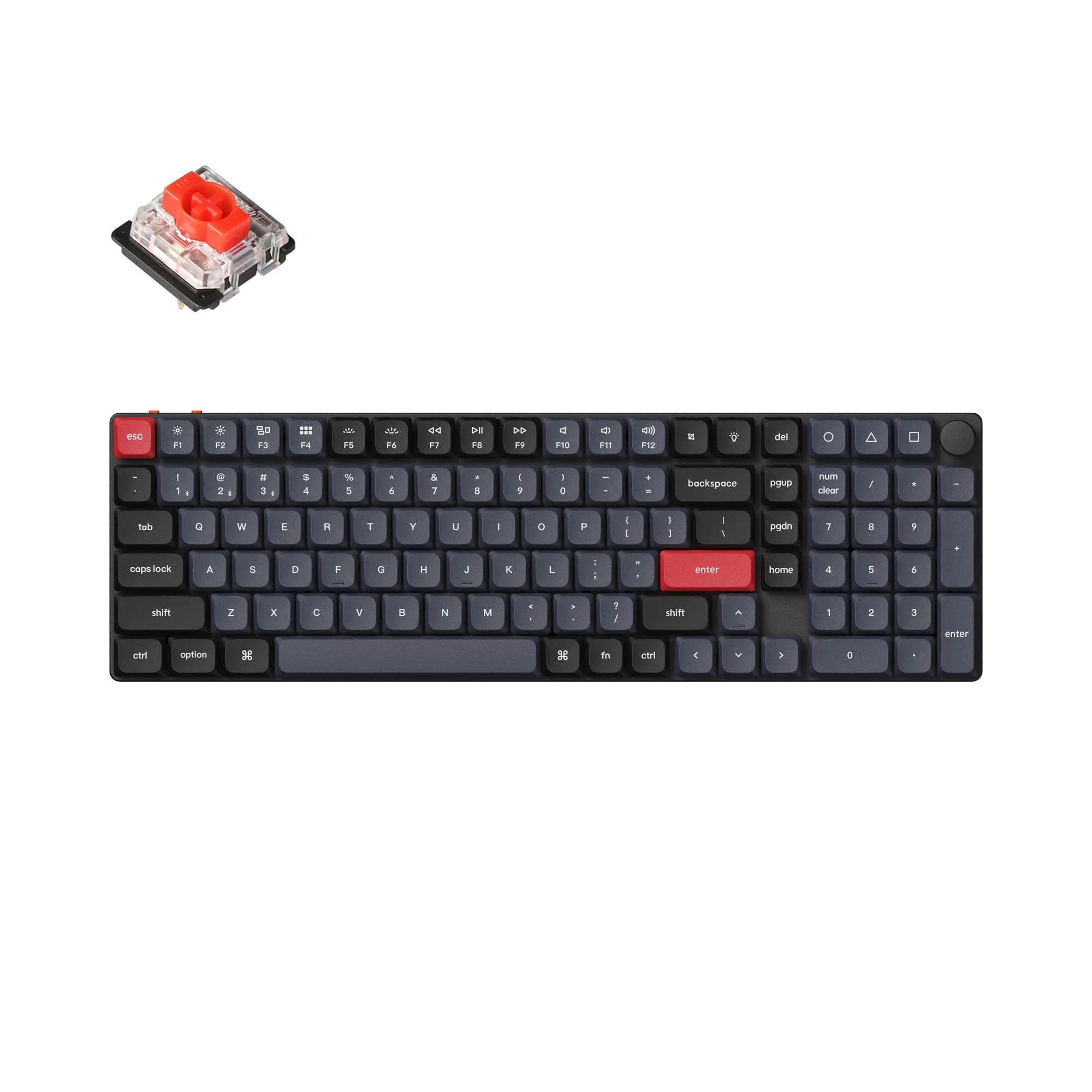
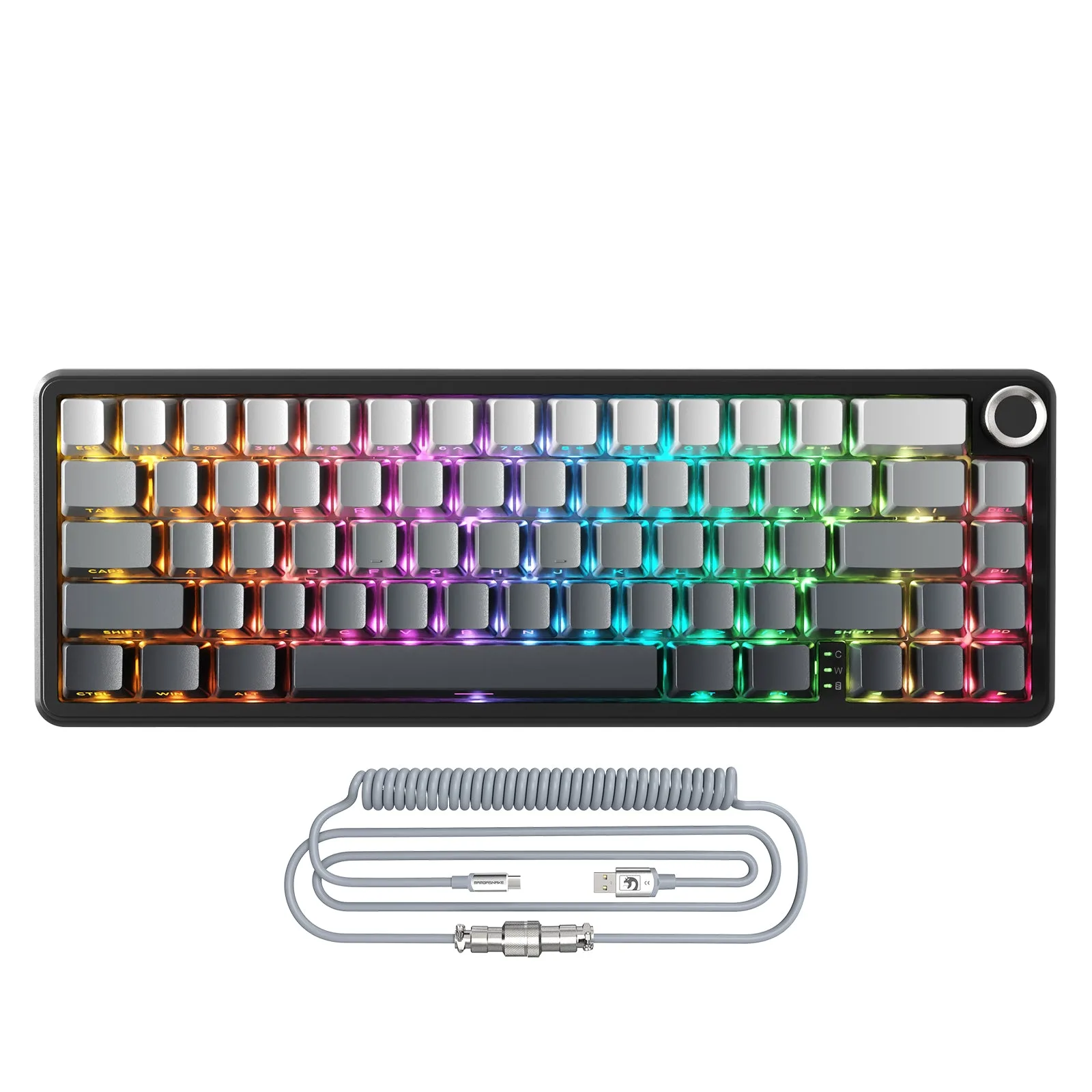
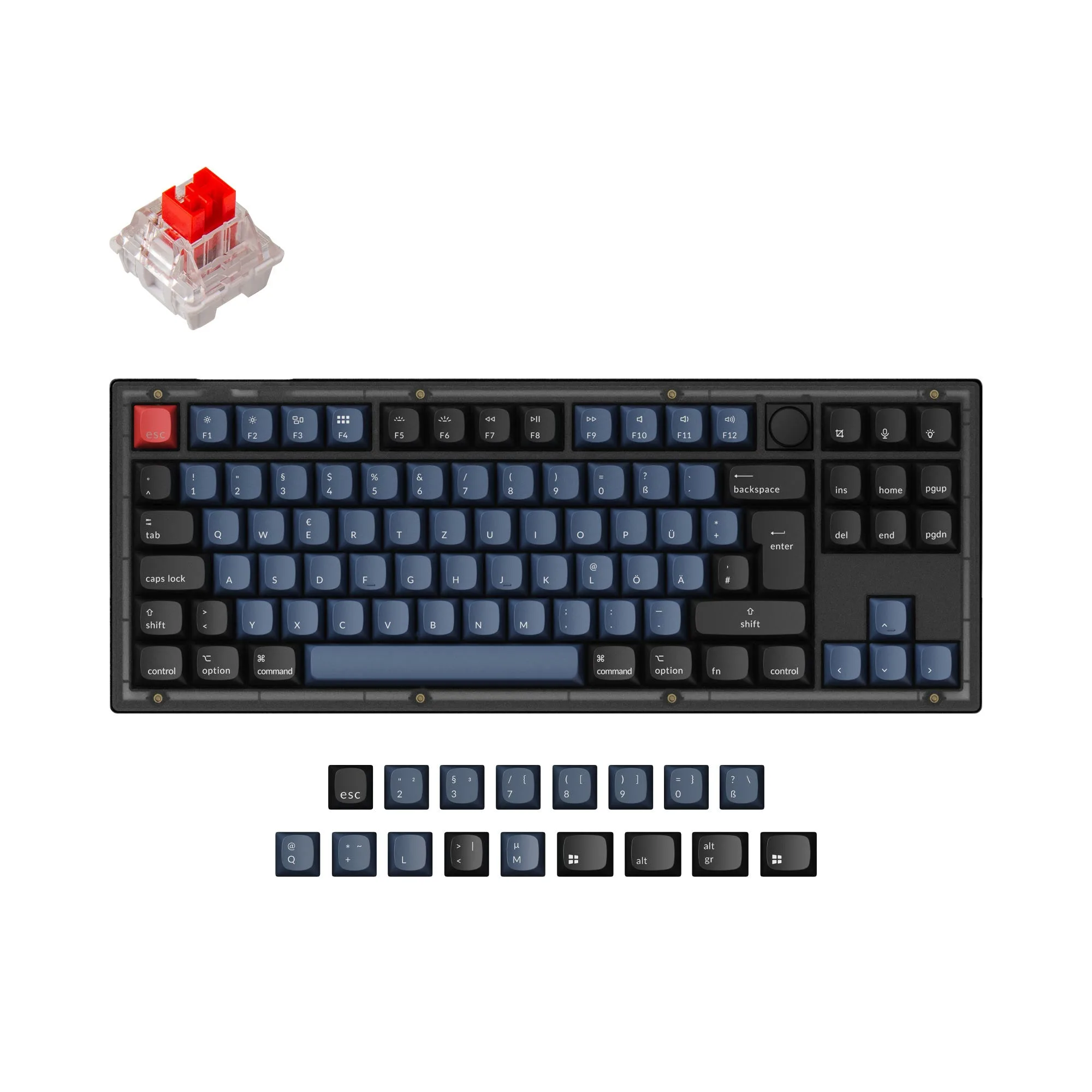
Start with the variant that matches how you plan to use it
The Keychron J1 comes in several versions, and the one you order affects what you can change later. Hot-swappable versions let you swap low-profile mechanical switches without soldering; non-hot-swappable versions do not. If you want to try different switch feels, choose a hot-swappable variant. If you already know the switch you like, a fixed version may suit you fine.
The J1 listing includes keycaps for both Windows and macOS, so you can match your computer's layout from the start. Color, backlight, and switch options are listed separately; check the exact combination before checkout.
What the J1 record confirms
-
Keychron J1 QMK Wireless Mechanical Keyboard: Keychron J1 is a wireless custom mechanical keyboard supporting 2.4 GHz, Bluetooth, and a wired connection. You have three connection paths to choose from during first setup; pick one based on your desk setup and whether you need low latency or multi-device convenience.
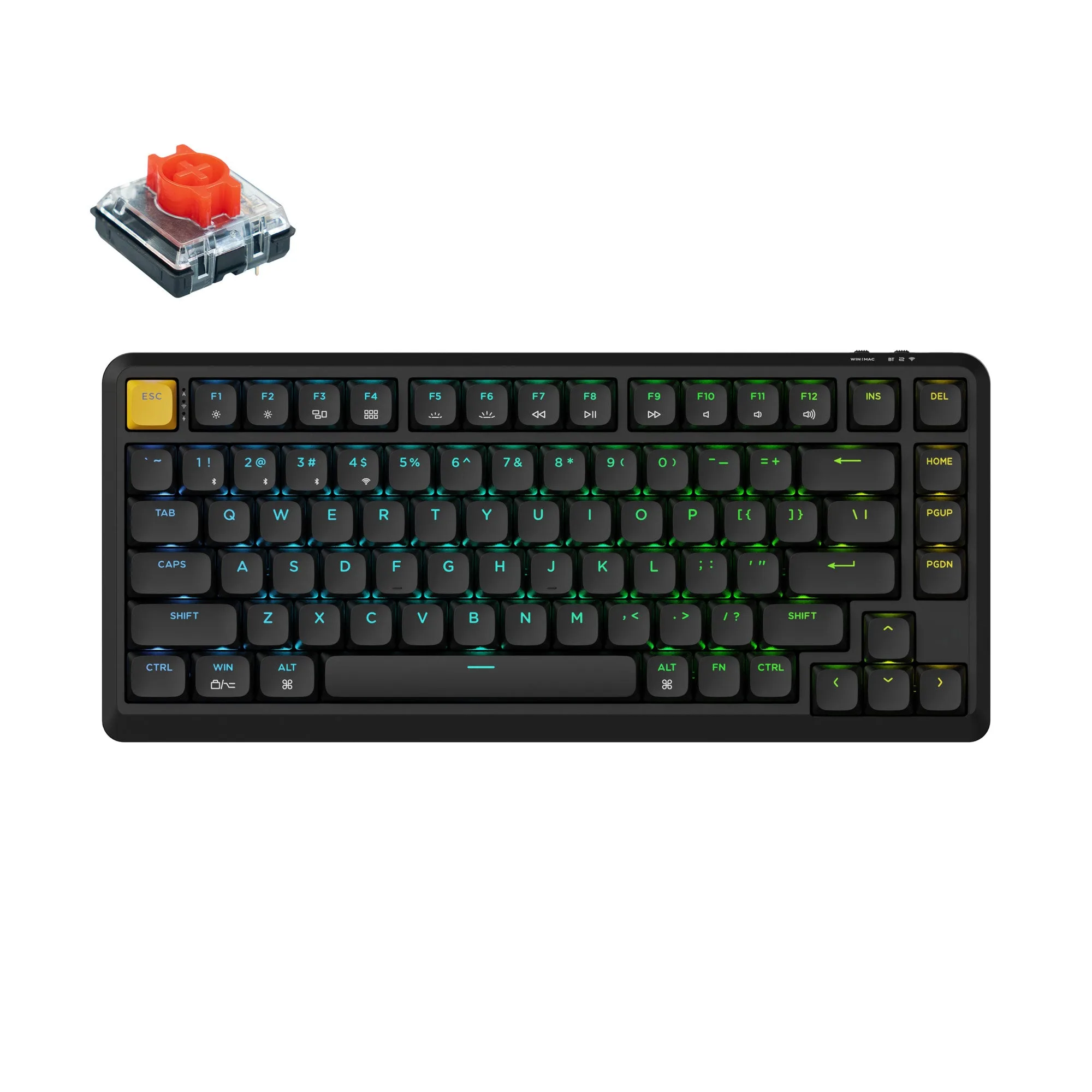
Keychron J1 QMK Wireless Mechanical Keyboard
-
Keychron J1 QMK Wireless Mechanical Keyboard: It allows anyone to master any keys or macro commands on its 75% TKL layout through Keychron Launcher web app. Key remapping and macro setup happen in a browser-based tool, so you do not need to install separate software before customizing your layout.
-
Keychron J1 QMK Wireless Mechanical Keyboard: It has included keycaps for both Windows and macOS. You can set up the keyboard for either operating system without buying extra keycaps.
-
Keychron J1 QMK Wireless Mechanical Keyboard: Users can hot-swap with low profile mechanical switch in a breeze (hot-swappable version only). If you chose a hot-swappable J1, you can change switch feel later; if you chose a fixed version, plan to keep the installed switches.
Connect the J1: pick one path and test it
The J1 supports three connection types, but the supplied record does not include pairing steps, button combinations, or indicator behavior. Use the following as a general order of operations, and rely on the keyboard's included documentation for exact pairing controls.
- Try wired first: A wired connection is the simplest way to confirm the keyboard works and to access Keychron Launcher for keymap changes. Connect the cable and check that typing registers before moving to wireless.
- Set up 2.4 GHz if you want a low-latency wireless link: The J1 supports 2.4 GHz, typically via a USB receiver. The supplied record does not confirm whether a receiver is included or how to pair it, so check the box contents and quick-start guide.
- Pair over Bluetooth for cable-free, multi-device use: Bluetooth is the path for connecting to a laptop or tablet without a receiver. The exact pairing shortcut is not in the supplied record; follow the included instructions. Once paired, test typing in a text field before relying on it for work.
Remap keys and macros in Keychron Launcher
The J1's 75% TKL layout gives you most of a full keyboard in a smaller frame, but you may want to move keys or add macros. Keychron Launcher is a web app, so open it in a browser, connect the keyboard (wired is the safest bet for a stable connection during changes), and use the interface to reassign keys or record macros.
The supplied record does not list which keys are remappable, whether every layer is editable, or whether changes save to the keyboard's onboard memory. Treat the Launcher interface as the source of truth: make one small change, test it, then continue. If a key does not respond as expected, reload the page and reconnect before assuming a hardware problem.
Match the keycaps to your operating system
The J1 includes keycaps for both Windows and macOS. If you use macOS, install the Mac keycaps so the modifier labels match your shortcuts; if you use Windows, use the Windows set. Keep the unused set in case you switch computers later. The supplied record does not specify keycap material or profile, so judge those from the product page if they matter to you.
Decide on hot-swapping only if you chose that version
Hot-swappable J1 versions accept low-profile mechanical switches, which means you can change switch feel without soldering. If you bought a hot-swappable version and want to try a different switch type, the swap is straightforward with a switch puller. If you bought a fixed version, the installed switches are not intended to be swapped; plan around the switch you selected at checkout.
The supplied record does not list supported switch brands or pin counts beyond low-profile mechanical switches, so confirm compatibility with the switch you plan to use before pulling anything.
A note on price and availability
The J1 is listed at USD 42.69, with a catalog comparison price of USD 69.99. No discount code can be used for the J1, so budget for the listed price. If the model you want is out of stock, the product page offers a "Notify Me When Available" option; use it rather than guessing a restock date.