Start With the Connection, Not the Fans
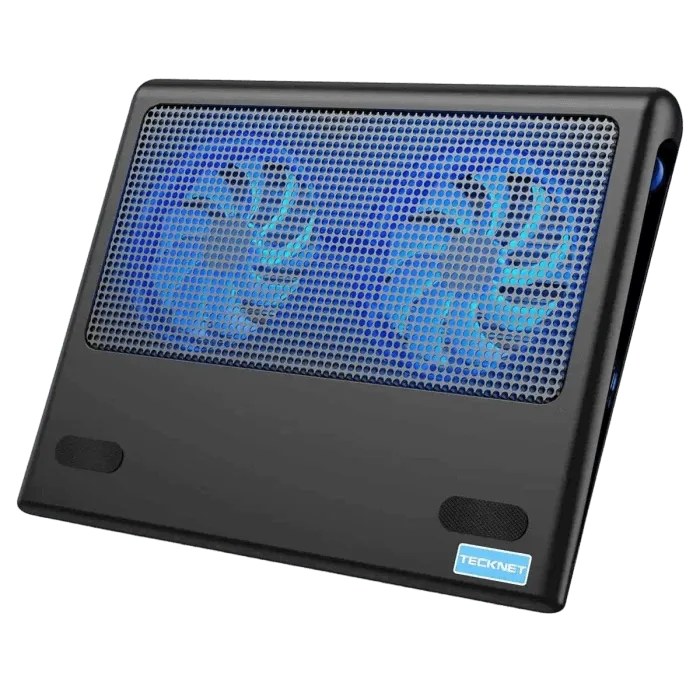
A cooling pad only helps when it is powered and positioned correctly. The TECKNET BASICS Laptop Cooling Pad is USB powered and includes an A-A cable for USB-A laptops, while a USB-C port is provided for MacBooks. Before you adjust anything, decide which port on your laptop will supply power and confirm the pad sits flat on your desk, lap or bed.
The pad fits 12-16" laptops, so check your laptop size against that range first. If your laptop falls outside it, the pad may not align with the vents or sit securely, and that is a fit decision rather than a fan-speed problem.
A Simple Setup Sequence
Follow these steps in order so you can tell whether a change in temperature or noise comes from the connection, the speed setting or the placement.
- Place the pad on a stable surface: Set the pad on a desk, lap or bed as supplied. The flat base is designed to rest comfortably on your lap and isolate heat between the computer and your legs.
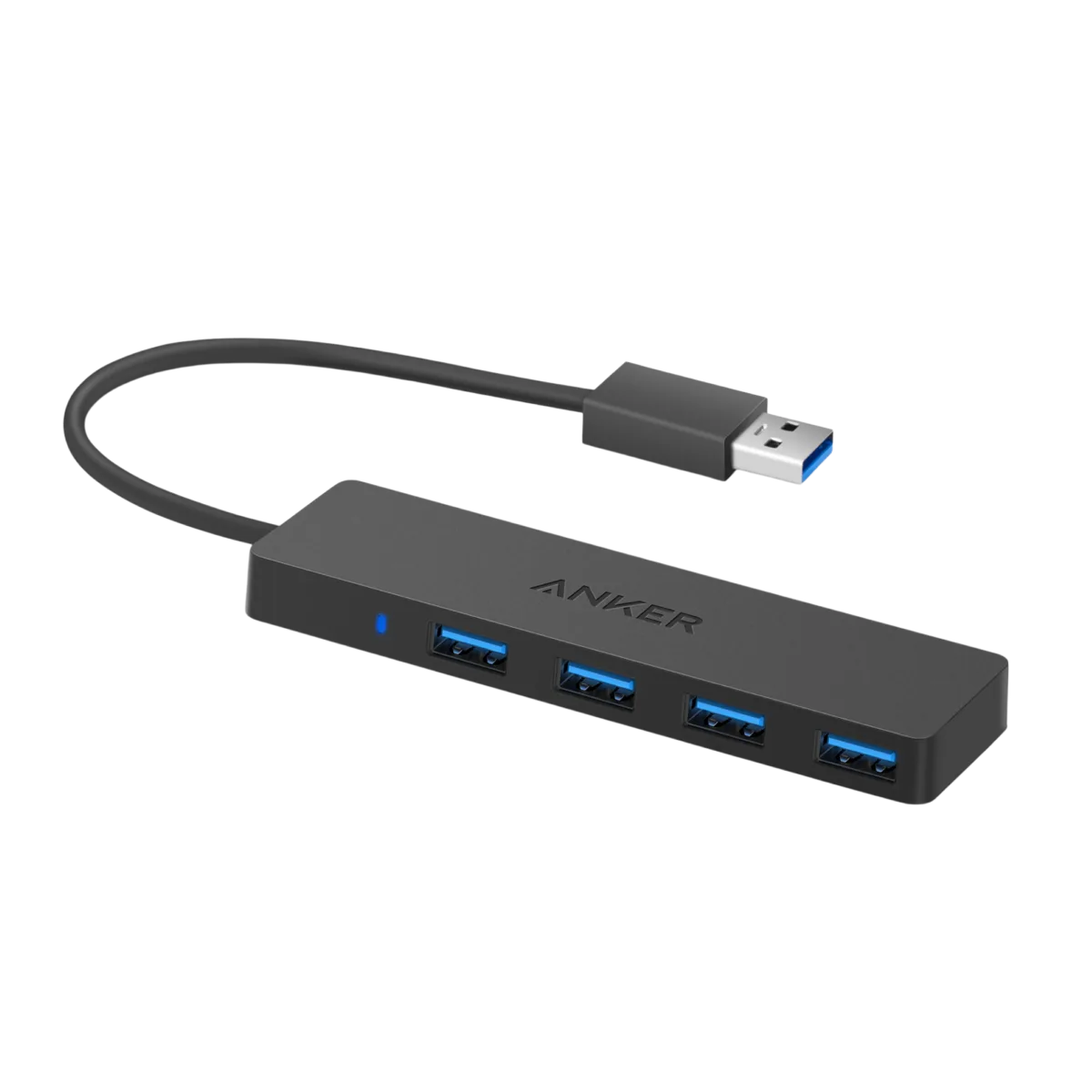
- Connect power to the correct port: Use the included A-A cable with a USB-A port on most laptops, or the USB-C port for MacBooks. The pad also has an extra port for charging low-current devices such as phones, smartwatches or small fans during use.
- Set the side switch to low: The side switch controls fan speed from 0 to maximum. Start low for quiet daily use, then raise it only if you need more airflow for gaming or heavy work.
- Check that the laptop sits within the fit range: The pad is specified for 12-16" laptops. Confirm your laptop is within that range before relying on the pad for cooling.
How the Adjustable Fan Speed Changes Your Experience
The TECKNET BASICS pad uses two 110mm adjustable fans with metal mesh covers. The side switch lets you move from 0 to maximum, which gives you a practical tradeoff: low speed for quieter daily work, high speed for intense gaming when heat buildup is the bigger concern.
There is no supplied decibel rating or measured temperature drop, so treat the speed setting as a comfort and airflow control rather than a guaranteed cooling number. Adjust by ear and by how the laptop feels during your normal tasks.
Specs That Affect Setup
-
TECKNET BASICS Laptop Cooling Pad, Ultra-Quiet Cooler with Adjustable Fan Speeds, USB Powered Stand for 12-15.6" Gaming Laptops - Blue: Two 110mm adjustable fans with metal mesh cover; side switch controls speed from 0 to maximum. The switch is your main control during setup, so you can start quiet and increase airflow only when needed.
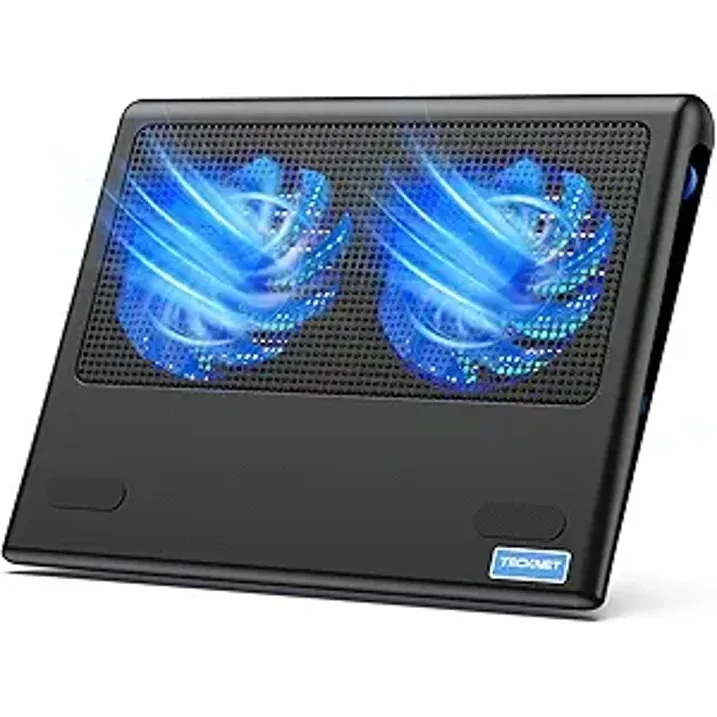
TECKNET BASICS Laptop Cooling Pad, Ultra-Quiet Cooler with Adjustable Fan Speeds, USB Powered Stand for 12-15.6" Gaming Laptops - Blue
-
TECKNET BASICS Laptop Cooling Pad, Ultra-Quiet Cooler with Adjustable Fan Speeds, USB Powered Stand for 12-15.6" Gaming Laptops - Blue: Fits 12-16" laptops and is compatible with MacBook, HP, Dell, Lenovo, ASUS and Alienware among others. Check your laptop size and brand against this range before assuming the pad will align with your vents.
-
TECKNET BASICS Laptop Cooling Pad, Ultra-Quiet Cooler with Adjustable Fan Speeds, USB Powered Stand for 12-15.6" Gaming Laptops - Blue: USB-C port for MacBooks and USB-A for most laptops, with an A-A cable included; an extra port charges low-current devices. Choosing the right port prevents a no-power setup and lets you charge a phone or smartwatch without unplugging the pad.
Placement Tips for Desk, Lap and Bed
The pad is described as ultra portable and lightweight, with a smooth, thin profile that fits into laptop bags without scratching your device. That portability matters for placement: you can move it from desk to lap to bed without a separate power adapter.
On a desk, keep the pad flat so the internal channel design can draw air from the sides and bottom toward the CPU hotspot. On your lap, the flat base is intended to rest comfortably and isolate heat between the computer and your legs. On a bed, use the same flat placement and avoid blocking the side and bottom air paths with blankets or pillows.
The supplied information does not include specific clearance distances or angles, so use the pad as designed and keep the vents unobstructed rather than following invented measurements.
Low Speed vs High Speed: When to Use Each
The side switch gives you a simple choice. Use this comparison to decide without guessing at temperatures.
- Low speed: Better for quiet daily use such as writing, browsing or video calls, where fan noise is more noticeable than heat.
- High speed: Better for intense gaming or long work sessions where heat buildup is the main concern and you can accept more fan noise.
- Off (0): Useful when you only need the ergonomic flat base on your lap and do not need active airflow.
What the Supplied Information Does Not Cover
The supplied record does not include operating temperatures, decibel ratings, cleaning instructions or a measured cooling performance figure. It also does not list a specific supported USB standard beyond the USB-C and USB-A port descriptions. If your laptop requires a particular power delivery specification, confirm that separately before purchase.
The pad is backed by a 30-day return policy and a full 2-year warranty, which gives you a practical window to check fit, noise and placement in your own setup.