Start with the USB connection and power switch
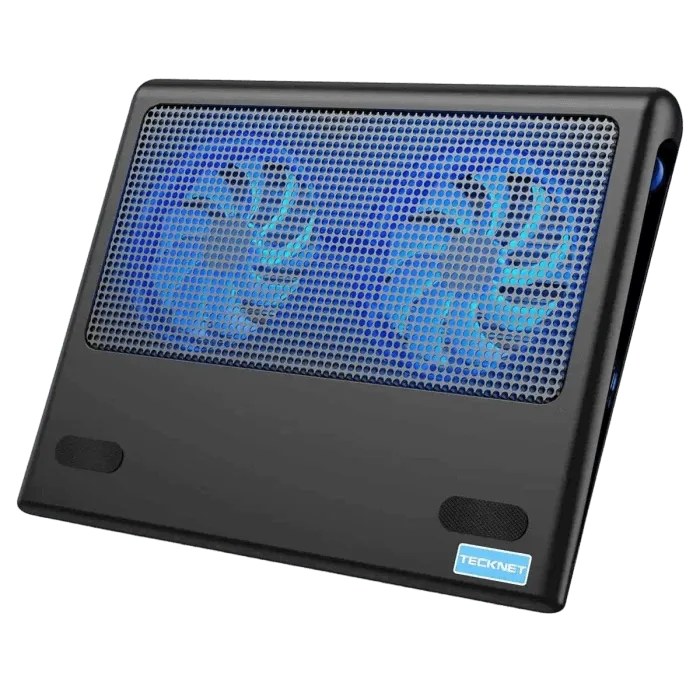
The TECKNET BASICS Laptop Cooling Pad is USB powered, so there is no mains power connection needed. The packaged cable is USB to USB. Before you position the pad, connect that cable to your laptop and check that the power switch turns the three 110mm fans on. The blue LED indicators help confirm the fans are running.
Because the pad draws power from USB, treat the laptop's USB port as part of your setup rather than an afterthought. If the pad does not spin up, verify the cable is fully seated at both ends and that the switch is on before assuming a fault.
What the supplied product record confirms
-
TECKNET BASICS Laptop Cooling Pad, Portable Slim Quiet USB Powered, with 3 Blue LED Fans, Fits 12''-17'' Laptop, Black: USB powered 110mm fans with a power switch design; no mains power connection needed. This is the core setup constraint: you need an available USB port on the laptop, and the switch is the first checkpoint if airflow does not start.
TECKNET BASICS Laptop Cooling Pad, Portable Slim Quiet USB Powered, with 3 Blue LED Fans, Fits 12''-17'' Laptop, Black
-
TECKNET BASICS Laptop Cooling Pad, Portable Slim Quiet USB Powered, with 3 Blue LED Fans, Fits 12''-17'' Laptop, Black: Three fans work at 1200 RPM to pull in cool air from the bottom. The pad is designed to move air upward from beneath the laptop, so placement should keep the underside and intake area unobstructed.
-
TECKNET BASICS Laptop Cooling Pad, Portable Slim Quiet USB Powered, with 3 Blue LED Fans, Fits 12''-17'' Laptop, Black: Double USB ports: one powers the cooler, the other can connect external devices such as a keyboard, mouse or audio. You can keep a peripheral connected without unplugging the cooler, but the second port is a pass-through convenience, not a separate power source for the fans.
A practical setup sequence
- Place the pad on a stable, flat surface: Set the cooling pad on your desk before loading the laptop. Rubber grips at the bottom are designed to keep the pad from sliding, and rubber grips also help keep the laptop from sliding on the pad.
- Choose one of the two tilt levels: The pad has 2 adjustable levels to lift and tilt the laptop for better viewing and increased comfort. Pick the level that suits your seated position, then confirm the laptop sits securely against the raised edge.
- Set the laptop on the pad: The pad is compatible with laptop sizes from 12 up to 17 inches, including models such as Apple MacBook Pro Air, HP, Alienware, Dell, Lenovo and ASUS. Center the laptop so its underside sits over the three fan positions.
- Connect the USB cable and switch on: Use the included USB-to-USB cable to connect the pad to the laptop, then turn on the power switch. Check the blue LED indicators to confirm the fans are running.
- Use the second USB port if needed: If you want to connect a keyboard, mouse or audio device, use the second USB port on the pad rather than unplugging the cooler.
Placement choices that support airflow
- Desk use: Keep the pad on a hard, flat surface and avoid pushing it against a wall or under a shelf where exhaust air could recirculate. The 1200 RPM fans pull air from the bottom, so leave the underside clear.
- Lap or soft surfaces: A soft surface such as a blanket or cushion can block the bottom intake. If you use the pad away from a desk, place it on something firm so the fans can draw air.
- Quiet operation: The product record describes the fans as ultra-quiet, but it does not supply a decibel rating. If noise is a priority, test the pad at your normal working distance before committing to a permanent desk position.
- Other devices: The supplied information also says the laptop fan can dissipate heat for a tablet, router or game console. Treat that as a secondary use, and confirm the device fits securely before relying on it.
What the setup record does not specify
The supplied information does not include a recommended distance from the laptop's vents, a fan-speed adjustment procedure, or a cleaning routine for the fans. It also does not confirm compatibility with USB-C-only laptops without an adapter, so check your laptop's available ports before buying. Where a detail is not confirmed here, treat it as something to verify with the product documentation rather than an assumed feature.