Quick Answer
To keep your laptop sleeve in top condition, regularly clean it according to its material, avoid overstuffing, and store it in a dry place. For travel, choose a sleeve with adequate padding and pair it with a surge protector like the Belkin 7 Outlet Surge Protector to safeguard your devices from power surges.
Your laptop sleeve is more than just a fashion accessory—it's the first line of defense for your valuable device. Whether you're commuting to work, heading to a coffee shop, or jetting off on a business trip, a well-maintained sleeve ensures your laptop stays scratch-free and protected from bumps and drops. But like any gear, a laptop sleeve requires proper care to maintain its protective qualities and extend its lifespan.
In this guide, we'll walk you through the essential steps for laptop sleeve care, from cleaning and maintenance to smart travel habits. By following these tips, you'll not only keep your sleeve looking great but also ensure it continues to shield your laptop effectively for years to come.
Why Laptop Sleeve Care Matters
A laptop sleeve is designed to absorb impact and prevent scratches, but its effectiveness diminishes if it's dirty, worn, or improperly used. Dirt and debris can accumulate in the fabric, causing micro-scratches on your laptop's surface when you slide it in and out. Additionally, a stretched or damaged sleeve may no longer fit snugly, reducing its protective capabilities.
Regular care not only preserves the sleeve's appearance but also ensures it continues to provide optimal protection. By investing a few minutes in maintenance, you can avoid costly repairs or replacements and keep your laptop safe during daily commutes and travels.
- Check your sleeve's material and care instructions before cleaning.
- Avoid overloading your sleeve with extra items like chargers and cables.
Step-by-Step Cleaning Guide
Cleaning your laptop sleeve depends on its material. For fabric sleeves, start by removing any loose debris with a soft brush or lint roller. Then, spot-clean stains using a mild detergent mixed with water. Dip a soft cloth into the solution, wring it out well, and gently dab the stained area. Avoid soaking the sleeve, as excess moisture can damage the padding or cause shrinkage.
For leather or faux leather sleeves, use a specialized leather cleaner or a mixture of water and mild soap. Apply with a soft cloth in circular motions, then wipe off any residue with a clean, damp cloth. Allow the sleeve to air dry completely before using it again. Never use harsh chemicals or abrasive scrubbers, as they can damage the material.
To maintain the sleeve's shape and protective padding, avoid machine washing unless the care label explicitly permits it. If machine washing is allowed, place the sleeve in a laundry bag and use a gentle cycle with cold water, then air dry. High heat from dryers can warp the padding and cause the sleeve to lose its fit.
- Always test cleaning products on a small, hidden area first.
- Stuff the sleeve with a towel while drying to help it retain its shape.
Maintenance Tips for Longevity
Regular maintenance goes beyond cleaning. Inspect your sleeve periodically for signs of wear, such as frayed seams, broken zippers, or thinning fabric. Address minor issues promptly—like re-stitching a loose seam—to prevent them from worsening. If the sleeve's padding becomes compressed or misshapen, consider replacing it to ensure continued protection.
Proper storage also plays a role in sleeve durability. When not in use, store your laptop sleeve in a cool, dry place away from direct sunlight, which can fade colors and weaken materials. Avoid folding or crushing the sleeve under heavy items, as this can deform the padding over time.
- Rotate between two sleeves if you use one daily to reduce wear.
- Keep your sleeve away from sharp objects that could puncture it.
Travel Tips to Protect Your Laptop Sleeve
When traveling, your laptop sleeve faces additional challenges. To minimize stress on the sleeve, pack it in a dedicated compartment of your backpack or suitcase, away from heavy items that could press against it. If you're flying, consider carrying your laptop sleeve in your personal item to avoid it being jostled in overhead bins.
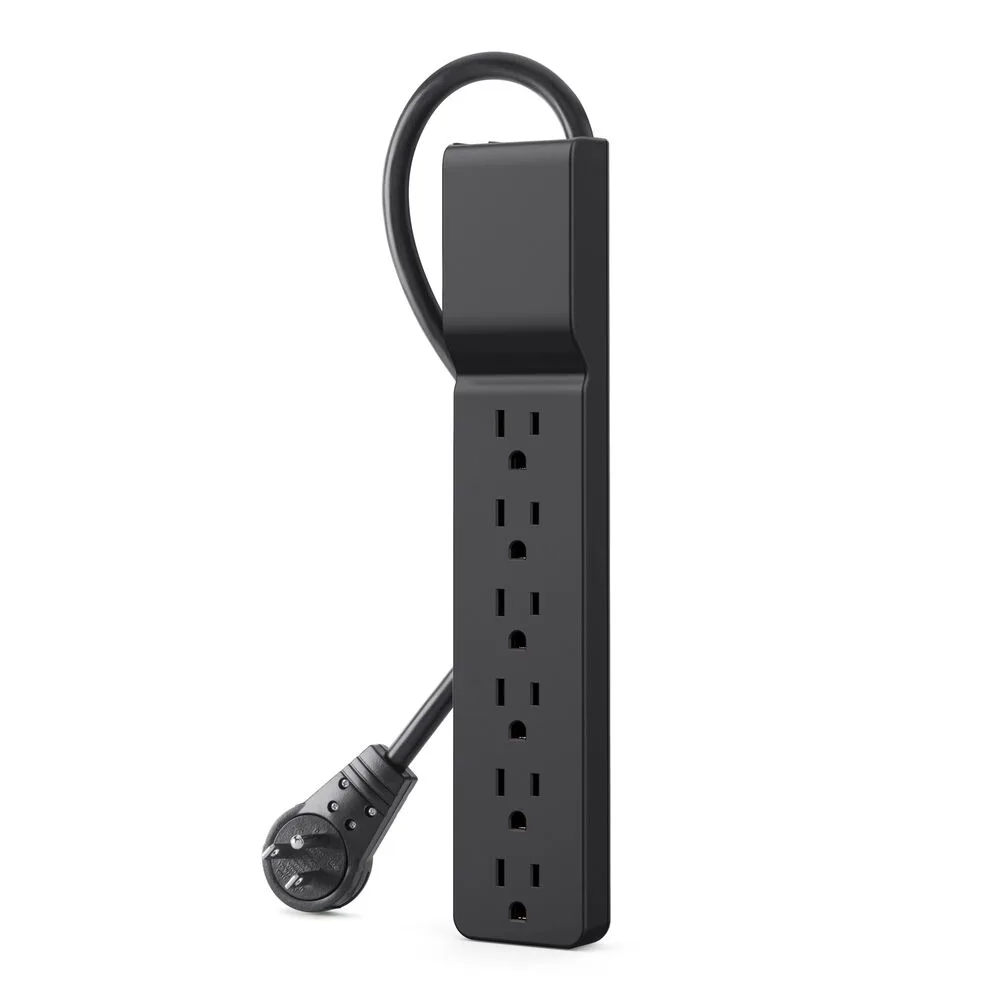
For extra protection during travel, you might also think about safeguarding your devices from power surges when you reach your destination. Using a surge protector like the Belkin 7 Outlet Surge Protector can help protect your laptop and other electronics from unexpected power spikes. Similarly, a compact surge protector with USB ports can keep your devices charged without cluttering your travel bag.
Additionally, avoid exposing your sleeve to extreme temperatures, such as leaving it in a hot car or near a heater, as this can damage the material and padding. If your sleeve gets wet, dry it thoroughly before storing to prevent mold and mildew.
- Use a water-resistant sleeve or add a rain cover for outdoor travel.
- Keep your laptop sleeve in a separate pocket to avoid scratches from other items.
Step-by-Step Laptop Sleeve Care Routine
- Step 1: Empty and Inspect: Remove your laptop and all items from the sleeve. Turn the sleeve inside out and check for debris, stains, or damage like loose threads or broken zippers. Catching issues early prevents them from worsening.
- Step 2: Clean According to Material: Use a soft brush or lint roller for fabric sleeves, and a damp cloth with mild soap for leather. Spot-clean stains gently without soaking the sleeve. Always test a small area first to avoid discoloration.
- Step 3: Dry Properly: Allow the sleeve to air dry completely in a well-ventilated area away from direct heat or sunlight. For fabric sleeves, you can stuff with a towel to maintain shape. Never use a dryer, as heat can damage padding.
- Step 4: Store Correctly: Store the sleeve in a cool, dry place, ideally flat or rolled without heavy items on top. Avoid folding to prevent creases and padding deformation. Proper storage extends the life of your sleeve.
- Step 5: Maintain Regularly: Every few weeks, inspect the sleeve for wear and tear. Re-stitch loose seams if possible, and replace the sleeve if padding becomes compressed or the material weakens. Regular maintenance ensures ongoing protection for your laptop.
Belkin Products That Complement Your Laptop Sleeve Care
- 7 Outlet Home/Office Surge Protector extended cord: 7 outlets provide ample space for multiple devices; surge protection rated at 2320 joules to help safeguard your electronics; includes a 12-foot extended cord for flexible placement. When you travel, protecting your laptop from power surges is just as important as physical protection. This surge protector ensures your devices stay safe when you plug in at hotels or offices.
- Surge Protector with USB-C and USB-A Ports (4 Outlet with 1 USB-C & 1 USB-A): 4 AC outlets provide ample space for your electronics and appliances; includes 1 USB-C and 1 USB-A port for convenient charging of smartphones, tablets, and other devices; delivers up to 18W of power. This compact surge protector is ideal for travel, allowing you to charge your laptop and other devices without needing multiple adapters, all while keeping them safe from power surges.
Caring for your laptop sleeve doesn't have to be time-consuming, but it pays off in the long run. By following these simple steps, you'll keep your sleeve looking great and your laptop safe on every journey. And don't forget to pair your sleeve with reliable power protection—check out the Belkin 7 Outlet Surge Protector to keep your devices safe wherever you go.